At its core, File Transfer Protocol (FTP) is just a standardised way of moving digital files from one computer to another over a network. Think of it as a specialised digital courier, designed from the ground up to upload, download, and manage the files that make up your website.
What Is FTP and Why Does It Matter for Your Website?
Imagine your website's server is a secure warehouse, and all the files that make up your site—images, text, and code—are the packages stored inside. FTP is the courier who has the keys and knows the exact route to deliver new packages (like uploading a new plugin) or pick up existing ones (like downloading a backup).
It's really the original method for managing your website's files directly on the server. Without FTP, simple but crucial jobs like uploading a large video file that your website's dashboard can't handle, or fixing a broken theme that has locked you out, would be a massive headache.
FTP gives you a direct, reliable line of access to your web hosting environment. This makes it an absolutely essential tool for both building your site and for ongoing website maintenance and support.
The Key Players in an FTP Transfer
To really get your head around how FTP works, it helps to know the main components involved in every single transfer. Each one has a distinct role in getting your files from point A to point B.
Here’s a simple breakdown of the core components that make FTP work.
The Key Players in an FTP Transfer
| Component | Role | Simple Analogy |
|---|---|---|
| FTP Client | The software on your computer (like FileZilla) that kicks off the transfer by sending commands. | The customer who places an order for a package pickup or delivery. |
| FTP Server | The software on your web host's machine that listens for commands and manages access to the files. | The warehouse manager who receives the order and gets the packages ready. |
| Commands | Specific instructions (like GET to download or PUT to upload) that tell the server what to do. | The delivery instructions on the order form, like "collect this package" or "deliver that package." |
Each part works with the others to create a seamless connection, allowing you to move files as if they were on your own computer.
Interestingly, the File Transfer Protocol was standardised way back in October 1985 through a document known as RFC 959. This was a pivotal moment in Australia's early internet history, creating the foundation for the kind of efficient file exchanges we now rely on for modern web hosting—like the cPanel hosting services we provide here at UpTime Web Hosting.

Performance you can feel, backed by clients who depend on it. Read how our support and uptime create long‑term customer success.Power Your Business with Better Hosting
How the FTP Client and Server Connection Works
To really get your head around FTP, you need to understand how its two main components talk to each other. The whole system is built on a client-server relationship. Essentially, the software on your computer (the client) gives instructions to your web server, and the server carries them out.
Think of an FTP client, like the popular FileZilla application, as a remote control for the files living on your hosting server.
What makes this relationship a bit different is that FTP uses a two-channel system to get the job done. Imagine you're on a phone call with a warehouse manager, telling them what to do. That phone call is one channel—the command channel. It's used only for sending and receiving instructions like "upload this file" or "delete that folder."
At the same time, the actual files are moved through a completely separate, dedicated delivery chute—the data channel. This separation is a core part of FTP’s original design, letting commands and data flow without tripping over each other.
This diagram shows the basic journey of a file from a client to a server using the FTP protocol.
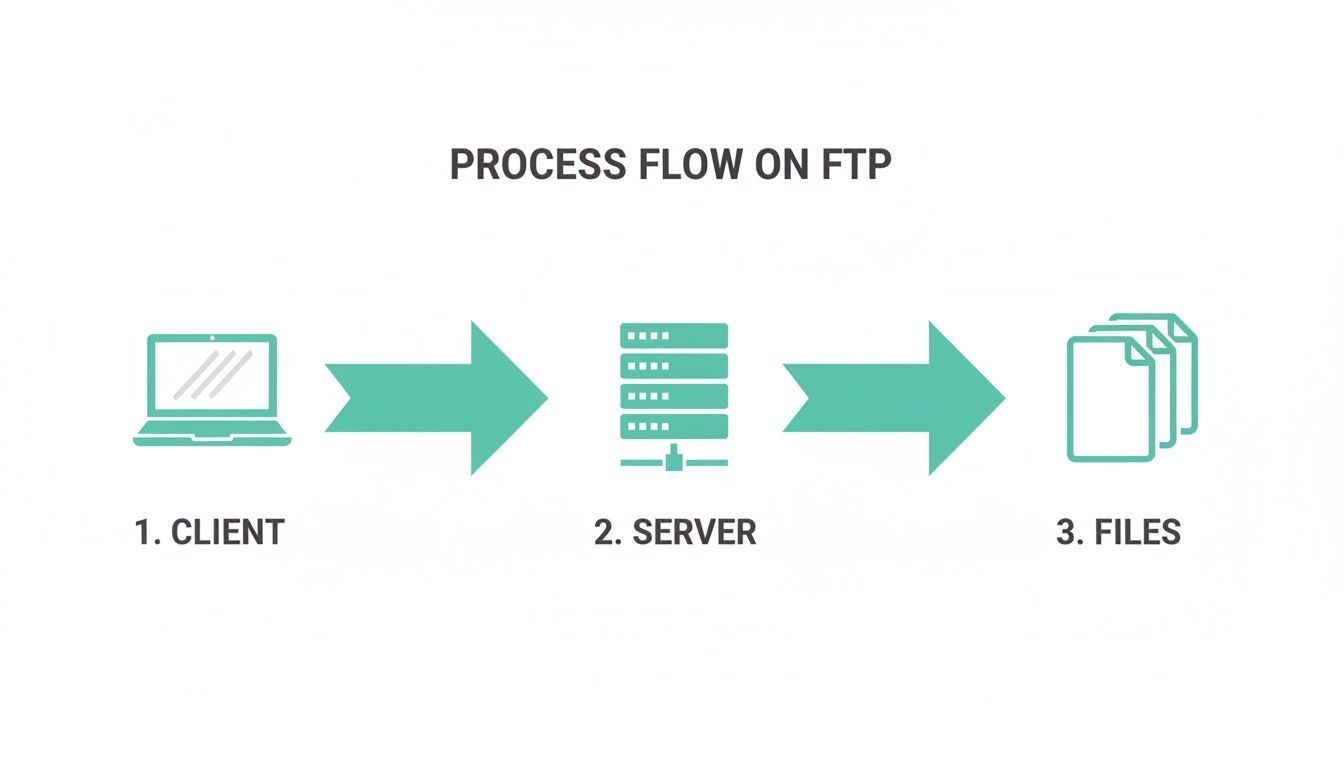
It’s a simple visualisation, but it clearly shows the client making a request, the server responding, and the files moving between them.
Active vs Passive FTP Connections
This two-channel system leads to two different ways the client and server can connect: Active and Passive modes. Knowing the difference is a game-changer for fixing common connection issues.
Active Mode: In this setup, the client opens a port and tells the server, "Hey, connect back to me on this port to send the data." This often runs into trouble with modern firewalls, which see the server's incoming connection as an unsolicited, potentially dodgy attempt to get into your network.
Passive Mode: This is the much smarter approach. The client asks the server to open a port on its end and send back the port number. The client then starts the data connection to that specific port. It's far more firewall-friendly because the connection is initiated from your end, which security software usually sees as safe.
For this reason, Passive mode is almost always the correct choice for modern FTP clients. If you're tearing your hair out trying to connect to your server, one of the very first things to check is that your client is set to Passive mode. You can find detailed guides on configuring FTP clients in our comprehensive knowledge base.
Switching to Passive mode is often the simple fix that prevents frustrating connection timeouts and gets your file transfers working smoothly, especially if you’re behind a standard home or office firewall.
Practical Uses for FTP in Managing Your Website
So, we've covered the technical side of FTP, but where does the rubber meet the road? For a website owner, the real value of FTP lies in its practical, day-to-day applications. While dashboards like cPanel and WordPress are brilliant for most tasks, think of FTP as your direct, powerful “backdoor” to the server files when those slick interfaces just can’t get the job done.
It’s like having a master key to your website's entire filing cabinet. This direct line of access is absolutely essential for tasks that are either a massive headache or flat-out impossible to do through a web browser. It puts you in the driver's seat, giving you total control over every file and folder sitting on your UpTime Web Hosting server.
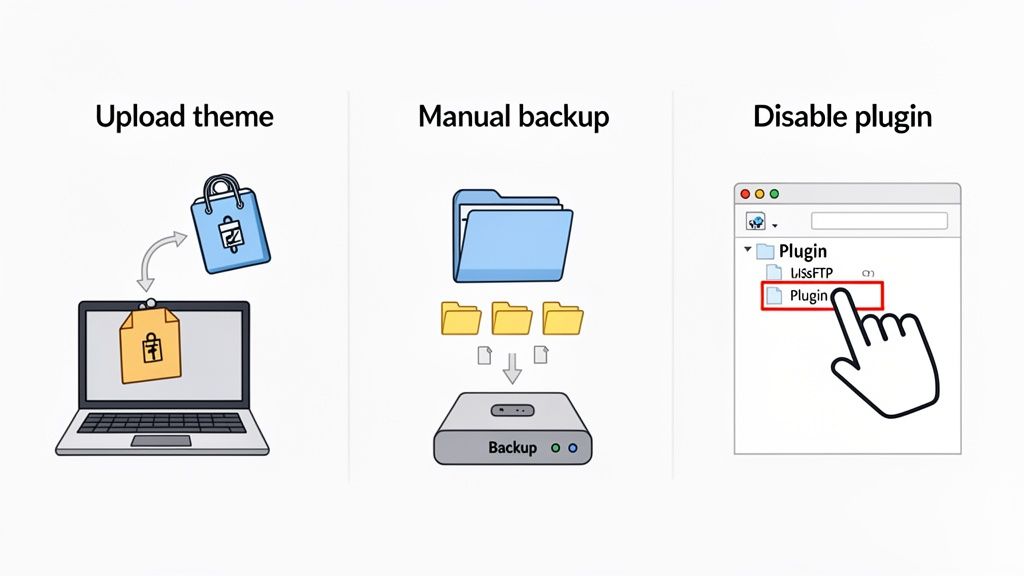
Common Scenarios Where FTP Saves the Day
To build a solid online presence, you first need solid hosting. For business owners, choosing the best WordPress website hosting is step one. Learning how to manage your files directly with FTP is the crucial next step.
Here are just a few common situations where having FTP in your toolkit isn't just helpful—it's a lifesaver:
Uploading Large Files: Ever tried to upload a hefty premium WordPress theme or a large video file, only to be hit with an upload limit in your dashboard? It's a common frustration. FTP completely sidesteps these limits, letting you transfer files of any size directly into the right folder on your server. Practical Example: A web developer can upload a 500MB video file to their client's
/wp-content/uploads/directory without facing PHP upload limits.Troubleshooting a Broken Site: We've all been there. A buggy plugin or theme update causes the dreaded "white screen of death," locking you out of your WordPress admin area completely. Panic sets in. But with FTP, you can calmly log in, navigate to the
wp-content/pluginsfolder, and simply rename the folder of the plugin causing the issue. Practical Example: Renaming/wp-content/plugins/buggy-pluginto/wp-content/plugins/buggy-plugin-disabledinstantly deactivates it, bringing the site back online.Performing Manual Backups: Automated backups are fantastic, but nothing beats the peace of mind that comes from having your own manual backup. With an FTP client, you can connect to your server and download the entire
public_htmldirectory and your database file straight to your local computer. This gives you a complete, offline snapshot of your entire website. For a deeper dive, check out our guide on how to backup a WordPress site.
In essence, FTP acts as your ultimate fallback plan. When visual interfaces fail or present limitations, FTP provides a reliable, direct connection to solve problems and manage your website files with precision and control.
Host your website with our 5-star rated, cPanel website hosting plans.
Super fast servers, with security included and hosted in your choice of Australian Data Center.
View cPanel Plans
How to Set Up Your FTP Account in cPanel
Alright, now that you’ve got a handle on what FTP is for, it's time to roll up your sleeves and get it working. The very first step is creating your access credentials, and thankfully, if you're with UpTime Web Hosting, this is a breeze using your cPanel control panel. This is your mission control for creating the login details your FTP client needs to shake hands with the server.
It's always a good idea—and a security must—to create a unique FTP account. Instead of using your main cPanel login, you can whip up a separate user that only has access to a specific folder, like a single website's directory. This is a brilliant way to protect your other sites and important server files from any accidental mishaps. For businesses wanting a rock-solid platform, our guide on cPanel hosting in Australia dives deeper into what makes it such a powerhouse.
The whole process is simple: log into cPanel, find the "FTP Accounts" icon, and fill in a few details to create your new user.
Creating Your First FTP User
Once you land on the FTP Accounts page in cPanel, you’ll be greeted with a straightforward form to add a new account. This is where you'll decide on a username, password, and, most importantly, which directory this user can access. Locking a user down to their specific folder is a non-negotiable security step.
Here’s what the 'Add FTP Account' interface generally looks like in cPanel.
As you can see, the screen lays out everything clearly: the new login details, a password strength meter, and the directory path. It’s all designed to be intuitive.
After the account is created, cPanel adds it to a list below the form. From here, you can manage your existing accounts, tweak passwords, or remove users you no longer need. The crucial part is the "Configure FTP Client" button—click on that, and it will give you the exact server details for the next step.
Connecting with an FTP Client
With your login details in hand, you'll need an application on your computer—an FTP client—to actually make the connection. These programs give you a simple, visual way to manage files, often with a drag-and-drop interface that feels just like moving files around on your own computer. Two of the most trusted and popular choices are FileZilla and Cyberduck.
Key Takeaway: Think of an FTP client as your window into the server. It uses the hostname, username, password, and port number you just set up in cPanel to create a stable connection, letting you manage your website's files directly.
To get connected, you'll need these specific details from your cPanel:
- FTP Server/Hostname: This is usually your domain name (e.g.,
yourdomain.com.au) or a specific server address provided by your host. - Username: The full FTP username you created (e.g.,
user@yourdomain.com.au). - Password: The secure password you set for the account.
- Port: For a secure connection, you'll want to use port 22 for SFTP or port 21 for FTPS.
For more detailed, step-by-step instructions made for specific clients, our extensive knowledge base has you covered. We have guides on connecting with FileZilla and other popular apps to make sure you can get connected without any guesswork. Following these steps will help you build a secure and efficient workflow for managing all your website files.
Understanding FTP Security and Modern Alternatives
While FTP is a foundational piece of internet history, its biggest weakness is a major deal-breaker in today's world: a complete lack of encryption.
Think of it like sending your login details on a postcard. Anyone who intercepts it can read your username, password, and all your files in plain text. This vulnerability makes standard FTP a significant risk you just shouldn't take with your website's data.
Fortunately, the core function of transferring files has evolved. At UpTime Web Hosting, we fully support the secure, modern protocols you should always use instead, ensuring your data is protected across all our web hosting packages.
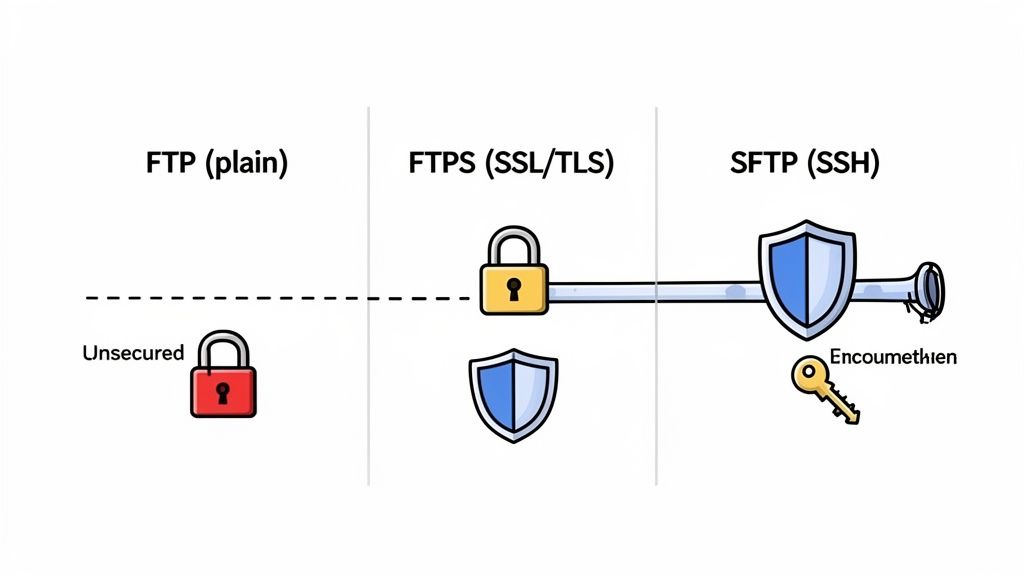
Meet The Secure Protocols: FTPS and SFTP
When you connect to your server, you need to use one of two secure options: FTPS (FTP over SSL/TLS) or SFTP (SSH File Transfer Protocol). Their names sound similar, but they're built on different technologies. Both, however, achieve the same critical goal: encrypting your connection from end to end.
- FTPS adds a layer of SSL/TLS encryption—the same technology that secures HTTPS websites—to the standard FTP protocol.
- SFTP is a completely different protocol that runs over the SSH (Secure Shell) protocol, encrypting both commands and data through a single, secure channel.
These days, it's helpful to think of "FTP" as the general process of file transfer, a process that is best performed securely using SFTP or FTPS. Diving deeper into general website security practices is always a smart move for any site owner looking to protect their digital assets.
FTP vs FTPS vs SFTP: Choosing The Right Protocol
So, which one should you use? The short answer is: whichever secure option your host provides. Here's a head-to-head comparison to help you understand the differences and make an informed choice.
| Feature | Standard FTP | FTPS (Secure) | SFTP (Secure) |
|---|---|---|---|
| Encryption | None (Plain Text) | SSL/TLS | SSH |
| Security Level | Very Low | High | High |
| Primary Port(s) | 20, 21 | 21, 990 + dynamic ports | Single port (usually 22) |
| Technology | Client-Server | FTP with SSL/TLS wrapper | Entirely separate SSH protocol |
| Firewall Friendliness | Can be complex | Can be complex | Very friendly |
For most people, the choice comes down to what your hosting provider supports. At UpTime Web Hosting, we offer both, giving you flexibility. SFTP is often slightly easier to configure with firewalls as it uses just one port (usually port 22) for all communication, which simplifies things.
The crucial takeaway is that you must use a secure protocol. Sending your credentials and files unencrypted is an unnecessary risk that compromises your entire website. Protecting this data is a core part of our commitment to cybersecurity and data protection.
The commercial significance of secure data handling is clear. Australia's Managed File Transfer (MFT) market, which evolved directly from these foundational FTP technologies, reached a valuation of approximately USD 65 million in recent years. This just underscores how vital secure protocols are in modern business and web hosting.
Solving Common FTP Connection Problems
Even when you're sure you've got the right credentials, running into a connection error is incredibly frustrating. The good news is that most FTP issues boil down to a handful of common culprits, and they're usually simple to fix.
Let's walk through the most frequent problems you'll encounter and the clear, actionable steps to get you connected and back to managing your files. For a deeper dive, our knowledge base article on troubleshooting FTP connections can provide more detailed solutions.
Connection Timed Out
This is probably the most common error message of them all, and it almost always comes down to your connection mode. Seeing a "Connection timed out" message typically means a firewall somewhere is blocking the data channel from opening correctly.
The quickest fix is to make sure your FTP client is set to Passive mode. As we covered earlier, this mode is far more firewall-friendly. It tells the server to open a port that your client then connects to—an action that most security software sees as safe and non-threatening.
Authentication Failed
An "Authentication failed" or "530 Login incorrect" error seems straightforward, but it's not always a simple case of a wrong password. Before you rush off to reset your password in cPanel, it’s worth double-checking these common slip-ups:
- Server Address: Have you typed
ftp.yourwebsite.com.auwhen it should just beyourwebsite.com.au? This small detail trips a lot of people up. - Username: Check that you've entered the full username. Often, this includes your domain (e.g.,
user@yourwebsite.com.au), not just the 'user' part. - Copied Credentials: Be really careful of extra spaces that sneak in when you copy and paste your password or username. It's a classic mistake!
Sometimes, persistent connection issues can also be a symptom of a broader network problem. If you've triple-checked your FTP settings and are still stuck, it might be worth investigating if a DNS not responding error is preventing you from reaching the server in the first place.
Permission Denied
What if you can connect just fine, but the moment you try to upload a file, you get hit with a "Permission denied" or "550" error? This isn't a problem with your login details; it's a file permissions issue on the server.
It simply means the folder you're trying to upload to doesn't allow your user account to write files there. You can usually fix this by right-clicking the folder in your FTP client, selecting "File Permissions" (or something similar), and setting the numeric value to 755. Practical Example: If you cannot upload an image to your WordPress /uploads/ directory, changing that folder's permissions to 755 via FTP will almost always resolve the issue.
Register your new domain name at competitive market prices including free domain add-ons like privacy, DNS Hosting, Custom Nameservers and Forwarding.
Always the best price and no nasty renewal price hikes.
Register A Domain Name
Still Got Questions About FTP?
Let's wrap things up by tackling some of the most common questions people ask when they're getting their head around FTP. These quick answers will help lock in the key ideas we've covered.
Should I Still Use FTP Today?
In a word? No. You should absolutely avoid using plain, unencrypted FTP. It's just not safe for today's internet.
However, its secure successors, FTPS and SFTP, are modern, essential standards for file transfer. They're highly recommended for managing your website files securely. Think of it as an evolution—the core function is alive and well, but it's now wrapped in strong encryption. All UpTime Web Hosting services fully support these secure protocols. You can find out more in our knowledge base.
What Is the Difference Between an FTP Client and a Server?
It’s a simple relationship, really.
- The FTP Server is the powerful computer where your website files live—it's a core part of your hosting package with us. It sits there, waiting for instructions.
- The FTP Client is the app on your own computer (like FileZilla) that you use to connect to that server and manage your files. It’s what you use to give the commands.
Essentially, the client is the remote control, and the server is the machine you're controlling from afar.
The client sends the commands, and the server executes them. This fundamental client-server model is what makes remote file management possible, allowing you to update your website from anywhere in the world.
Do I Always Need FTP to Manage My Website?
Not for everything, no. Your cPanel File Manager or the WordPress dashboard are fantastic for many day-to-day tasks, like uploading a single photo or quickly editing a text file.
But, a secure FTP connection (specifically SFTP or FTPS) becomes your best friend when you need to:
- Upload large files or entire folders that would time out in your browser.
- Download a complete backup of your website for safekeeping.
- Fix a critical error that has locked you out of your website's admin area.
It's an indispensable tool in any serious website owner's toolkit. When other methods fail or aren't practical, FTP is the reliable fallback that gets the job done.
Ready to manage your website with a secure, reliable, and easy-to-use platform? At UpTime Web Hosting, we provide fast Australian hosting with all the tools you need, including secure FTP access and expert local support. Explore our hosting plans today at https://uptimewebhosting.com.au.