That gut-sinking feeling when you see "can't connect to this network" pop up is all too familiar. But before you start spiralling into a technical rabbit hole, take a breath. More often than not, the culprit is a simple glitch, and the fix is surprisingly quick.
Your First Steps for Network Connection Errors
It’s tempting to jump straight into complex network settings, but honestly, that's rarely where the solution lies. Always, always start with the basics. You'd be amazed how often these simple checks get you back online without any technical wizardry.
The most powerful tool in your arsenal? The classic reboot. It sounds almost too simple, but turning your computer, phone, and Wi-Fi router off and on again is incredibly effective. This one action clears out their temporary memory (the cache), wiping away any minor software bugs or data conflicts that are blocking the connection. Think of it as giving your gear a fresh start.
Refresh Your Connection Details
If a full reboot doesn't do the trick, the next logical step is to force your device to forget the network entirely. This deletes the saved Wi-Fi profile, including the password and any specific configurations it was holding onto. Sometimes, these saved profiles just get corrupted over time.
Making your device forget and then re-add the network forces a completely new handshake with the router, often solving the problem right away.
While you're at it, a couple of other things are worth checking:
- Check Your Password: We've all done it. A simple typo can bring everything to a grinding halt. Passwords are case-sensitive, so make sure Caps Lock isn't on and you've typed it in perfectly.
- Move Closer to the Router: Physical distance and obstacles like thick walls or even a microwave can seriously weaken your Wi-Fi signal. If you're on the edge of the signal's range, it might be too weak to establish a stable connection. Try moving closer and see if that helps.
This simple decision tree is a great way to visualise that initial troubleshooting process.
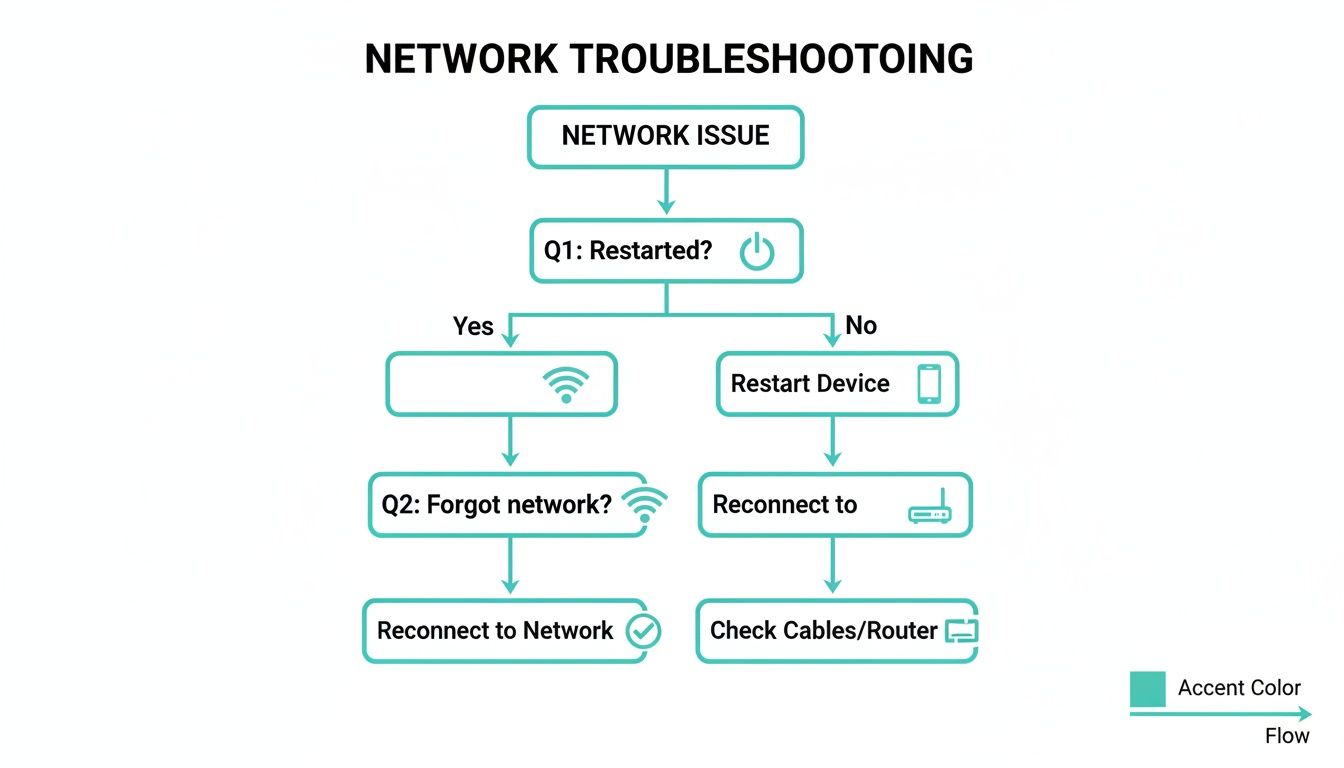
As you can see, a device restart and "forgetting" the network are your go-to first moves. They resolve the vast majority of connection hiccups.
To get you started, here's a quick checklist of the first things you should always try.
| Initial Troubleshooting Checklist for Connection Errors |
| :— | :— | :— |
| Action | Why It Works | Common Devices |
| Restart your device | Clears temporary memory and resolves minor software glitches. | Windows PC, Mac, iPhone, Android |
| Power-cycle your router/modem | Resets the router's internal components and connection to your ISP. | All routers and modems |
| "Forget" the Wi-Fi network | Deletes a potentially corrupted network profile, forcing a fresh connection. | Windows, macOS, iOS, Android |
| Double-check the password | A simple typo is a very common reason for connection failure. | All devices connecting via password |
| Move closer to the router | Improves signal strength, which might be too weak to connect properly. | Laptops, phones, tablets |
These steps are your first line of defence and will solve the problem most of the time without needing to dive any deeper.
When the Simple Fixes Don't Work
Okay, so you’ve tried the basics and you’re still staring at that dreaded error message. What now? Sometimes, the problem isn't with your device or the Wi-Fi signal itself, but with how your network finds websites on the internet.
If you’ve gone through the initial steps and still can't connect to this network, the issue might be with your DNS settings. This is a slightly more technical area, but it's often the next culprit. To get a better handle on this, you can learn more about what to do when your DNS servers are not responding in our detailed guide. It’s a crucial next step when the easy fixes haven't worked.
Solving Device-Specific Network Connection Errors
If the quick fixes didn't get you back online, it's time to look a bit deeper. The problem probably isn't the network itself, but something specific to the device you're using.
This is where you need to get targeted. A fix for a Windows laptop is completely different from what you'd do on an iPhone, so let's break it down by operating system.
Fixing Connection Errors on Windows PCs
For anyone using Windows, your first port of call should always be the built-in Network Troubleshooter. It might seem basic, but it's surprisingly good at sniffing out and automatically fixing the most common connection glitches. Just search "Troubleshoot network" in the Start Menu to run it.
If the troubleshooter comes up empty-handed, the next suspect is usually your network adapter drivers. An outdated or corrupted driver is a classic cause of these stubborn connection failures. You'll want to head into the Device Manager.
- Search for "Device Manager" in your Start Menu and open it up.
- Find and expand the "Network adapters" section.
- Right-click on your Wi-Fi adapter (it'll usually have "Wireless" or "Wi-Fi" in the name) and choose "Update driver".
- Let Windows do the heavy lifting by selecting "Search automatically for drivers".
Pro Tip: If Windows tells you the best drivers are already installed, don't always take its word for it. It's well worth visiting your computer manufacturer's website (like Dell, HP, or Lenovo) and downloading the latest network drivers directly from their support page. They often have more specific and up-to-date versions.
Troubleshooting Network Issues on a Mac
On macOS, there’s a powerful but often-missed tool called "Network Locations". This is perfect for troubleshooting because it lets you create a completely fresh profile for your network settings without wiping your existing ones.
Think of it as giving your Mac a clean slate for its network connections. Go to System Settings > Network, click the three-dots menu (…) at the bottom, and select "Locations > Edit Locations…". Click the '+' icon, give the new location a simple name like "Test," and then try connecting to your Wi-Fi again.
Resetting Network Settings on Mobile Devices
For both iOS and Android users, the "Reset Network Settings" option is your best friend when you can't connect. This is the go-to fix for most mobile connection headaches. It wipes all your saved Wi-Fi networks, passwords, mobile data settings, and any VPN configurations, forcing your phone to start over.
Don't worry, this will not delete your photos, apps, or contacts. It only resets network-related data, making it a very safe and effective troubleshooting step.
Of course, sometimes the problem is physical, not digital. A nasty drop or an unfortunate encounter with water can easily damage the tiny internal Wi-Fi components. If your device had a recent accident and now won't connect, you might need a professional's help. This guide on how to fix a water-damaged phone has some great advice for that specific situation.
A targeted approach like this can also help you figure out if the problem isn't your network at all, but a specific app. For instance, the ERR_CONNECTION_RESET error looks like a network failure but often only happens in your web browser. We've put together a detailed guide on our knowledge base that explains how to diagnose and solve the ERR_CONNECTION_RESET error, which is handy if your connection issues seem isolated to web browsing.

Performance you can feel, backed by clients who depend on it. Read how our support and uptime create long‑term customer success.Power Your Business with Better Hosting
Untangling IP Address and DNS Conflicts
When the basic fixes don't cut it, that frustrating "can't connect to this network" message often signals a deeper communication breakdown. Think of the internet like a postal service. Your device needs a unique street address (its IP address) and a reliable directory (the Domain Name System or DNS) to find its way to websites. If there's a problem with either, your connection request essentially gets lost in the mail.
This kind of digital mix-up is more common than you might think. A staggering 15.9% of Australians report frequent connectivity issues that mess with their daily internet use. For any business that relies on a stable connection to manage their eCommerce store or jump into their WordPress dashboard, these disruptions are far more than just a minor inconvenience. You can dig deeper into Australia's digital connectivity challenges in this detailed report.
Giving Your Network Identity a Fresh Start
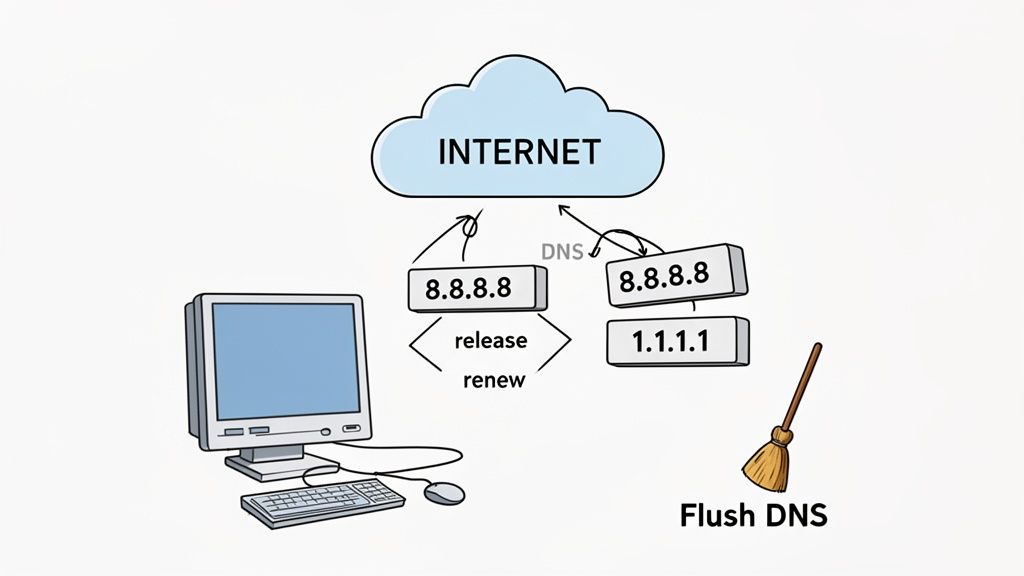
Often, the simplest way forward is to just ask your network for a new IP address and clear out any old, stored DNS information. It's a two-pronged approach that acts as a powerful reset for your device's network identity, forcing it to establish a clean connection from scratch.
- Release and Renew Your IP Address: This is the go-to fix for IP conflicts, which can happen if two devices on your network accidentally get assigned the same address. Essentially, you're telling your device to let go of its current IP and request a brand new one from the router.
- Flush Your DNS Cache: Your computer keeps a local list of websites and their IP addresses to speed things up. But if this cache has old or wrong information, it can stop you from reaching a site even when it's perfectly fine. Flushing the cache clears this list out, making your device look up the correct address again.
Don't worry, this process won't change any permanent settings or touch your personal data. It’s a completely safe and highly effective way to resolve those hidden conflicts that are keeping you offline.
Upgrading Your DNS for Better Performance
If flushing the cache doesn't do the trick, the problem might lie with the DNS servers your Internet Service Provider (ISP) gives you. They're usually reliable, but they can get slow, overloaded, or even have temporary outages. A brilliant alternative is to switch over to a free, public DNS provider.
Two of the most popular and trusted options out there are:
- Google Public DNS: It’s known for being fast and incredibly reliable, making it a solid choice for pretty much anyone.
- Cloudflare DNS (1.1.1.1): This one puts a big emphasis on privacy and is often ranked as one of the fastest DNS services you can get.
Changing your DNS is a simple tweak in your device's settings. Not only can it fix your connection error, but it can also lead to faster and more dependable browsing overall. For a business, this can mean quicker access to crucial services like your cPanel or client websites.
While the IP address your router hands out is usually dynamic, it's helpful to understand the difference. Check out our guide on static vs dynamic IP addresses to get a better handle on how your devices get their unique identifiers on a network.
If you've checked your devices and they're all clear, it's time to look at the heart of your network. Often, the problem isn't with your computer or phone at all. The real culprit could be the hardware that brings the internet into your home or office—your modem, router, or even an issue with your Internet Service Provider (ISP).
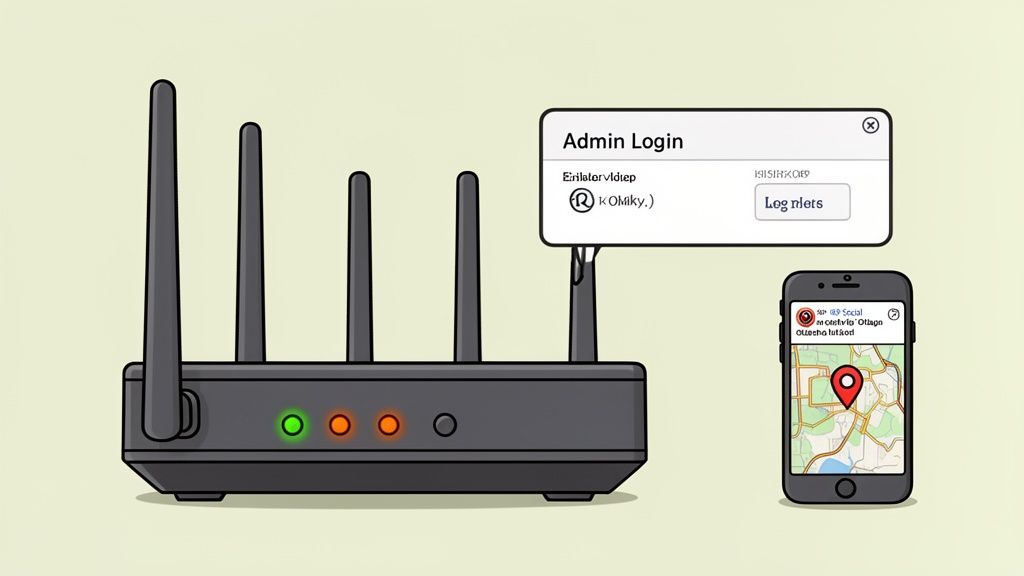
First things first, have a quick glance at the status lights on your router and modem. Those little blinking lights are more than just decoration; they're your first diagnostic tool. While the exact colours and symbols can differ between brands, they usually follow a pretty standard script. A solid green or blue light typically means you're good to go, whereas a blinking orange or red light often signals trouble, like no internet signal from your provider.
Keeping Your Router's Firmware Updated
Just like your computer or smartphone, your router runs on its own software, known as firmware. When this firmware gets outdated, it can cause all sorts of headaches—poor performance, security holes, and yep, that infuriating "can't connect to this network" error.
To see if an update is available, you'll need to log into your router's admin panel. You can usually do this by typing its IP address into your web browser. Once you're in, hunt for a section labelled "Firmware Update," "Router Update," or something along those lines. Running the latest update is a crucial bit of maintenance that keeps your router performing well and securely.
Key Takeaway: Don't skip the router maintenance. A quick firmware check can often solve those stubborn connection problems that device-level troubleshooting just can't seem to fix. It’s a simple step that gives you a big boost in both stability and security.
Identifying a Wider Internet Outage
Before you spend hours pulling your hair out over your own equipment, it’s always worth checking if the problem is bigger than just your connection. A widespread outage with your ISP can look exactly like a local network failure on your end. It's a growing issue for Australian businesses, too. Global ISP outages actually jumped by 10% in early 2024, and major international incidents can easily create a ripple effect that hits us Down Under.
You can save yourself a lot of time by doing a few quick checks:
- Outage Tracking Websites: Sites like Downdetector are goldmines. They let users report service issues, so you get a real-time view of whether others in your area are experiencing the same thing.
- Your ISP's Social Media: Many providers, like Telstra or Optus, use their social media feeds to post updates about known network problems and scheduled maintenance.
- Official Network Status Pages: Most major ISPs have a dedicated network status page. For our customers, we offer a straightforward way to check for any service interruptions. You can see our guide on how to use our Network Status tool to keep in the loop.
Confirming a widespread NBN or ISP outage early on stops you from wasting time on fixes that won't work anyway. If the problem is external, the only real solution is to hang tight and wait for your provider to sort it out.
How Security Software and Firewalls Can Block Your Connection
It’s one of those ironies of the digital world: the very software designed to protect you can sometimes be the reason you can't connect to this network. Your antivirus, firewall, and even your VPN can get a bit overzealous, flagging a perfectly safe network as a threat and promptly blocking your access.
This happens a lot when you try to connect to a new Wi-Fi network, like at a local café, a hotel, or a client's office. Your firewall might not recognise it, so it errs on the side of caution and stops your device from making a proper connection. In the same way, a VPN client can sometimes clash with your existing network settings, causing the whole connection to fail.
Safely Testing for Security Software Conflicts
To figure out if your security suite is the culprit, you'll need to run a quick, temporary test. The goal here is to briefly disable your security software and see if the connection problem magically vanishes. Remember, this is purely for diagnosis – you need to switch everything back on immediately afterwards.
Here’s a safe way to go about it:
- Temporarily Disable the Firewall: Head into your antivirus or security software's settings and look for the option to turn off the firewall. It's usually a simple on/off toggle.
- Try to Connect: With the firewall off for a moment, try joining the network again.
- Re-Enable Immediately: Whether it worked or not, turn your firewall straight back on. You should never browse the internet without your firewall active.
If you can connect with the firewall disabled, you've found the root of the problem. You can then dive back into your firewall's settings and add an exception or a rule that tells it to trust the network you're trying to join. You can learn more about how vital this layer of defence is by exploring comprehensive anti-virus protection for your business.
It's important to distinguish between your local software and server-side security. Our hosting, for instance, uses powerful server-side firewalls and DDoS protection to guard your website. This is completely separate from the software on your own computer that might be causing this local connection error.
This kind of problem can be particularly frustrating in certain areas. The digital divide in regional Australia often adds another layer to connection troubles, with up to 30.5% of people in very remote areas reporting constant disruptions. For a small business in the WA outback, unreliable access turns simple tasks like updating a WordPress site or managing an online store into a major headache. You can find more insights into Australia's digital inclusion gaps in the 2024 DataReportal summary.
You’ve tried everything. You’ve rebooted, reconfigured, and maybe even pleaded with your devices, but that infuriating “Can't connect to this network” error just won't go away. It’s time to call for backup.
But who, exactly, do you call? Getting this right is the key to a fast fix. Calling the wrong support team can send you down a rabbit hole of frustrating phone transfers and wasted time. The trick is to figure out where the problem actually is.
First, let's work out the scope of the outage. Is it just one computer acting up, or has your entire digital life gone offline? If your phone has no Wi-Fi, your laptop can't load a single website, and your smart TV is just a black screen, the culprit is almost certainly your Internet Service Provider (ISP). That points to a bigger issue with the internet connection coming into your building.
Hosting Support vs ISP Support
Now, here’s a scenario we see all the time. Your internet seems fine. You can browse the news, scroll through social media, and stream videos without a problem. But when you try to access your company website, check your business email, or log in to cPanel, you hit a brick wall.
If that’s what’s happening, the issue is very likely on the web hosting side of things. Your local network and your ISP connection are doing their job, but something is blocking the specific connection between you and our servers.
When you do reach out for help, you'll often first interact with an automated service desk. These systems are designed to gather the basic details of your issue, making sure you get routed to the right specialist without delay.
Crucial Distinction: Your ISP gets you connected to the internet. Your hosting provider, like us here at UpTime Web Hosting, makes sure your website and online services are visible to the internet. Understanding this difference is half the battle.
When the signs point to a hosting problem, that’s our cue. Our Australian-based team is ready to jump in and help you figure it out, without the technical runaround.
- For General Queries: Our Knowledge Base is your first port of call. It’s absolutely packed with guides and quick fixes for the most common issues we see.
- For Specific Issues: If your problem is a bit more unique, lodging a ticket through our Support Page is the most efficient way forward. This lets us track your issue properly and get the best person on the case.
- For Urgent Help: Sometimes you just need to talk to a real person. For those moments, you can call our local team directly on our 1300 number.
Host your website with our 5-star rated, cPanel website hosting plans.
Super fast servers, with security included and hosted in your choice of Australian Data Center.
View cPanel Plans
Got More Questions About Connection Errors?
Even after running through all the troubleshooting steps, a few tricky questions can pop up. Let's tackle some of the most common ones we hear about that frustrating "can't connect to this network" error.
Why Won't It Connect When I Know the Password Is Right?
This is easily the most maddening scenario. You're 100% certain you've typed in the correct password, yet your device just refuses to connect. When this happens, it almost always points to a data mismatch or a temporary software glitch getting in the way.
The most common culprits are usually:
- A scrambled network profile: Your device saves the settings for every network you join. Sometimes, this saved data gets corrupted and stops the connection from working, even with the right password.
- An IP address clash: Your router might have accidentally given the same internal IP address to two different devices on your network, causing a sort of digital traffic jam.
- Outdated network drivers: The software that lets your device's Wi-Fi adapter talk to the network could have a bug that a quick driver update will sort out.
The best first move is nearly always to "forget" the network on your device. This deletes the old, potentially corrupted profile and forces your device to create a fresh one when you reconnect.
Will I Lose My Data if I Reset My Network Settings?
No, you won't lose any of your personal files. It’s a common worry, but the "Reset Network Settings" function on iOS and Android is very specific about what it touches. It only wipes network-related configurations.
Resetting your network settings will clear out all your saved Wi-Fi networks and their passwords, any custom mobile data settings, and all paired Bluetooth devices and VPNs. Your photos, contacts, emails, apps, and messages will be completely safe. Think of it as a powerful way to give your network connections a clean slate.
Could a VPN Be Causing This Connection Error?
Absolutely. A VPN is a very common reason for this exact problem. It works by creating a secure tunnel for your internet traffic, but if that tunnel fails to establish properly, it can block your device from joining a local Wi-Fi network at all.
Try turning your VPN off for a moment, then connect to the Wi-Fi. If it works, you know the issue is with your VPN's settings or its connection to its own servers.
How Do I Know if It's My Device or the Router?
The simplest way to figure this out is to use another device as a test. Grab your smartphone and try to connect it to the same Wi-Fi network.
If your phone connects without a hitch while your laptop still can't, the problem is definitely with your laptop. But if none of your devices can get online, the issue is almost certainly with your router, modem, or the service from your internet provider.
When in doubt, you can always check our Knowledge Base for more advanced guides.
When you've tried everything and the issue seems to be affecting your website or business email, our local Australian support team is ready to help. At UpTime Web Hosting, we're all about providing fast, secure, and reliable hosting to keep your business online. Visit our support page to get the expert help you need.