Sending an important email can sometimes feel like shouting into the void and hoping for the best. An Outlook read receipt is your way of getting a quiet nod back, a simple notification confirming your message has been opened. For critical communications, this feature can be a game-changer, but its power lies entirely in the recipient's choice to send that confirmation back.
Understanding How Outlook Read Receipts Really Work
At its heart, a read receipt is just a small request you attach to an outgoing email. When your recipient opens the message, their Outlook client will ask if they want to send a confirmation. It's a pretty straightforward tool, but its real value comes from knowing when and why to use it.
Think of it less as a foolproof tracking device and more as a professional courtesy for high-stakes communication.
For example, imagine you're an accountant sending final tax documents to a client with a strict deadline. Requesting a read receipt Outlook provides gives you peace of mind that your message didn't get buried in a spam folder. It confirms the first, crucial step of engagement—the open—letting you know they've seen the documents before you follow up with a call to discuss them. Similarly, a project manager might use it to confirm that all team members have seen an urgent change of scope document.
The Reliability Factor
But, and this is a big but, it's vital to understand the limitations. A read receipt is never a guarantee. The recipient always has the final say and can decline the request with a single click. In fact, many organisations even set up their email clients to automatically ignore these requests to protect employee privacy.
This is why you can't just assume a lack of a receipt means your email is sitting unread. It just means the status is unknown. This is where the initial delivery of your message becomes paramount. Before you even start worrying about whether it was opened, you need to be confident your email actually reached their server in the first place. For more on this, you can check out our knowledge base article on how to check the health of your email deliverability.
A read receipt confirms an action, not intent. It tells you an email was opened, but it can't tell you if it was understood, actioned, or even read carefully. Use it as one of several communication checkpoints, not the only one.
Outlook Read Receipts At a Glance
To give you a clearer picture, here’s a quick rundown of what Outlook's read receipts can—and can't—do for your business communication.
| Capability | What It Does | What It Doesn't Do |
|---|---|---|
| Confirms Opening | Sends a notification when the recipient’s email client registers the email as opened. | Guarantee the email was read thoroughly or understood. |
| Indicates Delivery | Implicitly confirms the email successfully reached the recipient's inbox (if a receipt is sent). | Provide delivery failure notifications (that’s the job of bounce-back messages). |
| Provides a Timestamp | Tells you the exact time the email was opened, which is useful for timing follow-ups. | Track how long the email was open or if it was revisited. |
| Acts as a Signal | Can signal that a time-sensitive or important message has been seen. | Force a response or action from the recipient. |
Ultimately, it’s a helpful signal, but it’s not the whole story. Treat it as one piece of the communication puzzle.
A Key Tool for Australian Businesses
Here in the Australian business world, read receipts are a common tool for small and medium enterprises that live and breathe by email. This is especially true for businesses hosted on local providers like UpTime Web Hosting, with our servers across Sydney, Melbourne, Brisbane, and Perth ensuring fast delivery.
A 2023 report on digital adoption found that 78% of Australian SMEs use Microsoft Outlook for their business email. Of those, 62% of professional accounts have read receipt requests enabled to help them track important client communication. For more insights, you can check out what Microsoft has to say about email open rates.
While getting the hang of read receipts is great for email tracking, it’s just as important to follow robust email security best practices for all your communications. Services like Go-Safe AI offer advanced threat protection that complements your standard practices, ensuring your messages arrive safely, which makes that read receipt an even more meaningful signal when you get it.

Performance you can feel, backed by clients who depend on it. Read how our support and uptime create long‑term customer success.Power Your Business with Better Hosting
Requesting a Read Receipt on Any Device
Figuring out how to enable a read receipt Outlook provides shouldn't feel like a chore. The process does change a little depending on which version of Outlook you’re using, but the core idea is exactly the same. Whether you need confirmation for one crucial email or want to track every message you send, the options are built right in across all your devices.
Let's jump into the specific steps for the most common versions of Outlook, so you can confidently get that confirmation whenever you need it.
Outlook for Windows (Desktop App)
The desktop version of Outlook for Windows gives you the most precise control. You can either pop a receipt request onto a single message or set a global rule to cover all your outgoing emails.
- For a single email: While you're composing a new message, head up to the Options tab in the ribbon. In the "Tracking" group, just tick the box for Request a Read Receipt. Easy.
- For all future emails: To make this your default setting, go to File > Options > Mail. Scroll down until you find the "Tracking" section and tick the box that says, "Read receipt confirming the recipient viewed the message".
A word of caution, though: setting this for all emails can sometimes come across as a bit intrusive to your contacts. For example, a lawyer requesting a receipt for a confidential document makes sense, but a colleague doing it for a lunch invitation can feel like overkill. It’s best to save it for those genuinely critical messages.
Outlook for Mac
If you're on a Mac, you have similar options, even if the interface looks a bit different. Apple's own Mail app famously doesn't have a native read receipt feature, which is a big reason why many professionals on macOS lean on Outlook to get the job done.
When you’re writing a new email in Outlook for Mac, find the Options tab in the composition window. From there, select Request Receipts, and then simply choose Request a Read Receipt. This per-message approach is perfect for targeted tracking without making every email feel like an interrogation. Juggling multiple mailboxes on a Mac can get messy; if you need to tidy things up, check out our guide on how to add a mailbox in Outlook.
Outlook on the Web (OWA)
For those who live in their web browser, the option is just a few clicks away in Outlook on the Web. While you’re composing your message, look for the three-dot menu (...) in the toolbar at the top.
Give that a click, then select Show message options. A new menu will pop up—just tick the box for Request a read receipt. This setting only applies to the email you're currently writing, which encourages you to use the feature with intention.
This flowchart breaks down the simple, yet often uncertain, path of a read receipt request.
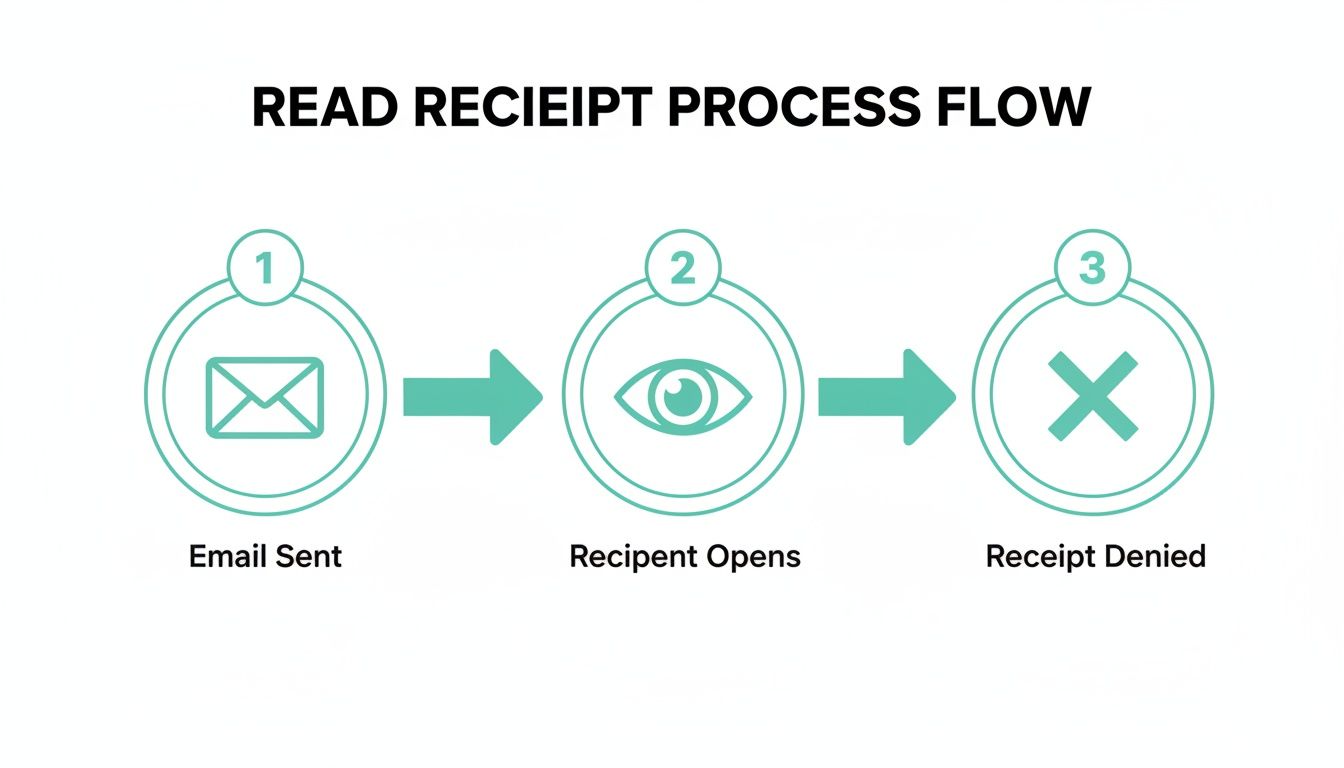
The most important part is that final step. The whole system relies on the recipient deciding whether to send the confirmation back to you or not.
Outlook Mobile for iOS and Android
For what felt like forever, this was a missing feature on mobile, but Microsoft has finally added it for school and work accounts. When you're drafting an email in the Outlook mobile app, tap the overflow menu (it often looks like a + icon or three dots). From there, tap the Receipts icon and you can choose to request a delivery receipt, a read receipt, or both for that specific email.
Pro Tip: If you often delegate email tasks, a sharp admin support virtual assistant can be trained to request read receipts on your behalf for important communications. A service like Stealth Agents can connect you with assistants skilled in managing professional correspondence, ensuring critical messages are tracked without adding to your to-do list.
This mobile feature is a game-changer for professionals on the go. It means you can track urgent messages sent from your phone or tablet just as easily as you would from your desk.
Handling Incoming Read Receipt Requests Professionally
Sooner or later, you'll be on the receiving end of a request. An email lands in your inbox, and before you even read it, Outlook presents you with a choice about sending a read receipt. How you respond is more than just a click; it's a small but significant part of your professional communication etiquette.
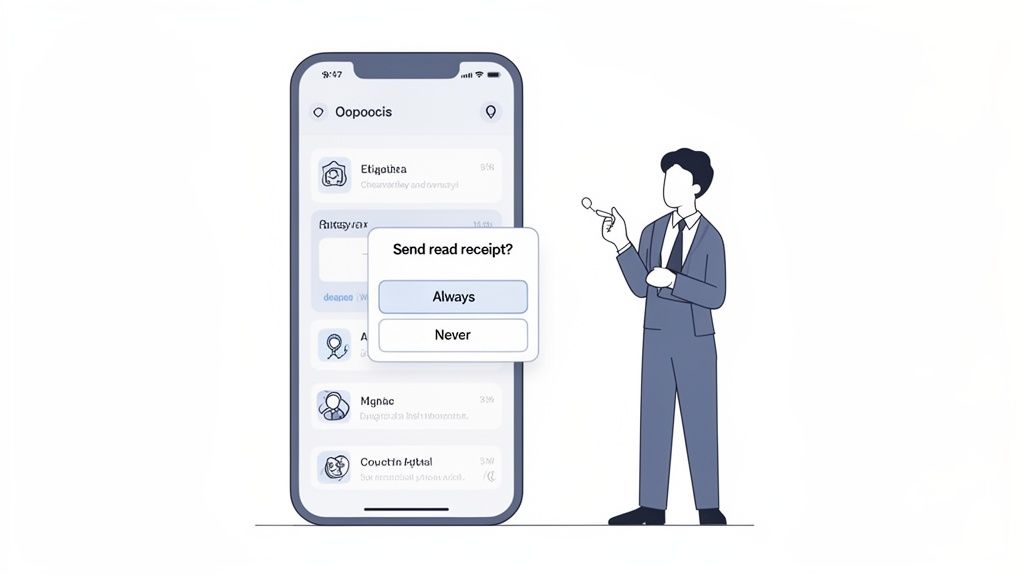
This little pop-up actually gives you complete control over your privacy. You can send the receipt, ignore it, or even set up Outlook to handle these requests automatically so you aren't bothered every single time. It's all about finding a balance between transparency and maintaining your own workflow without constant interruptions.
Your Three Choices Explained
When a request to send a receipt comes in, you really have three ways to handle it. Each one sends a different message.
- Always Send Receipts: This setting automates your "yes." It’s a very transparent approach that can build trust, especially with suppliers or team members who need to know you've seen critical information.
- Never Send Receipts: This is your privacy-first option. It ensures your reading habits remain your own business, stopping senders from tracking your activity. This is often the default setting in large organisations for this very reason.
- Ask Me Every Time: This is the default in Outlook and, frankly, offers the most flexibility. It lets you decide on a case-by-case basis. You can send a receipt for an urgent project update but decline one for a routine sales email.
Choosing the right option really depends on your role and the kind of emails you're dealing with day-to-day. You can also learn more about keeping your inbox secure by reading our knowledge base article on how to Control Spam using the Spam Filter on cPanel.
Navigating Professional Etiquette
Deciding whether to send a receipt often just comes down to context. If a colleague sends an urgent file for a meeting that's about to start, sending the receipt is a quick, efficient way to say, "Got it, thanks." It acknowledges their urgency and confirms you're on top of it.
On the other hand, if you get a cold sales email with a read receipt request, you're under no obligation to send one. Declining in this situation helps manage their expectations and keeps your inbox activity private from external marketers.
The golden rule is to consider the relationship and the sender's intent. Sending a receipt is a form of communication—use it to strengthen partnerships and manage expectations, not just as an automatic reflex.
For Australian startups, these decisions can have a measurable impact. The 2024 Australian Digital Economy Index from the Department of Industry, Science and Resources found that a surprising 66% of startups in Melbourne and Brisbane enable read receipts by default. This proactive approach results in 48% confirmed opens for their pitch emails sent via locally hosted domains, giving them crucial engagement data.
Host your website with our 5-star rated, cPanel website hosting plans.
Super fast servers, with security included and hosted in your choice of Australian Data Center.
View cPanel Plans
What to Do with the Tracking Information You Receive
So, you've sent your email with a receipt request ticked. Now what? That little piece of information you get back—or the silence you get instead—is more than just a simple notification. It's actionable intelligence that can shape your next move, turning a passive waiting game into a proactive communication strategy.
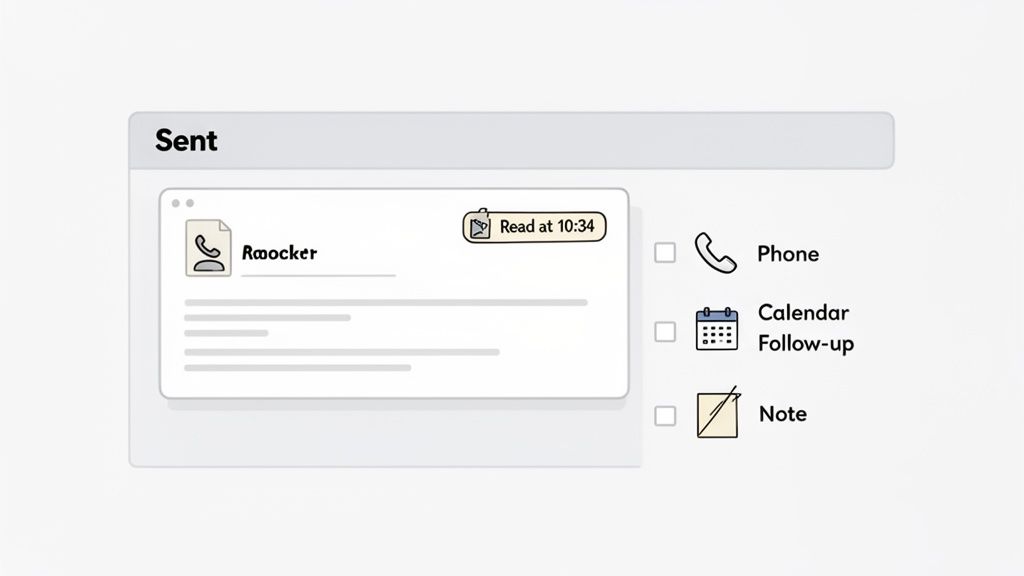
First things first, you need to know where to find this info. In Outlook, just head over to your Sent Items folder and open the original message you sent. You'll typically see an icon or a status update telling you if a receipt has come back. A positive confirmation is a great sign—it usually says "Read" along with a timestamp, giving you the perfect opening for your next step.
Interpreting the Different Responses
The real skill here is learning to read between the lines. The responses you get aren't always a straightforward "yes" or "no," and sometimes, it's the lack of a response that speaks the loudest.
You get a "Read" receipt: This is the ideal outcome. It’s confirmation that the recipient has opened your email. For example, after sending a sales proposal, this receipt is your cue to schedule a follow-up call, as you know the client has seen it.
You get a "Deleted without being read" notification: While this might sting a little, it's incredibly valuable feedback. It's a clear signal that your subject line or sender name didn't grab their attention, giving you a direct insight to tweak your approach next time.
You get nothing at all: This is the most common and ambiguous result. It could mean anything—your email is sitting unread, the recipient declined the receipt request, or their email client simply doesn't support the feature.
When you get radio silence on a high-stakes email, like a major project quote, don't jump to conclusions. Use it as a prompt. A quick, polite follow-up call a day or two later is a perfectly professional way to cut through the digital noise.
From Data to Actionable Strategy
Turning this tracking information into a coherent strategy is what separates the pros. For Australian web developers and agencies, getting timely feedback from clients is everything. A 2024 Sensis Social Media Report on Aussie SMBs found that 71% of digital agencies in Sydney and Melbourne use Outlook's read receipt feature regularly.
They confirmed an average open rate of 55% within the first 48 hours for new proposals, which gives them a clear window to act. This kind of data lets them prioritise who to call first and manage client expectations without guesswork.
If you're juggling multiple projects, you might also find our knowledge base article on how to Track Delivery of Sent Emails in cPanel helpful for getting a wider view of your communications pipeline. At the end of the day, a read receipt Outlook gives you isn't just a status update; it's a critical piece of a much larger communication puzzle.
Solving Common Read Receipt Problems
Even the most straightforward features can sometimes throw a curveball. When your Outlook read receipt system doesn't behave as you expect, it can be frustrating, especially when you’re counting on that confirmation. Most issues stem from a few common causes, ranging from the recipient’s settings to server-side configurations.
Let's break down the most frequent problems and how you can troubleshoot them. Understanding the technical chain of events—from your outbox to their server and back again—is key to figuring out what’s gone wrong.
Why Am I Not Receiving Any Read Receipts?
This is by far the most common complaint, and the answer almost always lies with the recipient, not you. The entire system is voluntary, after all.
- Recipient Declined: The most likely reason is simply that the recipient chose "No" when prompted to send a receipt. There's nothing you can do about this.
- Automatic Rejection: Many organisations configure their email clients to automatically decline all read receipt requests. This is often a company-wide policy to protect employee privacy.
- Unsupported Email Client: The feature is most reliable between Outlook users. If you send a request to someone using Gmail or Yahoo, their system may not process the request correctly, or at all.
This screenshot shows the options available when you request a receipt in Outlook, highlighting how simple it is on the sender's end.
As you can see, the sender's action is easy, but the outcome depends entirely on factors outside your control once the email leaves your outbox.
Why Are Timestamps on Receipts Incorrect?
Have you ever received a receipt with a timestamp that seems completely wrong, maybe hours off? This is a classic quirk, especially within the Microsoft 365 ecosystem. The time shown on the receipt is often generated by the server that processed the confirmation, not the recipient's local computer.
If that server is set to a different time zone (like UTC, which is common), the time you see will reflect the server's clock, not when your client actually opened the email. While it’s usually just a minor annoyance, it's always a good idea to ensure your own device’s time zone is correctly set to rule out any local issues.
Remember, a read receipt is a signal, not a legally binding timestamp. Use it for general confirmation, but don't rely on it for precise, time-critical evidence of when an email was opened.
Another factor that can cause delays or outright failures is how your email server handles outgoing messages. If you’re experiencing broader issues beyond just receipts, it's worth investigating potential problems like emails getting stuck in your outbox, as this can affect all your communications. These problems often point to server or network issues that need addressing at a higher level than just your Outlook settings.
Common Questions About Outlook Read Receipts
Even after you get the hang of how the Outlook read receipt feature works, a few specific questions always seem to pop up. Think of this section as a quick-fire FAQ, designed to give you straight answers to the most common queries we hear.
Can Someone Read My Email Without Sending a Receipt?
Yes, absolutely. The person receiving your email always has the final say. When they open your message, most email programs will ask if they want to send a receipt back to you. They can simply click "No".
In fact, many people set up their email to never send receipts automatically, just as a general privacy measure. Because of this, you should never assume a lack of a receipt means your email was ignored or didn't arrive. It just means the read status is unknown, and that's a really important distinction to make.
Do Read Receipts Work with Gmail or Other Providers?
It's a bit of a lottery, to be honest. Sending a read receipt request outside of the Microsoft ecosystem can be very inconsistent. While the technical request is tucked into your email, other systems like Gmail, Yahoo Mail, or Apple Mail might not know what to do with it.
Sometimes, the request is flat-out ignored. Other times, it might even show up as a weird attachment or a messy line of code for the recipient. For the most reliable tracking, read receipts really shine when you're emailing other Outlook users, especially if you're all within the same company. It ensures both email clients are speaking the same language.
As a rule of thumb, treat a receipt from an external system like a pleasant surprise, not an expectation. If you absolutely need confirmation on an email to a Gmail address, a polite follow-up message is a much safer bet.
Is It Unprofessional to Request Receipts on Every Email?
In many professional circles, yes, it can come across that way. Automatically tacking a receipt request onto every single message you send can feel like a lack of trust, and it can quickly become an annoyance for your colleagues and clients.
It's much better to use the feature sparingly, saving it for genuinely important emails where getting that confirmation actually adds value.
- Good Use Case: Sending a final version of a contract or an urgent project update where you need to be sure it's been seen.
- Poor Use Case: A routine check-in email or a quick "thank you" message where a receipt just adds unnecessary digital clutter.
Overuse it, and you'll find people start automatically clicking "No" to all your requests, which makes the feature useless when you genuinely need it.
Why Does My Read Receipt Show the Wrong Time?
This is a known quirk, especially within the Office 365 environment. The timestamp you see on a read receipt isn't generated by the recipient's computer; it's usually stamped by the Microsoft server that processed the notification on its way back to you.
These servers are often set to Coordinated Universal Time (UTC) by default. This means the time you get is the server's time, not the local time of the person who opened the email. It's usually just a minor inconvenience, but it's a good reminder of the technical steps happening behind the scenes. It's always a good idea to first check that your own device's time zone is set correctly, just to rule out any local issues.
At UpTime Web Hosting, we provide reliable, 100% Australian email and web hosting that ensures your critical messages are delivered quickly and securely. Explore our local hosting solutions at https://uptimewebhosting.com.au.