Setting up your professional email on an iPhone is one of the quickest wins for any Australian business owner. It's surprisingly straightforward, and you can go from opening the Settings app to receiving your first business email in as little as five minutes.
Why Professional Email On Your iPhone Matters
Before we jump into the "how-to," let's quickly touch on the "why." For most business owners in Australia, your iPhone isn't just a phone anymore. It’s mission control for your entire operation—the hub for client relationships, sales opportunities, and daily admin.
Integrating your professional email directly into this device isn’t just a convenience; it’s a cornerstone of building a credible, responsive brand.
Imagine a potential client sends an urgent query. Replying almost instantly from info@yourbusiness.com.au builds immediate trust. On the other hand, a slow reply or one from a generic yourbusiness@gmail.com can subtly chip away at your professional image.
The Power of Instant Access
In today's market, speed is everything. Having your business email right there in your pocket means you can act on opportunities the moment they appear.
- Securing a new lead: A customer in Perth sends an enquiry after hours. A quick, professional reply from your iPhone could lock in that lead before a competitor even logs on the next morning.
- Solving a problem on the spot: A client in Melbourne has an urgent support request. You can read it, forward it to your team, or resolve it yourself right from your device, showing fantastic customer service.
- Keeping projects moving: A draft comes through for approval while you're on the train. You can review and reply immediately, so there are no bottlenecks waiting for you to get back to your desk.
This isn't just a nice-to-have; it's what modern customers expect. Data shows that with smartphone usage projected to hit 87% in Australia by 2026, mobile is where business happens. Global stats reflecting Aussie trends reveal that iPhone users account for a massive 90.5% of mobile email opens, and overall mobile open rates have climbed to 78%. Your audience is reading your emails on an iPhone.
A professional email address is more than just a contact point; it's a statement of legitimacy. When it's instantly accessible on your most-used device, it becomes a powerful tool for building customer confidence and capturing revenue.
Reliability Starts with Local Hosting
Of course, instant access is useless if your email service is unreliable. This is where quality local hosting makes a world of difference.
When you use a service like UpTime Web Hosting, your emails are handled on Australian servers. This means faster delivery and better reliability for you and your local customers. It’s simple physics: an email sent from a server in Sydney will reach a client in Brisbane far quicker than one routed through servers in the US or Europe.
This local infrastructure is vital in the mobile-first world we operate in. When a customer opens your email on their iPhone, the speed and reliability of that connection reflect directly on your business. You can explore how professional email hosting for small businesses provides this crucial foundation.
Ultimately, setting up your email on your iPhone is about closing the gap between your brand and your customers, one instant reply at a time.

Performance you can feel, backed by clients who depend on it. Read how our support and uptime create long‑term customer success.Power Your Business with Better Hosting
The Easy Way: Automatic Setup for Gmail, Outlook, and iCloud
Getting your email up and running on your iPhone doesn’t need to be a complex, technical headache. In fact, if you use a popular service like Gmail, Outlook, or iCloud, Apple has already done the heavy lifting for you.
The whole process is designed to be incredibly simple. You can connect your account in just a few taps without ever having to worry about what an SMTP or IMAP server is. Think of it as the express lane for email setup—it's the quickest way to get started.
Your iPhone’s software is smart enough to recognise these major providers. When you tell it you're adding a Gmail account, it already knows all the server addresses and security settings required. You just need to provide your email address and password, and the Mail app sorts out the rest. This completely sidesteps the tedious manual entry where a single typo can stop everything from working.
Let's get this quick win under our belts. It's a great way to see how straightforward it can be before we dive into setting up email on an iPhone for a custom business domain.
Finding the Right Spot in Settings
Everything starts in your iPhone's Settings app—the control centre for your entire device. From there, we’ll head over to the Mail section to get your new account added.
Your first port of call is the "Add Account" option. This is the gateway to linking all your different email services directly into your iPhone.
You’ll immediately see a list of the main providers that Apple has streamlined for this exact purpose.
As you can see, all the big names are there: iCloud, Microsoft Exchange, Google, Outlook.com, and more. This makes the whole thing feel intuitive for the vast majority of people.
Let's Walk Through a Gmail Example
Let's make this practical. Say you're adding a Gmail account, like yourbusiness@gmail.com, to your iPhone.
- First, head to Settings, scroll down a bit, and tap on Mail.
- From there, tap on Accounts, and then select Add Account.
- You'll see that list of providers—go ahead and tap on Google.
- A Google sign-in screen will pop up. Just enter your full Gmail address and tap Next.
- On the following screen, type in your password and tap Next again.
If you’ve got two-factor authentication (2FA) set up on your Google account (and you absolutely should!), you'll get a prompt to verify it's really you. This might be a code sent to another device or a simple "Yes, it's me" tap.
Once you’re authenticated, you can choose which services you want to sync, like Mail, Contacts, and Calendars. Make sure Mail is switched on, then just tap Save.
And that's it! Your Gmail account is now connected. The iPhone's Mail app will kick into gear and start downloading your recent emails. You're all set to send and receive straight from your phone. The process for Outlook.com and Yahoo is almost identical.
If you're running a business with a custom email address, you might be in luck, too. Some hosts offer a similar hands-off approach. Check out our guide to see if you can use an automatic setup for your cPanel email—it can save you a whole lot of time and effort.
Manually Configuring Your Business Email
While the automatic setup is a fantastic shortcut for services like Gmail or Outlook, it's time to get hands-on with your custom business email. When you've got a professional address like contact@yourbusiness.com.au through a provider like UpTime Web Hosting, you’ll need to give your iPhone a few specific details to get everything connected.
This manual process might sound a bit technical, but it’s actually quite straightforward. You're simply telling the Mail app where to find your emails (the incoming server) and how to send them securely (the outgoing server).
Think of it as giving your iPhone the exact street address and a special key to your business's digital post office. We'll walk through it together.
This handy visual breaks down the first few taps to get you to the right screen.
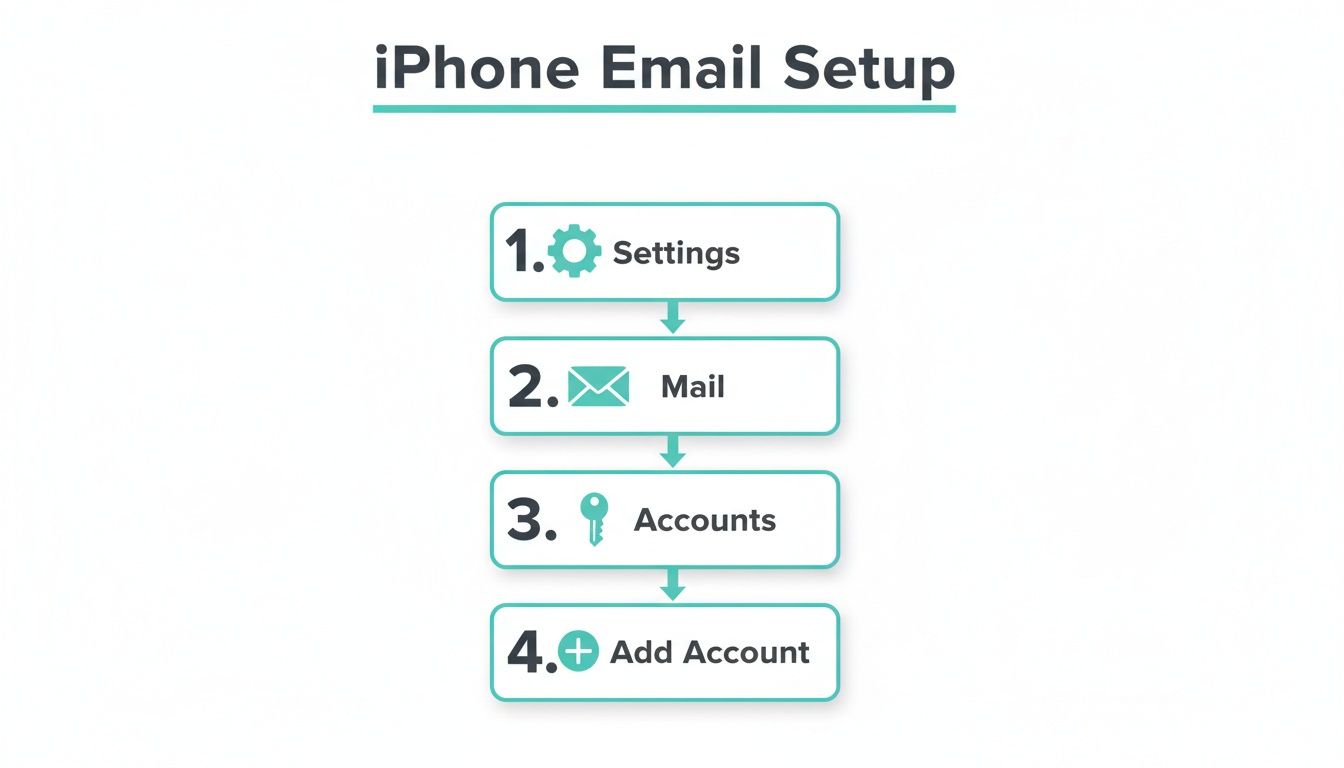
The path is simple and logical, taking you from your iPhone’s main settings right to where you can add your new business account.
Getting Started with Manual Configuration
To kick things off, you'll follow the same initial path as the automatic setup: head to Settings > Mail > Accounts > Add Account. But this time, instead of picking a big-name provider from the list, you're going to tap Other at the very bottom.
This is the gateway for all custom email addresses. After tapping Other, select Add Mail Account.
You’ll now see a screen asking for four key pieces of information:
- Name: Your full name or business name. This is what people will see as the sender.
- Email: Your full business email address (e.g.,
info@yourcompany.com.au). - Password: The password you created for this specific email account.
- Description: A simple label for the account on your iPhone, like "Work Email" or "UpTime Hosting".
Fill these in carefully and tap Next. Your iPhone will try to find the server settings on its own, but since this is a custom setup, it will then present you with the manual configuration screen. This is exactly where we need to be.
Decoding The Server Settings
This next screen is where the real work happens. You’ll see options for IMAP and POP at the top, plus sections for the Incoming Mail Server and Outgoing Mail Server.
For almost every modern business, you should choose IMAP. It’s the setting that keeps your email perfectly in sync across all your devices—your iPhone, laptop, and tablet. If you read an email on your phone, it shows as read on your computer. Simple.
The Incoming Mail Server fetches your emails, while the Outgoing Mail Server (also known as SMTP) is what sends them. Both need the right details to work properly.
For those of you using UpTime Web Hosting, here’s a table with the exact settings you'll need.
Recommended Email Settings for UpTime Web Hosting
Use these settings to manually configure your email account hosted with UpTime Web Hosting on your iPhone. Your username is always your full email address.
| Setting | Recommended Value (IMAP) | Notes |
|---|---|---|
| Incoming Host Name | mail.yourdomain.com.au | This is where your iPhone looks for new mail. Just swap yourdomain.com.au with your own domain name. |
| Incoming Username | Your full email address | For example: sales@yourbusiness.com.au |
| Incoming Password | Your email account password | The same password you created in cPanel for this email address. |
| Outgoing Host Name | mail.yourdomain.com.au | This server is responsible for sending your emails out into the world. |
| Outgoing Username | Your full email address | It's almost always the same as your incoming username. |
| Outgoing Password | Your email account password | Use the same password again here for authentication. |
These settings are standard for most cPanel-based hosting, but it's always good to have them handy.
Once you’ve entered all the server details, tap Next. Your iPhone will now verify the information with the server. If everything is correct, you’ll see little blue ticks appear next to each field, and the setup will be complete.
If you hit an error, it’s almost always a typo in the host name or an incorrect password. Just double-check everything and try again. For a more detailed walkthrough with screenshots, check out our knowledge base guide on how to connect the iOS Mail app to your cPanel email account.
A Practical Example with UpTime Web Hosting
Let's make this real. Imagine your business is "Bluegum Landscaping," your domain is bluegumlandscaping.com.au, and you've set up the email address quotes@bluegumlandscaping.com.au in your UpTime Web Hosting cPanel.
Here’s exactly what you’d enter on the first manual setup screen:
- Name: Bluegum Landscaping
- Email:
quotes@bluegumlandscaping.com.au - Password: The password you created for this email.
- Description: Bluegum Quotes
After tapping Next, you would input the server information:
- Incoming Host Name:
mail.bluegumlandscaping.com.au - Incoming Username:
quotes@bluegumlandscaping.com.au - Outgoing Host Name:
mail.bluegumlandscaping.com.au - Outgoing Username:
quotes@bluegumlandscaping.com.au
By filling in specific and accurate details like these, your iPhone will establish a secure, reliable connection to your professional email. Now you’re all set to manage business on the go.
Host your website with our 5-star rated, cPanel website hosting plans.
Super fast servers, with security included and hosted in your choice of Australian Data Center.
View cPanel Plans
Making Sense of IMAP, POP, and Security Settings
When you're setting up your business email manually, your iPhone will ask you to make a few important choices. This isn't just technical jargon; these settings directly impact how you access your mail and how secure your information is. Getting this right from the start is the key to a smooth, reliable experience.
We'll break down three key things you'll encounter: choosing between IMAP and POP, why SSL is a must, and what to do when your password doesn't work (hello, app passwords).
Choosing Between IMAP and POP
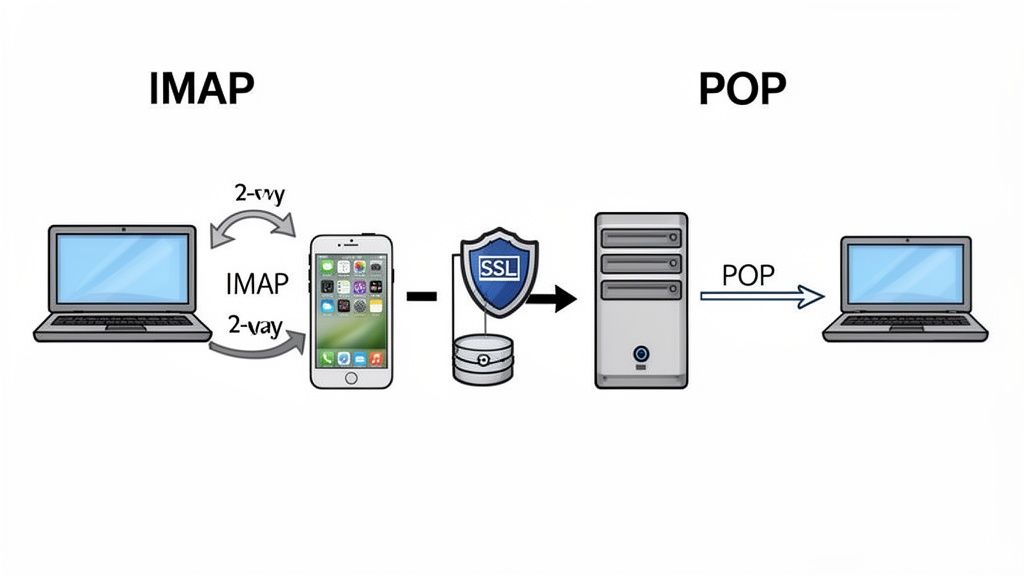
During the setup process, you'll see two options: IMAP and POP. They might sound similar, but they operate in completely different ways. For any modern business that relies on email across multiple devices—like a desktop, a laptop, and a phone—the choice is simple: IMAP is the standard.
Let's walk through a common business scenario. Imagine you read a new client enquiry on your desktop computer in the office. Later, you're at a cafe and want to reply to that same email from your iPhone.
- With IMAP: The email you read at your desk will show up as "read" on your iPhone. When you send the reply from your phone, that reply will also appear in the "Sent" folder on your desktop. Everything is perfectly synchronised across all your devices.
- With POP: Things get messy here. POP works by downloading emails to the first device that asks for them. In this situation, the client's email would be pulled down to your office computer and likely deleted from the server. When you check your iPhone at the cafe, that email just wouldn't be there. It’s gone.
Think of IMAP as a mirror, reflecting the exact same mailbox across all your devices. POP, on the other hand, is like a one-way postal delivery. Once the mail is delivered to one address, it's no longer at the post office for anyone else to collect.
This synchronisation is precisely why IMAP is essential when you set up an email on your iPhone for business. It guarantees you have a consistent, up-to-date view of your inbox, no matter where you are or what device you're using.
Why SSL Is Non-Negotiable
As you enter your server details, you'll come across a toggle or checkbox for "Use SSL" (Secure Sockets Layer) or its successor, TLS (Transport Layer Security). Ticking this box is one of the most critical steps in the entire process.
SSL encrypts the connection between your iPhone and the email server. Without it, your login details and the contents of your emails are sent in plain text, making them an easy target for anyone snooping on the network. For a business handling sensitive client data, contracts, or invoices, sending unencrypted email is an unacceptable risk.
Fortunately, all UpTime Web Hosting plans come with free, automatically-renewing SSL certificates. This means you can—and absolutely should—enable this setting for both your incoming and outgoing mail servers to keep your communications private. For a detailed look at the specific server names and port numbers you'll need, you can review our premium email server settings guide.
Beyond just flipping a switch for SSL, implementing strong email security best practices is crucial for protecting your professional communications from bigger threats.
Dealing with App Passwords
So, what happens if you've entered your details perfectly, but your iPhone still flashes an "incorrect password" error? It's a frustrating moment, but the cause is often a modern security feature: two-factor authentication (2FA).
If your email provider has 2FA enabled, you can't always use your main account password in third-party software like the iPhone's Mail app. Instead, you need to generate a unique, one-time password specifically for that application. This is called an app password (or app-specific password).
To get one, you'll need to log in to your email account through a web browser, find the security settings, and look for an option to generate a new app password. You then copy this long, randomised password and paste it into the password field on your iPhone. It's an extra step, but it allows the Mail app to access your account securely without forcing you to disable your 2FA protection.
Solving Common iPhone Email Setup Issues
Even with the right settings, setting up your email on an iPhone can sometimes hit a snag. Seeing an error like 'Cannot Verify Server Identity' or 'Incorrect Password' is a common frustration, but the fix is usually much simpler than you'd think. Before you get on the phone with support, let’s walk through the most frequent issues and how to solve them.
Most setup problems boil down to tiny details that are easy to overlook when you're just trying to get connected. A simple typo, a forgotten setting, or using the wrong password can stop the whole process dead in its tracks. The good news is, these are all things you can easily check and correct yourself.
This is especially crucial for Australian small businesses. With iOS adoption here outpacing global averages, iPhone users drive 28.4% of all mobile email opens. Seamless integration isn't just nice to have; it's non-negotiable when 84% of your audience reads emails on their phone, leaving desktop's 16.2% as a secondary concern. You can find more insights on these mobile email demographics and their impact.
The Usual Suspects: Typos and Server Names
More often than not, the culprit behind a setup failure is a simple typo. A single wrong letter in a server name or a mistake in your email address is all it takes to prevent your iPhone from finding its destination.
First things first, carefully re-read everything you've entered.
- Host Name: Double-check your incoming (
mail.yourdomain.com.au) and outgoing (mail.yourdomain.com.au) server names. Make sure there are no sneaky extra spaces and that your domain is spelled perfectly. - Username: Your username is always your full email address, like
info@yourbusiness.com.au, not just the bit before the '@'. - Password: This is another major pitfall. You need the password for the specific email address you're setting up. This is not your UpTime Web Hosting client portal password or your cPanel login—they are all different.
A handy trick is to use the 'show password' icon (it looks like an eye) if it's there. Alternatively, type your password into a notes app first, then copy and paste it into the settings field. This is a great way to avoid hidden typos.
Checking SSL and Port Settings
If you’ve checked all your details and you're still stuck, the next place to look is your advanced settings—specifically, SSL and the port numbers. That 'Cannot Verify Server Identity' error often points directly to an SSL issue.
This error usually means your iPhone is trying to make a secure connection but can't validate the server's security certificate. The most common fix is to simply make sure the "Use SSL" toggle is switched on for both the incoming and outgoing servers.
Sometimes, even with SSL enabled, the wrong port number can cause a connection failure. While your iPhone often fills these in automatically, it’s always worth double-checking. For a secure IMAP connection, the standard port is 993. For the secure SMTP (outgoing) server, it's typically 465.
You can find these settings by going to Settings > Mail > Accounts, tapping on your new account, tapping the account name again, and then selecting Advanced for incoming settings or tapping the SMTP server for outgoing settings.
When You Need a Hand
Sometimes, no matter what you try, an issue just won't budge. This is where leaning on your hosting provider's resources becomes essential. We've put together detailed guides with screenshots to walk you through every single step and setting.
For a complete overview and the specific values you'll need, our guide on iPhone Mail settings for UpTime Web Hosting is the perfect resource to have open while you troubleshoot.
And remember, you're never on your own. If you’ve checked for typos, confirmed your SSL and port settings, and are still stuck, our 24/7 Australian support team is here to help. We can look at your specific account and guide you to a solution quickly, ensuring you get your business email running smoothly on your iPhone.
Common Questions and Quick Answers
Once you've got your email up and running on your iPhone, a few more questions often pop up. Here are some quick, practical answers to the things we get asked most by business owners fine-tuning their setup.
How Many Email Accounts Can I Add to My iPhone?
Go for it. There’s no official limit from Apple, so you can add as many email accounts as you need to the native Mail app.
This is a huge plus for managing multiple business inboxes (like info@, sales@, and support@) from a provider like UpTime Web Hosting, right alongside your personal Gmail or iCloud. Just repeat the 'Add Account' process for each one to centralise everything. It’s a simple way to stay on top of all your communications without constantly jumping between apps.
My Password Is Correct, but It Still Won’t Work. What Now?
This is a classic—and frustrating—problem. It almost always comes down to one of two things.
First, take another look at your Outgoing Mail Server (SMTP) settings. It's a tiny detail that's easy to miss during a manual setup, but it’s crucial that your SMTP server is set to authenticate using your password.
The second, and more common culprit these days, is the need for an 'app-specific password'. If you've got two-factor authentication switched on for security (which you absolutely should), many email services won't accept your regular password in third-party apps like iPhone Mail. You’ll need to log into your email provider's website, head to the security section, and generate a unique password just for the Mail app. Use that new password, and you should be back in business.
An app-specific password is a one-off code that lets the Mail app securely access your account without needing your main password or a two-factor prompt. It's an extra layer of security that keeps everything locked down.
What's the Difference Between Push and Fetch?
Think of 'Push' like an instant message. As soon as a new email hits your server, it’s immediately "pushed" to your iPhone. This is perfect for your main business account so you never miss an urgent client message.
'Fetch', on the other hand, tells your iPhone to check for new mail on a set schedule—say, every 15 or 30 minutes. While Push uses a touch more battery, the real-time updates are well worth it for any business-critical inbox. You can tweak these settings for each account under Settings > Mail > Accounts > Fetch New Data.
How Do I Add a Professional Email Signature?
A good signature makes every email you send from your phone look professional. Setting one up is easy—just head to Settings > Mail > Signature.
You can have one signature for all your accounts, but for a better impression, create a custom one for your business email.
- Include your full name and job title.
- Add your company name and a link to your website.
- Consider putting in your phone number for easy contact.
This small step ensures your branding is consistent and professional, even when you’re firing off a quick reply on the go.
At UpTime Web Hosting, we offer fast, secure, and reliable Australian email hosting designed to keep your business connected. Our 24/7 local support team is always here to help you get the most out of your professional email on any device. Explore our hosting plans and get started today!