
You're usually not checking your Ubuntu version for fun. You're doing it because something depends on it right now. Maybe a plugin install says it needs Ubuntu 22.04 or later. Maybe a security notice landed in your inbox. Maybe your VPS is behaving oddly and support has asked for the exact release.
For Australian businesses running a website on a VPS, that version number affects patching, package compatibility, upgrade planning, and whether the box is still appropriate for production. If you only know “it's Ubuntu”, that's not enough.
Table of Contents
- Why You Need to Know Your Ubuntu Version
- Fastest Methods Using the Command Line
- Checking Ubuntu Version from the Desktop GUI
- How to Interpret Your Ubuntu Version Number
- Distinguishing OS Version from Kernel Version
- Version Checks in Advanced Scenarios

Performance you can feel, backed by clients who depend on it. Read how our support and uptime create long‑term customer success.Power Your Business with Better Hosting
Why You Need to Know Your Ubuntu Version
Your site is still loading, but plugin updates start failing, a package install throws dependency errors, or your hosting panel says the server release is ageing out. At that point, checking the Ubuntu version is not housekeeping. It is one of the fastest ways to work out whether the problem is configuration, package compatibility, or an operating system that is overdue for attention.
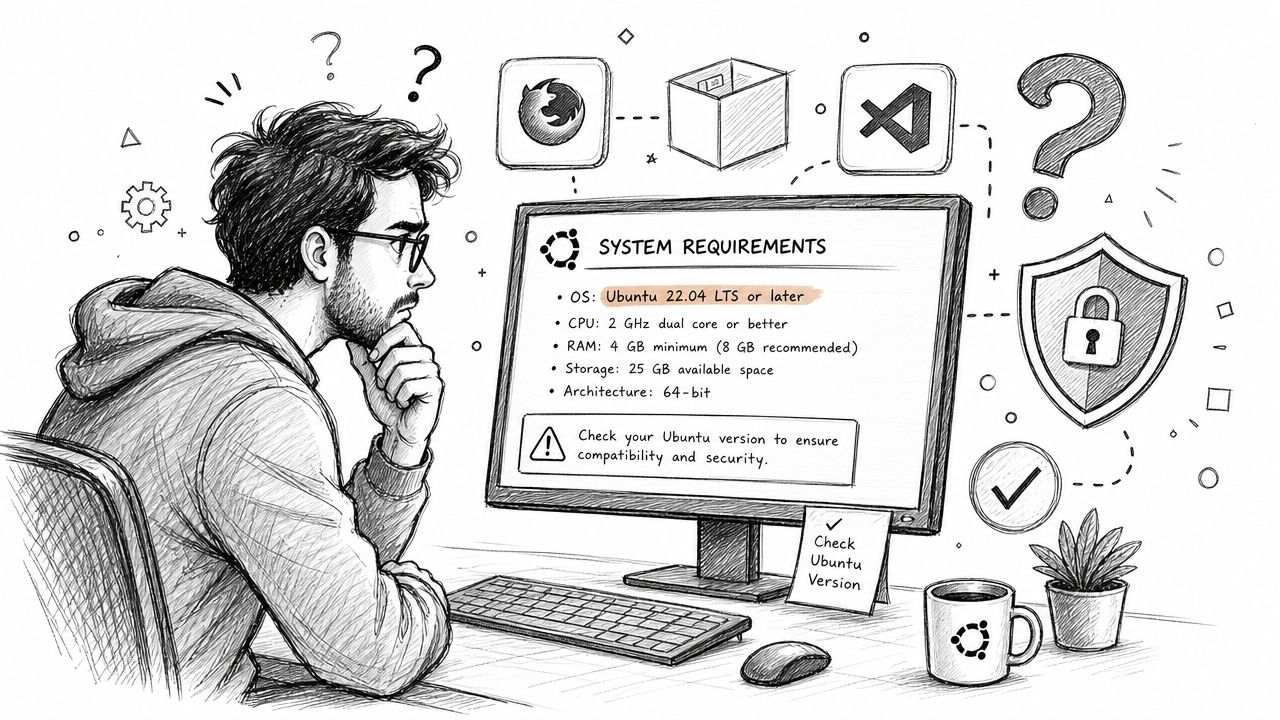
On a business VPS, the release number affects more than the login screen. It decides which repositories still work cleanly, whether vendor documentation matches your server, and how much useful support you will get from a sysadmin, software provider, or hosting team. If someone asks, “What version are you on?” they are usually trying to judge risk, upgrade paths, and package availability in one hit.
If you have not logged in yet, use this guide to log in to your VPS. Once you have shell access, the check takes seconds.
I treat the Ubuntu release as a first check on any VPS issue. It saves wasted time. Plenty of WordPress, PHP, database, and control panel problems look random until you realise the server is on an older release with ageing packages or a support window that is close to ending.
There is also the business side. Your Ubuntu version affects patch coverage, upgrade planning, audit responses, and whether you can keep running the server without adding unnecessary risk. For Australian businesses managing their own VPS, that matters for client trust and internal compliance as much as day to day uptime.
Practical rule: Check the release before deeper troubleshooting. Version details often explain package conflicts, failed upgrades, and why one support document applies while another does not.
Knowing the version also helps you ask better support questions. “Ubuntu 20.04 LTS on a VPS with PHP 8.1” gets a useful answer much faster than “my server is broken.” That is the difference between guessing and diagnosing.
Fastest Methods Using the Command Line
If you manage a server by SSH, the terminal is the fastest way to check version of Ubuntu. Three commands come up constantly: cat /etc/os-release, lsb_release -a, and hostnamectl. All can work, but they're not equally useful in every situation.
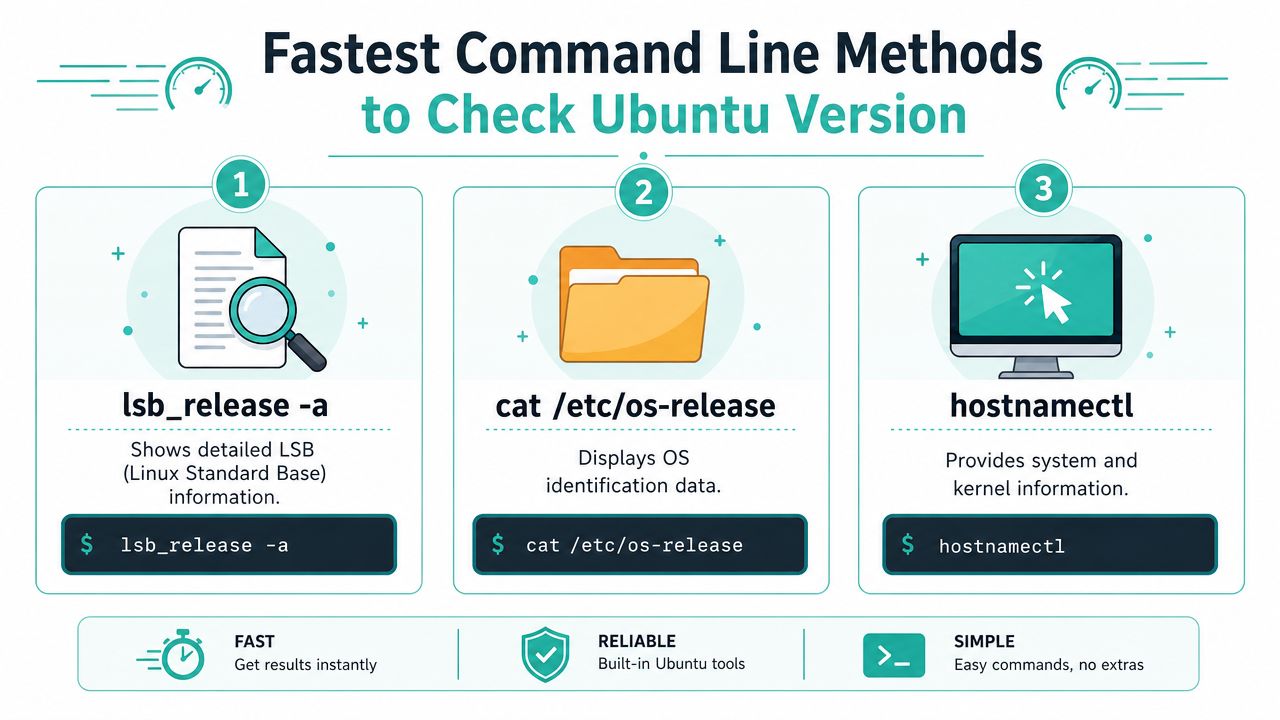
Use cat /etc/os-release for the most dependable result
Type:
cat /etc/os-release
You'll usually see fields such as:
NAMEVERSION_IDVERSION_CODENAME
For server work, this is the best default. For an Australian Linux admin checking Ubuntu version on a server or VPS, cat /etc/os-release is the most reliable non-interactive method because it's standardised across modern Ubuntu releases and returns machine-readable fields that suit automation, SSH support, and remote workflows, according to this Ubuntu version command reference.
That matters when you're writing scripts, checking fleets of servers, or asking staff to paste clean output into a ticket.
Use lsb_release -a when you want a quick human readout
Type:
lsb_release -a
This usually prints an easy-to-read summary with release and codename details. It's tidy, familiar, and perfectly fine when a human is at the keyboard.
The trade-off is that lsb_release can depend on packages that aren't always present on trimmed-down systems. On a full Ubuntu install, that's rarely a problem. On a very lean VPS image, it can be.
Use hostnamectl with caution on lean server builds
Type:
hostnamectl
This can show operating system details as part of broader host information. It's handy when it works cleanly and you also want system context.
But it's not my first pick for a minimal VPS. Some cloud images don't expose the expected systemd-hostnamed metadata in a way that's as dependable as /etc/os-release.
If you need one command that works well in scripts and support tickets, use
/etc/os-release.
Here's the quick comparison I'd use on production systems.
| Command | Best For | Example Output |
|---|---|---|
cat /etc/os-release | Scripts, SSH sessions, remote support | NAME, VERSION_ID, VERSION_CODENAME |
lsb_release -a | Human-readable checks in terminal | Distributor ID, Description, Release, Codename |
hostnamectl | General host information | Operating system details alongside hostname info |
One more trap catches people all the time. They run uname -r, get a kernel number back, and assume that's the Ubuntu release. It isn't. I'll cover that distinction below because it matters when your patch report asks for the OS release, not just the kernel.
While you're in the shell, it's also worth checking general server health. This Linux disk space guide is a useful follow-up if package installs or updates are failing.
Host your website with our 5-star rated, cPanel website hosting plans.
Super fast servers, with security included and hosted in your choice of Australian Data Center.
View cPanel Plans
Checking Ubuntu Version from the Desktop GUI
Not everyone is on a headless VPS all day. If you're using Ubuntu Desktop, the graphical path is quick and avoids terminal commands altogether.
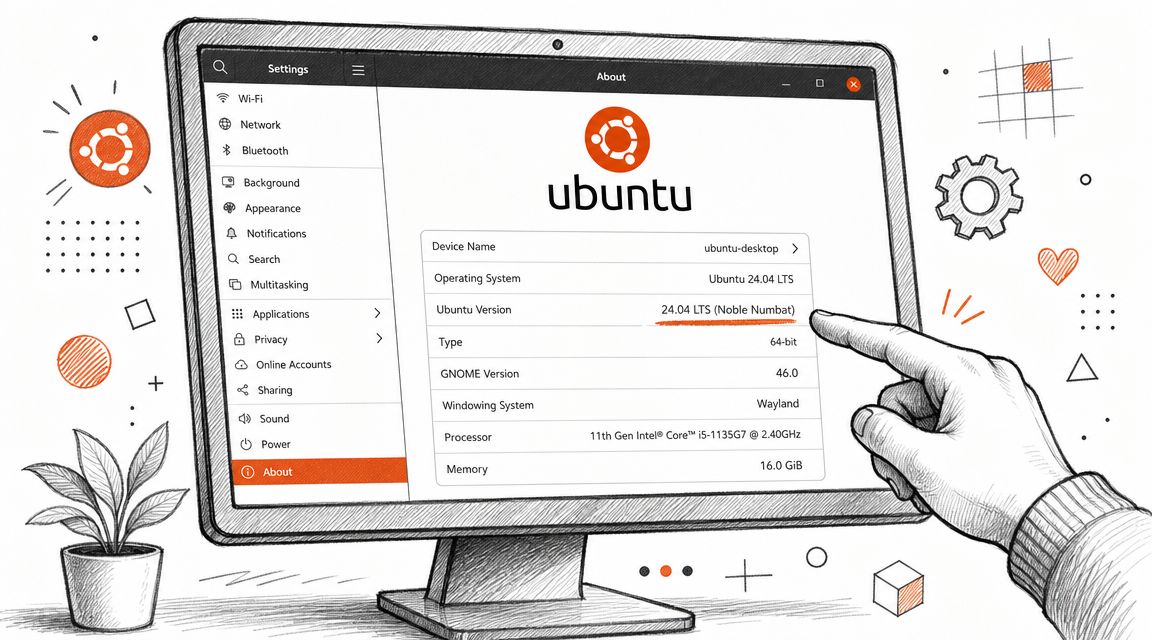
Where to click in Ubuntu Desktop
Open Settings, then go to About. Look for the operating system name and version information. On most desktop builds, that's the fastest visual confirmation.
This method is useful when you're helping a staff member on a local machine who doesn't use the terminal often. It's also good for a quick check before starting a desktop upgrade or confirming you're on the release required by a software package.
The limitation is simple. GUI access doesn't help much on most production VPS setups because there often isn't a desktop installed at all. For website hosting, command-line checks stay more practical.
How to Interpret Your Ubuntu Version Number
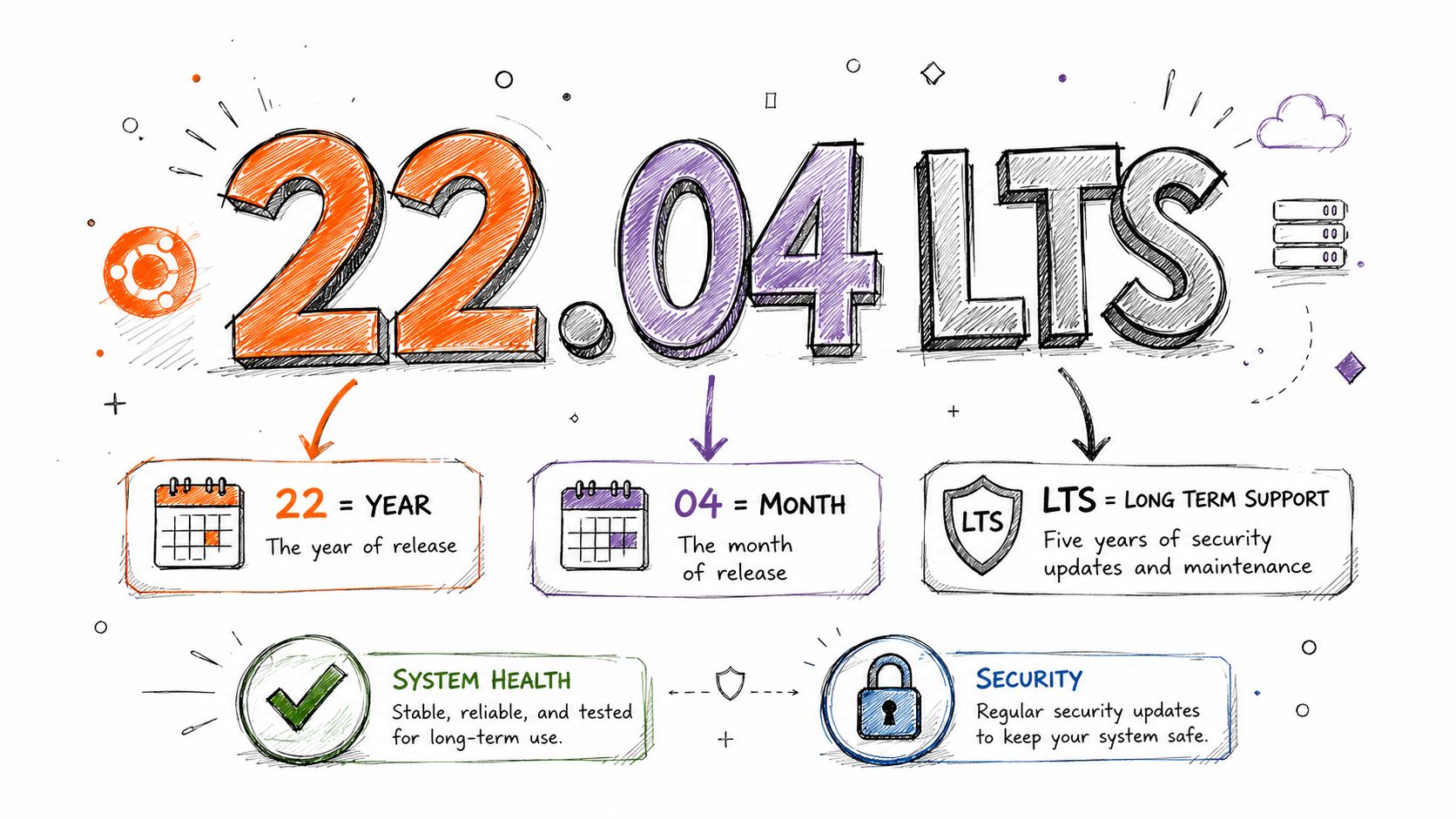
A version string like 22.04 LTS tells you more than the age of the OS. It tells you how long you can expect security updates, how conservative the package base will be, and whether your server is still a sensible fit for a production website.
What 22.04 means
Ubuntu versions use a YY.MM format. 22.04 means the release came out in April 2022. 24.04 means April 2024.
You will often see a codename as well, such as Jammy Jellyfish or Noble Numbat. That matters when you are checking repository names, package instructions, or release notes. For day-to-day VPS management, the release number and support status matter more.
Read the result like this:
- Version number shows which Ubuntu release you are running
- LTS shows it is a long-term support release aimed at stable, longer-lived deployments
- Codename helps match package sources and documentation
Why LTS matters on a business VPS
For production hosting, LTS is usually the safer choice. You get a longer support window, a more predictable maintenance cycle, and fewer surprises after routine updates. That is what most businesses want from a web server.
If you run a VPS for ecommerce, client portals, booking systems, or internal apps, your Ubuntu version affects more than the OS itself. It affects what your hosting provider will support, which package versions are available, how easy it is to patch the box, and whether you are drifting into an unsupported setup that becomes harder to justify during audits or incident reviews.
That matters for Australian businesses managing their own servers. If a provider asks for the OS release during a support ticket, or you need to confirm whether a system is still within its maintenance window, 22.04 LTS is not just a label. It is an operational status check.
An unsupported server can keep serving pages and still be a bad production decision.
If the release is old or close to end of support, treat that version check as a prompt to plan the next step. This Ubuntu VPS upgrade guide for hosted services is a practical place to start before scheduling changes.
One habit that saves time is recording the Ubuntu release with the rest of your stack details. Keep it alongside your PHP version, database version, control panel notes, SSL setup, and backup process. When it is time to upgrade, troubleshoot, or answer a compliance question, you are working from facts instead of guesses.
Distinguishing OS Version from Kernel Version
Confusion often arises. Ubuntu version and kernel version are not the same thing.
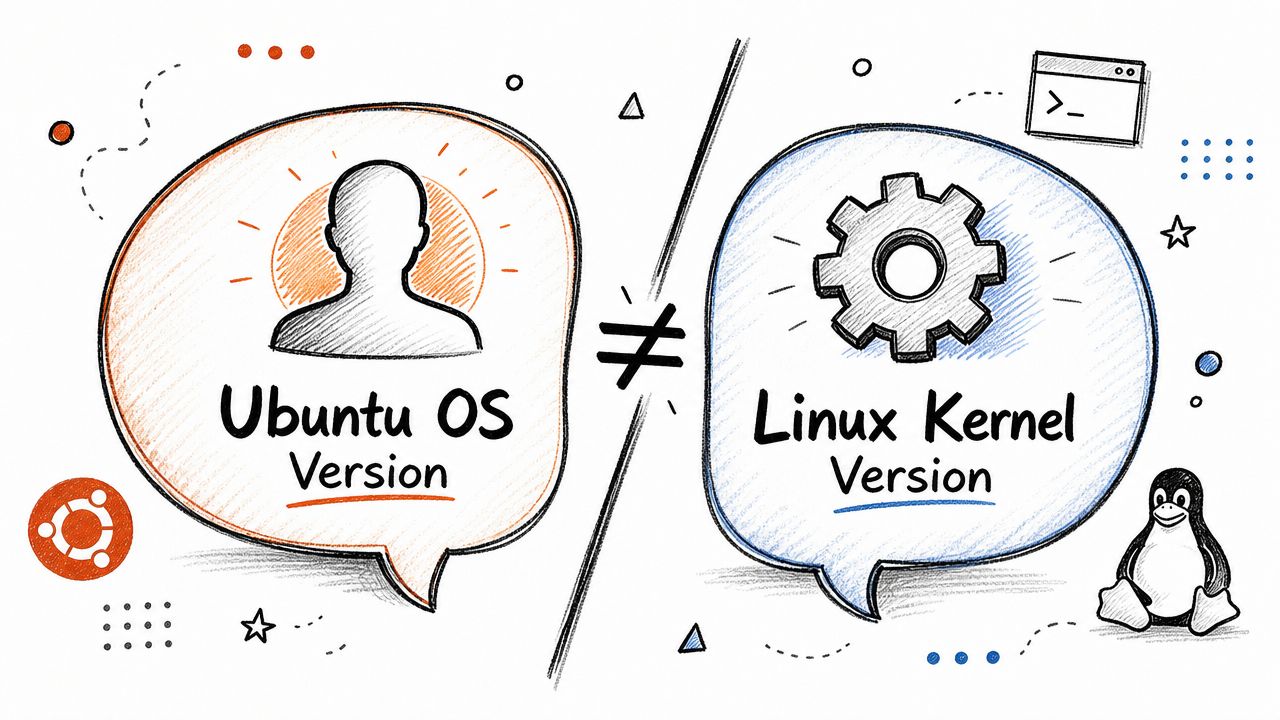
Ubuntu is the full operating system distribution. It includes the package base, default tooling, repositories, and release lifecycle. The kernel is the core Linux component that talks to hardware and manages low-level system behaviour.
What uname -r tells you
Type:
uname -r
That command returns the kernel version, not the Ubuntu release. It's useful, but it answers a different question.
If you're checking a compliance note, planning an OS upgrade, or verifying package support, uname -r won't give you the release number you need. That's why people sometimes report the wrong thing to support and lose time.
When the kernel version matters
Kernel details matter when you're dealing with things like:
- Driver issues where hardware support depends on kernel behaviour
- Container and low-level tooling where kernel capabilities affect what runs cleanly
- Troubleshooting boot or performance anomalies that point to the kernel rather than userland packages
For ordinary website administration, you usually want the Ubuntu release first and the kernel second. If you need to restart the VPS after updates or maintenance, this VPS reboot guide is the safe follow-up.
Register your new domain name at competitive market prices including free domain add-ons like privacy, DNS Hosting, Custom Nameservers and Forwarding.
Always the best price and no nasty renewal price hikes.
Register A Domain Name
Version Checks in Advanced Scenarios
Version checks get more interesting once you're outside a single login shell. That's where a lot of admins waste time by using commands that are fine for ad hoc checks but awkward in repeatable workflows.
Inside Docker containers and WSL
Inside a Docker container, use the same release file approach first:
cat /etc/os-release
That tells you the container's userspace OS identity, which is what usually matters for package installation inside the container. Just remember that a container can report Ubuntu userland while sharing the host's kernel.
In WSL, the same command is also a clean option. You're still trying to identify the distro release running in that environment, and /etc/os-release keeps the output straightforward.
If you're cleaning up old containers while checking environments, this guide on deleting Docker images is a useful housekeeping step.
Across remote servers and repeatable workflows
For multiple VPS instances, standardise the command you use in tickets, scripts, and checklists. Don't mix methods unless there's a good reason. Consistency makes patch reviews and upgrade planning far easier.
A simple working pattern looks like this:
- For one-off SSH checks use
cat /etc/os-release - For staff support notes ask for
VERSION_IDandVERSION_CODENAME - For maintenance records store the Ubuntu release separately from the kernel version
- For automation rely on machine-readable fields rather than terminal-friendly summaries
The value of learning how to check version of Ubuntu is operational. It helps you decide whether the server can take a package, whether documentation applies, whether support advice is current, and whether an upgrade needs to move from “later” to “now”.
On a business VPS, that's the difference between staying organised and discovering too late that the site is running on an old release no one reviewed properly.
If you want a local team to help keep your hosting stack stable, secure, and easier to manage, take a look at UpTime Web Hosting. They offer Australian hosting and managed VPS services that suit businesses who'd rather spend less time chasing server details and more time running the website.