A support specialist has a browser bug to explain before the next client call, a trainer needs a repeatable procedure recorded before lunch, and a small business owner wants a clean visual handoff before the inbox fills up. That's the Snagit alternative problem in Australian teams, not feature volume for its own sake. The right tool depends on capture type, operating system, sharing model, commercial-use terms, storage needs, and how much editing the workflow really needs.
In Australia, distributed work keeps that need alive. The Australian Bureau of Statistics reported that 37% of Australians worked from home regularly in August 2023, a sharp shift from the 5% rate before COVID recorded in the 2016 Census, and Roy Morgan later reported that over 6.7 million Australians, or 46% of employed Australians, worked from home at least some of the time in the July 2024 to June 2025 period, with 51% of full-time employees doing so as well, as captured in its June 2025 findings (ABS release, Roy Morgan work-from-home findings). That matters because screenshot tools now sit inside onboarding, QA, support, and client communication workflows, not just creative departments.
The ten tools below are best judged by the job Australian businesses need to complete, still-image documentation, scrolling web capture, instructional video, team sharing, offline control, and repeatable support workflows. Pricing and plan limits can change, so they should be checked on each product site before purchase. For teams publishing screenshots or recordings on a website, the hosting layer is separate from capture-tool choice, and a local service such as UpTime Web Hosting can support the publishing side without implying any product integration.
Table of Contents
- 1. ScreenSnap Pro
- 2. ShareX
- 3. Greenshot
- 4. FastStone Capture
- 5. PicPick
- 6. Screenpresso
- 7. Monosnap
- 8. ScreenPal
- 9. Loom
- 10. Zight
- 11. Nimbus Capture
- Snagit Alternatives, 11-Tool Feature Comparison
- Make the Switch Without Breaking Your Workflow

Performance you can feel, backed by clients who depend on it. Read how our support and uptime create long‑term customer success.Power Your Business with Better Hosting
1. ScreenSnap Pro
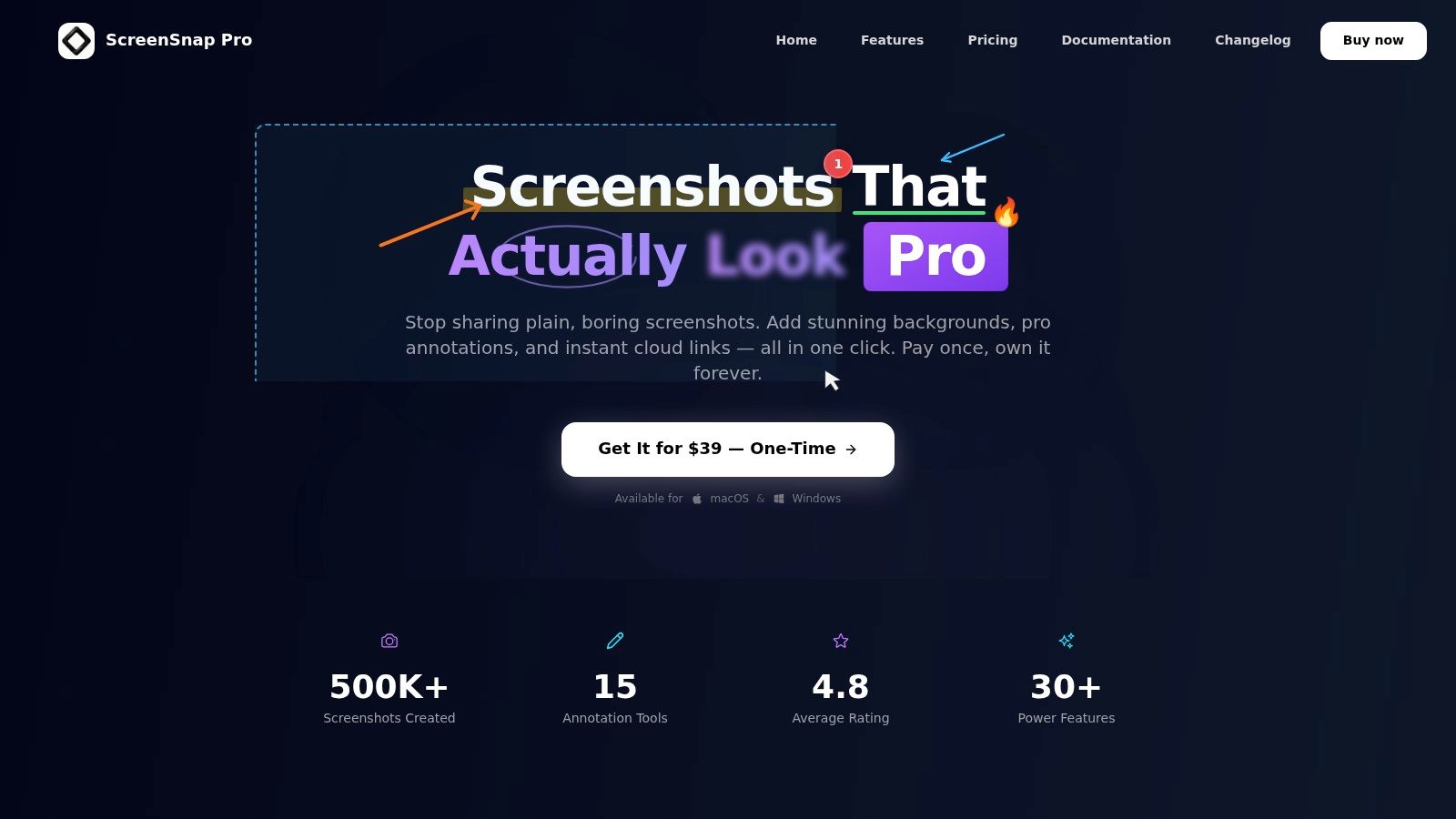
ScreenSnap Pro makes sense for teams that want one desktop app for capture, annotation, background styling, OCR, quick sharing, and lightweight video output. Its biggest advantage is practical: it tries to replace the handoff between a capture tool, an editor, and a sharing service. For Australian SMBs that document support steps, product changes, or QA findings every day, that can cut down the little context switches that slow work.
Capture and editing that stay in one flow
The tool supports area, window, and full-screen capture, plus screen recording with webcam, system audio, and microphone. It also adds timeline-based zoom-ins for recordings, so a trainer can highlight a click path without opening a separate editor. The editor includes 15 annotation tools, among them arrows, rectangles, blur, pixelate, spotlight, callouts, text, and pencil, which is enough for internal docs and client explanations without becoming overcomplicated.
Practical rule: If a team keeps switching between a capture tool, an image editor, and a link-sharing service, the workflow is probably too fragmented for day-to-day support work.
ScreenSnap Pro also leans into presentation consistency. It offers 500+ gradient backgrounds, plus padding, rounded corners, and drop shadows, which helps recurring documentation look uniform across articles, tickets, and help guides. The Quick Access Overlay and pin screenshot features are the sort of small touches that matter when someone is following a process step by step and needs the reference image to stay visible.
Where it fits best
ScreenSnap Pro is strongest when the job involves repeatable documentation, fast visual handoffs, and offline control by default. Its optional cloud upload creates instant short signed links, but screenshots remain local unless sharing is used. That's a solid fit for agencies, support desks, and operations teams that prefer to decide later whether an asset belongs in a drive, a knowledge base, or a client message.
The trade-off is scope. ScreenSnap Pro is intentionally not a heavy video editor, and it does not try to be a sprawling all-in-one suite. For teams that want a focused snagit alternative with modern capture, OCR, and polished sharing, that restraint is a strength, not a weakness. See the product details at ScreenSnap Pro.
2. ShareX
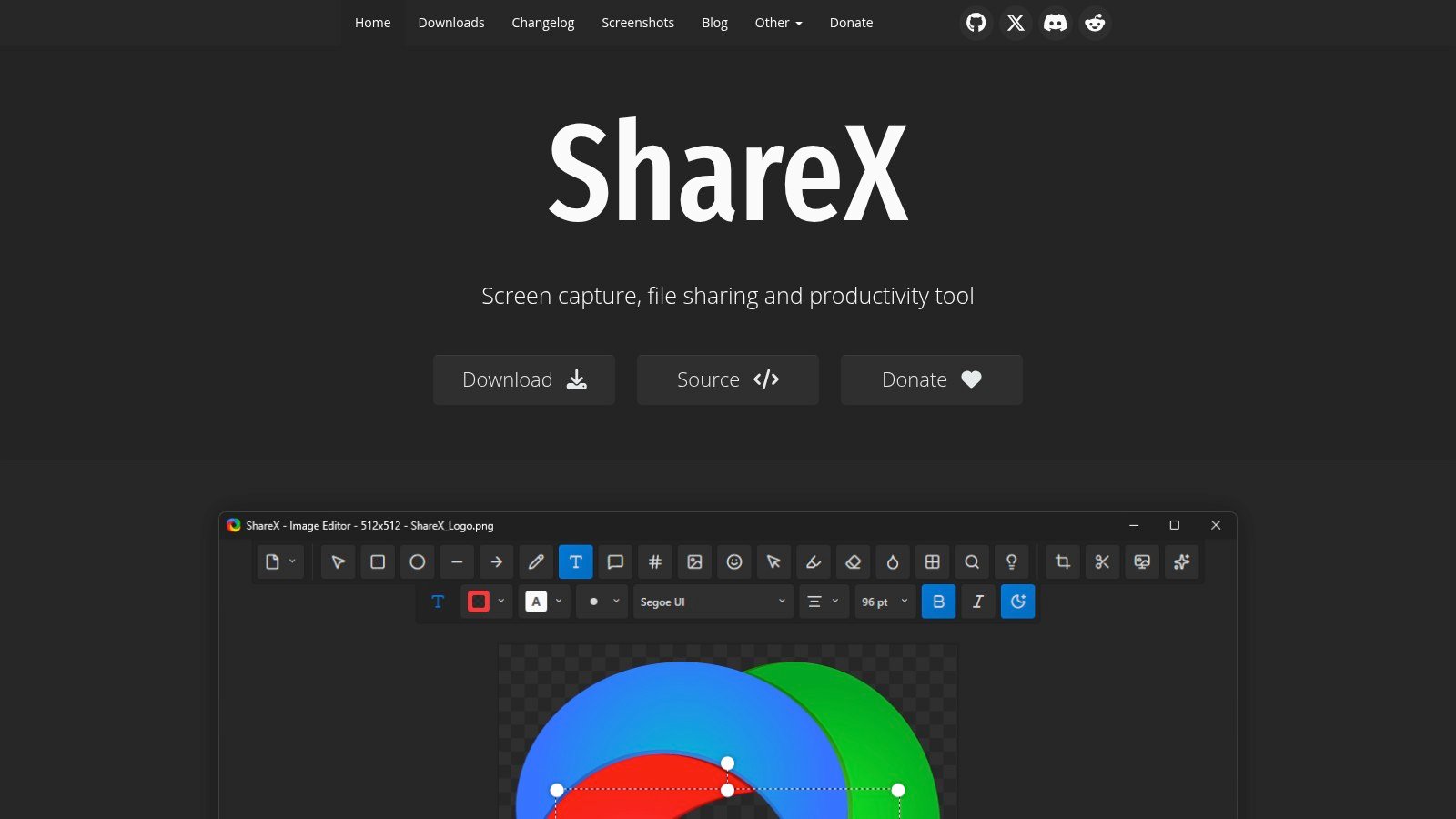
ShareX is the best-known free option for Windows teams that want deep automation rather than a polished beginner experience. It suits developers, QA staff, and support teams who need to capture, annotate, upload, and route files with as little manual handling as possible. The upside is control. The downside is that the setup can feel like a power tool, because it is one.
Built for automation-heavy Windows workflows
ShareX supports region, window, full-screen, scrolling capture, and GIF and video recording via FFmpeg. It includes a built-in editor with annotations such as blur, arrows, and callouts, and it goes far beyond the editor by adding post-capture automation like watermarking, file naming, and running commands. That is a real advantage when the same kind of screenshot needs to be renamed, uploaded, and pasted into a ticket every day.
The other standout is sharing flexibility. ShareX connects to 80+ upload destinations, including S3, Google Cloud, Cloudflare R2, and custom uploaders. For technical teams, that means screenshots can move into existing infrastructure instead of forcing a new storage habit.
What it gives up
ShareX is Windows-only, and it can be overkill for non-technical users. A support lead who just wants quick annotations and easy sharing will probably find the settings dense. Still, for an organisation that values free software and repeatable automation, that complexity can pay off quickly.
Practical rule: ShareX is the right choice when the team's problem is not capture itself, but what happens after capture.
For Australian businesses that already standardise on Windows and want a free snagit alternative, ShareX is hard to ignore. The open-source model means there's no licence anxiety, but it also means internal rollout should include a short setup guide, especially if multiple upload destinations or automation rules are involved.
Host your website with our 5-star rated, cPanel website hosting plans.
Super fast servers, with security included and hosted in your choice of Australian Data Center.
View cPanel Plans
3. Greenshot
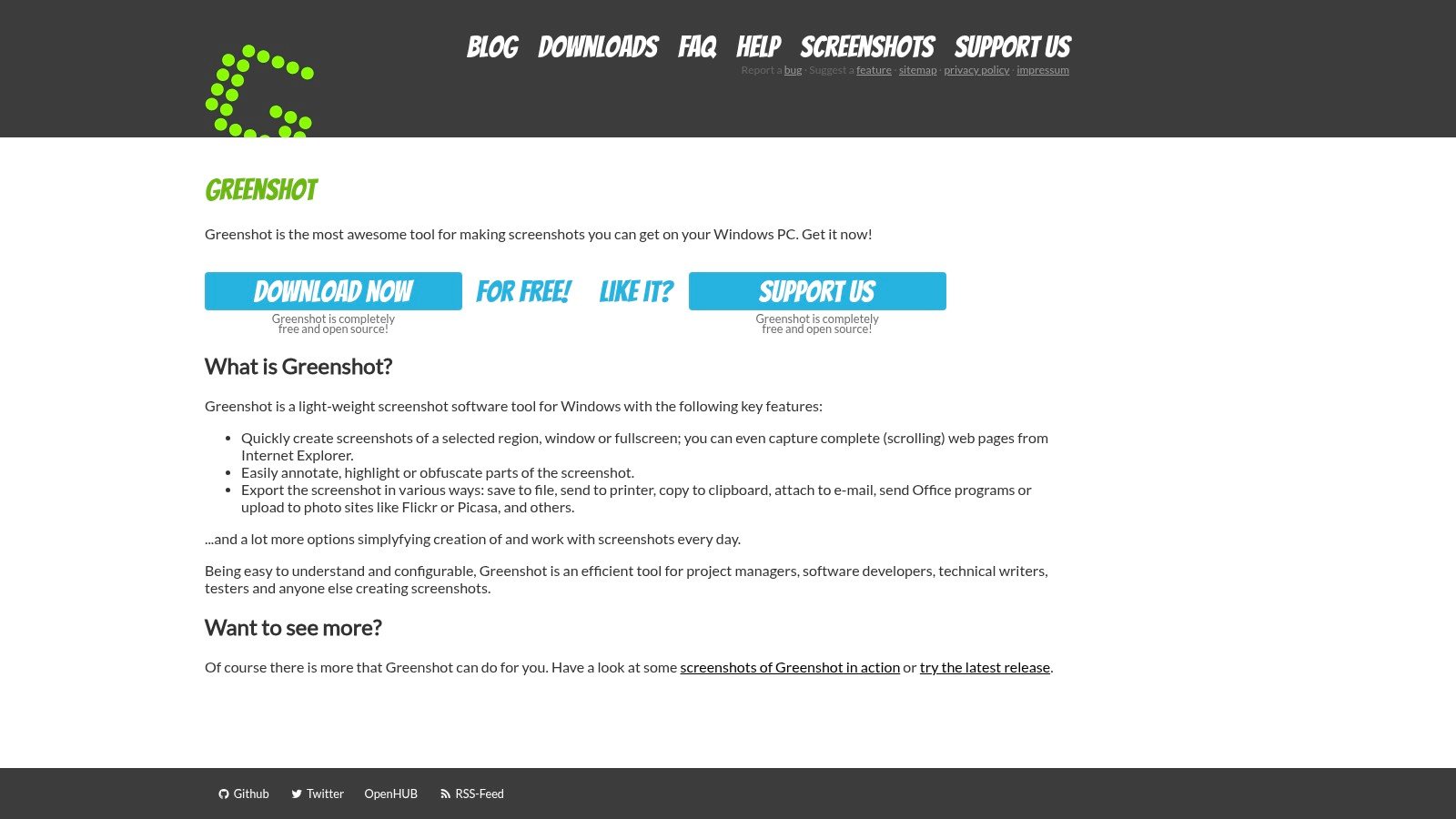
Greenshot is the lighter-weight option for teams that want a simple screenshot tool without the overhead of a more feature-packed suite. It works well for support docs, QA notes, and training screenshots when the main requirement is speed. The editor is easy to learn, which is often more valuable than having a long list of advanced functions nobody uses.
Simple capture with enough markup to be useful
Greenshot offers region, window, and full-screen capture with hotkeys, plus a built-in editor for arrows, text, highlighting, and blur. It also has multiple export targets and portable ZIP builds, so teams can move it around without making deployment a project. The Windows version is free and open source, while macOS is available through the App Store.
The appeal is low friction. Someone can capture a screen, mark it up, and get on with writing the ticket or training note without learning a heavy interface. That's why Greenshot remains a solid benchmark for basic internal documentation.
Where it falls short for mixed environments
The trade-off is platform parity. The Windows version leads, and the macOS experience doesn't match it feature for feature. Australian teams that need cross-platform consistency, especially in hybrid workplaces, should treat that gap seriously. If the process depends on identical workflows across Macs and PCs, Greenshot can become a compromise too far.
Accessing IT support through a knowledge base is a useful pattern to copy here, because Greenshot works best when the support process is equally direct. A tool like this is most valuable when the organisation writes down exactly how captures should be named, annotated, and handed off.
Greenshot is not flashy, and that is the point. For teams that need a lean snagit alternative for everyday screenshots, it does the job without asking for much in return.
4. FastStone Capture
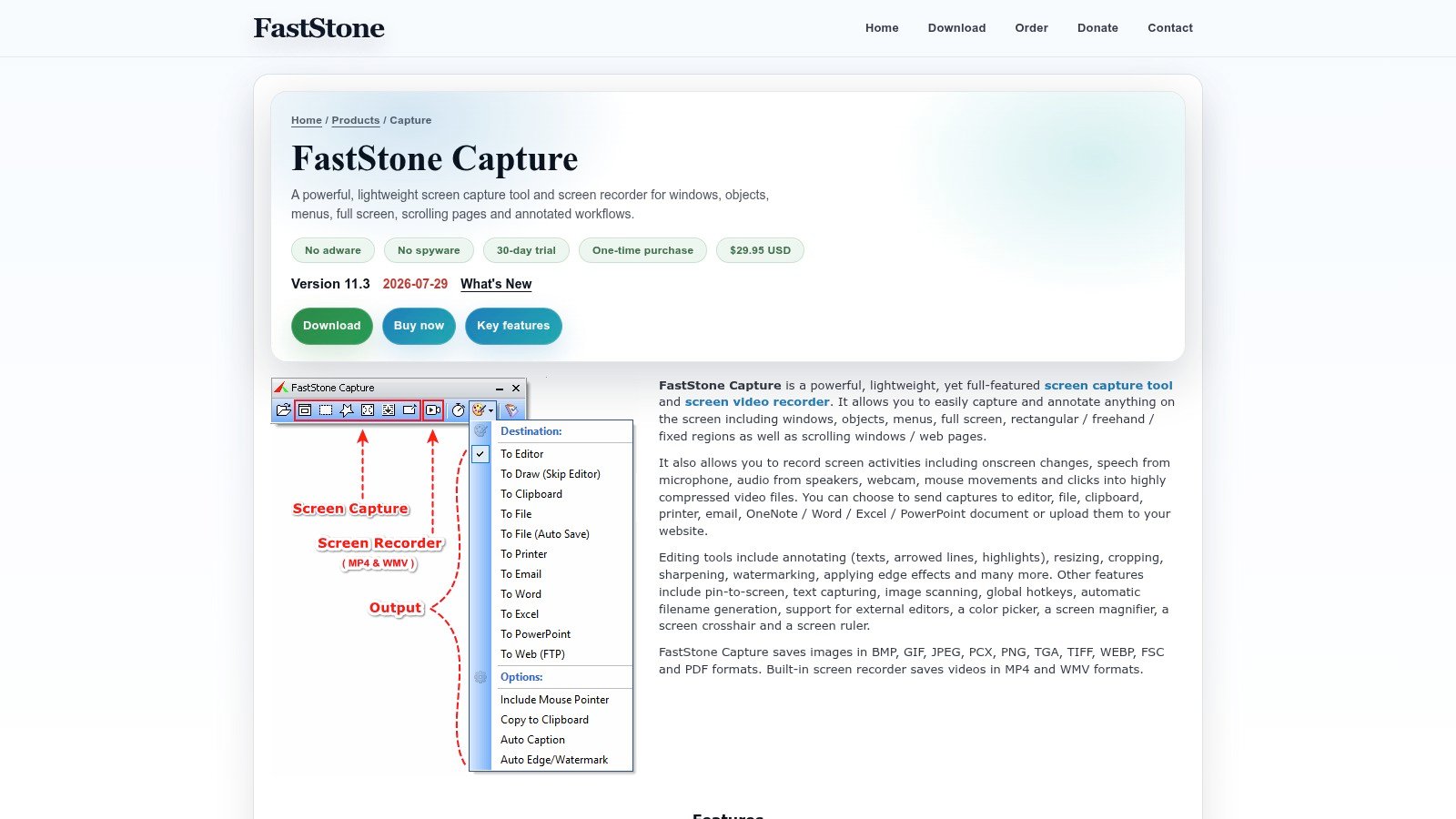
FastStone Capture suits a Windows team that wants a one-time purchase and a familiar desktop workflow. It fits SMBs that prefer to install once, train once, and avoid subscription churn. The interface is plain rather than modern, but that also makes it easy to learn and keep using.
Stable capture for long-running use
FastStone Capture supports precise region capture, scrolling capture, and screen video recording. Its editor includes callouts, highlights, and edge effects, and captures can go straight to the editor, clipboard, printer, email, or Office apps. That is useful for businesses still building documentation in Word, email, and desktop files rather than a browser-only stack.
The main draw is the licensing model. It uses a lifetime-style one-time purchase, which suits organisations that want predictable ownership instead of another recurring bill. For local businesses, that can matter more than having the newest interface style.
FastStone's lightweight footprint also helps on older machines, and pairing it with a fast site matters when publishing captures online. See how to improve website speed for the web side of that workflow.
A conservative tool for conservative workflows
FastStone works best where the process is repetitive and stable. Support teams that prepare screenshots for internal procedures, field notes, or client walk-throughs can keep the workflow consistent with very little maintenance. It is also light on system resources, which helps on older desktops or laptops still common in small offices.
The trade-off is clear. It is Windows-only, and the interface feels traditional beside newer cloud-first tools. That is fine if the team values stability and familiar controls. It is a weaker fit if staff need the same capture workflow across Macs and PCs, or if sharing depends on a cloud-first handoff.
For Australian teams comparing a paid snagit alternative with clear ownership, FastStone Capture is a practical fit. It covers everyday screenshots well, especially when the job is important but not flashy.
5. PicPick
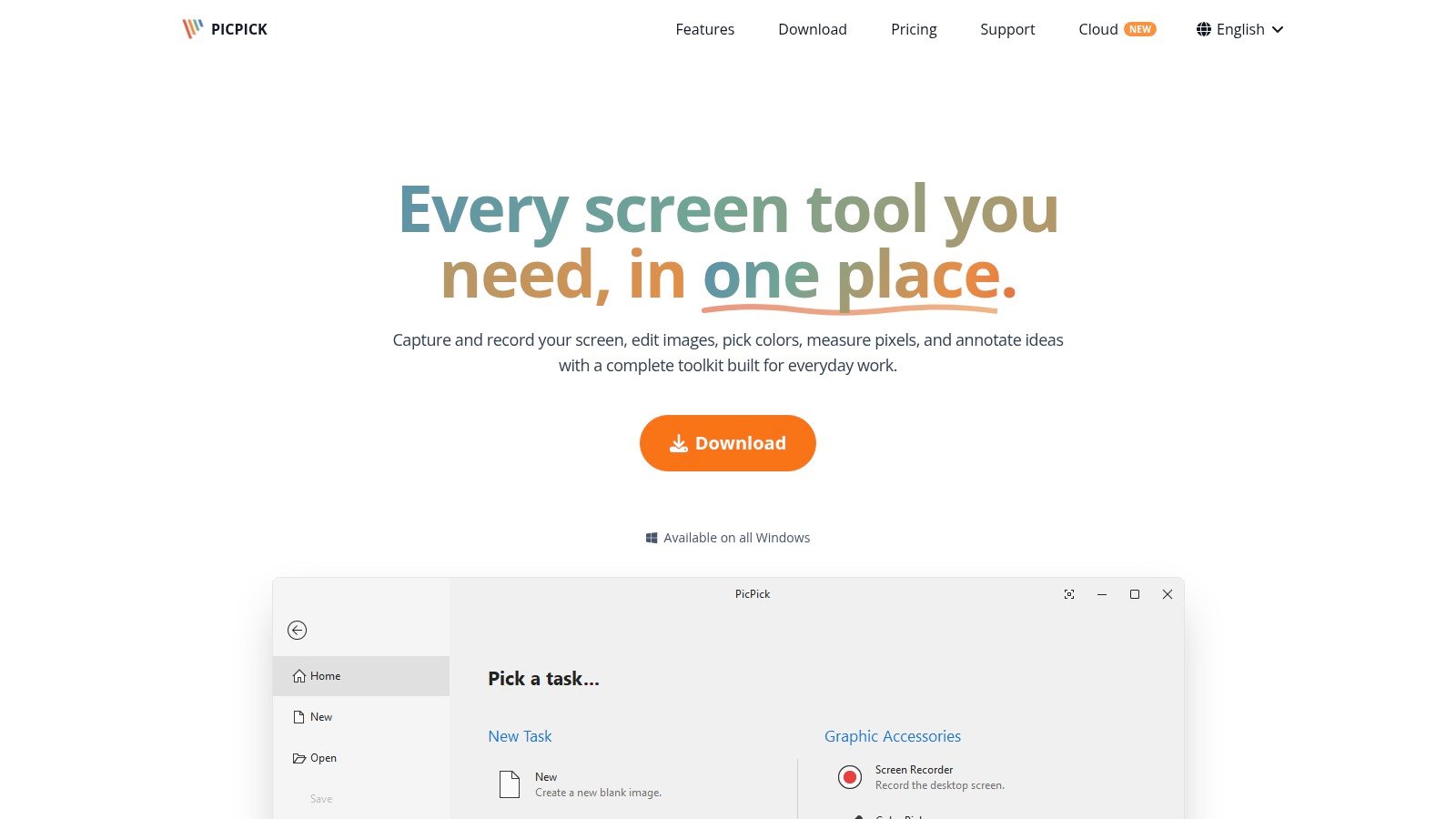
PicPick works best for teams that want more than a bare screenshot utility but don't need a full video suite. It combines capture and image editing in a way that feels approachable, which makes it useful for marketing coordinators, support staff, and anyone who wants one app for mark-up and clean presentation.
Good editor, practical tools, reliable scrolling capture
PicPick includes region, window, full-screen, and scrolling capture, along with a full image editor for markup, effects, colour picking, and a pixel ruler. For teams creating screenshots for tickets, SOPs, or internal docs, those utility tools save time because the app handles both capture and clean-up. PicPick Cloud is available for Pro users who want sharing from within the product.
Its scrolling capture is one of the main reasons it belongs on a shortlist. Long help pages, dashboard views, and web processes often need a single long image, and PicPick handles that use case cleanly.
Licensing and fit
The main caution is commercial use. The free version is for personal use only, so Australian businesses need to confirm licensing before rolling it out broadly. It is also Windows-only, which matters if the organisation has even a small Mac footprint.
Adding an image inside HTML content sounds like a web task, but it reflects the broader reality here. Teams that publish screenshots in knowledge bases or CMS pages need a tool that makes capture easy, then a publishing workflow that stays just as orderly.
PicPick is a sensible snagit alternative for organisations that want a friendlier editor and dependable scrolling capture without buying into a heavy platform.
Register your new domain name at competitive market prices including free domain add-ons like privacy, DNS Hosting, Custom Nameservers and Forwarding.
Always the best price and no nasty renewal price hikes.
Register A Domain Name
6. Screenpresso
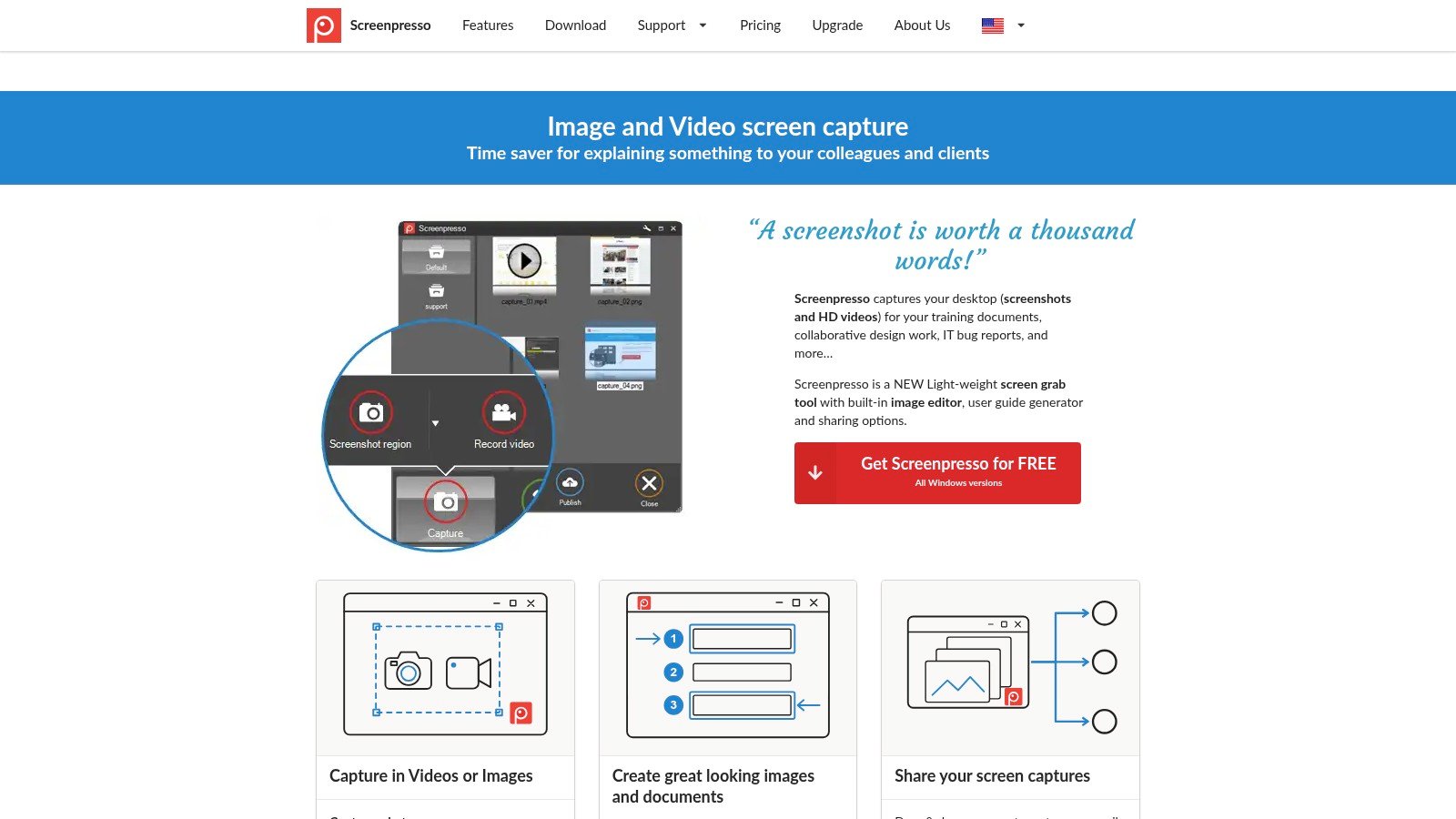
Screenpresso is a strong fit for teams that need to turn captures into procedures, manuals, or structured internal documentation. It does more than save screenshots, it helps organise them into outputs that look like training material. That makes it especially useful for operations, onboarding, and process teams.
From capture to document
Screenpresso supports image and HD video capture and keeps everything in a workspace for later use. It also offers one-click sharing to 100+ services and, especially for documentation teams, a generator that can turn annotated captures into Word, PDF, and HTML step-by-step documents. That is a real benefit when a support process needs to become a repeatable knowledge-base article.
The enterprise controls are another reason it stands out. Organisations that care about deployment policy and standardisation will appreciate a tool that thinks beyond the individual user and into team rollout.
Why it suits procedure-heavy teams
The best Screenpresso use case is a business that writes a lot of internal guidance. A capture sequence can be organised, annotated, and turned into a readable process doc without moving through several separate tools. That saves time and keeps formatting more consistent across the organisation.
The trade-off is that some advanced features sit behind the Pro licence, and it remains Windows-only. For mixed-device offices, that can complicate rollout. For Windows-heavy teams that need polished output rather than casual screenshots, the limitation is manageable.
Publishing step-by-step guides on a website is a separate concern from making the capture, and Screenpresso's workflow fits that reality well. It helps create the material, while the website layer handles delivery.
Screenpresso is one of the better snagit alternative choices for documentation teams that care about repeatability and clean handover.
7. Monosnap
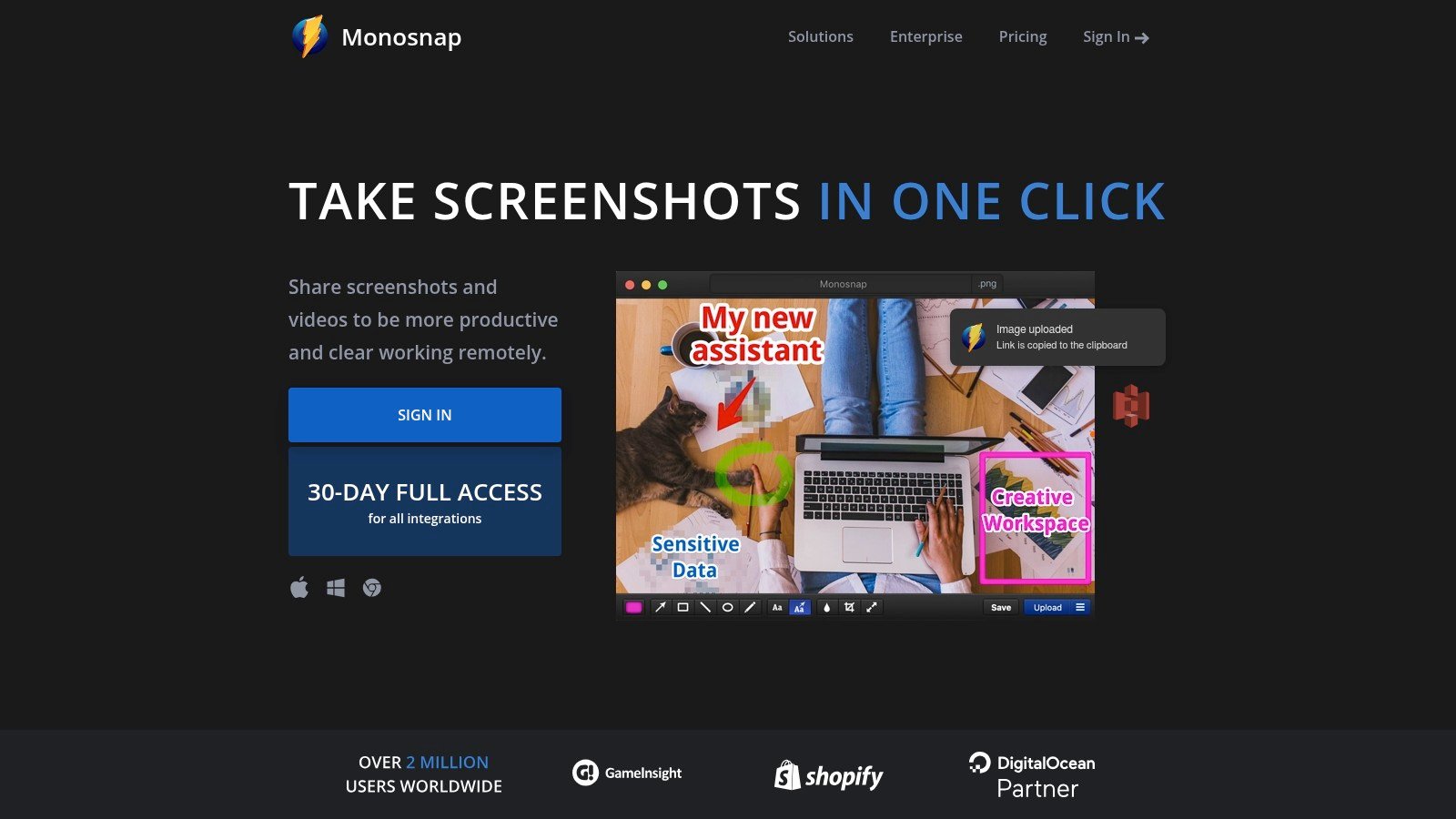
Monosnap suits teams that need both Windows and macOS support, plus flexible storage choices. It's a good pick for support teams, ecommerce operations, and agencies that share a mix of internal notes and client-facing visuals. The main attraction is that it doesn't force a single storage path on the team.
Flexible sharing across desktop platforms
Monosnap supports screenshot and screen recording with live highlights, along with a built-in editor for arrows, text, and blur. Hotkeys are customisable, and the app connects to S3, Google Drive, Dropbox, WebDAV, FTP, plus optional Monosnap Cloud. That makes it useful where screenshots need to land in different systems depending on the project.
For Australian teams that work across devices, that flexibility matters. A designer on Mac, a support agent on Windows, and an ops lead using shared cloud storage can all stay inside the same tool instead of asking for separate workflows.
The trade-offs to watch
Some integrations and commercial use require paid tiers, so the free version should be checked carefully before standardising on it. There have also been user concerns about service or domain changes over time, which means stability deserves a quick internal review before a large rollout. That does not make Monosnap unusable, but it does mean procurement should be deliberate.
Monosnap works best when the team's priority is cross-platform convenience and storage flexibility, not maximum polish. It's especially practical for organisations that want to keep screenshots close to their existing cloud or file server rather than moving everything into a new vendor's ecosystem.
For a cross-platform snagit alternative with straightforward capture and flexible destination support, Monosnap remains a viable option.
Experience Microsoft 365 Business Standard for free for 30 days.
Up to 25 users with full access to email, OneDrive and Teams. Includes full versions of desktop apps of Outlook, Word, Excel, PowerPoint and more.
Try Microsoft 365
8. ScreenPal

ScreenPal is the training-friendly choice for teams that want screen recording, screenshots, and cloud hosting in one place. It's been around long enough to feel familiar, and it supports a broad mix of devices, which makes onboarding easier for mixed teams and education-style use cases.
Good for training, support, and classrooms
ScreenPal supports screen and webcam recording, a simple video editor, screenshot capture and annotation, cloud hosting, and team management and branding controls on higher plans. It also works across Windows, macOS, Chromebook, and web, which helps when the same process needs to be shown to users on different devices.
That broad platform support is its real strength. Trainers can record once and share across a variety of environments without worrying that the app only works in one part of the stack. For organisations with a lot of how-to content, that simplicity lowers adoption friction.
Where it wins, and where it doesn't
The free tier is limited in hosting and storage, so teams that rely on a large video library will want to test the paid tiers first. Advanced editing also sits behind paid plans, which means ScreenPal is better as a communication tool than a full production suite.
Practical rule: ScreenPal is strongest when the job is teaching or explaining, not when the job is producing polished long-form video.
Building a simple explainer video workflow is easier when the recorder is straightforward. ScreenPal fits that kind of low-friction teaching setup, especially for support teams that need to explain a process clearly and move on.
ScreenPal is a practical snagit alternative for teams that care more about accessibility to the workflow than deep editing complexity.
9. Loom
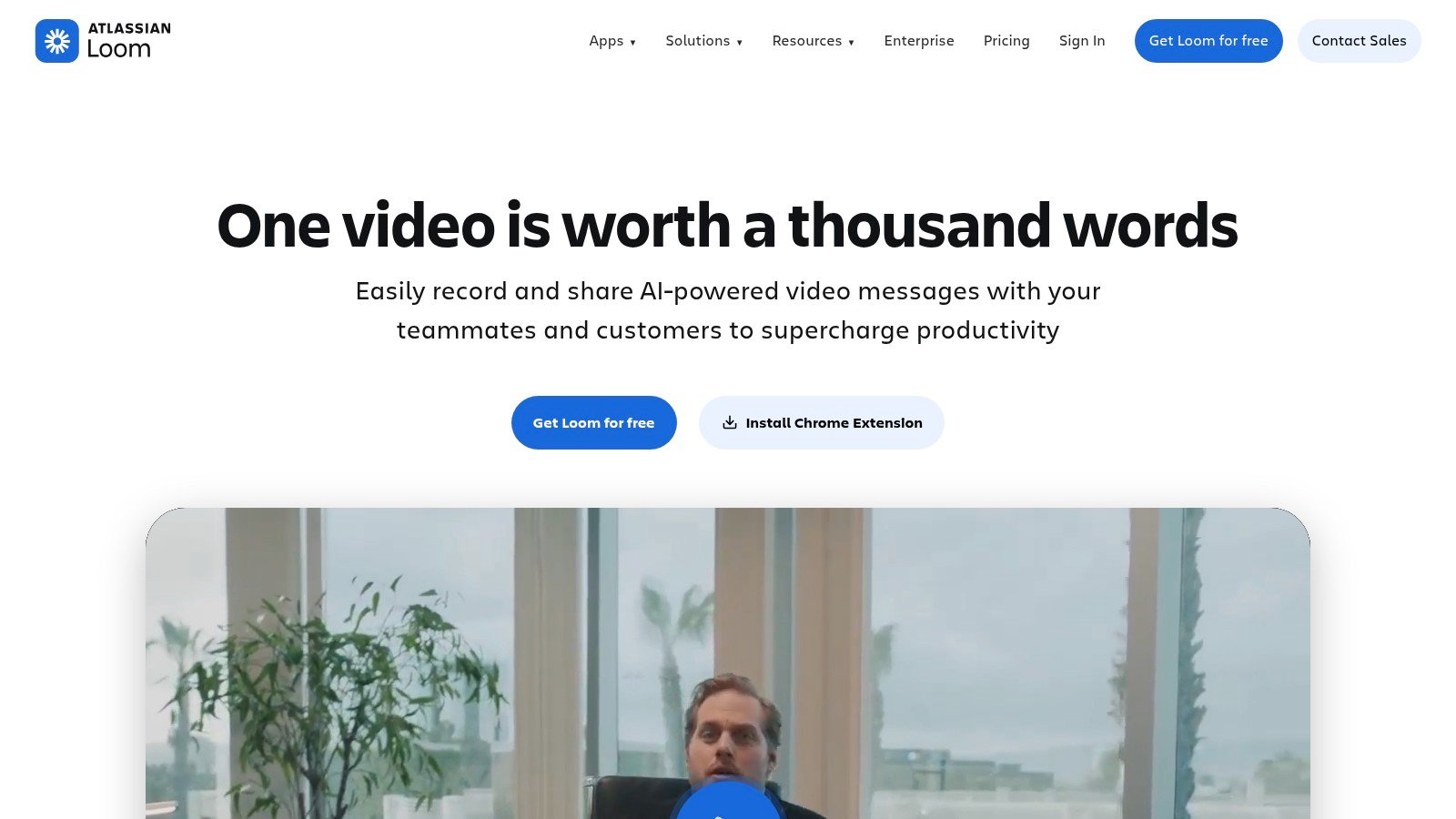
Loom is built for fast, asynchronous communication, and that's why it often shows up in support, sales, and internal update workflows. It is better at quick video explanations than at still-image documentation, so it shouldn't be compared to screenshot-first tools on the wrong terms.
Fast video sharing for busy teams
Loom's strength is speed. It offers instant cloud hosting with link sharing, plus viewer reactions, and paid tiers add AI-assisted titles, summaries, and filler-word removal. Team workspaces, permissions, and branding controls make it easier for organisations to keep short explainers tidy and consistent.
That makes Loom particularly effective for client updates, quick bug explanations, or a manager talking a teammate through a problem without scheduling a meeting. The point is to reduce back-and-forth, not create a polished production.
Where it fits and where it doesn't
Loom is less suited to workflows built around still screenshots, long-page capture, or detailed image annotation. It also leans cloud-first, so organisations that want offline control will need to look elsewhere. Per-user pricing can also become noticeable as the team grows.
Increasing website traffic is a separate publishing concern, but Loom is useful when the content itself is the explanation and not the article around it. That distinction matters for Australian teams deciding how much of their communication should be video versus document.
Loom is a strong snagit alternative only when the need is quick asynchronous video, not general screenshot work.
10. Zight
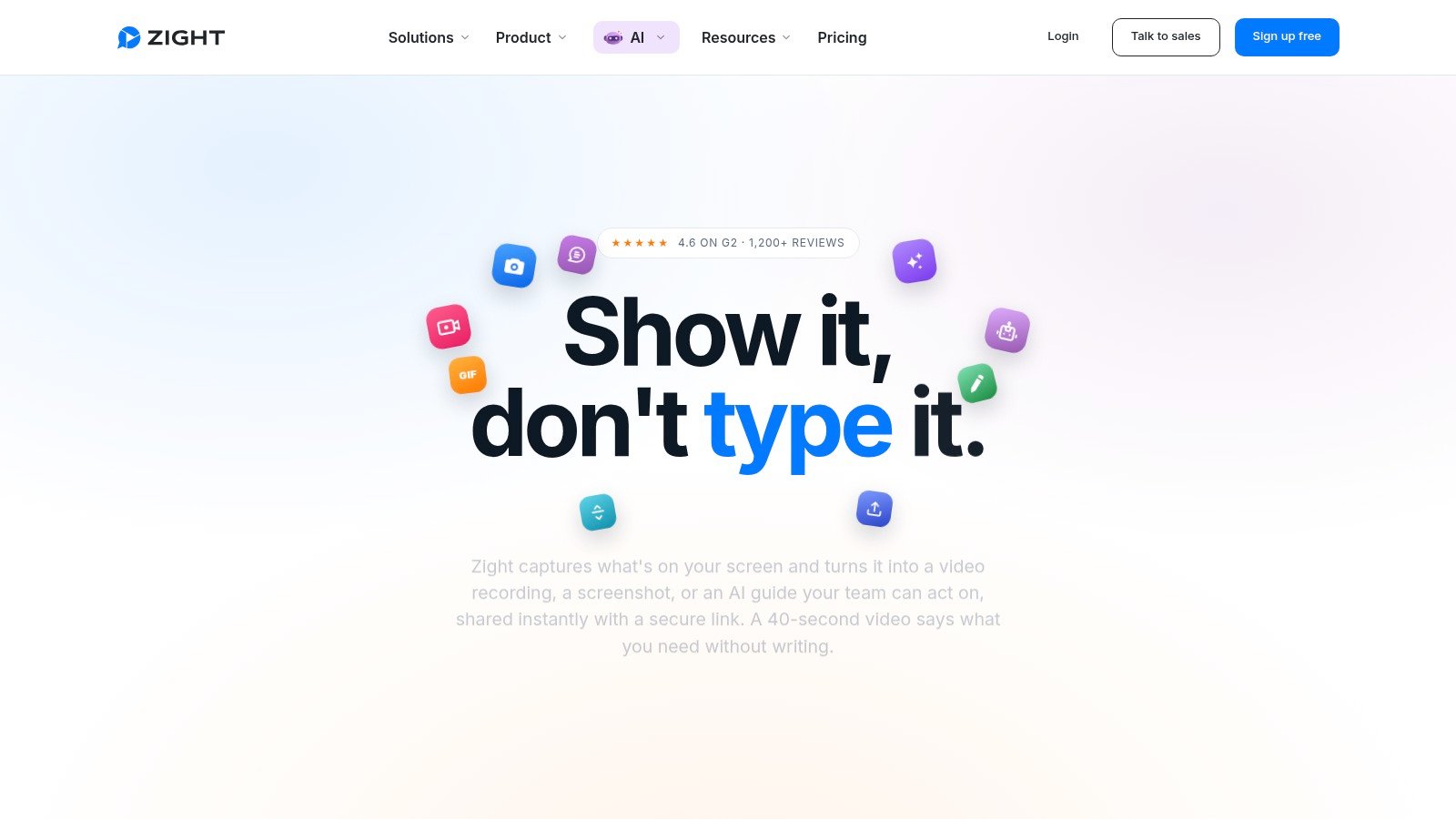
Zight, formerly CloudApp, is a cloud-first option for teams that need quick screenshots, GIFs, and short recordings with polished sharing. It is especially appealing to sales and support teams that send lots of visual responses to clients and prospects. The workflow is simple, capture, annotate, auto-upload, share.
Fast cloud sharing with light editing
Zight supports quick screenshots, GIFs, and screen recordings with auto-upload. It also includes image and video annotations with calls-to-action, plus team workspaces, SSO, analytics, and password-protected links on higher tiers. For client-facing work, that combination makes follow-up fast and tidy.
The main advantage is the speed of handoff. A team member can capture a problem, add a short visual note, and send a link without building a larger document first. That is exactly the kind of workflow many Australian support and account teams want.
The trade-off is cloud dependence
Zight is not the best choice for offline or air-gapped environments. Its best features sit on paid plans, and the cloud-centric model means it's less attractive to teams that want local storage as the default. That doesn't make it weak, just highly specific.
For organisations that live in client messaging, short internal updates, and quick visual replies, Zight is a strong snagit alternative because it optimises for speed over depth.
11. Nimbus Capture
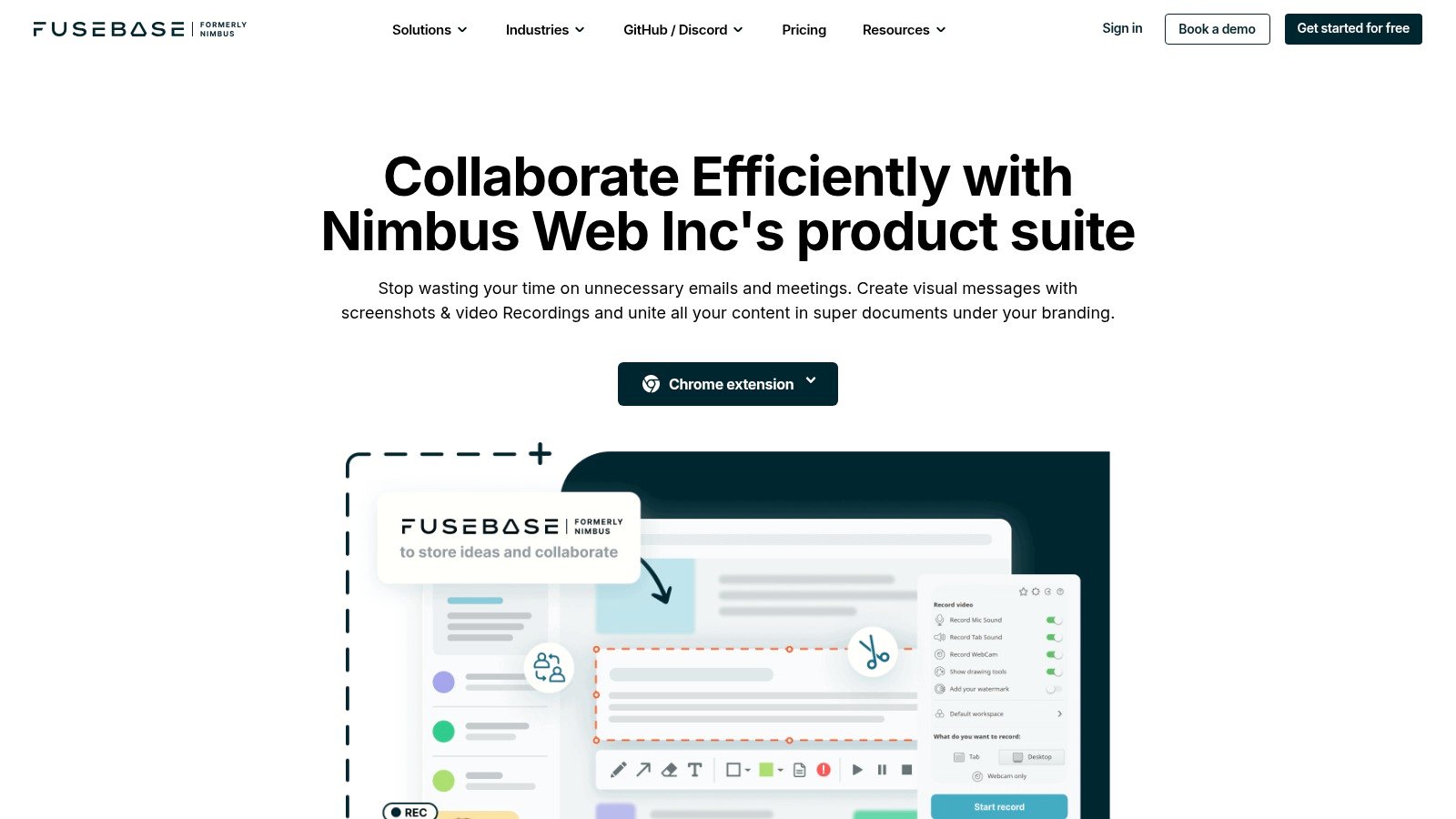
Nimbus Capture suits browser-heavy teams that live in Chrome, Edge, or Firefox and need full-page screenshots plus long-form recordings. It fits web documentation, QA notes, and client portal walkthroughs especially well. The browser extension does most of the heavy lifting, which keeps the workflow close to where the work happens.
Browser-first capture for web work
Nimbus Capture supports full, region, element, and entire-page screenshots, along with video recording and annotation tools. On Pro plans, recording can run for longer durations, which is useful for demos or web procedures that do not fit into a short clip. The extension-to-share path is its main strength, because it keeps capture close to the browser session.
That makes it a sensible choice for teams documenting SaaS workflows, customer portals, or online forms. If the job lives in a tab, Nimbus usually feels natural.
Keep an eye on current limits
Feature and branding changes have occurred over time, so current plan limits should be checked before committing. The desktop app is less prominent than the browser extension, which is worth remembering if the team wants a heavier desktop workflow. For many browser-centric teams, though, that's not a problem.
WordPress SEO best practices sit on the publishing side, not the capture side, and Nimbus fits that split cleanly. It helps produce the web-focused visuals, while the site handles structure and discoverability.
Nimbus Capture is a practical snagit alternative for organisations that document what's on-screen in the browser more often than what's on the desktop.
Snagit Alternatives, 11-Tool Feature Comparison
| Product | Platform & Price | Key features | Best for (Target) | Unique strength / Notes | Cons |
|---|---|---|---|---|---|
| ScreenSnap Pro | macOS & Windows, One-time $39 (lifetime updates) | Screenshots, screen recording, OCR, timeline zoom, Quick Access, 500+ backgrounds, optional short-link cloud | Creators who want an all-in-one, privacy-focused one-time purchase | Polished framing/background library, OCR + timeline zoom for recordings | No scrolling capture; not a full NLE |
| ShareX | Windows, Free (open source) | Region/scrolling capture, FFmpeg recording, built-in editor, post-capture automation, 80+ uploaders | Developers, power users, automation workflows | Extremely scriptable with many upload destinations | Windows-only; steep learning curve for non-technical users |
| Greenshot | Windows (free OSS) • macOS via App Store (paid) | Fast region/window/fullscreen capture, simple editor (blur, arrows), portable builds | Support docs, QA, training screenshots | Very lightweight and easy to learn; portable option | macOS version lags Windows; limited cross-platform parity |
| FastStone Capture | Windows, One-time license (paid) | Precise & scrolling capture, video recording, editor, Send to Office/printer | SMBs and users preferring stable, long-running tools | Mature, stable product with low resource use | Windows-only; UI feels traditional |
| PicPick | Windows, Free for personal, paid commercial licenses | Scrolling capture, full image editor, utilities (color picker, ruler), cloud sharing for Pro | Teams needing a friendlier, full editor and reliable scrolling capture | Polished editor and bundled utilities | Free limited to personal use; Windows-only |
| Screenpresso | Windows, Free & Pro (perpetual + 1yr updates) | Image + HD video capture, workspace, one-click sharing, document generator | Teams producing procedures, manuals, SOPs | Generates step-by-step Word/PDF/HTML documents from captures | Windows-only; advanced features behind Pro |
| Monosnap | Windows & macOS, Freemium (paid tiers) | Screenshot/recording, editor, hotkeys, integrations (S3, GDrive, Dropbox, Monosnap Cloud) | Support teams and ecommerce needing flexible storage | Flexible storage/integration options (third-party or cloud) | Some integrations/commercial features paid; occasional service changes |
| ScreenPal | Windows, macOS, Chromebook, Web, Freemium (paid tiers) | Screen & webcam recording, simple editor, screenshot annotation, cloud hosting, team branding | Education, training, support teams | Education-friendly tools, team management and branding | Free tier limits hosting; advanced editing on paid plans |
| Loom | Windows, macOS, Web, Chromebook, Freemium (per-user pricing) | Instant cloud hosting, quick screen+cam recording, AI titles/summaries (paid), analytics | Async video for teams, client explainers, product demos | Extremely fast capture-to-share workflow with collaboration analytics | Per-user pricing can be costly; more video-centric than image workflows |
| Zight (CloudApp) | Cross-platform (desktop + web), Freemium (paid tiers) | Quick screenshots, GIFs, video, auto-upload, CTAs, team workspaces, analytics | Sales, support, product teams needing fast client comms | CTAs, password-protected links and team analytics for outreach | Best features require paid plans; cloud-centric approach |
| Nimbus Capture | Browser extensions (Chrome/Edge/Firefox) + desktop, Freemium | Full/region/element and entire-page scrolling screenshots, video recording, annotations | Web documentation, long web-page captures, tutorials | Excellent browser-centric full-page/scrolling capture via extension | Desktop app less prominent; plan limits and branding may change |
Make the Switch Without Breaking Your Workflow
The best match depends on the job. ShareX suits advanced free Windows automation. Greenshot works for lightweight documentation. FastStone Capture is a sensible one-time Windows purchase. PicPick is better when a Windows editor matters as much as capture. Screenpresso is the pick for manuals and step-by-step documentation. Monosnap is the cross-platform option with flexible storage. ScreenPal is the safer choice for training and classroom-style work. Loom fits fast video communication. Zight suits cloud-based client sharing. Nimbus Capture is strongest in browser-heavy workflows.
A short recap helps when procurement, support, and training all need different things. Platform is the first filter. Capture type comes next, because some teams need only screenshots while others need video and GIFs. Sharing model matters for privacy and speed. Licensing approach matters for budgeting. The main limitation usually shows up fast, Windows-only tools are excellent when the office standard is Windows, but they can become awkward in mixed environments.
Migration works best when it's treated as a process, not a switch. Start by inventorying Snagit capture presets and destinations, then export or archive important files before any rollout. Recreate hotkeys and annotation conventions so the team doesn't have to relearn every small habit. Test commercial-use terms carefully, because the free version of one tool may not cover a business rollout. Choose storage and access permissions before the first shared capture goes live.
A pilot is the safest way to change. Run one workflow, such as QA screenshots, onboarding steps, or a browser walkthrough, and compare the old and new output side by side. Then document the replacement process in the organisation's knowledge base so the next hire doesn't have to ask which button to press. For Australian teams publishing screenshots or recordings on a website, a local hosting provider such as UpTime Web Hosting can support the publishing layer, but hosting choice stays separate from the capture-tool decision.
A good Snagit alternative should make the work clearer, not just the software cheaper. For Australian SMBs, agencies, and support teams, the right choice is the one that fits the workflow, keeps handoffs tidy, and doesn't create extra steps when a screenshot or short recording is needed in a hurry.