In short
WordPress site updates not showing usually mean an older cached copy is reaching the browser, even though the edit saved correctly. Check a private window first, then clear the browser cache, WordPress cache plugin, hosting or server cache, CDN cache and page-builder files in that order, testing the exact live URL after each step.
Key takeaways
- A change visible in a private window but not in the normal browser window points to browser cache.
- A change visible while logged in but not while logged out points to a page, server or CDN cache.
- Clear one cache layer at a time and retest the same URL, or the successful fix stays unknown.
- WordPress core does not add a persistent full-page cache by default; a plugin, host or CDN usually supplies it.
- When text updates but the layout does not, generated CSS or optimised assets deserve attention.
Table of contents
- Why can I see the edit in WordPress but not on the live site?
- Which cache should I clear first?
- What does each symptom tell me?
- What if clearing every cache changes nothing?
- How can I stop this after future edits?
- Frequently asked questions
- When should I hand the problem to support?
Why can I see the edit in WordPress but not on the live site?
When a WordPress website is not showing updates, the editor can be reading fresh database content while the public request receives saved HTML, CSS or JavaScript from a cache. The first job is to prove the edit is public and that the correct live URL is being checked.
WordPress.org's Page/Post Settings documentation, last updated October 24, 2024, says Published content is visible to everyone, while Draft, Pending and Private content is not public. The publication date is a separate setting, so check that the page has not been scheduled for a future time.
Before clearing anything, confirm all five points:
- The editor finished saving and the Update action did not display an error.
- The status is Published and the visibility is Public.
- The publication time is not in the future.
- The URL opened from the editor is the same URL being checked publicly.
- The edit was made on the live domain, not a staging site, language variant, duplicate page or unused template.
Open the exact public URL in a private window. If the new version appears there but the normal window stays old, WordPress has probably published the edit and the normal browser session is holding the stale copy. If both public views remain old, continue through the cache layers.
If the public URL is wrong or the page is not Published, clearing caches cannot reveal the edit.

Performance you can feel, backed by clients who depend on it. Read how our support and uptime create long‑term customer success.Power Your Business with Better Hosting
Which cache should I clear first?
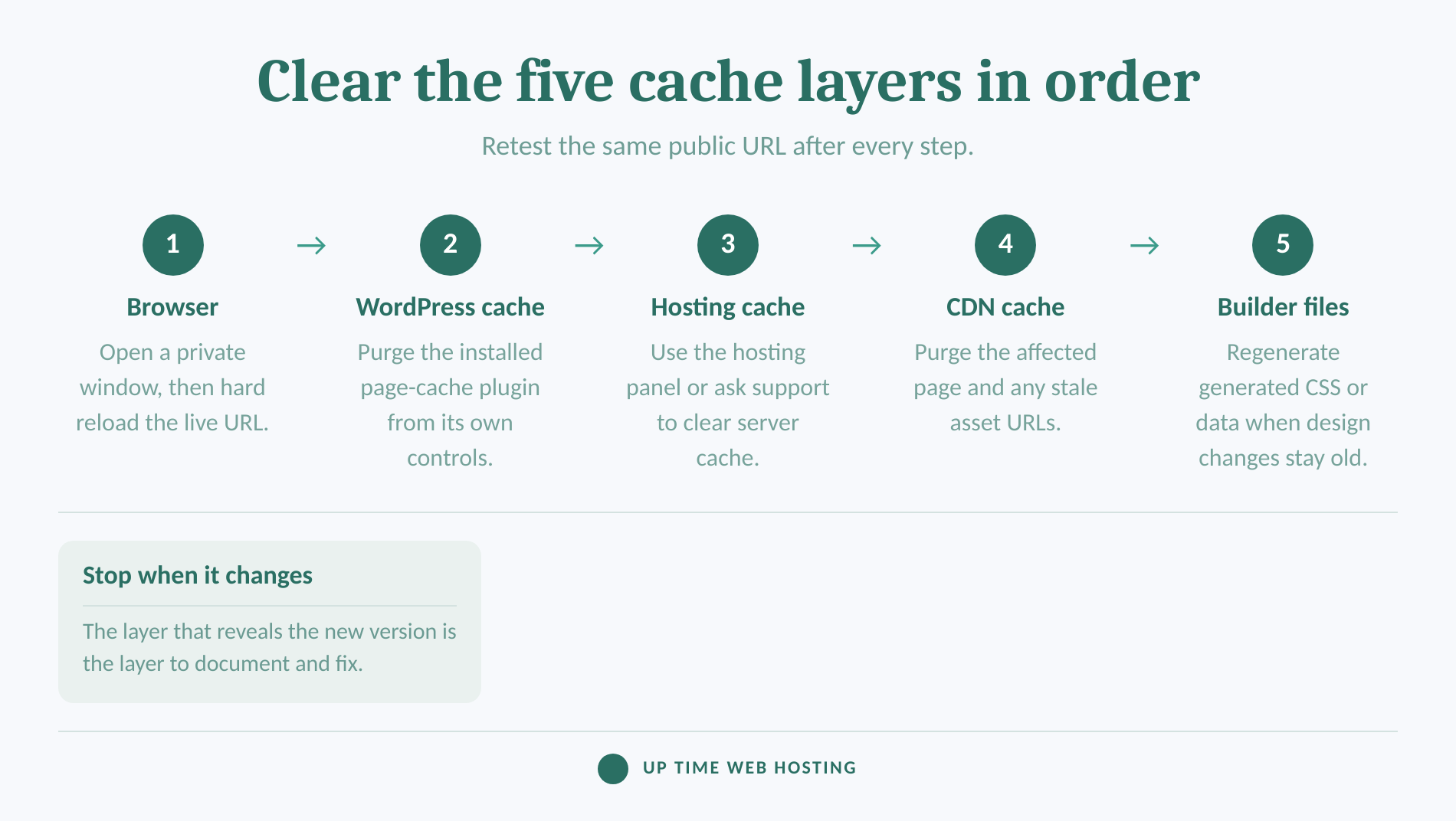
Clear caches from the layer closest to the reader to the layer closest to the site: browser, WordPress plugin, host or server, CDN, then page-builder files. Test the same public URL after every step, because clearing everything at once fixes the symptom but hides the cause.
WordPress.org's FAQ I make changes and nothing happens, last updated August 7, 2024, identifies browser, server-side and plugin caches as common causes. The WordPress cache handbook, updated July 7, 2025, also distinguishes browser, page, object and server caching.
1. Test and refresh the browser copy
Start with a private window. If it shows the new version, return to the normal window and perform a hard reload.
Google Chrome's current keyboard shortcut guide, checked in September 2026, lists Shift + F5 or Ctrl + Shift + R on Windows and Linux, and Command + Shift + R on macOS, for reloading while ignoring cached content.
Avoid deleting cookies unless the hard reload fails and the browser's site-data controls require it. Removing cookies can sign users out and is not normally needed for a stale image, stylesheet or page copy.
2. Purge the WordPress page-cache plugin
Look for a Clear Cache, Purge Cache or Delete Cache action in the WordPress toolbar, plugin settings or performance menu. Purge the affected page if the plugin offers targeted clearing; otherwise use its documented full-cache action.
The detailed steps vary by plugin, so use the site's installed controls rather than adding another caching tool. This guide to clearing the WordPress cache covers the general workflow, while how WordPress caching improves speed explains why the cache should be enabled again after testing.
3. Purge the hosting or server cache
A successful plugin purge does not clear a separate cache running at the web-server or hosting-account level. Check the hosting control panel for a cache-management action, or ask the host whether server-side page caching is active for the domain.
Do not install a new plugin to clear a server cache. The hosting layer has to invalidate its own stored copy, and its controls may sit outside WordPress.
4. Purge the CDN or edge cache
A CDN may store images, CSS and JavaScript, and some configurations also cache complete HTML pages. The official WordPress performance handbook confirms that full-page or edge caching can sit in front of the WordPress server.
Purge the affected page URL first when the CDN supports targeted clearing. If an image or stylesheet alone is stale, clear that asset URL as well. Use a full-site purge only when targeted invalidation is unavailable or several pages depend on the same changed asset.
5. Rebuild page-builder files when the design stays old
If new text appears but colours, spacing, fonts or layout remain unchanged, the stale item may be generated CSS or optimised assets rather than the page HTML. Use the page builder's documented tool for clearing files, regenerating CSS or rebuilding data, then purge the page cache once more.
Take a current backup before using a builder's repair or file-regeneration tool. Do not delete generated folders manually unless the builder or developer documentation specifically requires it.
After every purge, reload the same public URL in the same private window. Stop when the new version appears and record the layer that fixed it.
Clear the closest cache first, retest, and only move deeper when the same public URL remains stale.
What does each symptom tell me?
If WordPress page updates are not showing after saving, compare the logged-in view, normal public view and private-window view. The difference between those views usually narrows the problem faster than repeatedly pressing Update.
| What you see | Most likely area | Next check |
|---|---|---|
| New version in private mode, old version in the normal window | Browser or session cache | Hard reload or clear cached files for that site |
| New version while logged in, old version while logged out | Page plugin, server or CDN cache | Purge upstream page caches in order |
| New text but old colours or layout | Generated CSS, minified assets or builder files | Regenerate files, then purge the page and asset caches |
| One URL stays old while other pages update | URL-specific cache, duplicate page or wrong template | Confirm the exact URL and purge that page |
| Old version on every device and network | Upstream cache, failed publication or wrong content source | Recheck status, URL, server cache and CDN |
| Preview is current but the public page is old | Preview state or public cache | Confirm Update completed, then test while logged out |
These are diagnostic clues, not guarantees. Logged-in users often bypass public page caches, but the exact behaviour depends on the plugin, host and CDN configuration.
The logged-in, logged-out and private-window split usually reveals which cache layer should be tested next.
Host your website with our 5-star rated, cPanel website hosting plans.
Super fast servers, with security included and hosted in your choice of Australian Data Center.
View cPanel Plans
What if clearing every cache changes nothing?
If every documented purge completes and the exact public URL remains unchanged, stop treating the problem as a cache issue. Check whether WordPress saved the change to the content source that actually controls the public page.
Work through these branches:
- Wrong page or template: Open the public page and use the admin toolbar's edit action, if available, to confirm which page or template controls it.
- Wrong homepage: Check the site's reading settings when an edited page was intended to become the homepage.
- Save failure: If Update produces a permissions, security, connection or server error, resolve that error before clearing more caches.
- Generated asset problem: Temporarily test without CSS or JavaScript combination on a staging copy when content is current but presentation remains stale.
- Theme or plugin conflict: Reproduce the problem on staging, take a backup, and disable one component at a time. Do not deactivate every plugin on a live business site without a rollback plan.
Object cache is another possible layer, but it is not the same as full-page cache. The official WordPress object cache reference says the default object cache lasts for one request unless a persistent cache is installed. Flush a persistent object cache only when the host or installed software confirms that one is active.
WordPress.org also warns that unchanged output can mean the editor and public site are looking at different files or locations. This is especially relevant after a migration, domain change, staging deployment or direct theme-file edit.
When every cache clear fails, verify the page, template, domain and save result before changing more performance settings.
How can I stop this after future edits?
Keep caching enabled, but document who controls each layer and how it is purged. A short publishing check prevents editors from clearing the whole stack whenever one page looks old.
Use this routine:
- Record the active browser, plugin, server, CDN and page-builder cache controls.
- Keep one clear owner for full-page caching instead of stacking overlapping tools without a reason.
- Enable automatic page-cache invalidation after publishing when the installed system supports it.
- Check the exact public URL in a private window after important edits.
- Record the page URL, change time and cache action when a problem occurs.
- Prefer clearing one affected URL before purging the entire site.
Disabling caching permanently is not a good fix for stale updates. Caching reduces repeated server work and supports wider website speed improvements; the goal is reliable invalidation, not removing the performance layer.
Include publishing and cache checks in a periodic website health check so the procedure is tested before an urgent content change or campaign launch.
Keep caching for performance, but make its purge process part of the publishing routine.
Frequently asked questions
These answers cover the questions that matter when a saved WordPress edit is missing from the public page. They assume the exact live URL has already been identified.
Why isn't my WordPress site updating?
WordPress usually is updating, but a browser, cache plugin, hosting layer, CDN or page builder is serving an older copy. Confirm the page is Published and open the exact public URL in a private window. Then purge each cache layer one at a time, retesting after every purge.
How long does it take for a WordPress site to update?
Published WordPress page changes should normally be available as soon as the update finishes. Delays come from scheduling, a failed save or cached copies with their own expiry times. Do not wait for an unspecified propagation period. Check publication status and clear the responsible cache instead.
Can I clear WordPress cache without a plugin?
Yes. WordPress core does not include a persistent full-page cache by default, so there may be no WordPress cache to clear unless a plugin, host or CDN added one. You can still hard reload the browser and ask the host whether server caching is active for the site.
Why does the change appear while I am logged in but not for visitors?
Many WordPress caching setups bypass cached pages for logged-in administrators but serve cached HTML to logged-out visitors. That split strongly suggests a page, server or CDN cache. Test the same URL in a private window, then purge the upstream layers and check again while logged out.
A published WordPress content change should not need hours to appear once the correct public page and cache layer are addressed.
Register your new domain name at competitive market prices including free domain add-ons like privacy, DNS Hosting, Custom Nameservers and Forwarding.
Always the best price and no nasty renewal price hikes.
Register A Domain Name
When should I hand the problem to support?
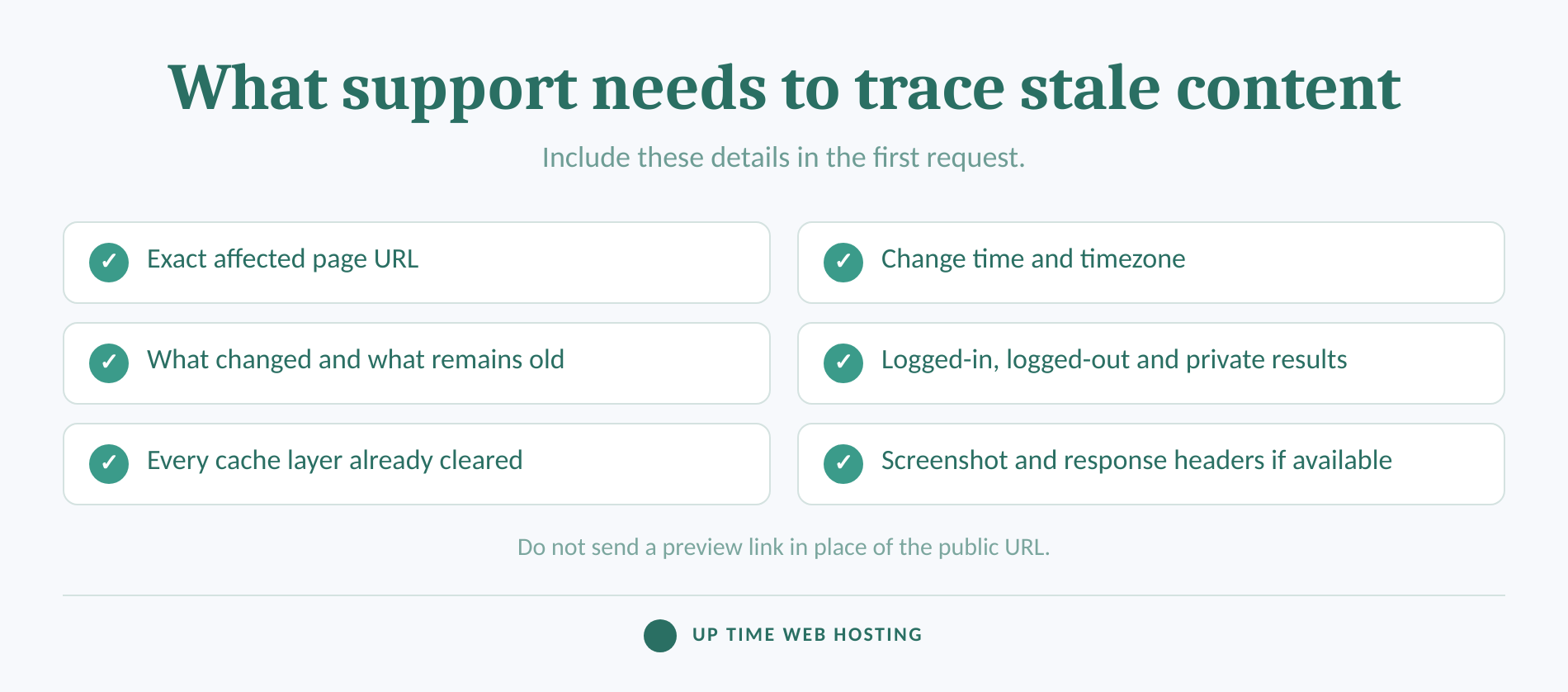
Escalate when the correct page is Published, every known cache has been purged and the problem remains reproducible while logged out. Give support evidence that lets them trace the request instead of starting the entire checklist again.
Include:
- The exact affected URL.
- What changed and what the public page still shows.
- The exact change time and timezone.
- Whether the new version appears while logged in, logged out or in private mode.
- Every browser, plugin, server, CDN and builder cache already cleared.
- A screenshot of the editor and public result.
- Response headers from the browser network panel, if available.
A May 2026 page-builder troubleshooting guide recommends providing affected URLs, the exact change time with timezone, logged-in versus logged-out results and cache response headers when available.
For a business site where publishing checks, updates, backups, security monitoring and performance tracking have become recurring tasks, Up Time Web Hosting's managed WordPress maintenance provides ongoing site care.
Support can act faster when the request includes the exact URL, change time and cache steps already tested.