In short
When email will not send, first copy the error message, confirm the device is online, and try a plain-text message from webmail. If webmail works, check the app’s outgoing SMTP server, full username, password, authentication, encryption and port. If webmail also fails, check quota, service status or provider-side limits.
Key takeaways
- A webmail test usually separates a mailbox or server problem from an app or device problem.
- Start with one recipient, plain text and no attachment so the test has as few variables as possible.
- The outgoing server name, identity, authentication, encryption and port must all match the provider’s settings.
- A
4.X.Xstatus normally describes a temporary failure, while a5.X.Xstatus requires a change before another attempt. - A copy in the Sent folder does not prove that the recipient’s server accepted or delivered the message.
Table of contents
- What should I check before changing any email settings?
- Is the message stuck in the outbox, or did the server reject it?
- Which outgoing mail settings should I verify?
- What does the sending error mean?
- How can I tell whether the fault is the app, the account or the server?
- What should I do if the message sends but never arrives?
- What are the common questions about email that will not send?
- What should I do if email still will not send?
Treat an email sending failure as a location problem. The goal is to find the point where the message stops before passwords, ports or accounts are changed unnecessarily.
What should I check before changing any email settings?
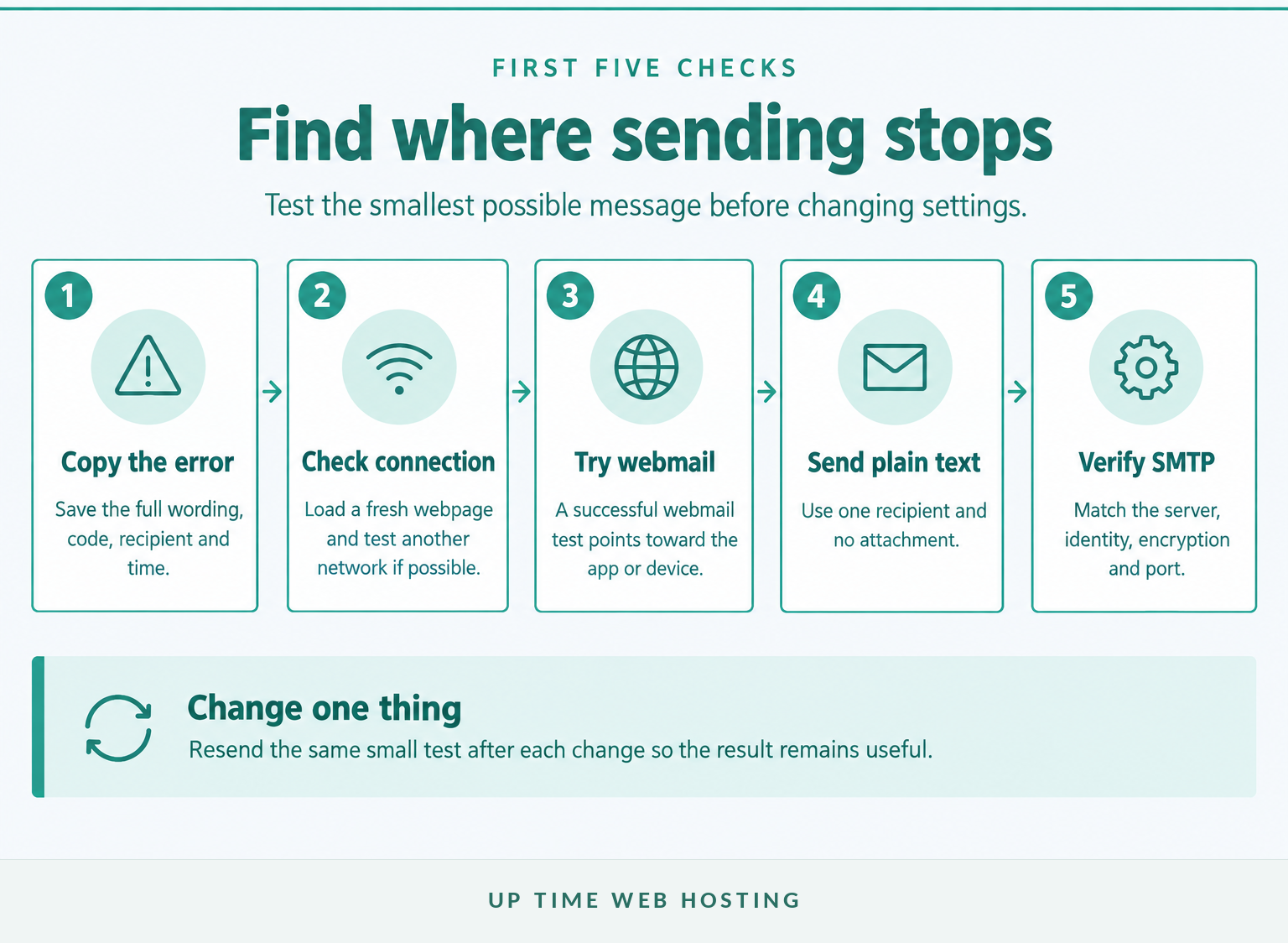
Start by preserving the error and running the smallest possible test. Copy the full error message, note the time and recipient, then send plain text to one known address with no attachment.
- Confirm the connection. Load a new webpage rather than trusting the Wi-Fi symbol. If possible, test a second network.
- Check offline mode. Some desktop and mobile mail apps can remain offline even when the device has internet access.
- Try webmail. Sign in through the provider’s browser-based mailbox and send the same small test. If webmail sends, the account can submit mail and the app or device path is the likely fault.
- Change one variable. Try another recipient, then another device. Do not change the recipient, attachment, password and server settings at the same time.
- Check the scope. Find out whether one mailbox is affected or whether every user on the domain has the same problem.
Do not delete and recreate the account at this stage. Rebuilding can remove useful evidence, create duplicate messages and make a simple password or server-name error harder to identify.
Preserve the error and prove where the failure occurs before changing the account.

Performance you can feel, backed by clients who depend on it. Read how our support and uptime create long‑term customer success.Power Your Business with Better Hosting
Is the message stuck in the outbox, or did the server reject it?
A message that remains in the outbox has not completed submission from the app. A message that disappears from the outbox but produces an immediate error was usually rejected during the connection or SMTP submission process.
Open the stuck message and save any text or attachments before editing it. Then:
- Remove every attachment and send a new plain-text message.
- Confirm the app is not paused, offline or waiting for a manual Send and Receive action.
- Check that the sender address belongs to the account being used for outgoing mail.
- Close and reopen the app, then restart the device if the queue does not move.
- Create a new message rather than repeatedly resending a damaged draft.
Attachments can cause an outbox problem even when the original file appears to fit the provider’s stated limit. Email encoding increases the transmitted size, and a damaged attachment or interrupted upload can leave the message queued.
For a deeper queue-specific checklist, use the guide to emails stuck in an outbox. Avoid pressing Send repeatedly because delayed attempts may all leave together when the connection returns.
A message that stays in the outbox has not completed submission, so fix the local queue or connection first.
Which outgoing mail settings should I verify?
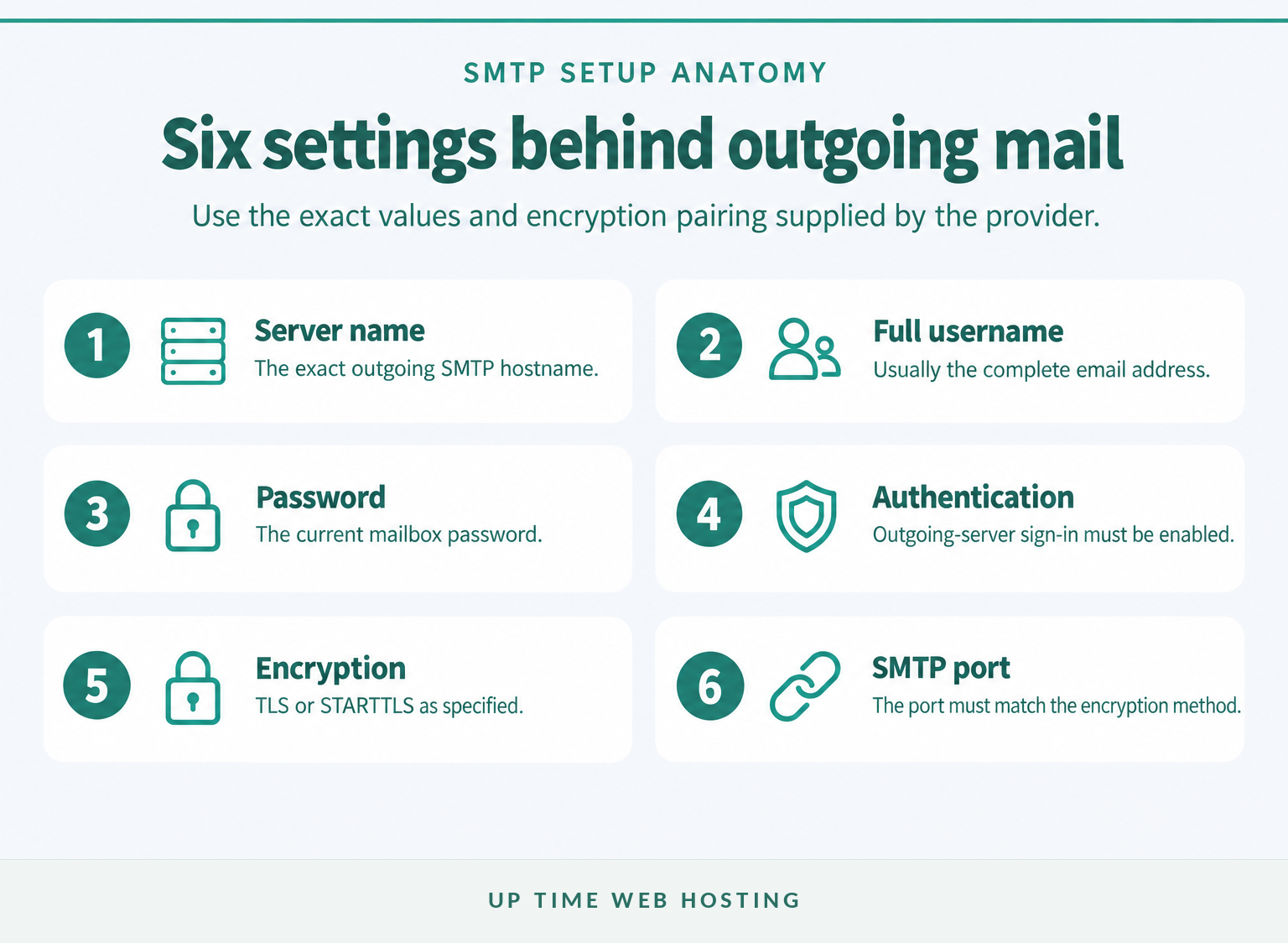
Compare every outgoing setting with the email provider’s current setup guide. Do not copy settings from another mailbox unless both accounts use the same mail service and server configuration.
Check these six fields:
- Outgoing server: Use the exact SMTP hostname supplied by the provider, not a guessed variation of the domain name.
- Username: Many services require the full email address rather than only the part before the
@symbol. - Password: Re-enter the current mailbox password, especially if it was recently reset.
- Authentication: Enable outgoing-server authentication and use the same credentials as incoming mail unless the provider specifies otherwise.
- Encryption: Select the required TLS or STARTTLS method.
- Port: Match the port to both the provider and the selected encryption method.
The IETF’s 2011 RFC 6409 reserves port 587 for message submission and says submission servers require authentication by default. The IETF’s 2018 RFC 8314 documents STARTTLS on port 587 and implicit TLS on port 465.
Those standards do not make every setting interchangeable. Port 465 with STARTTLS, port 587 with implicit TLS, or the correct port with the wrong server name can all fail. The provider’s published pairing wins, and the guide to secure POP3, IMAP and SMTP ports explains how the protocols fit together.
Do not disable encryption or permanently turn off security software as a first fix. Testing the same account through webmail or a second network is safer and produces better evidence.
Outgoing mail works only when the server name, identity, authentication, encryption and port agree.
Host your website with our 5-star rated, cPanel website hosting plans.
Super fast servers, with security included and hosted in your choice of Australian Data Center.
View cPanel Plans
What does the sending error mean?
Read the complete error text before focusing on the number. Providers can use the same numeric code for different policies, while the words after the code often identify the failed password, recipient, quota, connection or sending rule.
Common messages point to different actions:
- Authentication failed or password rejected: Confirm the full username, current password and outgoing-server authentication setting.
- Cannot connect, connection refused or timed out: Check the server hostname, port, encryption, network and provider status.
- Message too large: Remove attachments and send a plain-text test before compressing or sharing files another way.
- Mailbox full or quota exceeded: Free storage or ask the provider to confirm which mailbox or account limit was reached.
- Relay denied or sender not permitted: Check that the app authenticated and that the selected From address is allowed to use the account.
- Rate limit, maximum defers or too many failures: Stop rapid retries and investigate the recipients, account security and server limit.
The IETF’s 2003 RFC 3463 classifies 4.X.X statuses as persistent transient failures and 5.X.X statuses as permanent failures. A temporary error may succeed later, but a permanent error normally requires a change to the message, account or destination.
If the error specifically says 550 sender frequency limited, wait for the stated restriction and investigate why the account produced enough deferrals or failures to trigger it. Repeated retries can extend the disruption or create more failed traffic.
The complete error text tells you whether to retry later or change something first.
How can I tell whether the fault is the app, the account or the server?
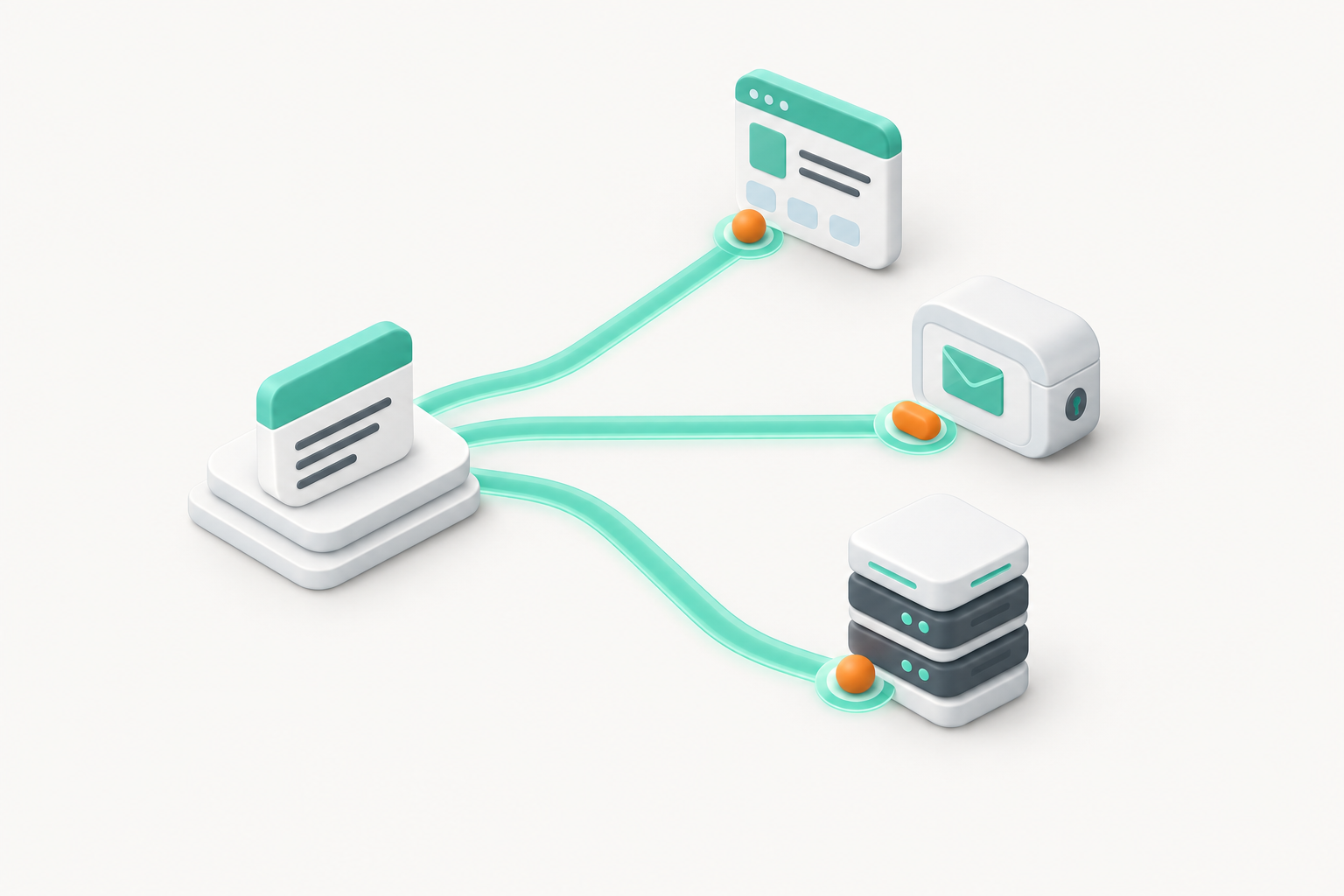
Run controlled tests and compare their scope. The pattern of what works is often more useful than the first error message.
- Webmail sends but one app fails: Check that app’s password, SMTP hostname, encryption, port and offline state.
- Webmail and the app both fail for one mailbox: Check the account password, quota, lock status and provider-side sending limits.
- Every mailbox on the domain fails: Check the service status and ask the provider to inspect the mail server or account-level policy.
- Only one recipient fails: Verify the address and read the remote server’s rejection text.
- Only one message fails: Remove attachments, formatting, copied signatures and unusual recipient lists.
- A second network works: Investigate the first network’s firewall, filtering or blocked connection rather than rebuilding the mailbox.
When every staff member is affected at once, do not reconfigure every phone and computer. A broad failure is more likely to need an account, service or server check.
One controlled test can locate the fault without rebuilding every device.
What should I do if the message sends but never arrives?
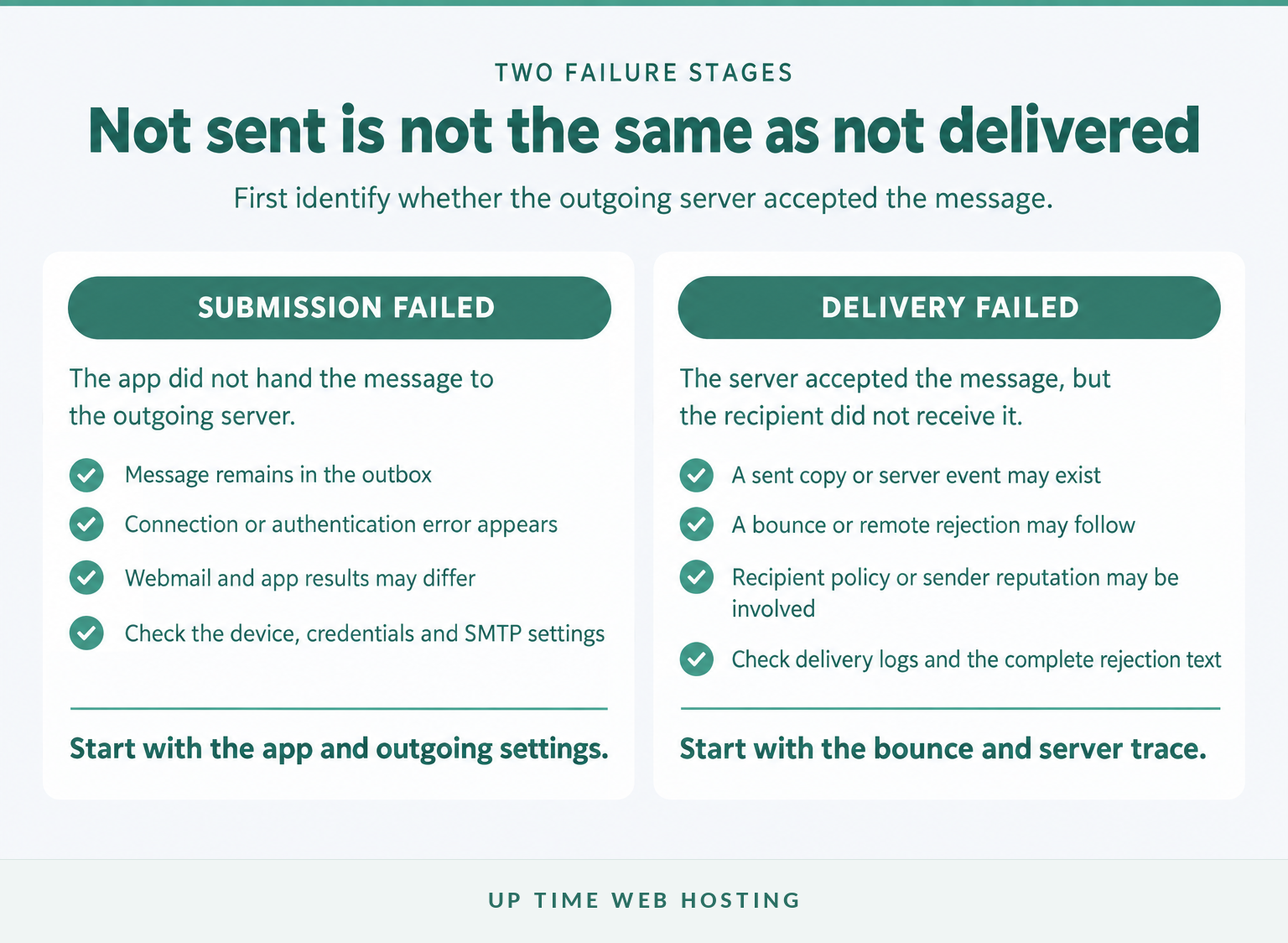
A message can leave the outbox and still fail during delivery. A copy in Sent usually means the app completed its local action, not that the recipient’s server accepted the message or placed it in an inbox.
Under the IETF’s 2008 RFC 5321, a mail server that returns a positive completion response after receiving the message data accepts responsibility for delivery or a later failure notification. The sender normally needs a bounce message or server log to see what happened next.
Check these items in order:
- Look for a delayed bounce or non-delivery report in the inbox and junk folder.
- Confirm the recipient address, including the domain after the
@symbol. - Ask whether other recipients receive messages from the same account.
- Check the hosting control panel’s delivery report or ask the provider to trace the message.
The official cPanel Track Delivery documentation, updated on 14 August 2026, says the interface can report account deliveries, trace a message route and help find delivery problems. Search by recipient and preserve the event result, timestamp and rejection response.
A remote server may reject mail because of its recipient policy, sender reputation or domain-authentication results. Those are delivery problems rather than app problems, and the next step is to fix the identified cause using sound email deliverability best practices before sending the same message again.
Once the server accepts the message, delivery logs and bounce text matter more than the outbox.
Register your new domain name at competitive market prices including free domain add-ons like privacy, DNS Hosting, Custom Nameservers and Forwarding.
Always the best price and no nasty renewal price hikes.
Register A Domain Name
What are the common questions about email that will not send?
These answers cover the four questions most closely associated with outgoing-mail failures. Provider-specific menus vary, but the diagnostic order remains the same.
Why is my outgoing mail not being sent?
Outgoing mail is usually blocked before submission because the app is offline, the SMTP server details are wrong, authentication fails, the password changed, the mailbox is over quota, or the provider has applied a sending limit. A webmail test quickly separates an app problem from an account or server problem.
How do I fix my outgoing mail server?
To fix an outgoing mail server, compare the SMTP hostname, full email address, password, authentication setting, encryption method and port with the provider’s current setup guide. Test a plain-text message in webmail first. If webmail sends, correct the app settings rather than changing the mailbox or DNS.
Why is my email not delivering?
An email can leave the outbox and still fail later because the address is wrong, the recipient server rejects it, the receiving mailbox is full, or sender authentication and reputation checks fail. Read the bounce message or delivery log. The final rejection text is usually more useful than the numeric code alone.
Why is my mail not sending from my outbox?
Mail stays in the outbox when the app cannot complete submission. Common causes include no connection, offline mode, an oversized or damaged attachment, expired credentials, a blocked connection, or a stuck message record. Remove attachments, send a new plain-text test, and try webmail before deleting and rebuilding the account.
The quickest diagnosis starts by separating submission failure from delivery failure.
What should I do if email still will not send?
Stop changing settings once the controlled tests point to an account or server problem. Give the email provider enough evidence to trace one failed attempt rather than reporting only that email is not working.
Collect:
- The complete error or bounce message
- The sender and recipient addresses
- The time of the attempt and time zone
- The app, device and network used
- The result of the webmail test
- Whether one recipient, one mailbox or every user is affected
- Whether the message contained attachments
If the business needs hosting-side diagnosis or a more supportable mailbox setup, review Up Time Web Hosting’s business email hosting options and provide the evidence above when requesting help.
The fastest support request includes the exact error and the result of a webmail test.