A small business owner in Brisbane launches a new website, opens Chrome to check it, and sees Not Secure beside the address. The certificate may not be installed yet, the domain may not point to the cPanel server, or HTTPS may work while parts of the site still load over HTTP. The fix depends on the cPanel path available on the account.
Table of Contents
- What You Are Actually Installing and the Four cPanel Paths
- Preparing Your Domain and CSR Before You Touch cPanel
- Using AutoSSL for a One-Click Certificate on cPanel
- Installing a Third-Party SSL Certificate Through Manage SSL Sites
- Verifying the Certificate and Forcing HTTPS Across Your Site
- Troubleshooting the SSL Errors Australian cPanel Users Hit Most

Performance you can feel, backed by clients who depend on it. Read how our support and uptime create long‑term customer success.Power Your Business with Better Hosting
What You Are Actually Installing and the Four cPanel Paths
An SSL certificate is a signed file that links a public key to a domain. It lets the browser establish an encrypted HTTPS connection with the web server and display the padlock. In cPanel, installation has long followed the same basic pattern: select a domain, provide certificate material where required, and confirm the installation through a success or failure message. The current cPanel SSL guide documents several valid routes rather than one universal button.
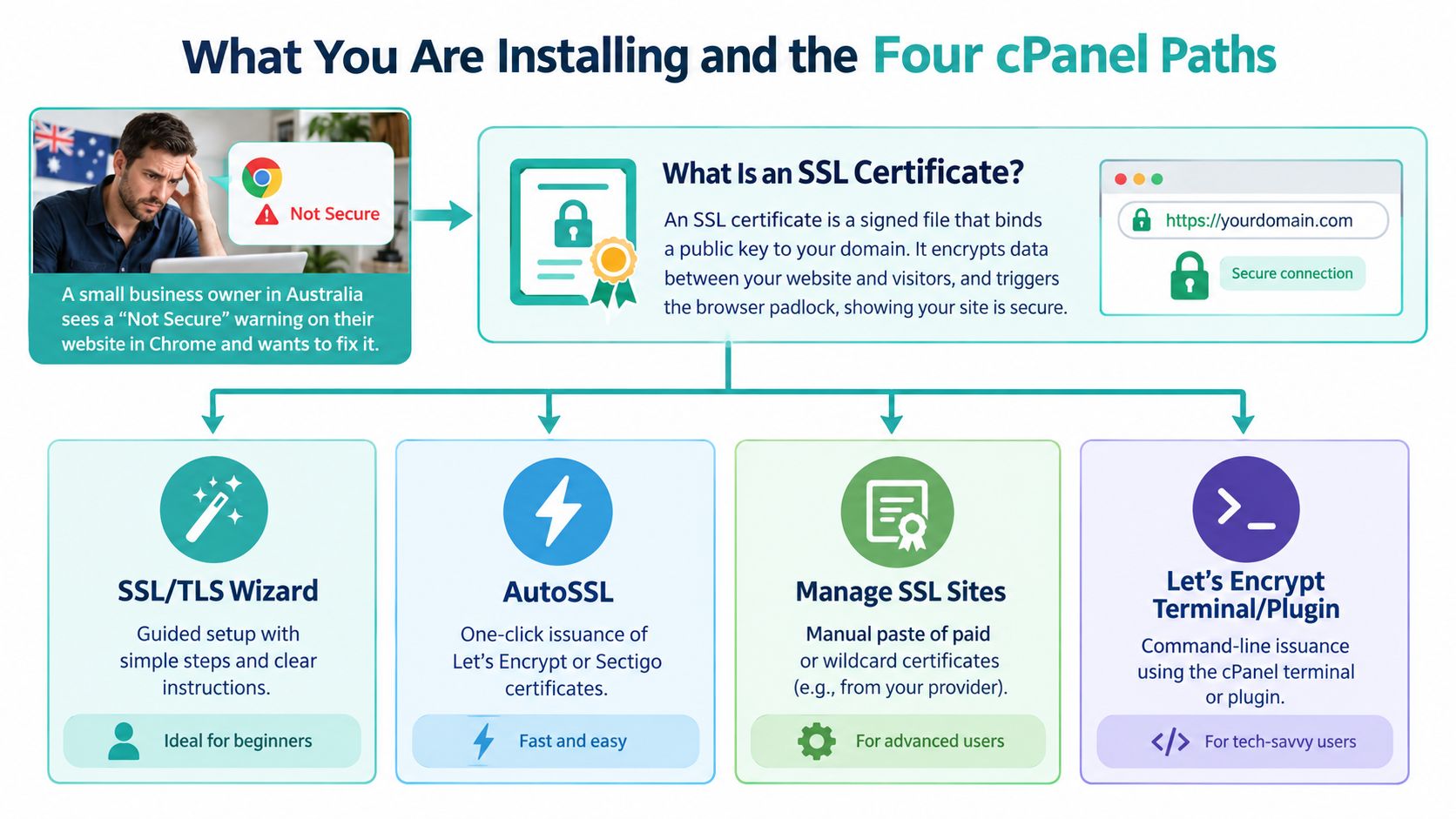
Your account may present four practical entry points:
- SSL/TLS Wizard, a guided route for owners who need help generating a request or installing certificate details.
- AutoSSL, the quickest choice when your host enables automatic domain-validated certificates.
- Manage SSL Sites, the manual route for a paid certificate, an existing certificate, or a certificate issued for a more specialised setup.
- Set up SSL for a domain, a newer domain-focused flow found in some cPanel themes and versions.
Some providers also expose a Let's Encrypt plugin or terminal-based issuance. That option depends on the host, permissions and installed software, so it isn't available on every Australian shared account.
Choose the path that matches the job
Use AutoSSL for a standard business website, blog, webmail hostname or ordinary addon domain when the account supports it. Use Manage SSL Sites when a certificate authority has supplied a CRT, private key and CA bundle. Choose the SSL/TLS Wizard when cPanel presents a guided sequence, and use Set up SSL when your theme offers the newer domain-centric interface.
The exact labels can vary by cPanel theme, feature tier and hosting configuration. An Australian shared host can disable manual tools, hide a plugin, or rename a menu item. The workflow described below therefore focuses on the fields and validation states that matter, not on pretending every account has identical navigation.
Practical rule: Don't start by pasting certificate text. First identify whether your account expects AutoSSL, a wizard, a domain setup screen, or manual installation.
Whichever route you use, two jobs remain. Confirm the certificate is valid for the intended hostnames, then force visitors onto HTTPS so they don't continue arriving through the insecure URL.
Preparing Your Domain and CSR Before You Touch cPanel
Certificate installation can't compensate for a domain that points somewhere else. Before opening cPanel, confirm that the domain resolves to the hosting service, the primary domain, addon domain or subdomain already exists under Domains, and the account's contact email is reachable. Automated validation needs to confirm control of the hostname, so a newly registered or recently moved domain may need DNS time before AutoSSL can complete.
A CSR, or Certificate Signing Request, is normally needed for a paid third-party certificate. AutoSSL generally handles certificate creation and installation for you. If you're generating a CSR in cPanel, copy the request exactly as the certificate authority expects it.
Get the Australian CSR fields right
For an Australian business, set Country Name to AU, not “Australia”. Use the full state or territory name in the state field rather than an abbreviation, and keep the organisation details consistent with the business information supplied during validation. Australian hosting guidance commonly calls out the country setting because a mismatch can create avoidable validation questions or require a reissued certificate.
The cPanel SSL/TLS documentation describes the manual workflow and the fields used for CRT, KEY and the optional CA bundle. It also reflects a practical distinction between a certificate request generated in cPanel and one generated elsewhere. A private key may autofill when cPanel created the CSR, but you'll often need to paste it manually when another server or system generated the request.
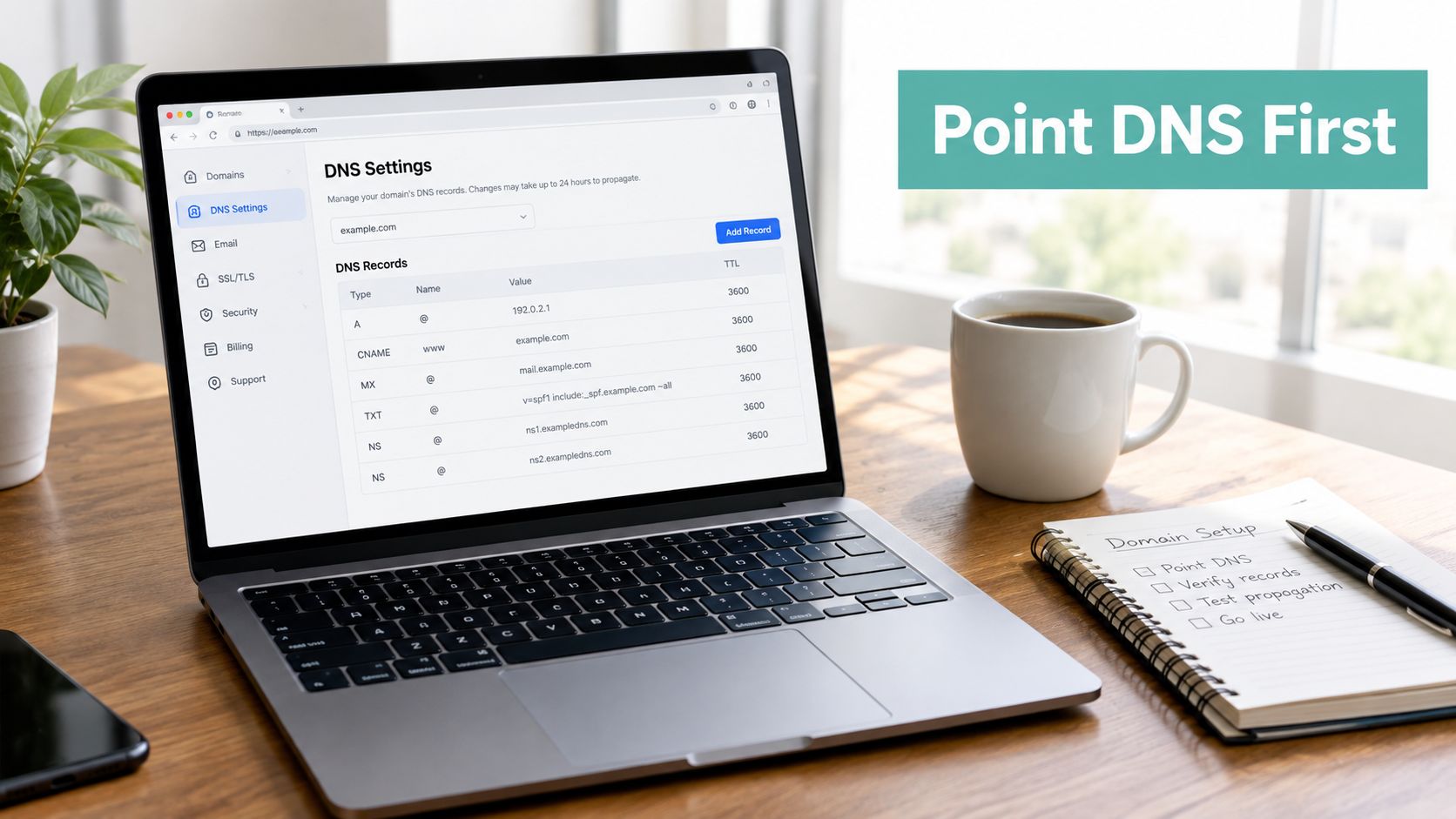
Check the hostname coverage before issuing anything. The certificate should include the root domain and the www version when both are used. A wildcard certificate covers subdomains, but wildcard validation normally relies on DNS control rather than a file placed on the website. Some shared Australian hosts restrict DNS validation or don't provide the required access, so ask support before buying that certificate type.
Host your website with our 5-star rated, cPanel website hosting plans.
Super fast servers, with security included and hosted in your choice of Australian Data Center.
View cPanel Plans
Using AutoSSL for a One-Click Certificate on cPanel
For most ordinary Australian small business sites, AutoSSL is the sensible first route. In cPanel, open Security, choose SSL/TLS Status, and look for the AutoSSL controls. Depending on the host, the provider may be Let's Encrypt or Sectigo, and the button may read Run AutoSSL or appear beside the domain list.
Select the available run option and allow cPanel to process the account. AutoSSL issues domain-validated certificates and can install them for services including Apache, Dovecot, Exim, Web Disk and the cPanel server, as documented in cPanel's AutoSSL explanation. That matters when a business uses the same account for its website, mail connections and webmail. The certificate isn't limited to the homepage.
Read the result instead of guessing
Return to SSL/TLS Status and look for the secured state or green tick beside the relevant domain. If cPanel reports that the domain isn't pointing to this server, stop retrying and correct the domain's hosting destination first. AutoSSL can't validate a hostname that resolves to another service, and repeated attempts won't fix that underlying mismatch.
If the host exposes an AutoSSL log, inspect it when the run fails. Server-level logs may be held at /var/log/autossl/, although shared hosting customers may need their provider to read them. A provider's internal limits can also affect how frequently failed requests can be retried, so contact support rather than repeatedly pressing the button.
AutoSSL is usually preferable to manual installation because renewal and replacement are handled by the hosting environment. It isn't the right choice when a client requires a particular paid certificate, wildcard coverage, or organisation validation. For a manual service comparison, Wistec's guide to installing an SSL certificate is a useful Australian reference alongside your host's own instructions.
Installing a Third-Party SSL Certificate Through Manage SSL Sites
A paid certificate arrives as certificate text and supporting chain data rather than as a single button inside your hosting account. Use this route when a certificate authority has issued a certificate for a CSR, when you need a wildcard, or when your organisation has selected a particular certificate product.
Open cPanel and go to Security, then SSL/TLS. Select Manage SSL Sites. Some themes place that link on the right-hand action bar inside SSL/TLS Status, while others expose it directly from the SSL/TLS page.
Match the certificate to the private key
Under Install an SSL Website, select the correct domain. If cPanel offers Autofill by Domain, use it. The WHM installation instructions describe the domain-based selection process, including choosing an existing certificate or using the domain field to populate certificate details.
Check each field before clicking anything:
- Certificate (CRT) should contain the certificate issued for this domain.
- Private Key (KEY) must be the matching key for that certificate.
- Certificate Authority Bundle (CABUNDLE) should contain the intermediate chain supplied by the certificate authority, when required.
The cPanel knowledge base path for installing SSL identifies the same destination, cPanel » Security » SSL/TLS » Manage SSL Sites, and the CRT, KEY and CABUNDLE fields. Paste plain certificate text exactly as supplied. Don't place a private key from another certificate into the KEY field, and don't assume Autofill can discover a key generated on another server.
AU certificate request detail
If you generated the CSR in cPanel, set the CSR country to AU and use the business's registered details consistently. Keep a protected backup of the PEM contents in a password manager, not in an email thread or an unprotected desktop document. If a certificate authority has wrapped the content unexpectedly, remove accidental duplicated headers and whitespace, but don't alter the certificate body itself.
Click Install Certificate. cPanel should return a success or failure message. A failure usually means the certificate and private key don't match, the domain selection is wrong, or the CA bundle is incomplete. The confirmation state is the meaningful implementation check, not the fact that text appeared in the boxes.
Verifying the Certificate and Forcing HTTPS Across Your Site
A successful cPanel message is only the first check. Open the domain in a fresh browser tab using ` and inspect the address bar. The padlock should appear without a Not Secure label. Click the padlock and review the certificate subject, covered hostname and expiry information so you know the browser received the certificate you intended to install.
Check the chain and hostname coverage
Use an external checker such as the Qualys SSL Server Test to inspect the public configuration. A valid certificate with an incomplete intermediate chain can still produce warnings for visitors, particularly when browsers or devices build the chain differently. If the checker identifies a chain problem, return to Manage SSL Sites and review the CABUNDLE supplied by the certificate authority.
Check the result from more than one network if the domain has recently moved. Australian customers may reach different DNS resolvers or cached paths during a change, so a local browser result isn't the only useful observation. The certificate must match the exact hostname being visited, including www where that version remains live.
Turn the redirect on
In cPanel, open Domains and find the root domain. If the account provides Force HTTPS Redirect, enable it. This sends visitors who request the HTTP version to the secure URL rather than leaving two accessible versions of the site.
If the toggle isn't available, add the redirect through the site's .htaccess file, usually in the document root:
RewriteEngine On
RewriteCond %{HTTPS} off
RewriteRule ^(.*)$ https://%{HTTP_HOST}%{REQUEST_URI} [L,R=301]
Take a backup before editing, especially on WordPress sites with existing rewrite rules. A redirect loop usually means the hosting proxy doesn't pass HTTPS status as expected, or another application rule conflicts with the new redirect. Ask the host to confirm the correct proxy-aware configuration instead of stacking more rules.
Finally, open Chrome DevTools and inspect the Console while loading key pages. Mixed-content messages identify images, scripts, fonts or stylesheets still requested over HTTP. Update those URLs to HTTPS or use relative paths, then clear any site, CDN and browser caches before testing again.
Register your new domain name at competitive market prices including free domain add-ons like privacy, DNS Hosting, Custom Nameservers and Forwarding.
Always the best price and no nasty renewal price hikes.
Register A Domain Name
Troubleshooting the SSL Errors Australian cPanel Users Hit Most
Most failed installs aren't mysterious. They usually come from choosing the wrong domain object, corrupting copied PEM text, using a key from another server, or assuming the certificate fixed mixed content automatically.
The domain entry isn't the site you think it is
In cPanel, an Alias or Parked domain may appear alongside the primary, addon and subdomain entries. Some provider workflows accept only particular domain types for certificate issuance. If the account treats the alias differently, select the primary or addon domain that owns the document root, or ask the host whether the alias is included in the certificate request.
The same issue appears when a subdomain lives under another cPanel account. AutoSSL on the first account can't validate a hostname controlled by a separate account. Move the hostname into the account that serves it, or choose a certificate and validation method that matches the actual hosting arrangement.
The certificate text contains hidden damage
Copying a PEM block from an email or formatted document can add leading spaces, trailing spaces or unwanted carriage returns. cPanel expects certificate material in the relevant field, so remove accidental whitespace and duplicated wrapper lines before pasting. If the authority's file is unclear, download the original files again rather than editing the contents repeatedly.
The private key doesn't autofill
Autofill is not a universal key finder. cPanel can match a key more reliably when the CSR was generated locally, but a certificate issued from a CSR created on another server may require the original private key to be pasted manually. If that key is lost, generate a new CSR in cPanel and request a reissue from the certificate authority. Never guess a replacement key.
HTTPS works, but the browser still warns
A certificate doesn't rewrite hard-coded website assets. If an image, script or stylesheet still loads from ` the browser can show a partial-security warning even though the main document uses HTTPS. Search the site's content and templates for old asset URLs, update them, clear caches, and reload the page.
For a browser warning that persists after these checks, use this Australian-focused guide to fix “Your connection is not private” errors. It helps separate a certificate problem from a browser, hostname or local network issue.
If you want the cPanel process handled with Australian hosting support, UpTime Web Hosting provides cPanel hosting with free SSL and a knowledgebase covering SSL management and AutoSSL checks. Visit UpTime Web Hosting to review local hosting options for your website and email.