In short
Setting up a WooCommerce store starts with suitable WordPress hosting, then WordPress and WooCommerce installation, Australian store settings, products, payments, shipping, GST treatment, security, backups and end-to-end testing. Keep the site in coming-soon mode until a test order, email, refund and restore all work as expected.
Key takeaways
- As at 11 October 2026, the official WooCommerce plugin listing showed WooCommerce 11.2.1 requiring WordPress 7.0 or newer and PHP 7.4 or newer, while the recommended production target includes PHP 8.3 or newer.
- The ATO GST registration guidance sets the general compulsory registration threshold at A$75,000 in GST turnover for a business or enterprise.
- The ACCC price display rules require consumer prices to show the minimum total cost, including taxes and unavoidable or pre-selected fees.
- WooCommerce shipping zones use the first matching zone, so specific postcode or state zones must sit above broader Australian zones.
- A store is not ready because its homepage looks finished; it is ready when checkout, payment, shipping, tax, email, stock, refund and recovery tests succeed.
Table of contents
- What do you need before you install WooCommerce?
- How do you choose hosting that can handle a store?
- How do you install WordPress and WooCommerce?
- How do you configure an Australian WooCommerce store?
- How do you add products without creating a mess?
- How do you set up payments and shipping?
- What legal and tax pages should an Australian store have?
- How do you secure, back up and test the store?
- What should you check before launch?
- What do first-time store owners ask about WooCommerce?
- What should you do next?
Installing the plugin is the easy part. A modern-looking store is not launch-ready until the business rules behind products, payments, delivery, tax, customer information and recovery have been configured and tested.
What do you need before you install WooCommerce?
Decide what the store will sell, where it will deliver and how customers will pay before choosing a theme or extensions. These decisions control the hosting, product, tax, checkout and policy settings required later.
The setup order that prevents rework
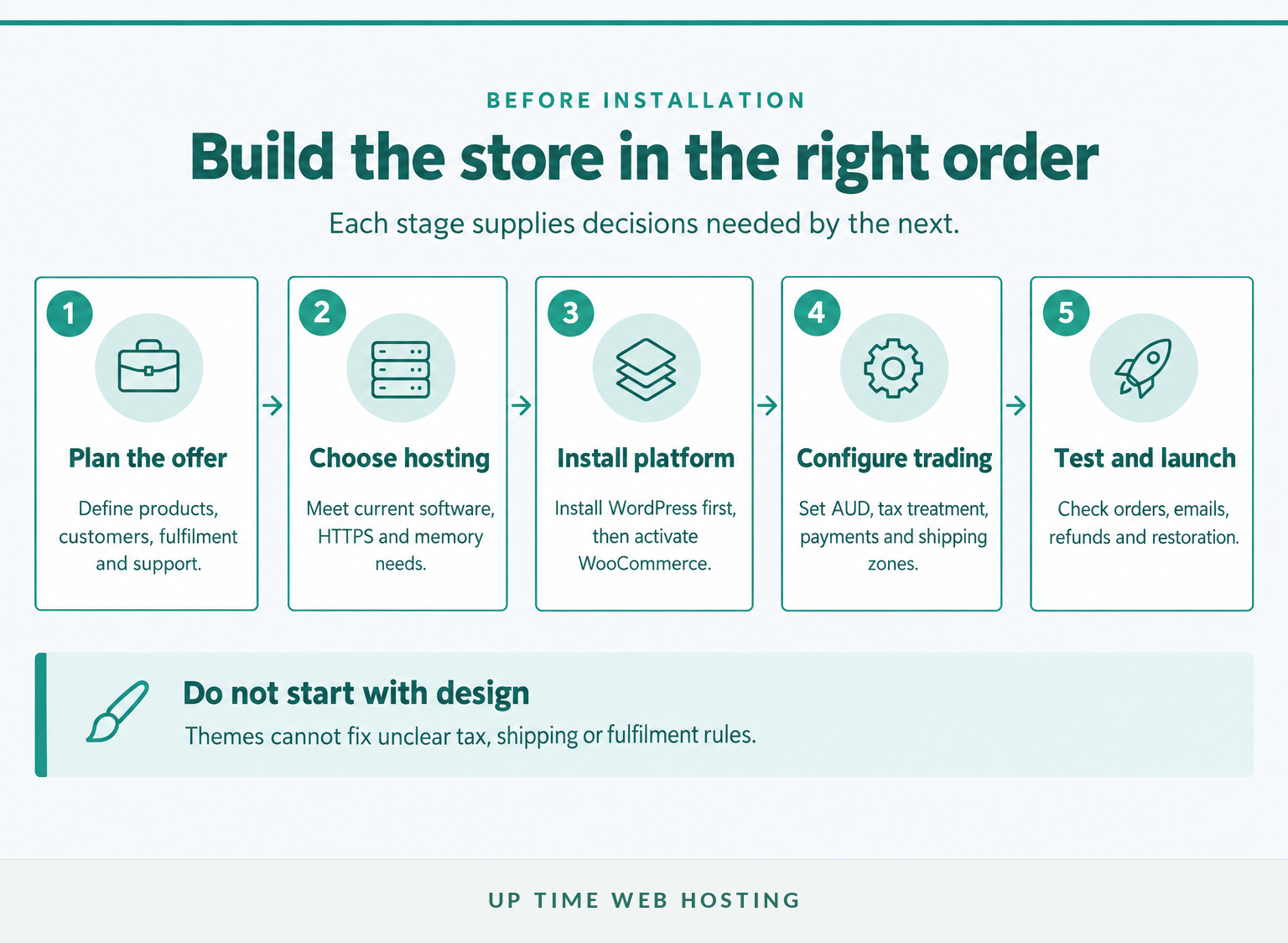
Write down the following before opening the WordPress dashboard:
- The products or services being sold, including physical, digital, variable or made-to-order items.
- The countries, states and postcodes the business will serve.
- How stock, packing, dispatch, returns and customer support will work.
- Whether the business is registered or required to register for GST.
- Which payment features are essential, such as refunds, recurring payments or in-person sales.
- Who will maintain updates, backups and security after launch.
WooCommerce is an ecommerce plugin added to WordPress, not a separate website platform. If that relationship is unclear, start with this explanation of what WooCommerce is.
Plan the business rules before touching the design, because every later setting depends on them.

Performance you can feel, backed by clients who depend on it. Read how our support and uptime create long‑term customer success.Power Your Business with Better Hosting
How do you choose hosting that can handle a store?
Choose hosting against WooCommerce's current software recommendations and the real workload of product pages, carts, checkout sessions, orders and scheduled tasks. A plan that technically installs WordPress can still be too constrained for a dependable trading store.
As at 11 October 2026, the current plugin listing required WordPress 7.0 or newer for WooCommerce 11.2.1. The broader WooCommerce server recommendations still refer to WordPress 6.9 or newer for WooCommerce 10.8 and later, so the stricter current plugin requirement should be followed.
For a fuller explanation of the resources involved, review these WooCommerce hosting requirements.
The current hosting baseline
| Area | Sensible launch target as at October 2026 | What to verify |
|---|---|---|
| WordPress | Version 7.0 or newer for WooCommerce 11.2.1 | The host supports the current stable WordPress release |
| PHP | Version 8.3 or newer recommended | Supported extensions and a maintained PHP branch |
| Database | MySQL 8.0 or newer, or MariaDB 10.6 or newer | Database backups and enough capacity for orders and sessions |
| WordPress memory | 256 MB or more | The limit applies inside WordPress, not only at server level |
| Connection | HTTPS across the site | A valid certificate, automatic renewal and correct redirects |
Also check what happens outside the specification sheet. Ask how backups are stored, how a restore is requested, whether staging is available, where error logs can be found and how resources can be increased without an emergency migration.
Choose hosting for checkout work, backups and recovery, not just for disk space.
How do you install WordPress and WooCommerce?
Install WordPress first, secure the administrator account and confirm HTTPS before adding WooCommerce. Activate WooCommerce only after the domain, site address, email and permalink settings are correct.
Follow this sequence:
- Install WordPress through the hosting control panel or the documented manual process.
- Log in with a unique administrator account and enable multi-factor authentication where available.
- Confirm both WordPress addresses use
https://and choose a readable permalink structure. - Go to Plugins > Add New Plugin, search for WooCommerce, then select Install Now and Activate, as described in the WooCommerce installation guide.
- Complete the WooCommerce setup checklist with the store location, industry and product type.
- Leave the storefront in coming-soon mode while products, payments, taxes, shipping and policies are configured.
Avoid installing a large collection of optional extensions at this stage. Add a plugin only when a documented business requirement cannot be met by the current setup.
Install the platform in the order WordPress, WooCommerce, core settings, then optional extensions.
Host your website with our 5-star rated, cPanel website hosting plans.
Super fast servers, with security included and hosted in your choice of Australian Data Center.
View cPanel Plans
How do you configure an Australian WooCommerce store?
Set the shop address to the business's real operating location, use Australian dollars where AUD is the selling currency and confirm where sales and deliveries are allowed. Tax settings must reflect the business's actual GST registration and the tax treatment of each product.
In WooCommerce > Settings > General, check the address, selling locations, shipping locations, currency and customer location behaviour. Use the business address that should control default tax and shipping calculations.
The ATO says compulsory GST registration generally applies when GST turnover reaches A$75,000 or is expected to reach that threshold. Do not apply GST to every product by assumption, because some sales may be GST-free, input-taxed or affected by their destination.
Use the WooCommerce tax documentation to enable tax calculations and align these three settings: prices entered with tax, prices shown in the shop and prices shown in cart and checkout. For Australian consumer sales, the ACCC requires the minimum total price to include taxes and unavoidable or pre-selected fees.
Australian store settings to confirm
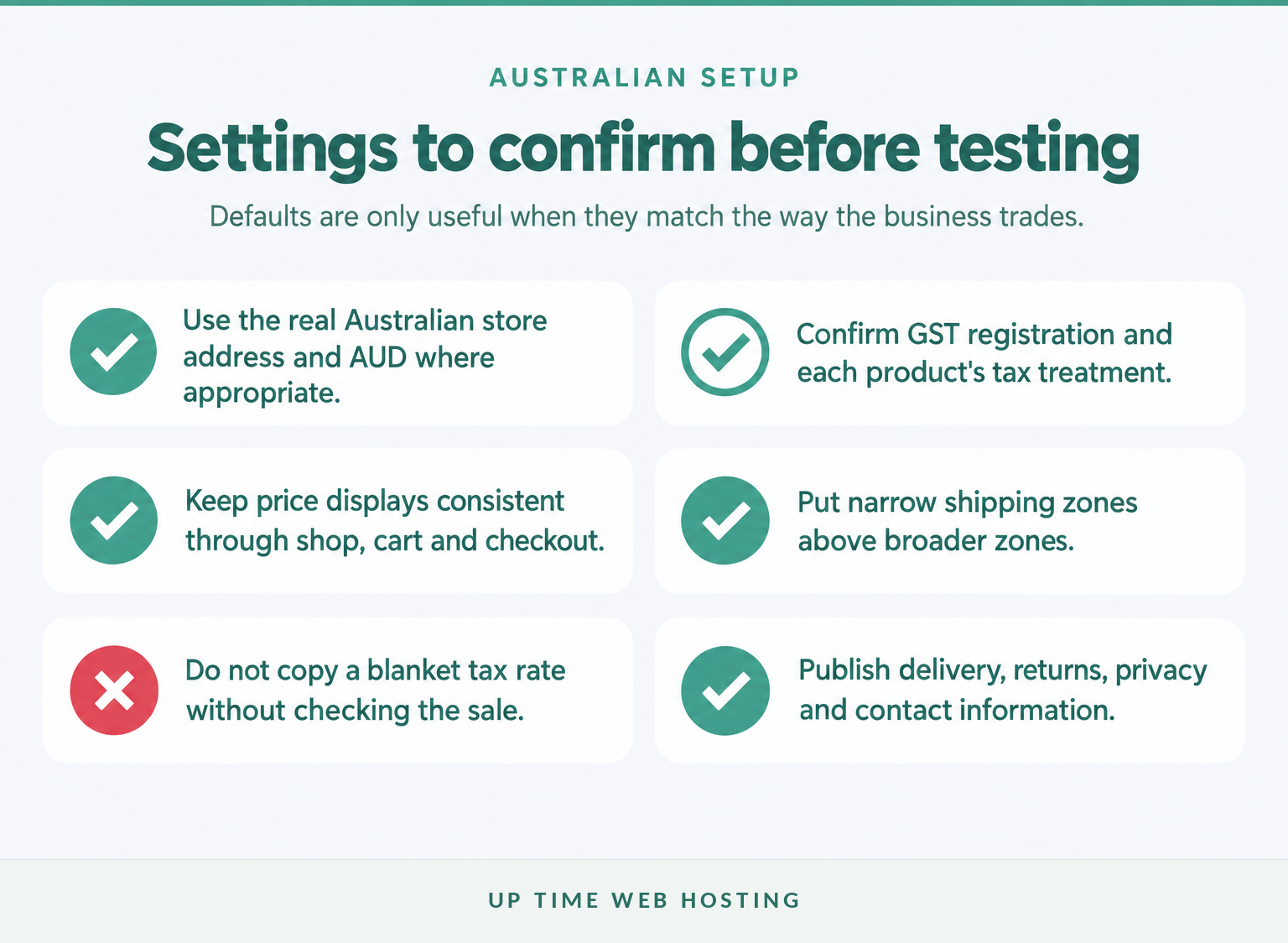
Treat this as a settings audit rather than accepting every onboarding default. Confirm the outcome on product, cart and checkout pages after saving each major change.
Australian setup starts with accurate business location, AUD, GST treatment and price display.
How do you add products without creating a mess?
Build the catalogue structure before uploading every product. Consistent categories, attributes, images, stock rules and product data make the store easier to search, filter and maintain.
For each product, complete the fields that affect buying and fulfilment:
- A clear product name and unique SKU where stock is tracked.
- A short description for the buying decision and a fuller description for specifications and use.
- Regular and sale prices, plus the correct tax status and tax class.
- Stock quantity, back-order rules and low-stock threshold.
- Weight, dimensions and shipping class for physical products.
- Attributes and variations for options such as size, material or pack quantity.
- Consistently cropped, compressed images with useful alt text.
Create categories around how customers browse. Use attributes for filterable facts and variations only when a choice changes the product, price, stock or image.
Large photographs, unnecessary scripts and an excessive plugin stack can slow catalogue and checkout pages. Apply ecommerce optimisation while the catalogue is still small rather than treating performance as a post-launch repair.
Clean product data is easier to scale than a catalogue built around design shortcuts.
How do you set up payments and shipping?
Enable only the payment and delivery choices the business can support operationally. Every enabled option should be tested with the same addresses, products and order values a real customer will use.
Payments
Use the WooCommerce payment guidance to compare availability in Australia, AUD support, transaction fees, payout timing, refund handling, recurring-payment support and test mode. Keep HTTPS active throughout checkout and follow the selected provider's security and merchant-verification instructions.
The WooCommerce security FAQ says its official gateway plugins are designed so full card numbers and security codes do not enter or remain in the store database. The installed gateway must still be checked because data handling and compliance responsibilities depend on its actual integration.
Shipping
WooCommerce shipping zones match a customer to the first applicable zone. The WooCommerce shipping zone guide therefore recommends placing the narrowest zones first, followed by broader state or national zones.
Create only the zones the business can fulfil. Add the relevant flat-rate, free-shipping or pickup method to each zone, then test postcodes near zone boundaries and confirm that unsupported destinations cannot accidentally complete checkout.
A payment method and shipping rate are not ready until both work for a real test address and order.
Register your new domain name at competitive market prices including free domain add-ons like privacy, DNS Hosting, Custom Nameservers and Forwarding.
Always the best price and no nasty renewal price hikes.
Register A Domain Name
What legal and tax pages should an Australian store have?
Publish policies that describe how the business actually trades, not generic text copied from another website. Australian Consumer Law, privacy obligations, product rules and tax requirements vary by business, so professional advice may still be needed.
At minimum, make these pages easy to reach before checkout:
- Contact and business details: Give customers a practical way to ask about an order or product.
- Shipping and delivery: Explain costs, dispatch timing, delivery estimates, tracking and what happens after loss or damage.
- Returns and refunds: Describe the process without attempting to remove rights under Australian Consumer Law. A blanket 'no refunds' policy cannot override consumer guarantees.
- Terms and conditions: Cover payments, order acceptance, fulfilment, cancellations, account use and dispute handling.
- Privacy: Explain what customer information is collected, why it is needed, where it goes and how customers can make a request.
- Product-specific information: Add warnings, measurements, ingredients, licences or safety information required for the goods being sold.
The Privacy Act generally covers businesses with annual turnover above A$3 million, but some smaller businesses are also covered. The Australian Government's customer information guidance recommends checking the exceptions and publishing a clear privacy policy even where the Act does not apply.
This section is general information, not legal or tax advice. Have the final GST treatment, terms and policies reviewed for the business's products and selling locations.
Store policies must describe the actual business and cannot remove rights provided by Australian law.
How do you secure, back up and test the store?
Protect administrator access, keep software maintained and make sure the entire store can be restored from a separate backup. Security controls are incomplete if nobody knows whether the backup works.
The Australian Government website security guidance recommends multi-factor authentication, HTTPS, strong access controls, software updates and regular backups. Apply those controls to WordPress administrators, hosting accounts, domain management and business email.
Remove unused themes and plugins, give staff only the permissions required for their role and test updates on staging before changing a live checkout. Hosting protections such as malware scanning and a web application firewall help, but they do not replace updates and controlled access. This guide to secure WordPress hosting explains the hosting layer in more detail.
Back up the database, uploads, themes, plugins and configuration. Store at least one recoverable copy away from the live hosting account and run a documented restoration test before launch.
A launch test from product page to refund
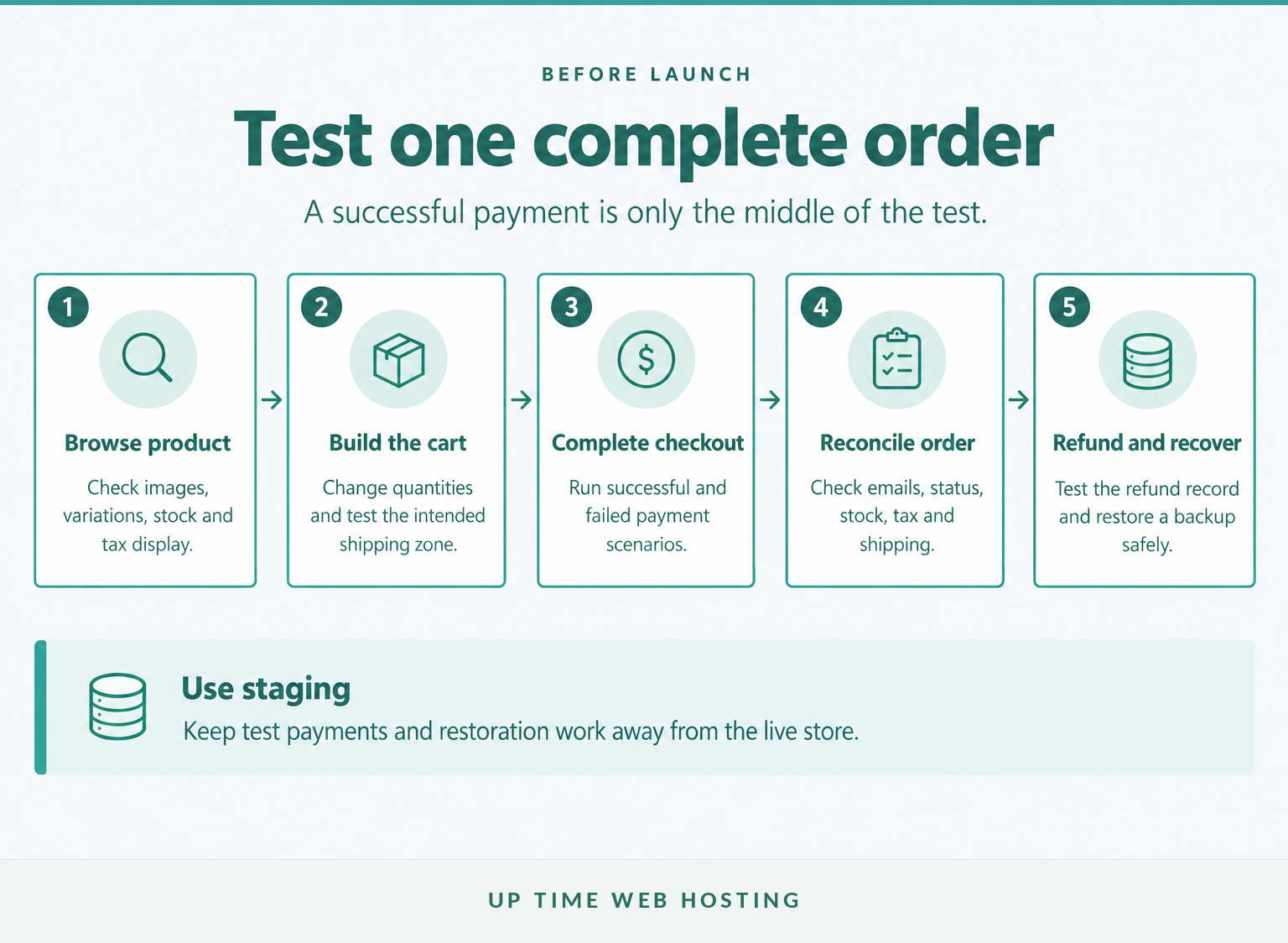
Place a complete order on staging using the payment method's test mode. The WooCommerce test-order guidance notes that test orders may still trigger emails and appear in analytics, so review and remove them after the test.
Confirm the customer email, administrator email, payment result, order status, stock reduction, tax, shipping, refund and account history. Then restore a recent backup to a safe test location and confirm the recovered store opens correctly.
Security is a routine of controlled access, prompt updates, recoverable backups and repeatable tests.
Experience Microsoft 365 Business Standard for free for 30 days.
Up to 25 users with full access to email, OneDrive and Teams. Includes full versions of desktop apps of Outlook, Word, Excel, PowerPoint and more.
Try Microsoft 365
What should you check before launch?
Run the WooCommerce launch checklist on both a phone and a desktop browser. Use fresh private-browsing sessions so an administrator login or old cart does not hide a customer-facing problem.
- [ ] Browse categories, search and product variations without administrator access.
- [ ] Add, update and remove cart items.
- [ ] Test guest checkout and customer-account checkout where both are enabled.
- [ ] Test at least two Australian postcodes that should match different shipping rules.
- [ ] Confirm GST and total-price displays for representative products.
- [ ] Complete successful and failed payment tests.
- [ ] Confirm customer and administrator emails arrive with correct order details.
- [ ] Check stock reduction, back orders and out-of-stock behaviour.
- [ ] Process a refund and confirm the order notes and payment record agree.
- [ ] Open all policy, contact, account, password-reset and order-tracking links.
- [ ] Check the backup timestamp and complete the restoration test.
- [ ] Disable coming-soon mode and confirm the search-engine visibility setting is appropriate.
Launch only when the full customer and staff workflow succeeds on mobile and desktop.
What do first-time store owners ask about WooCommerce?
WooCommerce is approachable for a first store, but the free plugin is only one part of the operating system. Hosting, payments, tax, shipping, security and maintenance determine how dependable the finished store becomes.
Is WooCommerce difficult to learn?
WooCommerce is not difficult to start, but a production store has more moving parts than the plugin installer suggests. Most first-time owners can learn products, orders and basic settings. Payments, GST, shipping rules, security and troubleshooting take longer, so use staging, documentation and specialist help when a change affects checkout.
Which is better, WordPress or WooCommerce?
WordPress and WooCommerce are not alternatives. WordPress is the content management system that runs the website, while WooCommerce is the ecommerce plugin added to WordPress. A WooCommerce store therefore needs WordPress first, plus compatible hosting, a theme, payment and shipping configuration, security, backups and ongoing maintenance.
Is WooCommerce really free?
The core WooCommerce plugin is free to download and use. Running a store is not cost-free because the business still needs a domain, hosting, payment processing and often paid extensions or professional help. Budget for transaction fees, shipping tools, security, backups, maintenance and any licences required by the chosen design or workflow.
WooCommerce is straightforward to begin, but a dependable store needs operating discipline beyond the free plugin.
What should you do next?
Write down the product type, delivery area, GST status and expected order workload, then choose hosting and build the store in staging. Do not begin with a large theme or plugin shopping list.
If the current hosting cannot meet the recommended environment or provide dependable security, backups and local support, compare Australian WordPress hosting for ecommerce before installing the store.
Choose the hosting environment first, then build and test the store before removing coming-soon mode.