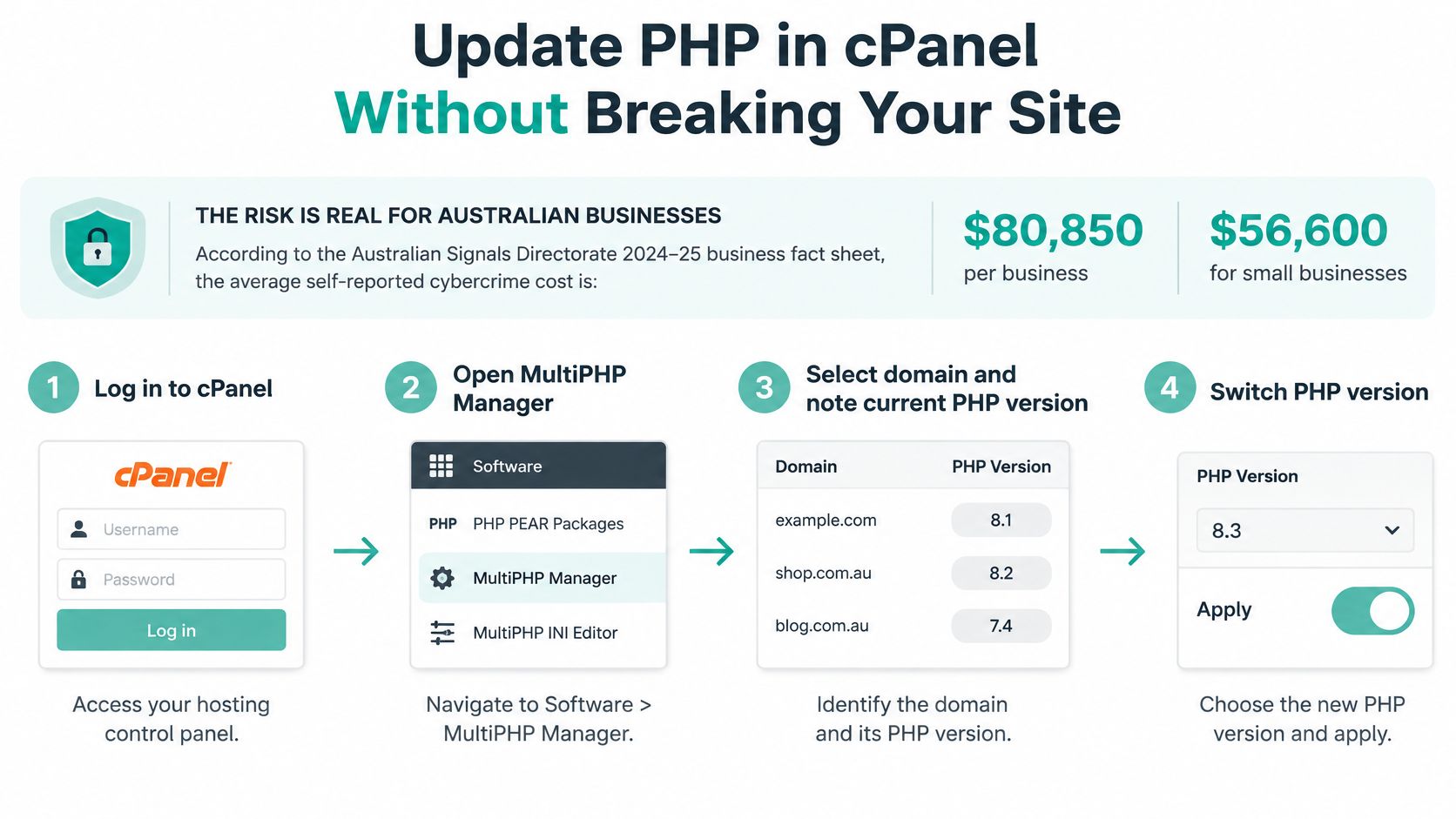
The Australian Bureau of Statistics release on characteristics of Australian business put the average self-reported cybercrime cost at $80,850 per business report, and $56,600 for small businesses, up 14%. An unsupported PHP branch will not appear as its own line in that bill, but it remains one patch stream the business can still control. Knowing how to update PHP version in cPanel is the easy half. Proving the site still takes enquiries, payments and bookings is the work.
Table of Contents
- Update PHP in cPanel Without Breaking Your Site
- Check Your Current PHP Version and Its Support Window
- Back Up Files and Database Before the Switch
- Switch the PHP Version for Your Domain in cPanel
- Test Compatibility After the PHP Switch
- Troubleshoot Common PHP Upgrade Problems
- Keep Your PHP Version Supported Going Forward

Performance you can feel, backed by clients who depend on it. Read how our support and uptime create long‑term customer success.Power Your Business with Better Hosting
Update PHP in cPanel Without Breaking Your Site
A business that depends on its website for enquiries, bookings and payments pays for every quiet delay in its web stack. An outdated PHP version is one of those delays: the site keeps loading, so nothing feels urgent, while the branch underneath it drifts further from support. The switch itself takes minutes. The discipline around it is what protects the business.
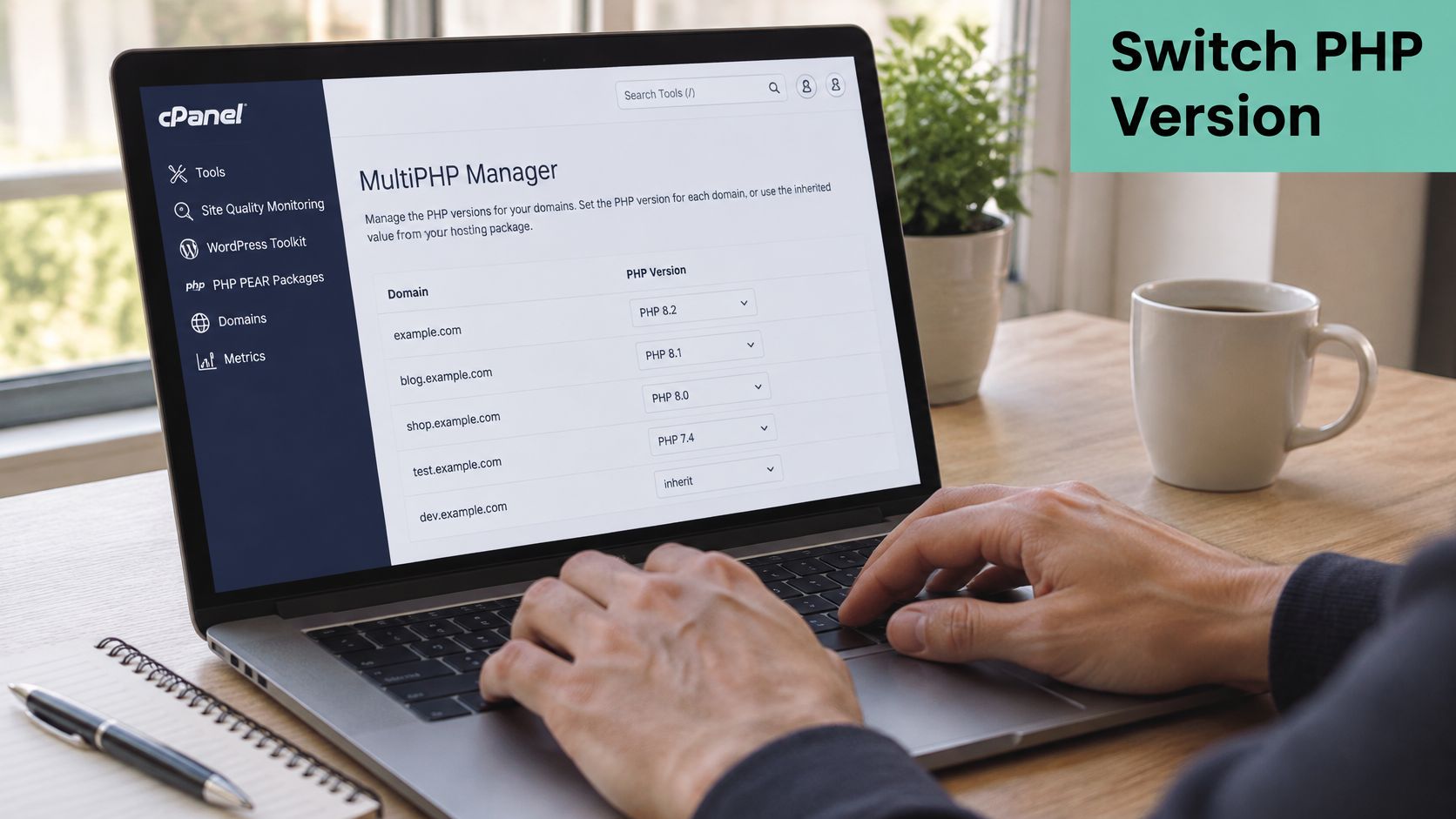
Quick path: log in to cPanel, open Software → MultiPHP Manager, tick the domain, choose the newest supported PHP version from the PHP Version menu, click Apply, then test the site. If that menu is missing, use Software → Select PHP Version instead.
Treat the job as five phases, not one click.
- Check the branch. Note the current PHP version and its end-of-support date.
- Confirm the software. CMS, plugins, themes and PHP extensions must support the target.
- Back up off the server. Files and databases, with a copy that does not live only in the account.
- Switch per domain. Use MultiPHP Manager, or Select PHP Version where that tool is absent.
- Test, then decide. Forms, logins, payments, uploads and cron jobs. Roll back on fatal errors.
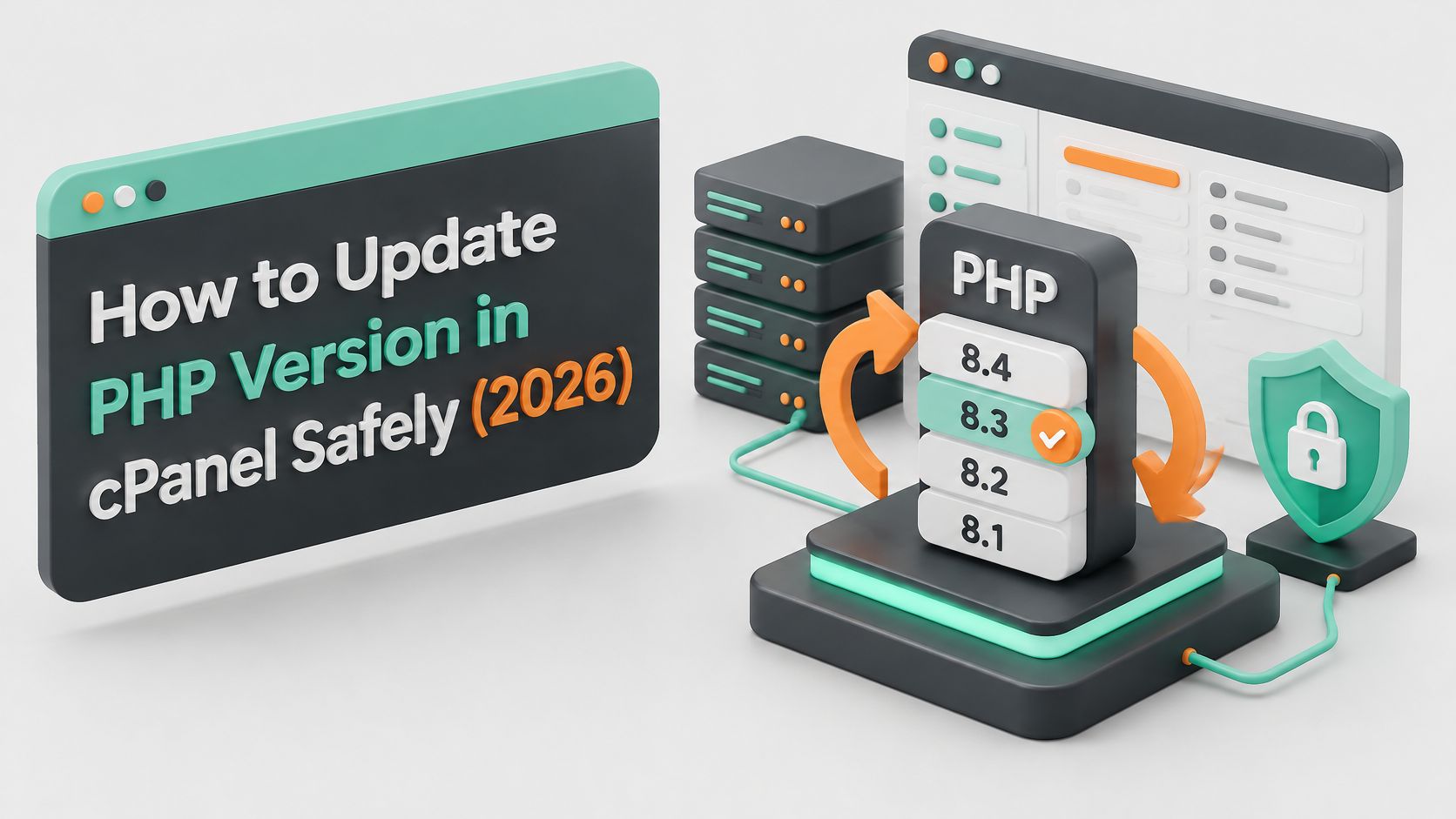
Two details make this a controlled change rather than a gamble. The switch applies per domain, so a site with several domains can move one at a time. And the older PHP version stays installed after you change the menu, which means rollback is the same dropdown in reverse.
A green Apply only proves the setting saved. Compatibility is a separate job, and I would not call the change finished until the critical journeys pass.
Check Your Current PHP Version and Its Support Window
In cPanel, Software → MultiPHP Manager lists each domain beside its assigned PHP version. That row is what visitors hit. Server Information, a temporary phpinfo() file you delete afterwards, WordPress Tools → Site Health, or php -v over SSH (where the host allows it) are useful cross-checks. They can disagree with the domain row if a handler or CLI binary differs, so trust the domain assignment over anything else. One account can run different versions per domain, so read every row, not just the primary site. Where the host runs Select PHP Version instead, the current version displays at the top of that screen.
The PHP project gives each major-minor branch two years of active support, then two years of security-only support. Active support brings bug fixes and security fixes. Security-only brings security fixes alone. After end of life there are no upstream fixes at all, yet the site can keep loading normally. That silence is exactly why unsupported versions sit unnoticed for years.
Where each branch sits in 2026
| PHP version | Released | Security support ends | Status in 2026 | Recommended action |
|---|---|---|---|---|
| PHP 8.5 | 20 November 2025 | Scheduled for 31 December 2029 | Newest stable branch | Test on staging, then adopt |
| PHP 8.4 | 21 November 2024 | Scheduled for 31 December 2028 | Actively supported | Safe choice for most sites |
| PHP 8.3 | 23 November 2023 | Scheduled for 31 December 2027 | Actively supported | Safe choice for most sites |
| PHP 8.2 | 8 December 2022 | Scheduled for 31 December 2026 | Security-only, final year | Plan the next upgrade now |
| PHP 8.1 | 25 November 2021 | Ended 31 December 2025 | End of life | Upgrade as soon as possible |
| PHP 7.4 and older | PHP 7 era | 28 November 2022 | End of life, no upstream fixes | Upgrade immediately |
PHP 8.2 is the awkward one this year: released on 8 December 2022, it has already left active support and its final security patches are scheduled through 31 December 2026. The PHP supported-versions page gives PHP 8.3 until 31 December 2027, PHP 8.4 until 31 December 2028, and PHP 8.5 until 31 December 2029. Treat these as published schedules rather than guarantees and confirm the date on that page before you lock a migration window to a branch. PHP 7's last branch, 7.4, stopped receiving security fixes on 28 November 2022. A domain still on PHP 8.1 in 2026 is already outside its security window. I'd put that upgrade in this quarter's plan rather than parking it for next year's review.
Selection rule: pick the newest branch the site's software genuinely supports. The oldest one that still boots is deferred maintenance.
WordPress core, a well-kept theme and current plugins will usually accept 8.3 or 8.4. A licensed plugin with an old ionCube build, or a custom booking form written against PHP 7 warnings, may not. Match the target against your WordPress hosting requirements and against each plugin's stated PHP line. Then write the chosen version, the handler and the support end date next to each domain. That small record turns the next review into a five-minute check instead of a forensic exercise.
Host your website with our 5-star rated, cPanel website hosting plans.
Super fast servers, with security included and hosted in your choice of Australian Data Center.
View cPanel Plans
Back Up Files and Database Before the Switch
Rollback of the PHP setting is quick. Rollback of a half-written order, a corrupted options table, or a plugin that rewrote data while the new interpreter was live is not. Do this before you touch the version menu.
- Full account backup. In cPanel open Files → Backup or Backup Wizard and generate a full backup of the home directory and databases. A plugin snapshot sitting in the same account is not a substitute.
- Copy it off the server. Download the archive to a local machine or cloud storage. A control-panel fault must not be able to destroy the only copy.
- Export the database on its own. If you cannot see the database inside that archive, export it through phpMyAdmin. For WordPress that is usually the one database the site writes to.
- Record version and extensions. From MultiPHP Manager or
phpinfo(), write down the current PHP version and every enabled extension. People remember "we were on 8.1". They forget intl, zip and the ionCube loader. - Clone first where you can. Put a copy on a staging subdomain or subdirectory and run the upgrade there. A brochure site and a checkout do not deserve the same first attempt.
- Update the application before the runtime. On WordPress, update core, themes and plugins to releases that declare PHP 8.x compatibility, on staging, before you switch the live interpreter.
Two checks get skipped and then regretted. Confirm when the last automatic backup ran, and take a fresh manual one if yesterday's product or page edits are not in it. Then write the rollback path on one line: previous PHP version, plus where the backup file sits. Our guide on how to back up a WordPress site walks through the file and database split if you have not done it before.
Switching versions does not delete your files, database, mail or certificate. The risk is code that fatals, and data the broken code writes before you notice.
Switch the PHP Version for Your Domain in cPanel
Change one domain, or a small set you have already tested. Do not change the server-wide default to tidy things up. cPanel's MultiPHP Manager documentation is clear that Apply changes the selected virtual host's PHP version and, when PHP-FPM is enabled, updates the FPM version to match it.
The click path
- Log in to cPanel.
- Open Software → MultiPHP Manager.
- Find the domain. Note its current version and whether PHP-FPM is on.
- Tick that domain. For one bulk pass, tick only low-risk domains you have already tested, such as matching brochure sites. cPanel's domain PHP change guide documents the same bulk apply for account users and, separately, for WHM administrators.
- Choose the target from the PHP Version menu, for example
ea-php83orea-php84. - Click Apply.
- Confirm the new version shows against the domain, then reload the site in a private window so you are not looking at a cached tab.
Say a Melbourne retailer has the shop on the main domain and a staging subdomain beside it. Leave the shop where it is. Point staging at 8.4, run your checks, then move the live domain in a quiet window. Per-domain control is what makes this safe: you interrupt only the vhost you switched, and the live site keeps running on the old interpreter until you choose otherwise.
When MultiPHP Manager is not there
Open Software → Select PHP Version, pick the version, apply it, then open the Extensions tab. Re-enable what the old version had: mbstring, intl, GD or Imagick, ZIP, curl, PDO (and the database driver you use), and OPcache. Extensions do not follow you across versions. That single miss is why a homepage loads and image uploads or a licensed plugin do not. The steps for extensions and resources are the same ones in our knowledge base article on configuring PHP, website resources and extensions.
If the version you want is missing, the host may not have provisioned it. EasyApache 4 carries a set of PHP branches, and which ones appear in your menu depends on the operating system and the provider's policy. A missing option is often an account restriction, not a broken install. Ask support to enable the branch. Versions left outside the provider's supported profile can linger without vendor updates, which is a maintenance risk, not a feature.
The WHM system default sets PHP for newly created accounts. It does not rewrite every existing domain. Confusing those two scopes either leaves the live site untouched or changes what the next account inherits.
Roll back at once if you get HTTP 500 errors, a blank response, or a fatal error. Same screen, previous version, Apply.
For people who manage the server
Inventory first, then one tested vhost, then anything wider. cPanel's WHM API guidance documents:
whmapi1 php_get_installed_versionslists installed releases.whmapi1 php_get_vhost_versionsshows what each domain is running.whmapi1 php_set_vhost_versions vhost-0=example.tld version=ea-php84assigns one virtual host.
Set the system default only after you mean new accounts to inherit that branch. Do not use a system-default change as a shortcut for a client site you have not opened.
Test Compatibility After the PHP Switch
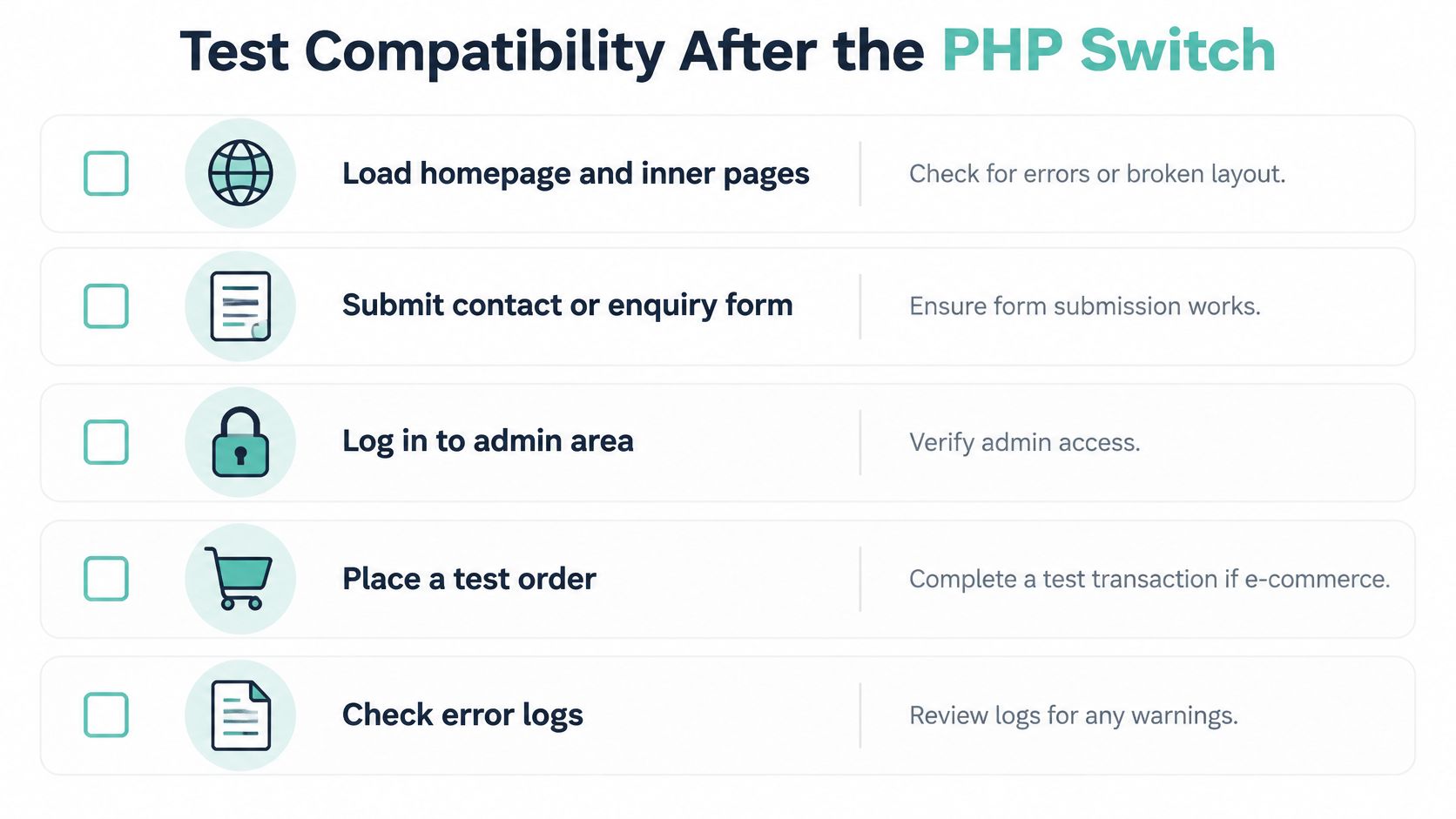
A passing upgrade is not "the homepage returned 200". Runtime rules change with the binary: removed functions, dynamic properties, stricter types, sessions and serialisation can all fatal where PHP 7 only warned. Before the switch, list that version-sensitive code and run the application's automated tests on staging. After Apply, cPanel's note on limiting PHP versions is a reminder that the selector and the application are different layers. Walk the site in this order.
- Pages. Load the homepage and several inner pages. Look for broken layout, not just a title tag.
- Enquiry form. Submit the contact form with a real address you can check.
- Admin login. Sign in to WordPress, or whatever admin the site uses.
- Money. Place a test order, or run the gateway in sandbox mode. Do not "assume checkout is fine" because the cart page rendered.
- Upload. Add an image through the CMS. This catches GD, Imagick and upload limits.
- Cron. Open cPanel's Cron Jobs and confirm the job still fires, including any WP-Cron or custom PHP script.
- Mail. Trigger a password reset or order mail and confirm it arrives.
- Logs. Read the cPanel error log and the PHP
error_logfor fatals and deprecations. - WordPress Site Health. Confirm plugins and themes declare compatibility with the version you just set.
Extensions and the sign-off
Confirm the release is supported by the CMS and by every production extension you rely on: OPcache, cURL, GD or Imagick, mbstring, PDO with the correct database driver, XML and ZIP. A missing connector looks like a "database outage". It is usually the new PHP build without the driver ticked.
Acceptance gate: zero fatal PHP errors, zero failed critical journeys, and stable response times across at least one normal traffic cycle. Any regression means rollback and a log comparison, not a debate about whether the warning "probably doesn't matter". There is no defensible Australia-wide success rate for this change, so record the result per domain, keep the backup, and make the change while local support is at a desk.
Register your new domain name at competitive market prices including free domain add-ons like privacy, DNS Hosting, Custom Nameservers and Forwarding.
Always the best price and no nasty renewal price hikes.
Register A Domain Name
Troubleshoot Common PHP Upgrade Problems
"Successful" in cPanel means the setting was applied. The PHP project's 2026 release notes show why that is not a place to stop: recent supported releases fixed two critical vulnerabilities capable of unauthenticated remote code execution, and the project urged an immediate update. An end-of-life branch misses those fixes while the homepage still looks healthy.
If the site fails, use this order. Do not start by deleting plugins on a live shop.
- Open MultiPHP Manager or Select PHP Version and reselect the previous version.
- Click Apply.
- Reload in a private window and rerun the critical journeys.
- If it still fails, restore the pre-upgrade backup. Something else changed, or the new code already wrote bad data.
- On staging, disable the suspected plugin or extension, read the cPanel error log, fix the cause, then retry in a low-traffic window.
What the symptom usually means
| Symptom | Likely cause | Fix |
|---|---|---|
| HTTP 500 errors or a blank page | Plugin, theme or custom code incompatible with PHP 8.x | Revert to the previous PHP version, fix the code or plugin on staging, then retry |
| Deprecated function warnings in the error log | Code still uses functions removed or changed in newer PHP | Update the plugin or theme; ask a developer to patch custom code |
| Target PHP version missing from the menu | Hosting provider restricts selectable versions or has not provisioned the branch | Ask support to enable it; WHM admins can add it through EasyApache 4 |
| Forms or password-reset emails stop sending | Changed mail handling or a mail function relying on old behaviour | Test the contact form, check email logs, switch the site to SMTP |
| Payment or checkout steps fail | Gateway plugin or SDK not ready for the new PHP branch | Update the gateway plugin and test with sandbox keys before going live |
| Site loads but feels slower | OPcache or PHP-FPM settings not tuned for the new version | Enable OPcache, confirm PHP-FPM matches the selected version, watch response times |
| Missing extension errors such as mbstring or intl | PHP extensions not enabled on the new version | Re-enable the extensions in Select PHP Version or ask the provider |
WordPress sometimes reports a missing MySQL extension after a switch even though the database was fine an hour earlier. That is an extension mismatch on the new build, and the checks in your PHP installation appears to be missing the MySQL extension are the right next read.
Rollback buys time. It is not a plan to stay on a branch that no longer receives fixes.
For a site that takes bookings or online sales, book a maintenance window and send a short notice. A silent 500 at 7pm AEST costs leads you will not see in the error log.
Keep Your PHP Version Supported Going Forward
Put the PHP support table in the same yearly review as insurance and domain renewals. Move before the security-support date, not after the first scanner email. Site owners should glance at the PHP version each quarter when they update plugins. Agencies should keep a simple inventory: domain, version, compatibility, last test. Tested low-risk sites can then go through MultiPHP Manager in one apply, with a check of each site afterwards because plugins still differ.
If MultiPHP Manager is missing, the menu stops at end-of-life branches, or support will not provision PHP 8.3 or newer, the plan is the bottleneck. UpTime Web Hosting runs cPanel hosting for Australian websites on Australian servers, always on the latest cPanel version, with daily backups through cPanel and free migration. Before you book, ask which PHP branches the plan can select. If a site is already slower than the new branch should allow, PHP performance tuning is the follow-up, not another random version hop.
Today's action is small. Check the current version, pick the target branch the software supports, and book the window.
UpTime Web Hosting gives Australian businesses cPanel hosting where you can select the PHP version, keep daily backups, and move an existing site across at no migration charge. That is the practical base for the backup, per-domain switch and rollback path this guide relies on. Visit UpTime Web Hosting to see current cPanel plans and which PHP branches you can select.