A WordPress theme is your website’s entire design system rolled into one. It dictates the look, feel, and layout of everything your visitors see—from the colour palette and typography to how your pages are structured. But it doesn't touch your core content, like your blog posts or product descriptions.
Think of it like this: your content is the person, and the theme is their outfit. You can switch from a sharp business suit to casual weekend wear, and you're still the same person underneath. A theme works the same way for your website.
What Is a WordPress Theme and Why Does It Matter?
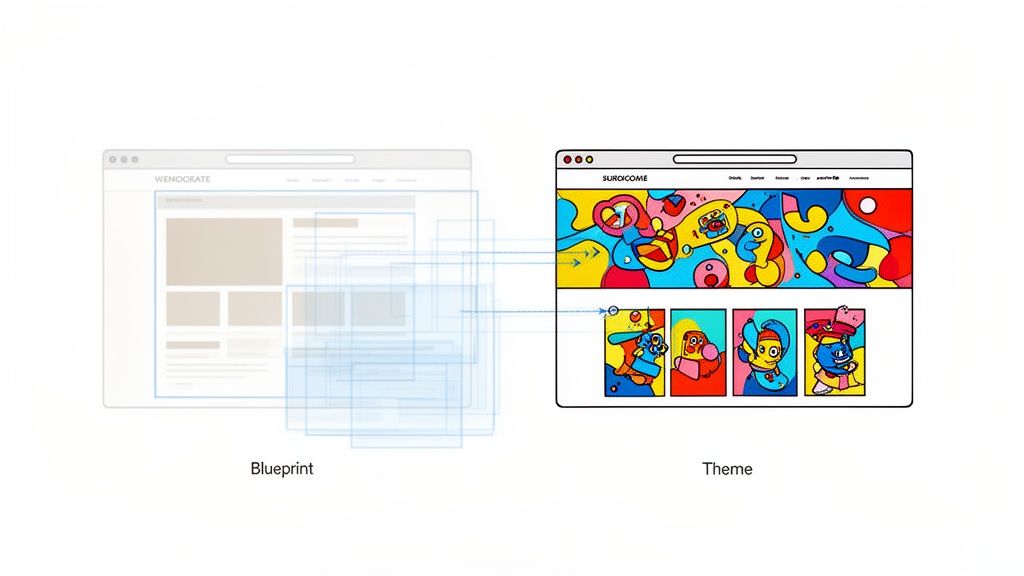
Let’s use another analogy. Imagine all your website’s content—your text, images, videos, and products—is the furniture you own. The WordPress theme is the house itself. It's the architectural blueprint that determines the room layouts, the window styles, the wall colours, and the overall vibe a visitor gets when they walk through the front door.
You could take that exact same set of furniture and put it in a different house, completely changing the experience. Move it from a minimalist, open-plan loft to a cosy country cottage, and the feeling is transformed. That's precisely what a theme does. Under the hood, it's a bundle of files—templates, stylesheets, and functions—that all work together to define your site's visual presentation.
The Foundation of User Experience
Choosing a theme is easily the single biggest decision you'll make for your site’s design and even some of its functionality. It directly shapes how people interact with your content. A great theme makes your site not just look good, but also feel intuitive and effortless to use, which is fundamental to building a successful online presence.
Here's why it's so critical:
- Brand Identity: Your theme is the most powerful tool you have to express your brand’s personality. It’s how you show the world you’re a serious corporate firm, a quirky creative agency, or a warm, friendly local business.
- User Engagement: A clean, logical layout keeps visitors on your site longer. It guides them to read more, explore your services, or take that all-important next step, like making a purchase or filling out a contact form.
- Core Functionality: Many modern themes come packed with built-in features. Think social media integration, e-commerce shop layouts, or sleek portfolio galleries—often saving you the trouble of finding and installing extra plugins.
If you're wondering what makes the WordPress platform itself such a great starting point, we've got you covered. You can learn more by reading our guide on the top reasons WordPress is the best choice for your business website. Seeing the big picture helps put the importance of your theme into perspective.
A WordPress theme isn't just a "skin." It’s the very framework that dictates your site's layout, design, and a surprising amount of its features and performance. Picking a theme is like choosing the chassis for a car; it sets the stage for everything you can do later on.
A Quick Comparison of Theme Types
Jumping into the world of WordPress themes can feel a bit overwhelming at first. To make it easier, it helps to know that themes generally fall into a few distinct categories. Each one is built for different goals and skill levels, and understanding them is the first step to finding the perfect match for your project.
To help you figure out which path is right for you, we've broken down the main types of themes in this table.
Comparing Common WordPress Theme Types
| Theme Type | Best For | Key Characteristic | Example Scenario |
|---|---|---|---|
| Multipurpose | Businesses wanting maximum flexibility without code. | Comes packed with countless demos, features, and a page builder. | A marketing agency that needs different layouts for corporate clients, restaurants, and online stores. |
| Block Theme | Users who want granular, visual control over every part of the site. | Built specifically for WordPress's new Full Site Editor (FSE). | A designer wanting to build a completely unique blog layout from header to footer, just by using blocks. |
| Framework | Developers building custom, high-performance websites. | A lightweight "parent" theme paired with a "child" theme for customisations. | A development agency building a fast, secure, and highly customised site for a large enterprise client. |
| Starter Theme | Developers who want a completely clean slate for custom coding. | A bare-bones theme with minimal styling and only the essential files. | A freelance developer crafting a bespoke portfolio site for a photographer from the ground up. |
Ultimately, the right theme type depends entirely on your goals. Are you looking for a ready-made solution you can launch quickly, or a blank canvas to build something truly unique? Answering that question will point you in the right direction.

Performance you can feel, backed by clients who depend on it. Read how our support and uptime create long‑term customer success.Power Your Business with Better Hosting
A Look at the Modern WordPress Theme Landscape
Stepping into the world of WordPress themes can feel a bit like walking into a massive, sprawling department store. There are endless options on every aisle, and if you don't know what you're looking for, it's easy to get overwhelmed. The trick is to understand that modern themes fall into a few key categories, each built for different people with different goals.
Getting a handle on these categories is the first step to cutting through the noise. It helps you find a theme that doesn't just look the part, but also works the way you need it to. Let's break down the main players on the field.
Multipurpose Themes: The All-in-One Solution
Think of a multipurpose theme as the Swiss Army knife in your web design toolkit. These are the big, feature-packed themes designed to be a jack-of-all-trades. Whether you're building a corporate site, an online shop, or a creative portfolio, a multipurpose theme aims to have you covered.
They pull this off by bundling in a huge library of pre-designed templates (often called 'demos') and almost always include a powerful drag-and-drop page builder. This means you can create some seriously professional and complex layouts without ever having to touch a line of code.
- Who are they for? Small business owners, agencies, and anyone who wants maximum flexibility straight out of the box. If you want one theme to power multiple, varied projects or just want to know you have features ready for the future, this is a great place to start.
- A practical example: A digital marketing agency could grab a theme like Avada or Divi and spin up completely different sites for their clients—a restaurant one week, a law firm the next—all from the same core foundation.
The trade-off? All that power can come with a bit of a learning curve, and the sheer number of features might add some bloat compared to a simpler, more focused theme. To see how this compares to platforms with built-in design, have a look at our article comparing Wix vs WordPress.
Framework and Starter Themes: The Developer's Toolkit
At the other end of the spectrum, you’ll find themes built specifically for custom development. These aren't for beginners, but for professionals who want total control. They generally come in two flavours: frameworks and starters.
A framework theme, like the highly-respected Genesis Framework, provides a rock-solid, secure foundation (the "parent" theme). A developer then builds a lightweight "child theme" on top, which contains all the custom design and functionality. This is a brilliant approach because the core framework can be updated without ever breaking your customisations.
A starter theme is even more spartan. It’s a bare-bones skeleton, giving a developer just the essential files and basic structure to get going. There's no pre-existing design to strip away, making it a truly blank canvas for writing clean, custom code from the ground up.
For bespoke websites where performance is everything, framework and starter themes are the go-to choice. They give developers absolute control, resulting in a lean, fast website that's perfectly tailored to a client's needs.
Block Themes: The New Era of Visual Control
The biggest shake-up in the WordPress world recently has been the arrival of Block Themes. These themes are built from the ground up to work with the Full Site Editor (FSE)—a game-changing feature that completely redefines how you customise a site.
Instead of being stuck with settings panels or third-party page builders, FSE lets you edit your entire website using the same block-based editor you use to write a blog post. That means you can visually design your header, footer, sidebars—every single part of the page. This hands-on control lets you build truly unique layouts without hiring a developer. If you're considering an online store, it's useful to read a good Shopify vs WordPress comparison to see how different platforms handle this level of customisation.
How to Choose the Right WordPress Theme for Your Business
Choosing a WordPress theme just because it looks good is like buying a car purely for its paint job. Sure, the colour is important, but what’s under the bonnet is what really dictates how well it will serve you down the road. The right theme is more than just a skin for your site; it’s a strategic business asset that can strengthen your brand, captivate visitors, and grow with you for years.
This visual guide gives you a quick decision-making path based on what you need most from your website.
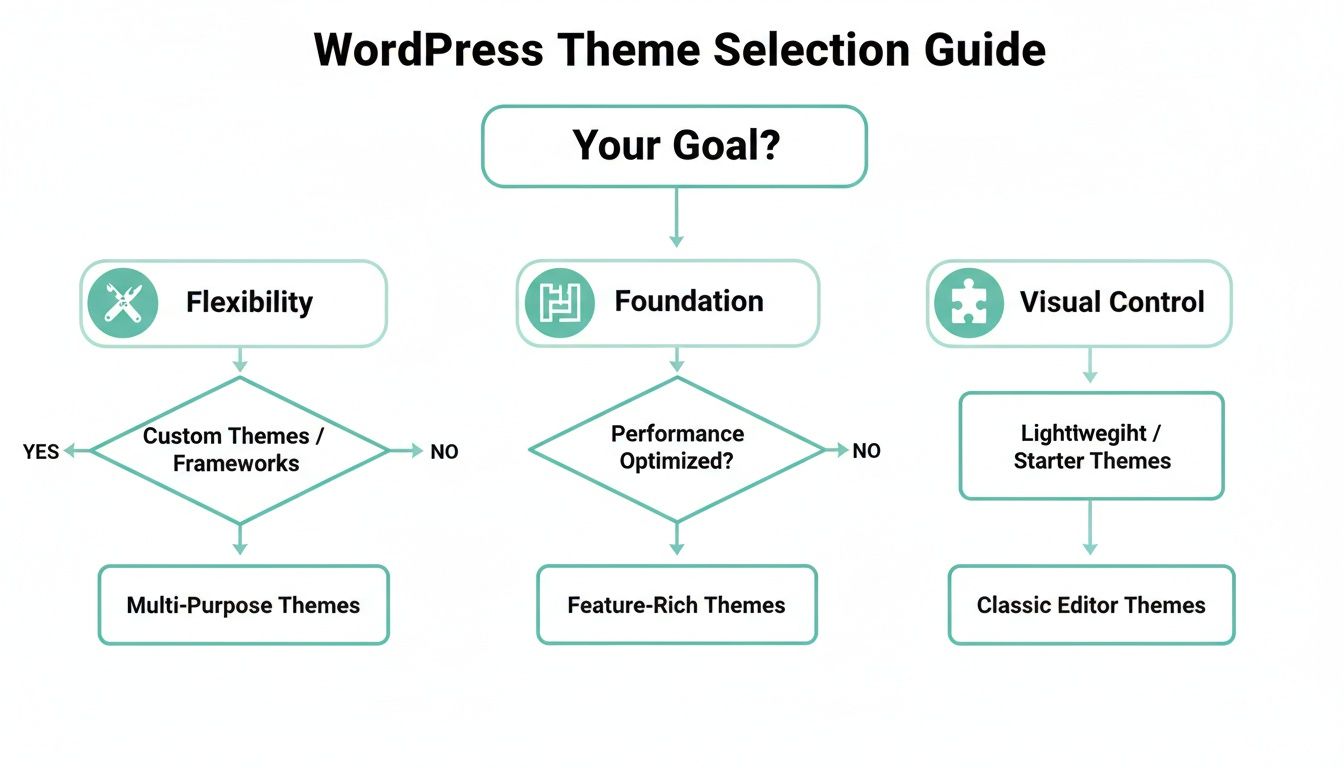
This decision tree helps you zero in on what truly matters to you—whether that’s having every feature imaginable, a rock-solid foundation for custom development, or complete visual control over every pixel. To make a smart, future-proof choice, you have to look past the pretty demo and evaluate a theme based on a few critical, non-negotiable criteria.
Performance and Speed
Think of your theme's code as your website's engine. A poorly coded, bloated theme will drag your site's speed down, no matter how fast your hosting is. This has a direct impact on your visitors' experience and your search engine rankings—after all, 53% of mobile users will ditch a page if it takes more than three seconds to load.
Keep an eye out for themes advertised as "lightweight" or "performance-optimised." These themes are built with clean, efficient code and avoid packing in dozens of features you'll probably never use.
Practical Tip: Most premium themes have a live demo you can play with. A great little trick is to copy the demo's URL and run it through a free tool like Google's PageSpeed Insights. It’s not a flawless test, but it gives you a surprisingly accurate baseline of the theme's out-of-the-box performance.
SEO Friendliness and Mobile Responsiveness
A stunning website is completely useless if nobody can find it. A good WordPress theme must be built from the ground up with Search Engine Optimisation (SEO) in mind. In practical terms, this means it uses a proper HTML structure, includes things like schema markup, and is fully responsive.
With most website traffic now coming from mobile devices, your theme has to deliver a flawless experience on every screen size. Google even uses mobile-first indexing, which means it primarily looks at the mobile version of your site for ranking.
A theme that isn't mobile-responsive isn't just outdated—it's actively damaging your business's online visibility and frustrating your visitors. Always test the demo on your own phone and tablet; never just take the "responsive" label at face value.
Security and Support
Your website's security begins with its foundation: your theme. Always, always get your theme from a reputable marketplace like ThemeForest or directly from a trusted developer's website. "Free" themes from sketchy sources are one of the most common ways sites get infected with malicious code.
Here are a few signs of a trustworthy theme:
- Recent Updates: A good developer regularly updates their theme to patch security vulnerabilities and maintain compatibility with the latest version of WordPress.
- Positive Reviews: Look for consistently high ratings. More importantly, read what other people are saying about their experience with the product and the developer's support.
- Clear Documentation: Great themes come with a comprehensive knowledge base or detailed documentation to help you get up and running smoothly.
On that note, quality support is non-negotiable. When you inevitably hit a snag, having access to a responsive and helpful support team can save you hours of pulling your hair out. Before you commit, check the theme's support forum or comments section to see how quickly and effectively the developers handle user issues.
Plugin Compatibility and Customisation
Your theme needs to play nicely with the other tools in your toolbox. This is especially true for essential plugins like WooCommerce for e-commerce, Yoast SEO for optimisation, or a page builder you love working with. Most reputable theme developers will list which key plugins they are compatible with.
Finally, think about how you want to customise your site. Does the theme use the standard WordPress Customiser, a dedicated theme options panel, or does it lean heavily on a bundled page builder? Finding the right balance is the key here. Too few options can feel restrictive, but too many can be overwhelming and contribute to site bloat. Understanding the potential costs involved in web page design can help you figure out if a feature-rich premium theme is a smarter investment than hiring a developer for custom work later on.
Host your website with our 5-star rated, cPanel website hosting plans.
Super fast servers, with security included and hosted in your choice of Australian Data Center.
View cPanel Plans
Pairing Your Theme with High-Performance Hosting
Picking a brilliant WordPress theme is only half the battle. Its real-world performance is completely tied to the power and setup of your web hosting. A lightweight, optimised theme will still feel sluggish on a slow server—it's like putting regular fuel in a high-performance race car. To truly make your theme fly, you need a hosting environment built specifically for WordPress.
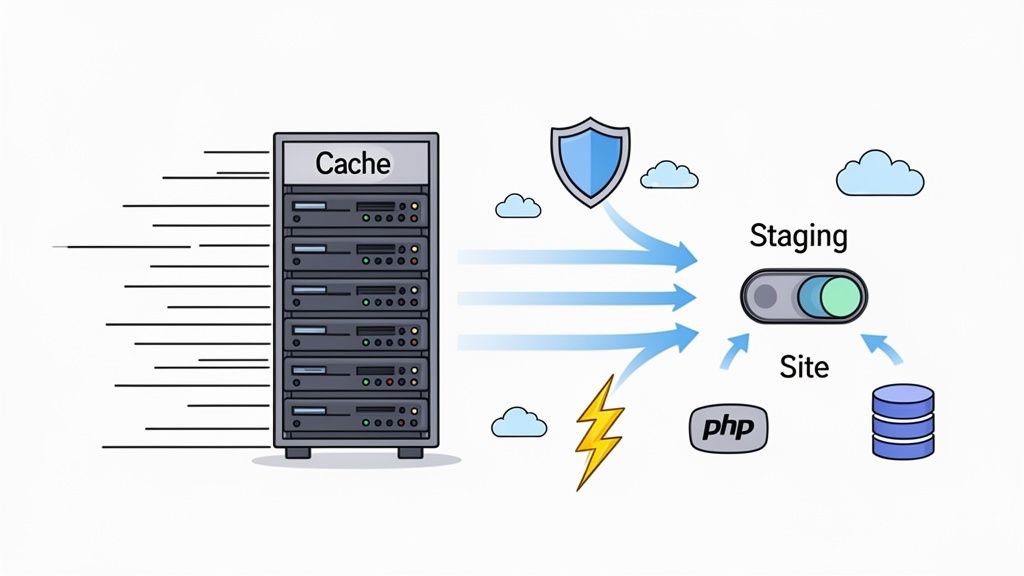
This is where UpTime Web Hosting becomes your performance partner. Our infrastructure isn't just a place to park your files; it's a finely-tuned engine designed to squeeze every last drop of speed out of your WordPress theme, giving your visitors the lightning-fast experience they demand.
Supercharging Your Site with LiteSpeed
At the heart of our performance stack is the LiteSpeed Web Server. Unlike older, more common server technologies, LiteSpeed was built from the ground up for one thing: speed. It’s simply better at handling traffic and processing PHP (the language WordPress runs on) much, much faster.
The real magic, though, happens when you pair it with the LiteSpeed Cache for WordPress plugin. Because the server and the plugin are developed by the same team, they speak the same language perfectly. This unique integration unlocks powerful, server-level caching that dramatically slashes your site's load times—a level of optimisation you just can't get with a standard hosting setup.
Think of it this way: every time someone visits your site, your theme asks the server for information. LiteSpeed Cache pre-builds these pages and serves a ready-made copy straight from the server’s memory. This can cut server response times from seconds down to milliseconds.
Fine-Tuning Performance with AccelerateWP
To push optimisation even further, every UpTime Web Hosting account comes with AccelerateWP. This is our server-level tool that goes well beyond standard caching. It intelligently analyses your specific WordPress site—including your theme and plugins—and applies advanced optimisations automatically.
AccelerateWP handles several key jobs for you:
- Object Caching: It stores common database queries in memory, which is a game-changer for dynamic sites like e-commerce stores or membership portals.
- Asset Optimisation: It automatically minifies your CSS and JavaScript files, stripping out unnecessary code to make them smaller and quicker to download.
- Image Optimisation: It helps make sure your images are compressed and served in modern formats without you having to sacrifice quality.
For businesses that need top-tier speed, check out our guide on finding the best Australian hosting for WordPress to see how all these features work together.
The Power of Generous Resources
A feature-packed WordPress theme, especially one built for an online shop, needs plenty of server resources to run without a hitch. For example, if you're learning how to use WooCommerce to boost your business, you'll quickly realise your theme and plugins need horsepower. Hitting your memory or CPU limits can cause your site to slow to a crawl or even crash right when traffic is highest.
We make sure our plans come with generous PHP and MySQL resources so your theme always has the headroom it needs. This is especially important in Australia, where WordPress themes power a huge slice of the internet. In fact, 168,843 of the top 1 million Australian websites are built on a WordPress theme framework. Our servers in Sydney, Melbourne, Brisbane, and Perth are configured specifically to handle this demand.
Testing Updates Safely with Staging
Finally, let's talk about one of the most nerve-wracking parts of managing a website: updates. A theme update can sometimes clash with a plugin or custom code, breaking your live site in an instant. This is where our one-click staging environment is an absolute lifesaver.
With a single click, you can create an exact, private copy of your website. On this "staging" copy, you can safely update your theme, test new plugins, and experiment with design changes, all without any risk to your live, public-facing site. Once you’ve checked that everything works perfectly, you can push all the changes live with another click. It transforms a stressful gamble into a safe, controlled process. You can learn exactly how this works in our knowledge base article on how to create a staging site for your WordPress website.
Your First Steps with a New WordPress Theme
So, you’ve picked out your new WordPress theme. Great! Now for the fun part: bringing it to life on your website. The process itself is pretty straightforward, but getting these initial steps right is the key to a smooth setup and, more importantly, a website that’s easy to manage long-term.
Let's walk through installing your new theme and laying the proper groundwork for a stable, customisable site.
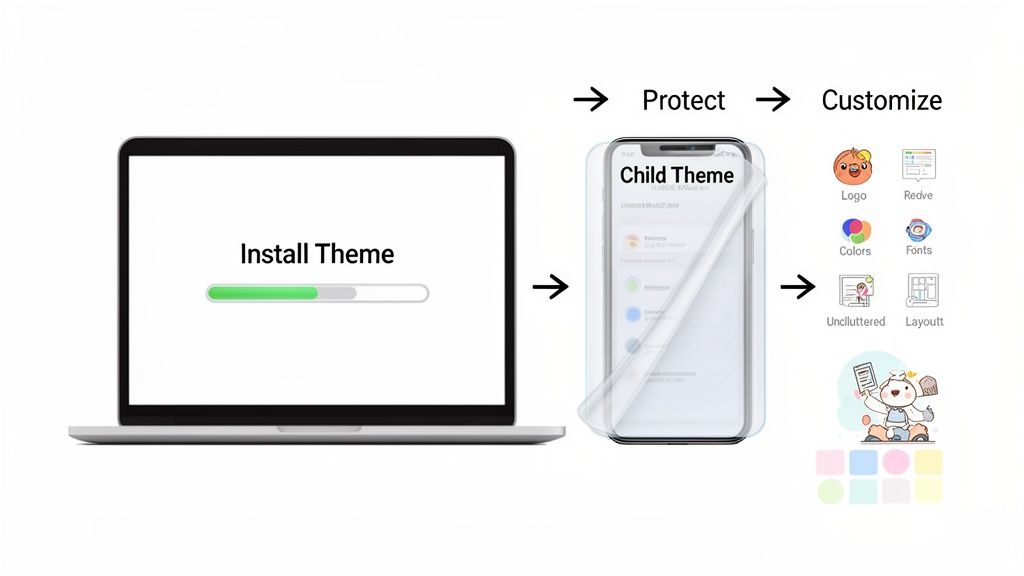
First things first, you need to get the theme’s files onto your WordPress site. How you do this depends on where you got the theme from.
From the WordPress Repository: If you're using a free theme from the official directory, it couldn't be easier. Just head to your WordPress dashboard, go to
Appearance > Themes > Add New, search for your theme, and hit Install, then Activate.From a Premium Provider: For themes bought from marketplaces like ThemeForest or a developer’s shop, you’ll have a .zip file on your computer. To get it installed, go to
Appearance > Themes > Add Newand click theUpload Themebutton. Select that .zip file, click Install Now, and activate it once the upload is finished.
Protect Your Customisations with a Child Theme
Okay, before you start tweaking colours or changing fonts, there's one step you absolutely cannot skip: creating a child theme. This is one of the most fundamental best practices in the WordPress world, yet it’s the one beginners most often miss.
Think of it like this: the main theme is the original painting. A child theme is like putting a clear sheet of glass over it. You can draw on the glass as much as you want, but the original painting underneath remains untouched and pristine. Any custom CSS or code changes you make are saved to this "glass layer."
When the original theme developer releases an update—for a critical security patch or a cool new feature—you can update with complete peace of mind. The update only changes the "painting," leaving your customisations on the "glass" perfectly intact.
If you don't use a child theme, any edits you make directly to the theme’s files will be wiped out forever the next time you update. Setting one up takes just a few minutes but will save you from a world of frustration down the track. Many premium themes even include a ready-to-go child theme in the download package to make your life even easier.
Exploring the WordPress Customiser
With your child theme activated, it's time to start personalising. Your main tool for this is the WordPress Customiser. It’s a fantastic, user-friendly interface that shows you a live preview of your changes as you make them, so you know exactly how things will look before you publish.
You can find it by going to Appearance > Customize in your dashboard. The options you see will vary depending on your specific theme, but you'll almost always find controls for:
- Site Identity: This is where you’ll upload your logo and set your site’s title and tagline.
- Colours & Typography: Adjust the entire colour palette and choose the fonts for your headings and body text.
- Header & Footer Layouts: Configure your navigation menus, widget areas, and the general structure of these key site sections.
- Homepage Settings: Choose whether your homepage shows your latest blog posts or a dedicated static page.
The Customiser is your command centre for making design adjustments without ever touching a line of code. It gives you the power to really dial in your site's look and feel. For bigger changes, it’s always smart to test things out first. You can learn how to create a staging site for your WordPress website in our knowledge base, which gives you a safe sandbox to experiment in without any risk.
Keeping Your Theme Healthy: Maintenance and Troubleshooting
Getting your WordPress theme chosen and set up feels like a huge win, but the journey doesn't stop when you click "publish". Think of your website less like a printed brochure and more like a living, breathing project. To keep it secure, fast, and working flawlessly for your visitors, you need to commit to regular, ongoing maintenance.
One of the biggest security mistakes you can make is ignoring theme updates. Developers are constantly releasing patches to plug security holes, boost performance, and make sure their themes play nice with the latest version of WordPress. Skipping these updates is like leaving your front door unlocked – it's an open invitation for trouble. The trick is to update smartly.
Before you ever update a theme on your live website, always, always use a staging environment. UpTime Web Hosting gives you a one-click staging feature that creates a perfect, private copy of your site. Here, you can run the update, click through every page, and test every feature to make sure nothing breaks, all without your visitors ever knowing.
A Practical Guide to Fixing Common Glitches
Even with the best maintenance routine, things can sometimes go sideways. Knowing how to quickly figure out what's wrong can save you a mountain of stress.
Here’s a quick-start guide for tackling common WordPress theme headaches:
- The White Screen of Death (WSOD): It’s the stuff of nightmares. Your site is just… a blank white page. This is almost always a conflict between a plugin and your theme. The first move is to deactivate all your plugins. If the site comes back to life, reactivate them one by one until the white screen returns. Voilà, you’ve found your culprit.
- Messed-Up Styling: Did a button suddenly change colour or move after a plugin update? That's usually a CSS conflict. You can use your browser's "Inspect" tool to dig into the code and see which stylesheet is overriding your theme's design. This is great information to pass along to the developer.
- Sudden Slowdowns: If your site starts feeling sluggish out of the blue, a recent theme or plugin update is a likely suspect. This is another reason why a staging site is a lifesaver – you can spot these performance hogs before they affect your real users.
When you're truly stuck, your best bet is to reach out to the theme’s developer for support. Give them a clear rundown of the problem, explain the steps you've already tried, and include any error messages you’ve seen. The more detail you provide, the faster they can help you solve it.
This hands-on approach to maintenance is critical, especially for online shops. Australian small businesses are flocking to WordPress, with WooCommerce powering an incredible 38.74% of eCommerce platforms globally. UpTime Web Hosting's WordPress-optimised plans are designed for exactly this, with features like AccelerateWP, free malware scans, and uncapped databases to keep stores running smoothly through traffic spikes and sales. You can dive deeper into this trend by checking out these global WordPress statistics.
While these troubleshooting tips can help you solve many problems yourself, remember you're not on your own. As an UpTime Web Hosting customer, our 24/7 local support team is always here to help you get things back on track.
Register your new domain name at competitive market prices including free domain add-ons like privacy, DNS Hosting, Custom Nameservers and Forwarding.
Always the best price and no nasty renewal price hikes.
Register A Domain Name
Common Questions About WordPress Themes
Still got a few things on your mind about WordPress themes? Let's tackle some of the most common questions we get from our customers. We'll give you straight, simple answers to help you feel confident about your next steps.
Can I Change My WordPress Theme Later?
You sure can. Switching your WordPress theme is possible at any point, but it's not something to take lightly. Think of it like changing the entire chassis of a car while leaving the engine and seats in place.
Your core content—all your posts, pages, and media—will stay put. However, any features baked into your old theme will vanish. This includes special widgets, custom shortcodes, and unique settings from its options panel.
This is exactly why a staging environment is your best friend. It’s a private copy of your live site where you can install the new theme, kick the tyres, and fix any issues without your visitors ever knowing. For a full walkthrough, check out our guide on how to create a staging site for your WordPress website. It’s a crucial tool included with our hosting plans.
What's the Real Difference Between a Free and a Premium Theme?
Free themes, which you can find right in the official WordPress directory, are a great starting point. They've all been vetted for basic security standards and work well for simple blogs or personal sites. The trade-off is usually fewer features and no dedicated support when you get stuck.
A premium WordPress theme is a direct investment in your business. It offers extensive customisation options, unique functionality, regular security updates, and professional support—all critical components for a serious business or e-commerce website.
Think of it this way: a free theme is like a solid, reliable sedan, while a premium theme is like a high-performance vehicle with all the optional extras and a dedicated mechanic on call.
Do I Need to Be a Coder to Customise My Theme?
Not at all. The days of needing to be a web developer to build a great-looking site are long gone. Modern WordPress themes are designed specifically for people who don't write code.
You'll do most of your customisation through the built-in WordPress Customiser or drag-and-drop page builders. These tools give you simple visual controls to change colours, fonts, layouts, and pretty much anything else you can think of.
Sure, knowing a little bit of CSS can be helpful for those tiny, pixel-perfect adjustments, but it's absolutely not a requirement. You can create a stunning, professional-looking website using only the tools your theme already provides.
Ready to pair your perfect WordPress theme with hosting that makes it fly? At UpTime Web Hosting, our Australian-based platform is optimised with LiteSpeed and AccelerateWP to deliver incredible speed and reliability. https://uptimewebhosting.com.au