That sinking feeling when a crucial email is just sitting there in your outbox is something we've all felt. Before you dive into the technical weeds of server settings or spend time on hold with support, it’s always best to run through a quick triage. These first-aid checks are often all it takes to get your emails moving again.
Your First Steps When Emails Are Stuck in Outlook
The most common culprits for an Outlook email not sending are usually simpler than you’d think. In my experience, it almost always boils down to one of three things: a dropped internet connection, Outlook being in Work Offline mode, or a tiny typo in the recipient's email address.
Honestly, checking these three things first will solve the problem more than 90% of the time.
First and most obviously, check your internet connection. Has your Wi-Fi dropped out? Is the network cable plugged in properly? A quick way to test this is to simply open a web browser and try to load a new page. If it loads, your connection is solid. If not, you’ve found your problem.
Check Outlook's Operational Mode
Next up, make sure Outlook hasn't been accidentally switched to 'Work Offline' mode. It’s a handy feature for composing emails without a connection, but it's surprisingly easy to click it by mistake.
Just glance at the bottom-right corner of your Outlook window. If you see "Working Offline" or "Disconnected," that's your issue. To fix it, head over to the Send / Receive tab and click the Work Offline button to toggle it off and get back online.
This simple flowchart gives you a great visual guide for these initial troubleshooting steps.
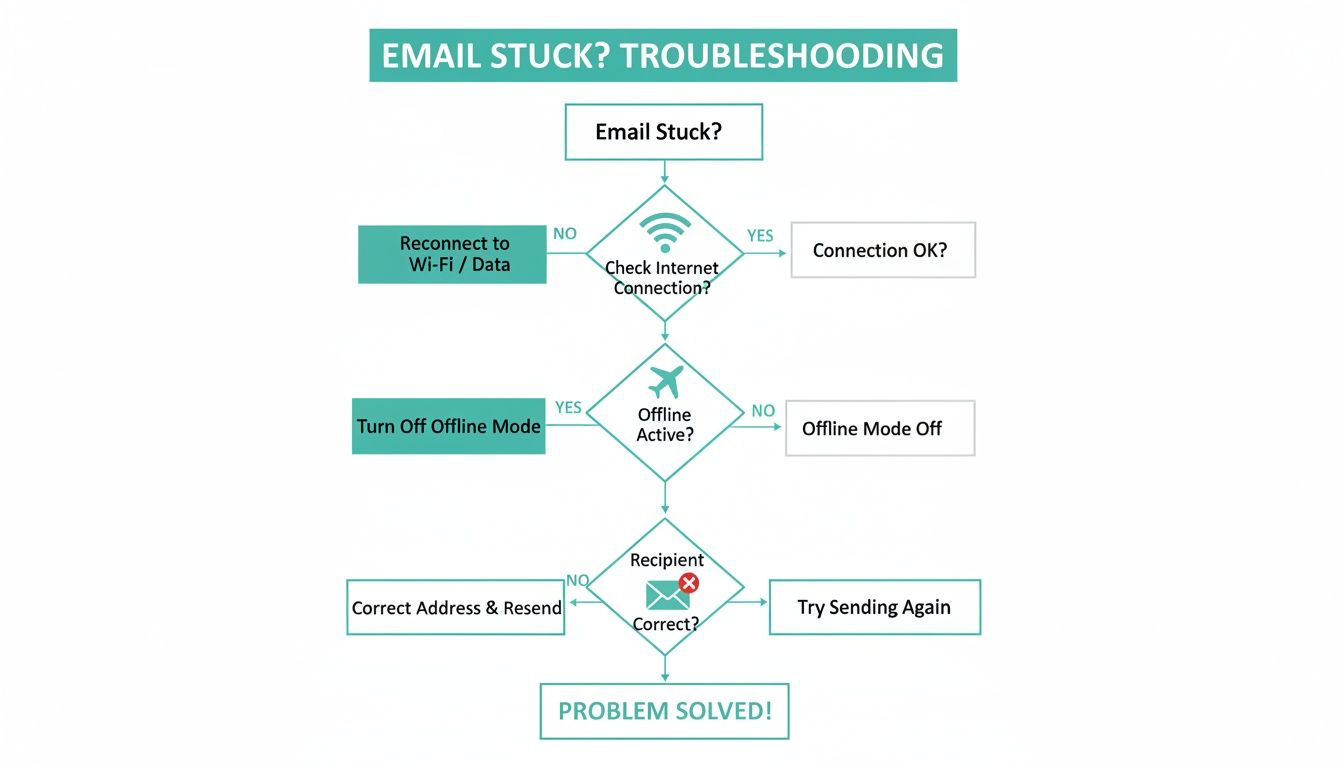
As you can see, the most frequent causes are the ones you can fix yourself in seconds. It always pays to start with the basics.
Verify the Recipient's Email Address
Finally, give that recipient address a very careful look. A single misplaced letter or the wrong domain extension (like .con instead of .com) is all it takes for a send to fail. In Australia, we see a lot of 'postmaster undeliverable' bounce-backs, and simple typos are a massive contributor, right alongside things like deactivated email accounts.
A classic trap is trusting Outlook's autocomplete feature. If you've ever saved an incorrect address, Outlook will happily keep suggesting it. For any important email, and especially for one that's already failed to send, it's worth taking a moment to manually verify the address is perfect.
Here’s a quick table summarising these initial checks, which should be your go-to every time an email gets stuck.
Immediate Checks for Unsent Outlook Emails
| Symptom | Most Common Cause | Your Quick Solution |
|---|---|---|
| Email sits in the Outbox. | Internet connection dropped. | Open a web browser and try to load a new page. |
| All emails are stuck, not just one. | Outlook is in 'Work Offline' mode. | Look for the "Working Offline" status at the bottom of the window. |
| You get an 'undeliverable' bounce-back. | Typo in the recipient's email address. | Carefully double-check the address you typed. |
These simple actions resolve the majority of sending issues without needing to dig any deeper.
If you’ve gone through these preliminary checks and the email still won't budge, you might be dealing with a slightly more complex issue. For a deeper dive, check out our guide on what to do when emails are stuck in your outbox.

Performance you can feel, backed by clients who depend on it. Read how our support and uptime create long‑term customer success.Power Your Business with Better Hosting
Diagnosing Your Outlook Account and App Settings
If the quick checks didn't get your emails flowing again, the next logical place to dig into is your Outlook settings. I've seen it countless times: a single incorrect detail in here is often the culprit, especially when you can receive emails just fine but can't send anything out.
These settings are basically Outlook's instruction manual for how to connect to your email provider to send mail. Think of it like giving the postie the right address and key for a postbox; without them, they simply can't pick up your letters. We need to be absolutely sure Outlook has the correct server name, password, and knows which port number to use.
Verifying Your SMTP Settings
The settings for sending mail are known as SMTP (Simple Mail Transfer Protocol) settings. Getting these right is non-negotiable. Even a tiny typo can bring all your outgoing emails to a grinding halt.
To check them, you'll need to find your account settings inside Outlook. The path is usually something like this:
- Go to File > Account Settings > Account Settings.
- Pick your email account from the list and hit Change.
- Now, look for the Outgoing mail server (SMTP) field.
Here's where you need to play detective. You have to confirm that the server name, port number, and encryption method are an exact match for what your provider, like us here at UpTime Web Hosting, requires.
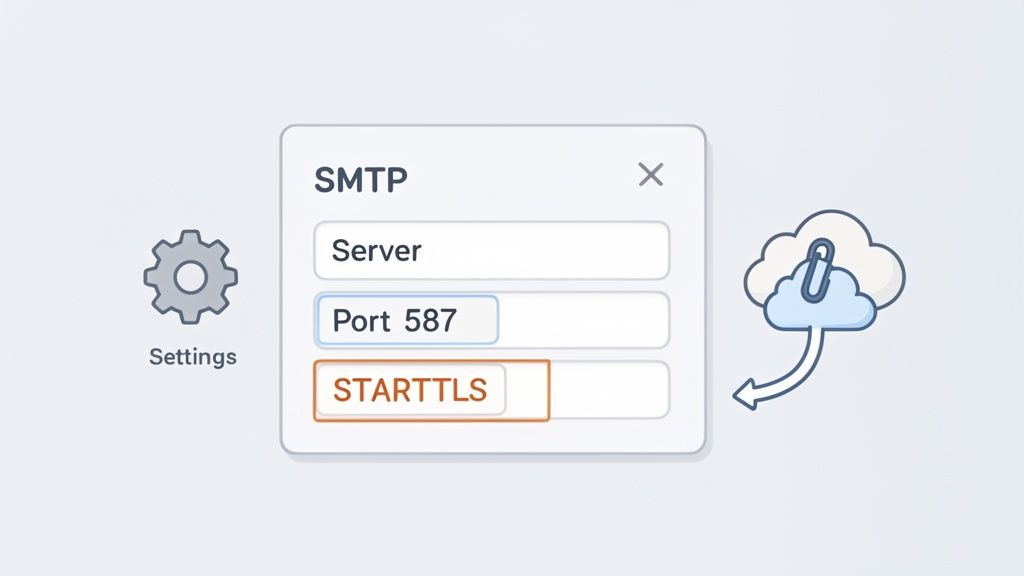
This image shows you the kind of settings panel you're looking for. It’s these details you must cross-reference with your provider's official documentation.
A classic mistake I see people make is assuming the incoming and outgoing server details are identical. They might share a server name, but the port numbers and security settings are almost always different. Always, always double-check both.
For almost any modern email host here in Australia, the settings you want to use for the best security and reliability are:
- SMTP Port: 587
- Encryption Method: STARTTLS (sometimes this just appears as TLS)
Using these ensures your connection is properly encrypted and far less likely to be blocked by internet service providers. For a more detailed walkthrough, you can follow our guide on how to add a mailbox in Outlook, which covers these settings from start to finish.
Checking for Oversized Attachments
Another really common reason for a stuck email is a massive attachment. Most email servers draw a hard line on file sizes, typically somewhere around 20-25 MB. If your email—attachment and all—tips over that limit, the server will just reject it, leaving it to languish in your outbox.
This can create a logjam, blocking any other smaller, perfectly fine emails from being sent after it.
Honestly, the best practice is to stop sending large attachments altogether. Instead, upload your file to a cloud service like OneDrive, Google Drive, or Dropbox and just pop the share link into your email. It guarantees the file gets there and keeps your outbox from getting clogged up.
Identifying External Blockers Like Firewalls and Antivirus
You’ve triple-checked your Outlook settings, everything looks perfect, but your emails are still stuck in the outbox. What now? It's time to look beyond Outlook itself, because often the real culprit is an overzealous security program on your own computer.
Think of your antivirus and firewall software as digital security guards. Their job is to inspect all the data coming and going from your computer, and sometimes they're a little too good at their job. They can mistakenly flag Outlook's normal communication as a potential threat, especially right after a software update, and slam the door shut. This is a classic reason why emails suddenly stop sending.
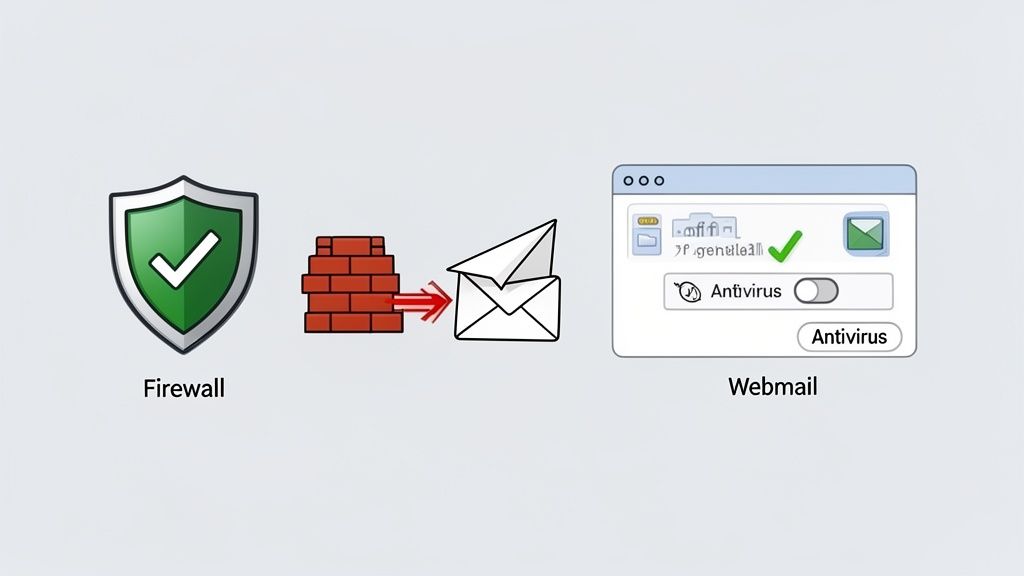
This heightened security isn’t just paranoia. According to Australia's Annual Cyber Threat Report for FY2023-24, business email compromise was a major cybercrime hitting local businesses. This explains why security software is so aggressive, but it also shows why it can occasionally get in the way of legitimate apps like Outlook. You can see the details in the full government report.
How to Test and Configure Security Software
So, how do you find out if your security software is the troublemaker? There’s a quick, safe way to test it. Temporarily disable your antivirus or firewall for just a couple of minutes, then try sending an email from Outlook. If it goes through, you've found your blocker.
Crucially, remember to turn your security software straight back on after the test. An unprotected computer is a massive risk.
Once you've confirmed the software is the issue, the fix isn't to leave it off. The proper, long-term solution is to add an 'exception' or 'rule' for Outlook. This is like putting Outlook on a VIP list, telling your security guard to always let it pass without a fuss.
- Practical Example (Windows Defender Firewall): Open the Start Menu, search for "Windows Defender Firewall," and click "Allow an app or feature through Windows Defender Firewall." Click "Change settings," then "Allow another app..." and browse to your
outlook.exefile (usually inC:Program FilesMicrosoft OfficerootOffice16). Add it, and you're done. - For third-party antivirus (like Norton, McAfee, etc.): Dive into the settings and look for a section called 'Firewall', 'Program Control', or 'Application Rules'. From there, you can create a specific rule that allows Outlook to connect freely.
This approach lets your emails flow while keeping your computer protected. If you want to get a better handle on how these systems work, have a look at our guide on anti-virus protection for business.
The Ultimate Diagnostic Test: Webmail
If there is one single test that will save you the most time and frustration, this is it. Log in to your email account using your webmail service in a browser like Chrome or Firefox, and try sending a message from there.
If you can send an email successfully from webmail but not from the Outlook application, you have 100% confirmed the problem is on your local computer. It could be the firewall, antivirus, a corrupted Outlook profile, or some other local glitch.
This simple check is invaluable. It instantly tells you whether the problem is on your end or with the server, focusing your troubleshooting efforts exactly where they need to be.
Host your website with our 5-star rated, cPanel website hosting plans.
Super fast servers, with security included and hosted in your choice of Australian Data Center.
View cPanel Plans
Taking a Look at Server-Side and Hosting Problems
So, you’ve double-checked everything in Outlook, confirmed your settings are perfect, and you know there’s no pesky local software getting in the way. What now? It’s time to shift your focus from your computer to the place your emails actually live: your hosting server.
More often than you’d think, an email that won’t send from Outlook has nothing to do with Outlook itself. The real culprit is often a limit or a snag on your hosting account, and these issues are usually invisible from your inbox. You won’t see a big, obvious error message—your emails might just vanish into a queue you can’t see, making it critical to know where to look.
To figure out if you're dealing with an Outlook glitch or a server issue, you need to look at the symptoms.
Pinpointing the Problem: Client vs. Server
This table breaks down common symptoms to help you determine if the sending issue is more likely with your Outlook application or on the hosting server side of things.
| Symptom | Likely a Client-Side Issue (Outlook) | Likely a Server-Side Issue (Hosting) |
|---|---|---|
| Can't send any emails at all | ✔️ Could be wrong password, server/port settings, or offline mode. | ❌ Unlikely if you can receive emails. |
| Can send a test email to yourself | ❌ If internal sending works, Outlook is likely configured correctly. | ✔️ A strong sign of a server issue like a blacklist or sending limit. |
| Emails with large attachments fail | ✔️ You might be hitting Outlook's or your provider's attachment size limit. | ❌ Less common, as attachment limits are usually client-side. |
| Multiple users report sending issues | ❌ If it's affecting everyone, it's probably not one person's Outlook. | ✔️ Points directly to a shared server problem. |
| Webmail works fine | ✔️ If you can send from webmail, the server is working. The issue is isolated to Outlook. | ❌ If webmail also fails, the problem is definitely on the server. |
Looking at where the failure occurs can save you a ton of time by pointing you in the right direction from the start.
Have You Hit Your Hosting Account Limits?
Every web host, including us here at UpTime Web Hosting, puts limits in place to keep servers healthy and stop them from being used for spam. The two most common barriers you’ll encounter are your mailbox quota and your hourly sending limit.
A full mailbox is a surprisingly common reason for sending failures. If your inbox is at 100% capacity, many servers will stop you from sending new mail because there’s simply no room to save a copy to your 'Sent Items' folder.
Likewise, firing off a whole bunch of emails in a short space of time can trip the hourly sending limit. This is purely a security measure to prevent a hacked account from blasting out thousands of spam emails. If you’ve just sent a newsletter or a big client update, you may have just bumped into this ceiling.
You can check these stats pretty easily by logging into your hosting control panel.
- Mailbox Quota: Head to the 'Email Accounts' section in cPanel. You'll see a handy usage bar next to each mailbox.
- Hourly Limits: This is usually tucked away in a tool like 'Email Deliverability' or within your account's general resource usage stats.
Our guide on how to connect Outlook 365 to your cPanel email account shows you exactly where to find these settings. For businesses with deeper Microsoft integrations, sometimes related tools like a Dynamics 365 Email Archiver can also cause emails to get hung up.
Here's the key takeaway: If you can send a test email to yourself but your clients aren't getting your messages, it's a massive clue that you're looking at a server-level problem, not an Outlook one.
Is Your Server on a Naughty List?
Another serious server-side headache is having your mail server’s IP address land on a blacklist. This can happen when a spam-monitoring service flags your server for sending out dodgy mail—and it might not even be you! On a shared server, it could be another user’s compromised account causing the trouble.
When your server is blacklisted, major email providers like Gmail and Microsoft will just flat-out reject any mail coming from it. This is a big problem, and unfortunately, it's not one you can fix on your own.
You can check if your server's IP is listed using a free service like the MXToolBox Blacklist Check. Just enter your mail server's domain name, and it will scan dozens of common blacklists for you.
You’ll need to get in touch with your hosting provider's support team right away. They have the tools to track down the source of the spam, shut it down, and then formally request to have the IP address removed from the blacklist. This is a core responsibility that falls squarely on your provider.
Knowing When and How to Contact Support
You've done everything right. You've methodically worked through all the troubleshooting steps, from double-checking your SMTP settings to confirming your server isn't on a dreaded blacklist, but your emails are still stubbornly refusing to leave Outlook. It can be incredibly frustrating.
When you've exhausted all the self-help options, it’s time to bring in the experts. Reaching out to support isn't admitting defeat; it's the next logical step in getting the problem solved.
How you approach this, however, can make a world of difference. A well-prepared support request can genuinely cut the resolution time in half. Instead of sending a generic "my outlook email is not sending," providing specific, actionable details lets a technician dive straight into the real problem. This simple prep work transforms a potentially frustrating back-and-forth into a quick, efficient fix.
Gathering the Right Information
Before you pick up the phone or open a support ticket, take just five minutes to gather some crucial pieces of evidence. This small effort upfront is the key to getting you back online faster.
Our support team will likely ask for these details:
- The Exact Error Message: Don't just paraphrase it. Write down or screenshot the full error, including any codes like 0x800CCC0F. These codes are like a diagnostic roadmap for technicians.
- Your Troubleshooting Log: Briefly list what you've already tried. Saying something like, "I've confirmed I can send via webmail, but not Outlook on my desktop" is incredibly helpful and saves a lot of time.
- Specifics of the Problem: Is this happening with all emails, or just big ones with attachments? Is it affecting a single user or everyone in your organisation?
- Your Outlook Version: Are you using Outlook 365, Outlook 2019, or an older version? The version can definitely influence the solution.
Think of it like visiting a mechanic. You wouldn't just say, "the car is broken." You'd mention the strange noise it's making and when it started. The more specific you are, the faster the diagnosis.
Sometimes, the issue is much bigger than just your account. For example, back in May 2025, a major Microsoft Exchange Online outage hit Australia, causing widespread email delays for businesses in Sydney, Melbourne, and beyond. This incident, tracked as 'EX1079935', showed that even with perfect settings on your end, external factors can be the culprit. You can read more about how this widespread outage affected Australian businesses.
Making Contact with UpTime Web Hosting
Once you have your details ready, you're all set for a productive conversation. Having this information on hand helps our Australian-based support team diagnose the issue with precision, respecting your time and getting your business communications back on track faster.
A perfect support request looks something like this:
"Hi, I'm having trouble sending emails from Outlook 365 on my Windows 11 PC. I'm getting error 0x800CCC0F. I have already confirmed my SMTP settings are correct for port 587 with STARTTLS, and I am able to send emails successfully when I log into webmail."
This single paragraph tells us the problem, the specific error, what you've already tried, and that the issue is isolated to the Outlook client. It’s the perfect starting point for us to jump on the problem.
You can find our operating hours and contact methods by reviewing our official support hours information.
Common Questions About Outlook Sending Problems
Even after methodically going through a troubleshooting guide, there are always a few tricky scenarios that leave people stumped. We see the same questions pop up in our support tickets every day, so we've put together a quick-fire round to answer those final, lingering mysteries about why your Outlook email won't send.
Think of this as the "but what if..." section, covering the common curveballs that even the guides don't always address.
Why Can I Receive Emails but Not Send Them?
This is the absolute classic. If you're getting this one, the problem almost always lies with your outgoing mail server (SMTP) settings. It's a common point of confusion, but receiving mail (via POP or IMAP) and sending mail are two completely separate functions, each with its own specific setup.
If new emails are landing in your inbox, your incoming settings are spot on. The issue is purely on the sending side.
Here’s what to check immediately:
- Server Name: Is there even a tiny typo in the outgoing mail server address?
- Port Number: Are you using the correct, secure port? This should be 587 or 465, not the old, often-blocked port 25.
- Authentication: Have you ticked the box for "My outgoing server (SMTP) requires authentication"? This is a must-have for modern email hosting.
One wrong number or a single typo in these three fields is all it takes to break the sending function while leaving your receiving ability untouched. You can find the correct settings for our services in the UpTime Web Hosting knowledge base.
How Do I Fix an Email Stuck Because of a Large Attachment?
An oversized attachment is like a truck getting jammed under a low bridge—it brings everything to a grinding halt. Most email servers have a hard limit, usually around 25 MB. When you try to send something bigger, Outlook will try, and fail, and try again, blocking anything else in the queue.
First, you need to stop Outlook from its endless attempts. Just switch it to Work Offline mode to take the pressure off.
Next, head to your Outbox folder, find the stuck message, and simply remove the huge attachment. You can then either delete the email or try sending it again without the file.
Pro-tip: For sharing large files, never use email attachments. Upload the file to a cloud service like OneDrive, Google Drive, or Dropbox. Then, just paste the shareable link into your email. It's faster, more reliable, and won't clog up anyone's inbox.
Could My Internet Provider Be Blocking My Emails?
It’s definitely possible, though it's less of a mystery than it used to be. Many Internet Service Providers (ISPs) in Australia actively block the old, unsecure SMTP port 25. They do this to fight the spread of spam that often comes from compromised home and business computers.
If your Outlook is still configured to use port 25, your own ISP could be the one stopping your emails from leaving.
The fix is simple: dive into your Outlook account settings and update them to use the modern, secure ports your hosting provider recommends. This is almost always port 587 with STARTTLS encryption. This not only bypasses any ISP blocks but also encrypts your connection, which is a great security win.
As you work through your Outlook issues, it can be helpful to understand email delivery more broadly. For a different perspective, particularly in a marketing context, you can learn more about fixing cleaned email Mailchimp lists.
At UpTime Web Hosting, we know that reliable email is the backbone of your business. If you're tired of troubleshooting and want fast, secure, and 100% Australian-based email hosting with local support that's always ready to help, explore our business hosting plans today. Visit us at https://uptimewebhosting.com.au to get started.