Your website was fine on Friday. By Tuesday morning, it's slow, a contact form has stopped sending, and a plugin update warning is blinking in the dashboard. If you're an Australian small business owner, that usually means one thing. Website maintenance has been pushed down the list until something breaks.
That's normal. Most businesses don't ignore wordpress maintenance because they don't care. They ignore it because the work feels technical, easy to postpone, and hard to prioritise when you're also running sales, staff, bookings, stock, and cash flow.
A better way to look at it is this. WordPress maintenance is routine business protection. It sits in the same category as reconciling accounts, renewing insurance, and testing your backups. It keeps your site available, trustworthy, and usable for customers whether they're browsing from inner-city Melbourne fibre or a regional mobile connection.
Table of Contents
- Why WordPress Maintenance is Non-Negotiable for Your Business
- The Four Pillars of Effective WordPress Maintenance
- Your WordPress Maintenance Schedule and Checklist
- How to Perform Key Maintenance Tasks
- Essential Tools and Automation Strategies
- DIY Maintenance Versus a Managed WordPress Plan
- Frequently Asked WordPress Maintenance Questions

Performance you can feel, backed by clients who depend on it. Read how our support and uptime create long‑term customer success.Power Your Business with Better Hosting
Why WordPress Maintenance is Non-Negotiable for Your Business
A neglected website rarely fails in one dramatic moment. More often, it slips. Pages load a bit slower. Spam comments pile up. A form plugin starts conflicting with something else. Google sees a rough user experience, and potential customers see a business that feels less polished than it really is.
For an Australian business, that matters quickly. Your website is often the first sales conversation, the booking desk, the quote request form, and the proof that you're active and credible. If it's broken, slow, or insecure, customers don't separate the website problem from the business. They assume the business is disorganised.
That's why wordpress maintenance isn't optional admin. It's operational work. You're protecting lead flow, customer confidence, and your team's time.
Maintenance also costs less than emergency repair. Planned checks let you update on your terms, test before publishing changes, and spot issues while they're still small. Reactive fixes usually happen at the worst time, after hours, during a campaign, or in the middle of a sales push.
Practical rule: If your site generates enquiries, bookings, sales, or support requests, it needs a maintenance routine whether it's simple or complex.
A proper routine covers backups, updates, security review, performance tuning, and regular testing of the parts customers use. If you'd rather have those jobs handled consistently, a web maintenance and support plan is the straightforward option.
The Four Pillars of Effective WordPress Maintenance
Most business owners hear “maintenance” and think of plugin updates. That's only one part of it. In practice, a healthy WordPress site rests on four connected pillars. If one is weak, the others start carrying too much weight.
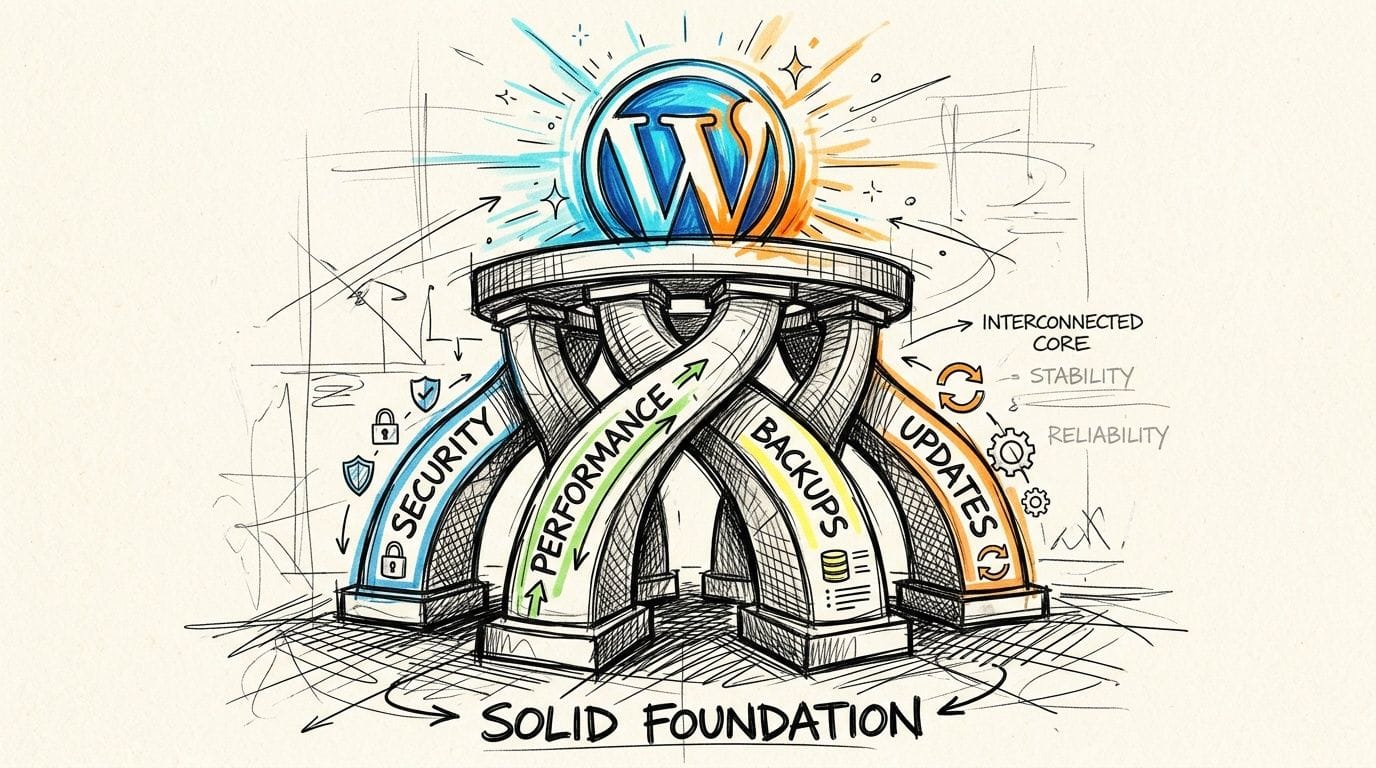
Security protects trust
Security is the shopfront lock, alarm system, and staff key policy rolled into one. It's not only about stopping hacks. It's about protecting your content, customer enquiries, admin access, and your reputation.
A secure maintenance routine usually includes malware scanning, login protection, removal of unused plugins, and regular review of administrator accounts. In small businesses, old user accounts are a common blind spot. A former contractor or past staff member may still have access long after the job finished.
What doesn't work is installing a security plugin and forgetting about it. Tools help, but someone still needs to review alerts and clean up what's no longer needed.
Performance shapes first impressions
Speed affects how professional your business feels online. A fast site feels current and reliable. A sluggish site feels neglected, even if your service is excellent.
For Australian visitors, performance can vary more than many owners expect. Some customers are on strong metro connections. Others are on mobile networks or regional links where delays are more obvious. Maintenance improves performance by keeping plugins lean, reducing database clutter, checking image sizes, and using the server stack properly.
For plugin ideas that support this without bloating your site, this list of top plugins for every WordPress website is a useful reference.
Backups give you a recovery path
Backups are your reset button. They matter most when you hope you'll never need them.
A backup only counts if it can be restored. That means storing copies reliably, confirming what's included, and knowing how to roll back after a failed update or accidental deletion. Many businesses assume their host or plugin has this covered, then realise during a problem that they've never tested the restore process.
The right question isn't “Do we have backups?” It's “Can we restore the site quickly and confidently if it breaks today?”
Updates keep the whole stack stable
WordPress core, plugins, themes, and PHP all change over time. Updates patch security issues, fix bugs, and maintain compatibility. Ignore them too long and you build up risk. Apply them carelessly and you can break the site.
That trade-off is where good maintenance lives. Not every update should go live instantly. High-risk updates deserve testing first, especially on ecommerce sites, membership sites, and any website with custom functionality.
A simple way to think about the four pillars is below.
| Pillar | Business purpose | What neglect usually looks like |
|---|---|---|
| Security | Protects trust and access | Spam, malware alerts, suspicious logins |
| Performance | Improves user experience | Slow pages, high bounce, frustrated visitors |
| Backups | Enables recovery | Panic when an update fails |
| Updates | Preserves compatibility | Broken layouts, plugin conflicts, errors |
Host your website with our 5-star rated, cPanel website hosting plans.
Super fast servers, with security included and hosted in your choice of Australian Data Center.
View cPanel Plans
Your WordPress Maintenance Schedule and Checklist
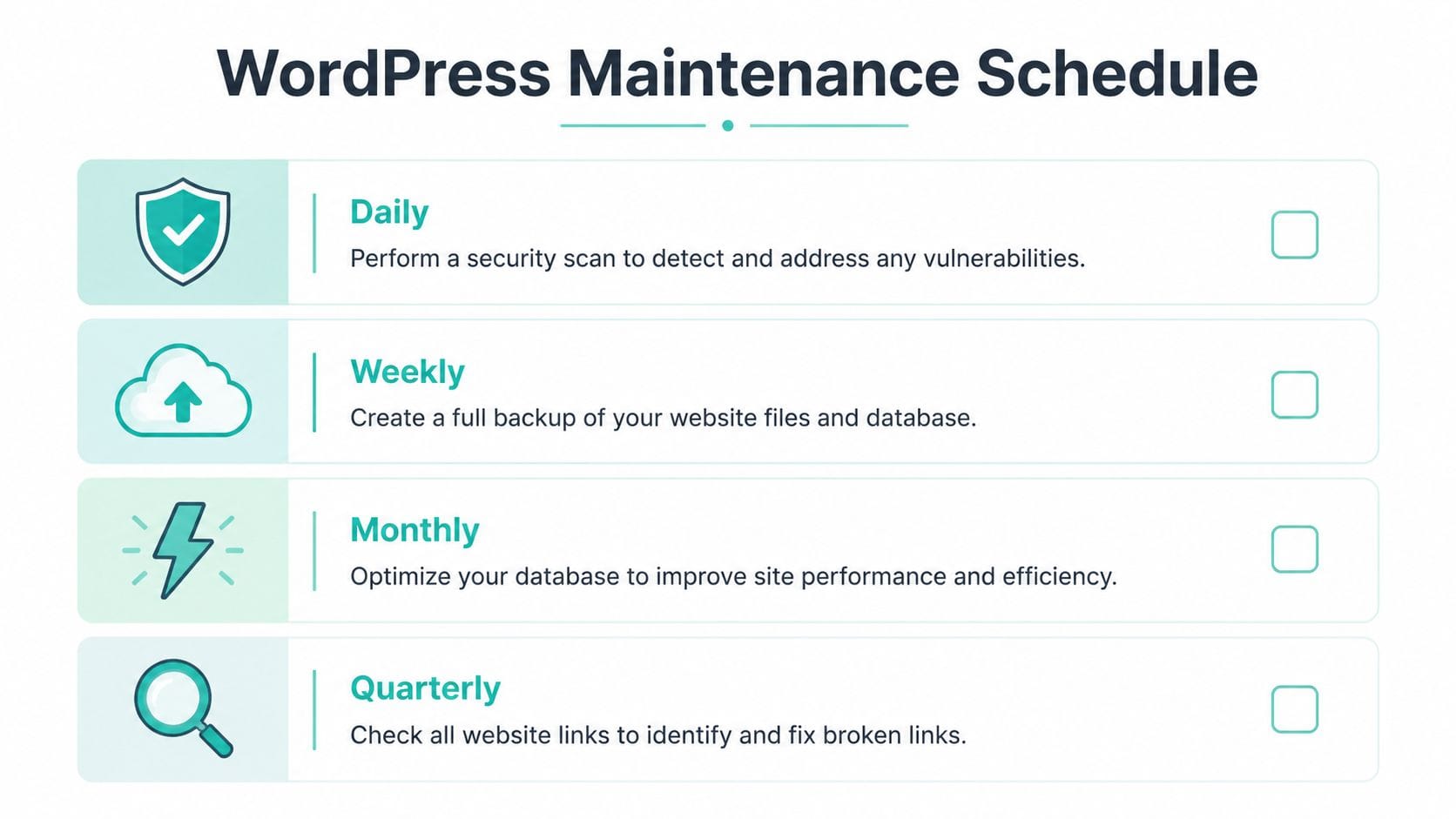
A checklist keeps wordpress maintenance manageable. Without one, tasks either get forgotten or lumped together into an exhausting half-day of catch-up. The cleaner approach is to divide jobs by frequency and urgency.
This is the schedule I'd use for most Australian business sites. A brochure site can keep it lighter. An online store, booking system, or agency portfolio with frequent changes should do the checks more often and more carefully.
Daily tasks
These are quick checks. They're less about tinkering and more about catching obvious problems early.
- Scan for uptime issues: Confirm the site is loading and key pages are accessible.
- Test core contact points: Submit the form, check the phone link on mobile, and make sure enquiry pathways still work.
- Review obvious security alerts: Look for failed login warnings, malware notices, or unusual admin activity.
- Check ecommerce essentials: If you run WooCommerce, confirm cart, checkout, and order emails are functioning.
- Glance at front-end changes: Make sure the home page, header, footer, and latest content haven't visually broken.
For small teams, this can be a simple opening routine. Load the site on desktop and mobile, then click through the paths customers use most.
Weekly tasks
Weekly maintenance is where prevention starts doing real work.
- Create or verify a full backup: Ensure files and database are covered before larger changes.
- Update plugins carefully: Start with low-risk plugins, then check the site after each batch.
- Update themes if needed: Especially if the active theme receives security or compatibility fixes.
- Moderate or remove spam comments: Spam can make a site look abandoned and clutter the database.
- Review user accounts: Remove access that no longer belongs to current staff or contractors.
- Check security logs: Look for repeated login attempts or plugin warnings that need action.
If you need a refresher on backup methods before updates, this guide on how to back up a WordPress site is worth bookmarking.
Monthly tasks
Monthly work goes deeper. It's less visible, but it has a major effect on stability and speed over time.
- Optimise the database: Remove post revisions, spam comments, transient options, and expired data.
- Delete unused plugins and themes: Deactivated items still create clutter and can become a security problem.
- Check image and media hygiene: Remove files that aren't needed and compress oversized uploads.
- Review broken links: Find pages, buttons, and downloads that no longer work.
- Test forms and transactional emails again: Don't assume they're still fine because they worked last month.
- Review caching behaviour: Confirm pages are being served efficiently and dynamic pages aren't cached incorrectly.
Monthly optimisation matters because bloat builds over time. The database is often the hidden culprit behind a site that used to feel quick and now feels heavy.
A maintenance routine should get lighter over time, not heavier. If each month feels more difficult, the site is collecting technical debt.
Quarterly tasks
Quarterly reviews are less about patching and more about stepping back.
- Audit plugins for necessity: Keep only the tools that still serve a clear business purpose.
- Review admin roles and workflows: Check who can publish, update, or install plugins.
- Test backup restoration on a safe copy: Make sure recovery works.
- Check major templates: Review product pages, service pages, blog layouts, and conversion paths after cumulative updates.
- Inspect SEO-critical pages manually: Home, location pages, and lead pages should still render correctly with proper content and metadata.
- Review hosting resource use: Look for signs the site has outgrown its current setup.
A simple rhythm for most SMBs looks like this:
| Frequency | Main focus | Typical outcome |
|---|---|---|
| Daily | Visibility | Catch outages and obvious breakages |
| Weekly | Safety | Keep updates, backups, and access under control |
| Monthly | Efficiency | Reduce bloat and tidy the stack |
| Quarterly | Oversight | Reassess tools, roles, and recovery readiness |
How to Perform Key Maintenance Tasks
The checklist tells you what to do. These are the tasks that usually cause hesitation because they can break something if rushed. Done methodically, they're manageable.
Safe plugin and theme updates
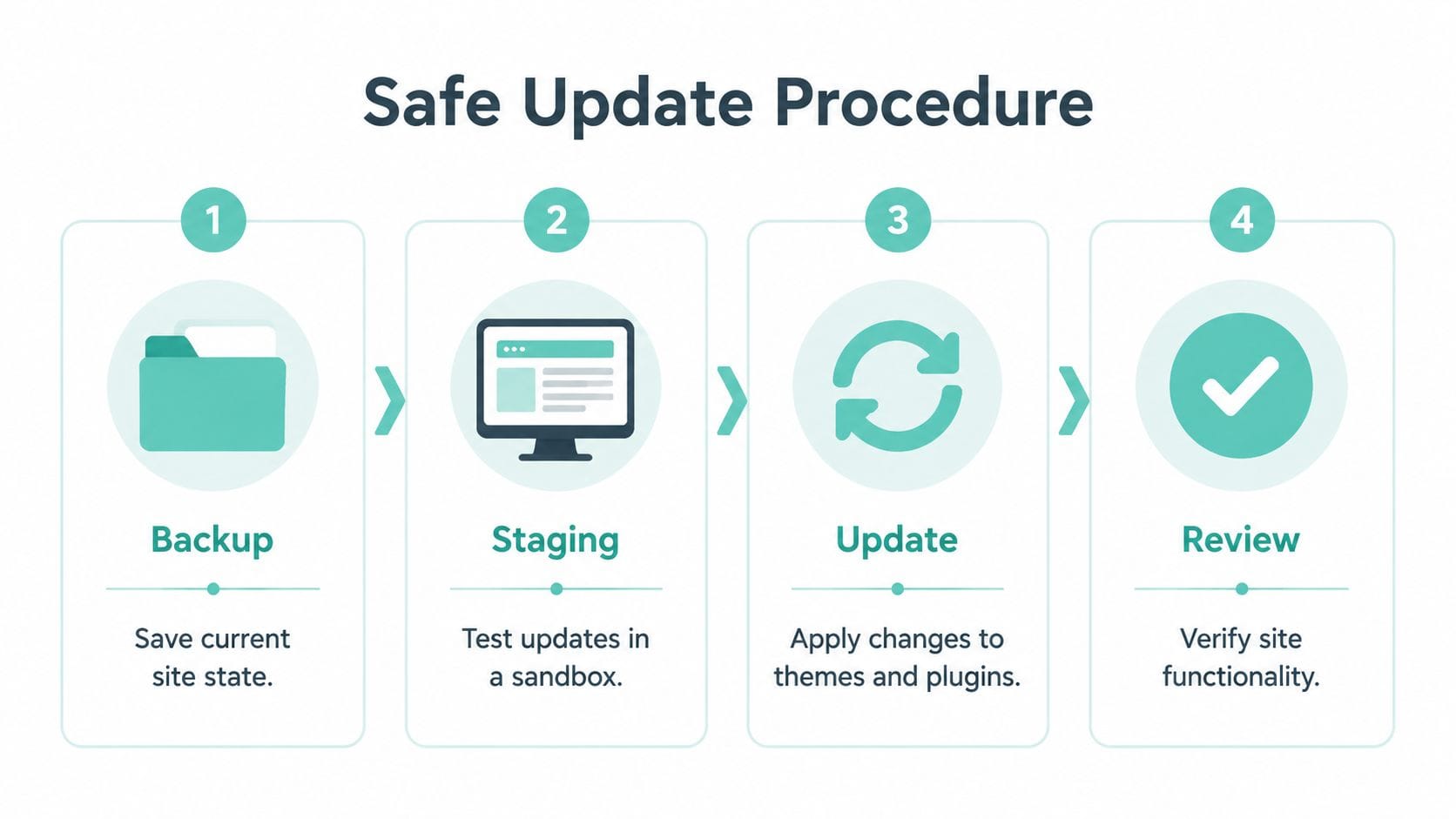
Most update problems happen because someone clicks “update all” on a live site without a backup or a test environment. That's fast, but it's not safe.
Use this process instead:
- Take a fresh backup first: Save both files and database before touching anything.
- Use a staging site for meaningful changes: Test updates away from the live site, especially if the site handles orders, bookings, memberships, or custom forms.
- Update in sensible groups: Low-risk utility plugins first. Theme and builder-related plugins later.
- Check the obvious pages immediately: Home, contact, checkout, service pages, blog posts, and any custom templates.
- Confirm logged-in workflows: Admin screens, forms, carts, and confirmation emails.
- Push to live during quieter hours: Avoid high-traffic windows so any issue has less business impact.
For businesses hosted in an environment that supports it, a WordPress staging site guide makes this much easier.
What doesn't work well is blind bulk updating. It saves a few minutes and creates longer troubleshooting sessions later.
Database optimisation without guesswork
Database optimisation is one of the most overlooked parts of wordpress maintenance. It's also one of the highest-value jobs on an ageing site.
Unoptimised databases can increase query response times by 40 to 60 per cent, and 70 per cent of WordPress sites never optimise their databases, which leads to cumulative performance degradation over time, according to Codeable's WordPress maintenance guidance. For Australian SMBs serving mobile-first visitors on 4G and 5G, that lag is especially noticeable.
A practical monthly process looks like this:
- Back up the database first: Never optimise without a rollback point.
- Open a database cleanup plugin: WP-Optimize is commonly used for this job.
- Review what's safe to remove: Post revisions, spam comments, transient options, and expired data are the usual targets.
- Optimise bloated tables: Let the plugin identify where excess overhead sits.
- Schedule regular cleanups: Weekly for busy ecommerce sites. Monthly for lower-update brochure sites and blogs.
- Monitor the result: Check site speed, admin responsiveness, and database size after the cleanup.
Best practice is to test database changes on staging first, then run them on the live site during off-peak hours. That matters because database cleanup is powerful, but it's not a “click and forget” task on sites with complex plugins.
A useful rule of thumb is simple. The more often your content, products, forms, and orders change, the more often your database needs attention.
Restoring from a backup when something goes wrong
Backups are reassuring right up until you need one. Then you need a process, not optimism.
When a site breaks after an update, restore with discipline:
- Identify what changed: A plugin, theme, core update, or manual code edit.
- Put customer experience first: If the front end is broken, limit public disruption while you recover.
- Restore the most recent clean backup: Pick the version from before the issue appeared.
- Check the full site after restore: Don't stop at the home page. Test forms, carts, admin login, and key content.
- Recreate the issue on staging if needed: Work out the root cause before trying the same update again.
If a restore works, resist the urge to “just try the update one more time” on the live site. Reproduce the problem safely first.
For sites with local customers across Sydney, Melbourne, Brisbane, Perth, or regional areas, speed of recovery matters almost as much as prevention. A quick restore is part hosting, part process, and part preparation. If nobody on your team knows where the backups live or how to verify a clean copy, that's the first maintenance gap to close.
Essential Tools and Automation Strategies
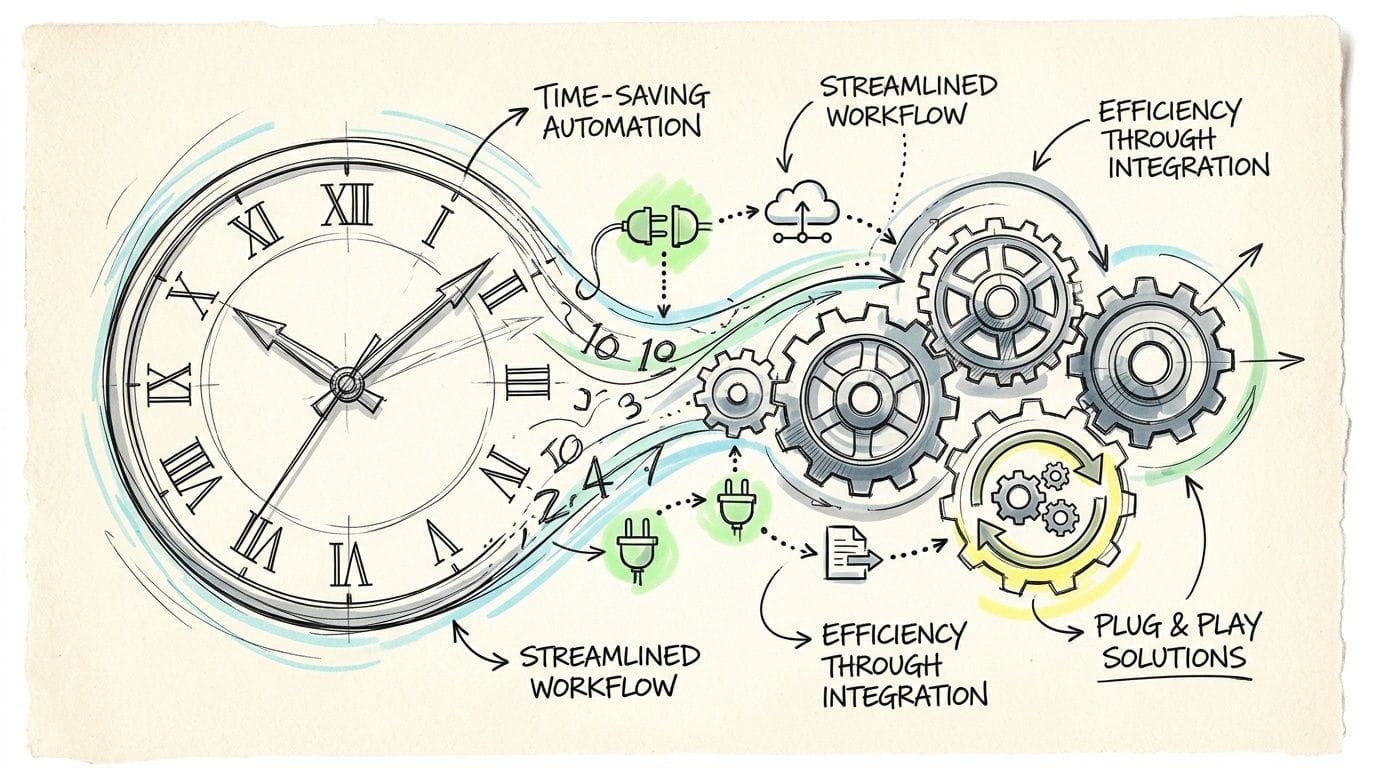
Manual maintenance works for a while. Then the business grows, the content team gets busier, or an agency adds more client sites. At that point, the question changes from “Can we do this ourselves?” to “What should never rely on memory?”
That's where automation earns its keep.
What to automate first
Not every task should be fully automated, but several should be assisted from day one.
- Backups: Tools such as UpdraftPlus, BlogVault, or Jetpack Backup reduce the chance of someone forgetting the basics.
- Uptime monitoring: A silent outage is worse than a noisy alert. Monitoring should tell you when the site is unavailable before customers start emailing.
- Security scanning: Automated scans help spot malware and suspicious changes, though a human still needs to review serious alerts.
- Plugin update notifications: Even if you don't auto-apply every update, you want visibility.
- Database cleanup schedules: On suitable sites, recurring cleanup stops bloat from building unnoticed.
The business case is straightforward. Many guides recommend automation plugins, but few explain the local trade-off clearly. The hidden productivity cost of unplanned downtime for an Australian ecommerce business, and the time an agency saves by not handling every maintenance step manually, can be significant. Generic advice often misses how local infrastructure affects backup and restoration speed, especially when data centres are in places such as Sydney or Perth, as noted in Hostinger's maintenance overview.
What works well for Australian businesses
Australian SMBs usually benefit from a simple split. Automate the repeatable jobs. Keep judgement-heavy work manual.
Automate backups, monitoring, malware scans, and scheduled reports. Keep update approvals, staging checks, plugin audits, and restore decisions in human hands. That balance prevents two common failures. One is forgetting routine maintenance. The other is trusting automation to make judgement calls it can't make.
A lean tool stack often works better than a crowded one. Too many maintenance plugins create overlap, extra notices, and more things to update.
Here's a sensible setup:
| Need | Better approach | Avoid |
|---|---|---|
| Backups | One reliable backup system with restore testing | Multiple backup plugins doing the same job |
| Security | One scanner plus sensible admin hygiene | Layering several security plugins blindly |
| Performance | Use server-level features and light optimisation tools | Installing overlapping cache plugins |
| Reporting | Automated alerts and summary checks | Waiting for users to report problems |
For hosting-level support, some businesses prefer a stack that already includes key operational features. UpTime Web Hosting offers LiteSpeed, AccelerateWP, nightly off-site backups, malware scanning, and local infrastructure, which reduces how many separate maintenance layers you need to assemble yourself.
Register your new domain name at competitive market prices including free domain add-ons like privacy, DNS Hosting, Custom Nameservers and Forwarding.
Always the best price and no nasty renewal price hikes.
Register A Domain Name
DIY Maintenance Versus a Managed WordPress Plan
DIY wordpress maintenance is possible. Plenty of capable owners and agencies do it well. The main question is whether it still makes sense once you factor in time, risk, and the cost of interruption.
When DIY makes sense
DIY is reasonable if your site is relatively simple, you're comfortable working inside WordPress, and you have time blocked out for maintenance every week or month. It also suits technical founders who understand backups, staging, and rollback procedures.
A basic business site with a contact form, some service pages, and occasional blog updates can often be maintained internally if the routine is disciplined. The key word is disciplined. DIY fails when maintenance depends on spare time.
DIY also works better when one person clearly owns it. Shared responsibility often becomes no responsibility.
When managed maintenance is the smarter call
Managed maintenance becomes attractive when your website has business consequences. If it handles leads, sales, bookings, member access, or client traffic across multiple sites, the margin for error shrinks.
It also makes sense when your team doesn't want to spend internal hours reviewing plugin conflicts or restoring backups after an avoidable problem. Business owners often underestimate the cost of context-switching. Even if you can fix the issue yourself, it still drags attention away from paid work and customer service.
A managed plan usually fits these situations well:
- Busy service businesses: You need the site to keep producing leads, not create admin.
- Agencies with several client sites: Repetition creates process overhead fast.
- WooCommerce stores: Revenue and customer trust depend on stability.
- Businesses with former developer handover gaps: Nobody is fully sure how the site was built.
- Teams without a staging and rollback habit: Updates become a gamble.
The right maintenance model isn't about technical pride. It's about whether the website is a tool your business relies on daily.
If you want the managed route, compare what's included carefully. Look for proactive updates, backups, testing, monitoring, and support from people who understand the hosting environment. For local businesses, an Australian managed WordPress hosting plan can simplify both hosting and maintenance responsibility.
A simple decision table
| Question | DIY may suit you | Managed plan may suit you |
|---|---|---|
| Do you understand backups and restores? | Yes, and you test them | Not confidently |
| Do you have staging access and use it? | Regularly | Rarely or never |
| Can you spare time for routine checks? | Consistently | Only when something breaks |
| Would downtime affect revenue or leads? | Mildly | Directly |
| Are multiple people involved in the site? | Minimal handover | Frequent handovers or client work |
The honest answer for many SMBs is mixed. They can do some of it, but they don't want to own all of it. That's usually the point where outsourcing maintenance stops being a luxury and starts being operational common sense.
Frequently Asked WordPress Maintenance Questions
My old developer used to handle everything. What should I do now
Start by gathering access. You need WordPress admin access, hosting access, backup access, and a list of active plugins and themes. Then create a simple maintenance baseline. Fresh backup, plugin audit, user audit, and a test of your contact forms.
Do I need wordpress maintenance for a simple brochure site
Yes. A smaller site has fewer moving parts, but it still runs on WordPress core, plugins, a theme, and hosting. Even a basic brochure site can suffer from outdated plugins, spam, broken forms, and performance drift.
How do I know if a plugin is safe to update
Check whether the site has a staging environment and a recent backup. Then update carefully and test the pages that rely on that plugin. Be more cautious with page builders, ecommerce plugins, booking tools, and anything tied to forms or custom templates.
What's the first thing to do if my site breaks
Stop making random changes. Confirm whether the issue followed an update or edit, restore from a known clean backup if needed, and test the site methodically after recovery. Panic-driven clicking usually turns one problem into three.
Should I update everything at once
Usually, no. Small utility plugins are lower risk than theme frameworks, checkout tools, or complex builders. Group updates logically and verify the site after each stage.
Is maintenance mode necessary during live changes
For major updates or visible site work, yes. Visitors shouldn't see a half-broken page while you're changing core parts of the site. Short, planned maintenance is better than exposing errors on the public site.
If your business depends on WordPress and you'd rather not manage backups, updates, monitoring, and recovery by memory, talk to UpTime Web Hosting. They provide Australian hosting and maintenance-related services that can help keep business websites stable, secure, and easier to manage.