
Your email has been limping along for months. Staff are complaining about sync issues, someone's Outlook keeps prompting for passwords, and you know the current setup isn't where you want the business to stay. But moving email feels risky because one wrong step can leave messages bouncing, staff offline, and customers wondering why nobody replied.
That anxiety is normal. Email is the working nerve centre of a small business, and most owners only touch migration when they have to. The good news is that how to migrate email accounts isn't guesswork when you approach it in the right order. It's a controlled admin job with clear decision points, a testing phase, and one critical moment where DNS gets switched over.
For businesses already reviewing wider infrastructure, it also helps to see email as one part of a broader technology shift. This guide on cloud migration for modern businesses is useful context if your mail move sits alongside website, storage, or collaboration changes. And if continuity is the main concern, it's worth thinking about email in the same way you'd think about hosting resilience and business continuity planning.
Table of Contents
- The Inevitable Email Move Keeping Your Business Running
- Your Pre-Migration Game Plan
- Choosing the Right Migration Method
- Executing the Core Migration
- Navigating the DNS Cutover
- Post-Migration Checks and Troubleshooting

Performance you can feel, backed by clients who depend on it. Read how our support and uptime create long‑term customer success.Power Your Business with Better Hosting
The Inevitable Email Move Keeping Your Business Running
A typical bad migration starts the same way. Someone creates the new mailbox, copies a bit of mail across, changes a record late on a Friday, then spends the weekend trying to work out why some messages arrive, some don't, and half the staff are still connected to the old server.
That usually isn't a tool problem. It's a process problem.
Why email moves go wrong
Small businesses often delay an email move because the current setup still “mostly works”. Then the move becomes urgent, and urgent jobs tend to skip the boring but essential groundwork. Mailboxes get counted, but aliases don't. Inbox folders come across, but calendars don't. The new provider is ready, but DNS hasn't been thought through.
Practical rule: Email migration is less about copying messages and more about preserving the working environment people rely on every day.
For an Australian business, that matters because downtime doesn't just hit one office. It can affect remote staff, mobile devices, shared inboxes, and clients contacting you during trading hours in different states.
A calmer way to handle it
The better approach is structured and a bit unglamorous. You map the current setup. You choose the right migration method. You back everything up. You test with a pilot group. Then you do the final cutover in a planned window, not in a panic.
Most of the stress drops away. Once you can see the old environment clearly, the move stops feeling like surgery and starts looking like a checklist.
A practical example is a five-person office with addresses like info@, accounts@ and personal mailboxes across phones and laptops. A rushed move might focus only on inbox content. A proper move checks whether the shared inbox still forwards correctly, whether phones can send from the right account, and whether the new service has the same domain authentication in place. Those details are what keep the business operating normally on Monday morning.
Your Pre-Migration Game Plan
Preparation does most of the heavy lifting. If this stage is organised, the actual move is usually manageable. If this stage is sloppy, the cutover becomes a guessing game.
Map everything before you move anything
A planning mistake I see often is treating email as a list of usernames. It's rarely that simple. Microsoft's migration guidance highlights a question many businesses miss: are you moving only mail, or also contacts, calendars, aliases, shared mailboxes, and device or app integrations? Planning guides also stress mapping the current environment first, including mailboxes, aliases, distribution lists, calendars, and DNS records, because those items are easy to forget in simpler tutorials (Microsoft mailbox migration guidance).
Start with a written inventory:
- User mailboxes: Every real user account, including staff who work part-time, remotely, or only access mail on mobile.
- Shared addresses: Think sales@, support@, admin@, accounts@, bookings@.
- Aliases and forwards: Addresses that don't have their own inbox but still receive important mail.
- Distribution lists: Group addresses used by the office, warehouse, management, or service teams.
- Calendars and contacts: Anything staff rely on for appointments, shared bookings, or saved client data.
- DNS dependencies: Your current mail routing and domain authentication records. If you need a refresher, this plain-English guide to what an MX record is helps before the migration starts.
Decide what migration really means for your business
An owner might say, “We just need the emails moved.” Often that really means:
- staff need their old mail
- shared inboxes must still work
- phones must send and receive
- contacts should still be there
- calendars can't vanish
- the website contact forms must still deliver mail
That's why a mail-only method can be fine for one business and completely wrong for another. A sole trader with one inbox may accept a simpler transfer. A medical clinic, trade business, law office, or agency usually has more moving parts.
Forgotten items rarely look technical at first. They show up later as “why isn't the booking mailbox receiving?” or “why did the copier stop sending scans?”
If your business is also modernising other systems, broader reading on cloud migration challenges can be useful because the same planning discipline applies. Hidden dependencies are what catch people.
Build your safety net
Before any account is changed, create backups. That gives you a fallback if a mailbox imports badly, a user deletes something during the transition, or you need to compare old and new data.
A solid pre-migration checklist looks like this:
- Export or back up source mailboxes so there's a copy outside the live environment.
- Create a mailbox mapping sheet that matches old addresses to new destinations.
- List non-mail items such as calendars, contacts, aliases, and shared access.
- Document current settings used by desktops, mobiles, scanners, and apps that send mail.
- Nominate a pilot group made up of low-risk users who can test calmly and report clearly.
- Choose a quiet cutover window that won't collide with payroll, invoicing, or customer support peaks.
This admin work isn't exciting, but it's the difference between a migration that feels controlled and one that turns into a support scramble.
Host your website with our 5-star rated, cPanel website hosting plans.
Super fast servers, with security included and hosted in your choice of Australian Data Center.
View cPanel Plans
Choosing the Right Migration Method
The method you choose sets the stress level for the whole job. For a small Australian business, the key question is not which option looks most advanced. It is which option keeps staff sending and receiving mail with the least disruption while you prepare for the DNS switch later.
A one-person business with a light mailbox can get away with a simple manual move. A clinic, law firm, trade office, or agency with shared inboxes, aliases, mobiles, and scanning devices usually cannot.
Manual moves for very small jobs
A manual move means adding the old and new mailbox to an email client, then copying folders across. It is workable for a single account with modest mail history and no shared data. If you want a fallback before touching anything, keep a separate backup of the original cPanel email account.
The trade-off is time and reliability. One laptop going to sleep, one patchy NBN connection, or one Outlook profile corruption can stall the job. It also tends to move mail only. Contacts, calendars, rules, aliases, delegated access, and shared mailbox behaviour often need separate work.
IMAP and admin-led bulk migrations
For a multi-user move, an admin-led migration is usually the safer starting point. Google supports IMAP-based imports with mailbox mapping, which gives you a controlled way to move multiple accounts instead of dragging messages around by hand (Google Workspace data migration service).
This approach suits businesses that need order. You can batch users, track progress, and repeat the same process across the whole team. It is also common when managing Google Workspace to Microsoft 365 moves, where consistency matters more than speed on day one.
The limit is scope. IMAP handles email well, but it does not automatically preserve everything people assume will come across. Check calendars, contacts, aliases, send-as settings, mailbox permissions, and shared resources separately before you commit.
Native and host-assisted options
If the source and destination are in the same ecosystem, native tools usually reduce surprises. Microsoft-to-Microsoft and Google-to-Google moves tend to map settings more cleanly because the destination already understands the mailbox structure and admin controls.
Host-assisted migration also makes sense for SMBs changing providers, especially where website hosting and email are tied together. UpTime Web Hosting is one example of a provider that assists with mailbox transfers as part of a hosting move. That can save a lot of manual setup time, but you still need to confirm exactly what is included. Mail folders are one thing. Aliases, forwarding rules, mailing lists, device settings, and archived local mail are another.
A staged cutover is often the best fit when business continuity matters more than finishing quickly. Historical mail is loaded first, then live mail flow is switched only when the new environment is ready. In practice, that gives you more room to test logins, devices, and shared access before the domain starts pointing at the new mail service.
Email Migration Method Comparison
| Method | Best For | Pros | Cons |
|---|---|---|---|
| Manual client copy | One user or a very small mailbox | Simple, no special platform tooling needed | Slow, hard to track, poor for multiple accounts |
| IMAP migration | Standard mailbox moves across different systems | Scales better, structured process, good for bulk email transfer | Usually focused on message data rather than the full environment |
| Native platform migration | Moves within ecosystems like Microsoft or Google environments | Better alignment with destination settings and administration | Depends on source and destination compatibility |
| Host-assisted migration | SMBs changing hosting providers | Less hands-on work for the business, practical when mail and hosting are linked | You still need to verify what data types are included |
| Staged cutover | Businesses needing continuity and tighter change control | Historical mail can be loaded before live switch | Requires planning discipline and careful timing |
Choose the method that matches your actual setup, your tolerance for disruption, and the amount of checking you can do before DNS changes. That last part is where many migrations go wrong. The copy itself finishes, but the business still gets caught by the cutover.
Executing the Core Migration
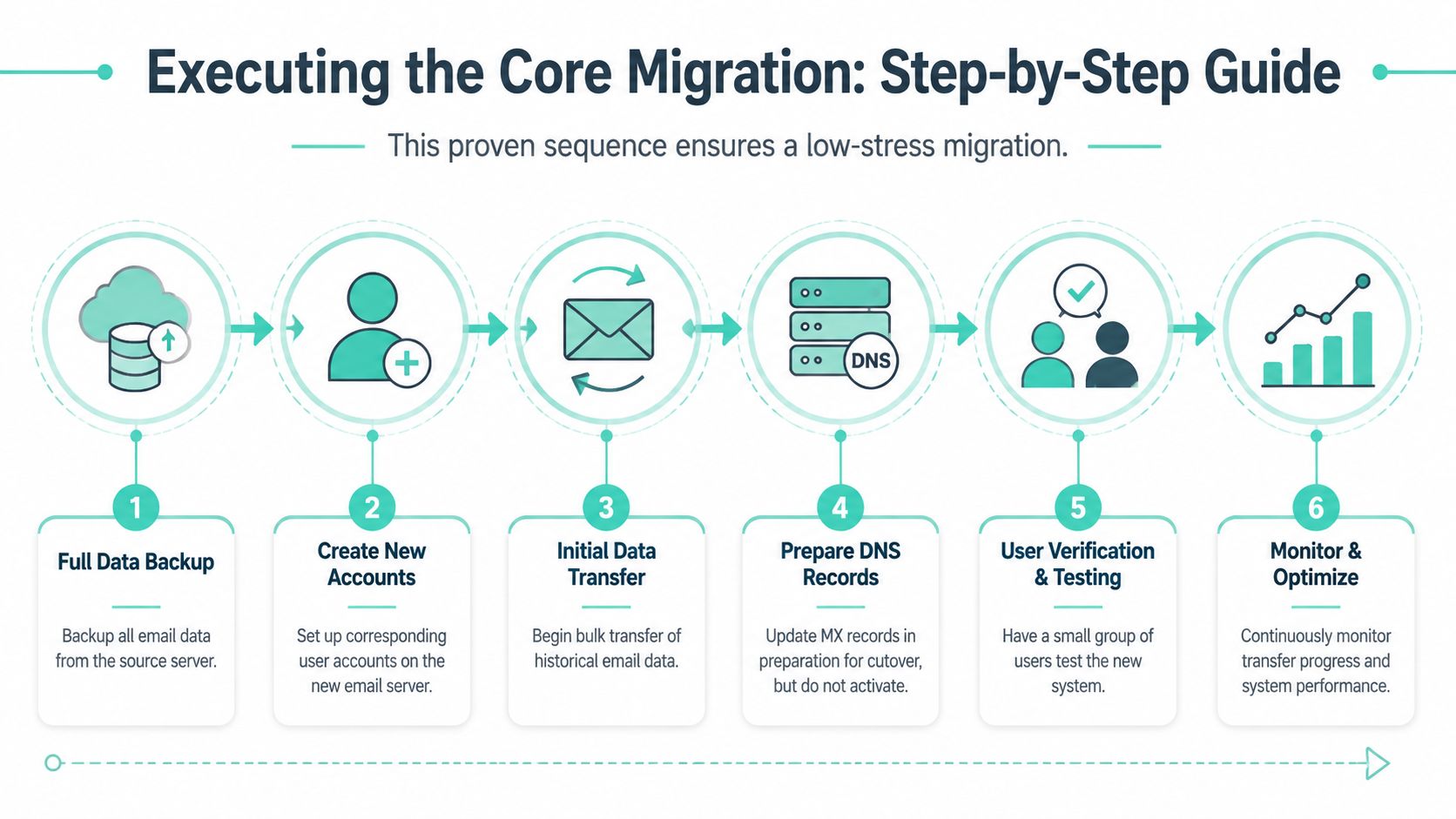
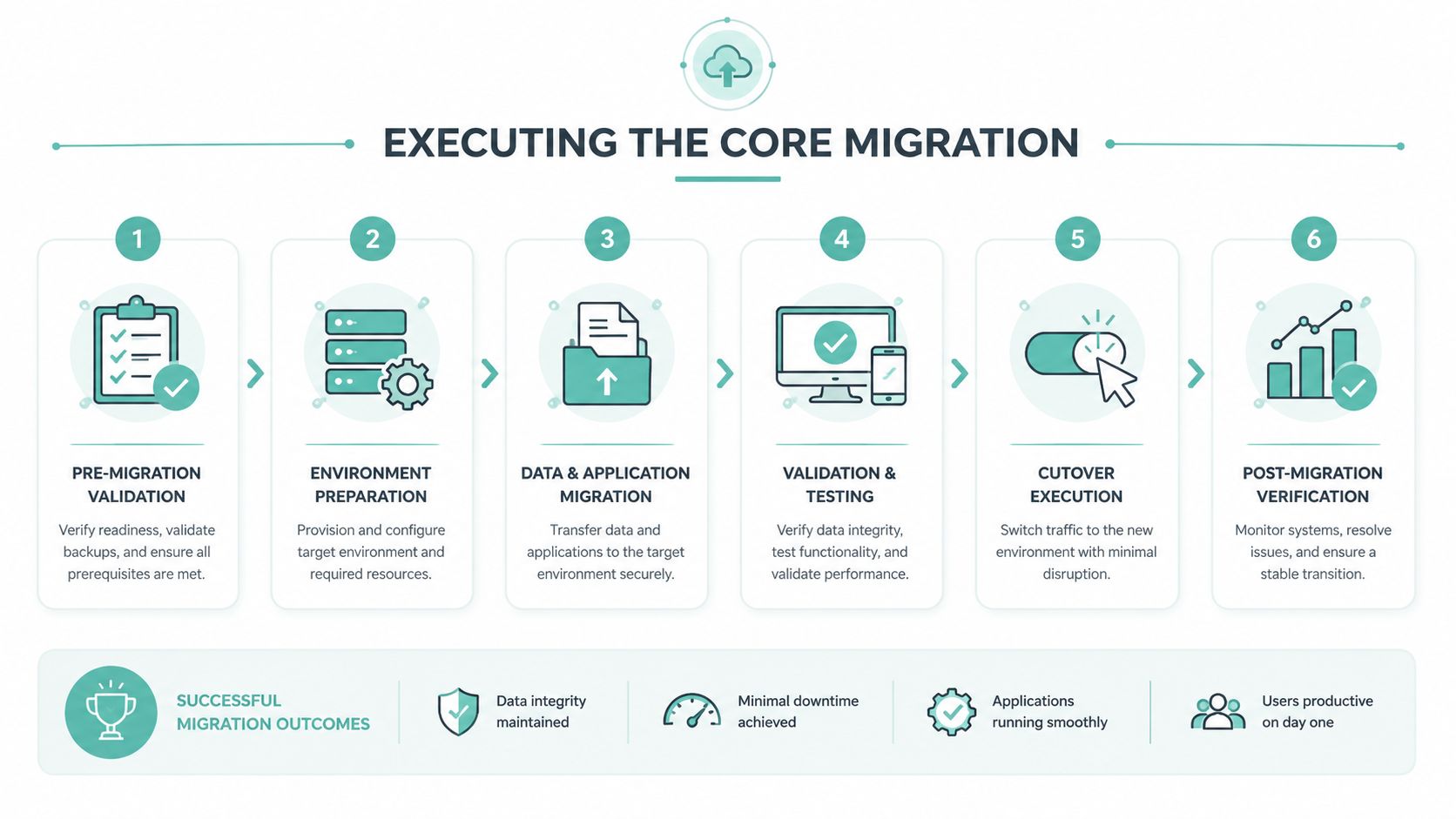
Execution works best when it feels boring. That means the big decisions were made earlier, the accounts are mapped, and you're following a sequence rather than improvising.
Run a pilot before the real move
A practical and recommended sequence for email account migration is to map the environment, choose a method, create backups, run a pilot migration on a small account set, and then schedule the final cutover during off-peak hours (OpenProvider email migration guide).
That pilot matters more than anticipated. It tells you whether folders import cleanly, whether the destination account behaves as expected, and whether users can successfully log in and work normally afterward.
Pick pilot users carefully:
- Choose low-risk accounts: Avoid the main sales inbox or the director's mailbox for the first pass.
- Include one typical user: Someone with a normal mix of folders, sent mail, and mobile access.
- Include one slightly messy account: An inbox with subfolders, older mail, or heavier use often exposes issues early.
Move historical mail first
The safest rhythm is usually to load old mail into the new system before you redirect new incoming mail. That way, users open the new mailbox and can already see their working history there.
A practical example is a ten-person office moving from older cPanel email to a newer hosted environment. Historical mail gets imported during the week or overnight. Staff keep using the old system while that happens. Once the old content is sitting in the new accounts, the final switch becomes much less dramatic because only the live delivery path is changing.
If you're handling backups from a cPanel environment before the move, this knowledge base guide on backing up cPanel email is worth keeping handy.
Time the final migration carefully
The final pass should happen when interruption hurts least. For most Australian SMBs, that means after hours, overnight, or on a weekend. Don't schedule it during payroll processing, end-of-month invoicing, or the middle of your busiest customer service period.
A straightforward run sheet often looks like this:
- Confirm all target accounts exist and credentials are ready.
- Complete the bulk data import so old mail is already in place.
- Pause and verify pilot outcomes before widening the change.
- Prepare staff instructions for Outlook, Apple Mail, and phones.
- Schedule the cutover window and tell staff what to expect.
- Keep someone responsible on hand until sending, receiving, and access are confirmed.
If your project includes a platform change such as Google Workspace to Microsoft 365, a specialist walkthrough on managing Google Workspace to Microsoft 365 moves can help frame the operational steps involved in those cross-platform migrations.
Navigating the DNS Cutover
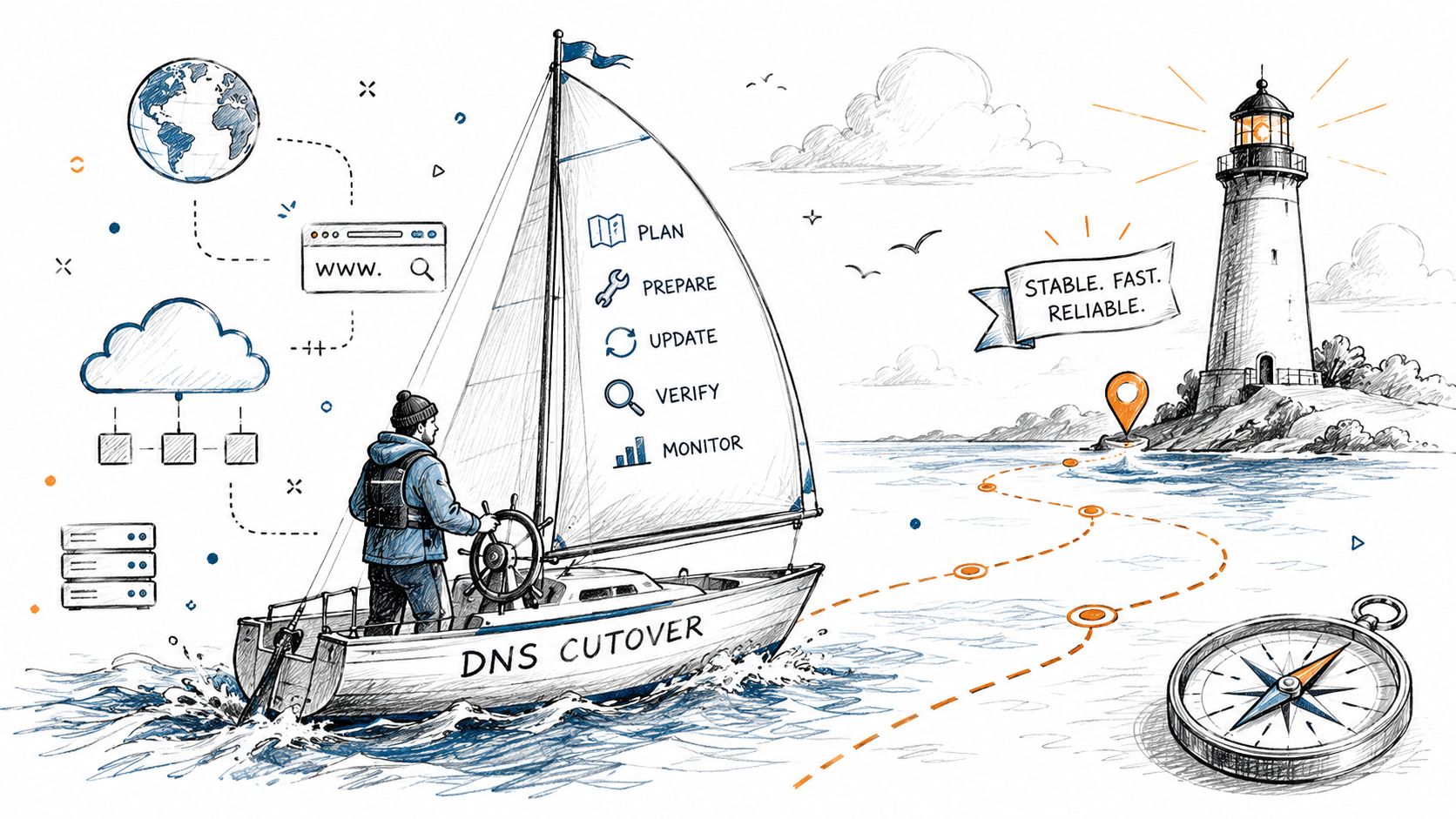
Friday, 5:30 pm. Staff head home, you change the records, and by 6:00 pm one person is receiving mail in the new system while another is still seeing messages land in the old one. That uneven handover is what makes DNS cutover stressful for small businesses. The change is simple on paper, but the timing across networks is never perfectly uniform.
What the DNS cutover actually does
The DNS cutover is the point where you change your domain's MX records so new inbound mail starts heading to the new provider.
It does not move old mail. It does not update Outlook profiles. It does not fix send settings for devices or apps that still point to the old server. It only changes where new messages should be delivered.
For that reason, the safest cutover is usually the boring one. Historical mail is already imported, target accounts are tested, and the MX change becomes the final routing step. If users sign into the new platform before their old mail has been brought across, the mailbox can look empty even though the DNS change worked exactly as intended.
Lowering TTL before the cutover helps reduce how long old DNS answers stay cached. It does not guarantee an instant switch everywhere, but it gives you a better chance of a shorter, more predictable transition. If you want a plain-English explanation of why different providers update at different times, read this guide to how DNS propagation works.
A practical rule for Australian SMBs is to assume there will be a mixed-delivery window. During that period, some senders may still reach the old platform while others hit the new one. That is why keeping the old service accessible for a short overlap period is often the safer choice, even if the goal is to shut it down quickly and stop paying for two systems.
Treat the MX change as a routing change, not the start of the migration.
Why MX SPF DKIM and DMARC matter together
Inbound mail is only half the job. Outbound trust matters just as much.
After the cutover, your domain also needs to authorise the new platform to send mail properly. That is where SPF, DKIM, and DMARC come in. If those records still reference the old provider, messages may leave the new system but arrive in spam, fail authentication checks, or get rejected by stricter recipients.
In day-to-day business, this usually shows up in messy ways rather than obvious outages. A staff member sends fine from their laptop, but the website contact form stops delivering leads. The office scanner can no longer email invoices. A quoting system still uses the retired SMTP server. Customers do not report “DNS problems”. They say they never got the form, invoice, or reply.
Check every service that sends as your domain, not just user mailboxes. That includes websites, scanners, accounting platforms, CRMs, booking tools, and any line-of-business app with SMTP settings buried in an admin panel. For many small businesses, those forgotten senders cause more trouble after cutover than the mailbox move itself.
The cleanest DNS cutover is one where inbound routing, outbound authentication, and third-party senders are all accounted for before the records change. That is what keeps the business operating normally on Monday morning.
Register your new domain name at competitive market prices including free domain add-ons like privacy, DNS Hosting, Custom Nameservers and Forwarding.
Always the best price and no nasty renewal price hikes.
Register A Domain Name
Post-Migration Checks and Troubleshooting
Once mail is routing to the new system, don't assume the job is finished. You then confirm that the move worked for real users, real devices, and real day-to-day workflows.
Your all-clear checklist
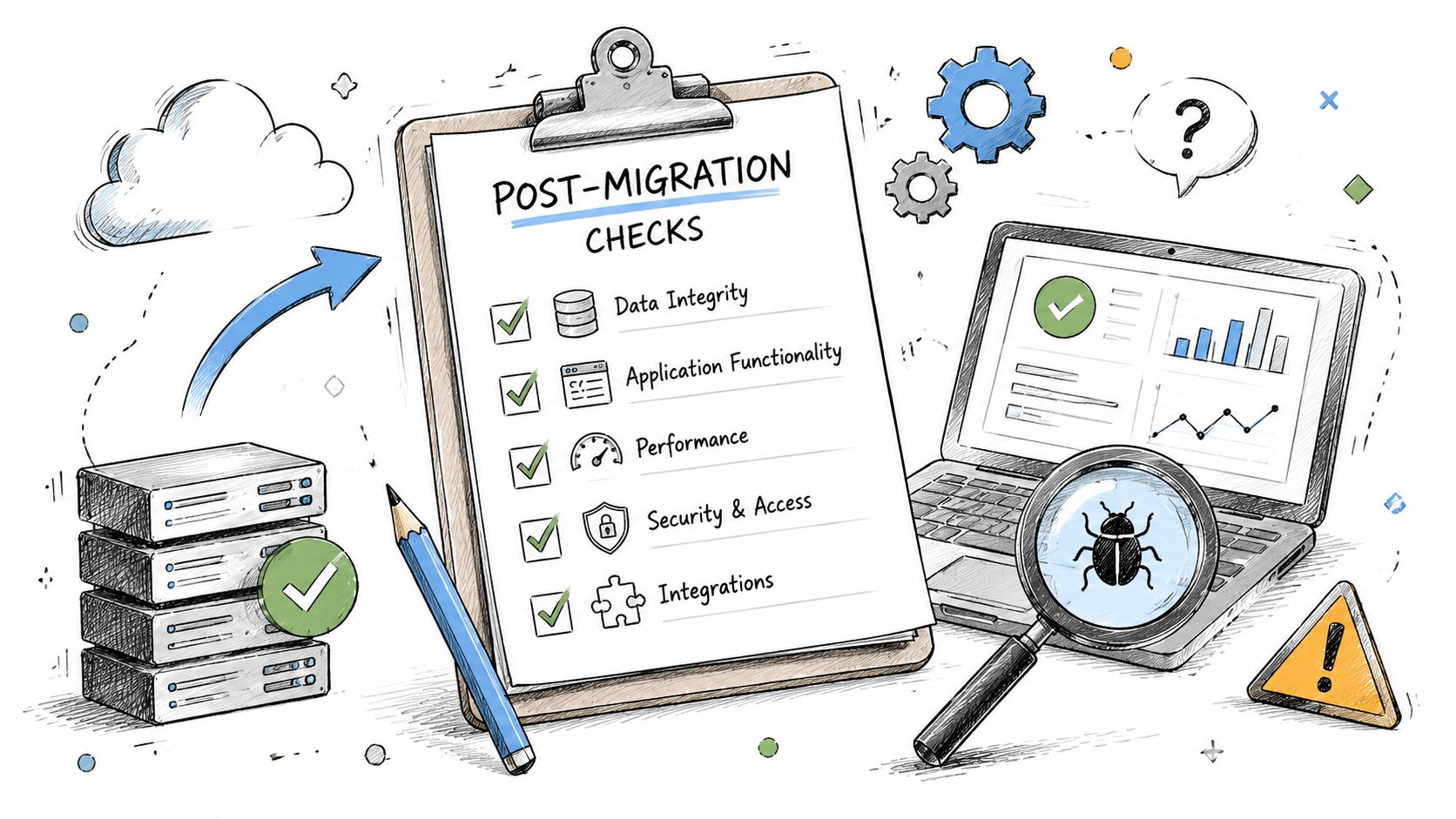
Expert guidance recommends post-migration testing to ensure IMAP and SMTP still work, folder hierarchies and metadata transferred correctly, and that SPF, DKIM, and DMARC remain aligned after the cutover to maintain deliverability (email migration testing guidance).
That means checking more than “I can log in”.
Use a practical checklist:
- Send and receive externally: Send from the new mailbox to an outside address, then reply back.
- Check folder integrity: Make sure subfolders appear where users expect them.
- Open older messages and attachments: Confirm content is readable and attachments aren't missing.
- Review timestamps and read state: Users notice quickly if old mail suddenly looks unread or out of order.
- Test shared access: Shared mailbox permissions and delegated access often need a second look.
- Verify app connections: Phones, Outlook profiles, Apple Mail, scanners, websites, and any system that sends mail should be checked.
- Review deliverability health: A guide to checking the health of your email deliverability can help if outbound mail seems fine internally but unreliable to clients.
Minor issues after a migration are common. Silent issues are the dangerous ones, so test actively.
Common issues after cutover
Some problems show up immediately. Others only appear once the first workday starts.
Here are the common ones and the first thing to check:
| Issue | What it usually looks like | First thing to check |
|---|---|---|
| New mail not arriving | Some senders can reach you, others can't | Confirm the cutover has had time to propagate and that mail is routing to the intended service |
| Users can receive but not send | Outlook or mobile prompts, or sent items fail | Recheck outgoing server settings and authentication on devices |
| Missing folders or odd mailbox layout | Users say mail is “gone” but some data exists | Compare the source structure with the migrated account and verify the migration scope |
| Shared mailbox problems | Staff lose access to info@ or support@ | Reapply or confirm mailbox permissions in the new platform |
| Messages landing in spam | Clients say they found your reply in junk | Review domain authentication alignment and send test messages to outside services |
A good handover also includes a short user note. Tell staff what changed, what they may need to re-add on phones, and who to contact if something looks wrong. That small communication step saves a lot of repeated troubleshooting.
If you've been wondering how to migrate email accounts without disrupting the business, here's a recommended approach: plan thoroughly, move methodically, treat the DNS cutover with respect, and verify everything after the switch. Do that, and the migration feels controlled rather than chaotic.
If you'd rather not coordinate the move on your own, UpTime Web Hosting can assist with hosting and email migrations as part of a managed transition, including moving email accounts from another host while keeping the process organised around continuity and support.