Your business probably didn't choose Windows Server because it was trendy. You chose it because something in your stack depends on it. That might be an ASP.NET application, an MSSQL database, a legacy line-of-business tool, or a client requirement that won't run cleanly on a Linux host.
That's where a lot of Australian SMBs get caught. The application goes live, email works, the website loads, and then the actual work starts. Patching, user permissions, IIS settings, storage growth, failed services, backups, security baselines, and support deadlines all become your problem. If nobody owns that work, Windows Server slowly becomes fragile.
For local businesses, Windows Server management is less about enterprise jargon and more about keeping the thing you already rely on secure, responsive, and recoverable. If your server is in Sydney or Melbourne and your team is in Australia, the practical questions matter more than the glossy cloud diagrams. Who can log in. How quickly can you restore. Where is your management data going. And what happens when support deadlines arrive.
Table of Contents
- Why Windows Server Management Matters for Your Business
- Understanding Core Management Responsibilities
- Essential Security and Patch Management
- Implementing Robust Backups and Disaster Recovery
- Monitoring and Performance Tuning for Speed
- Automating Repetitive Tasks with Scripting
- The Smart Alternative A Local Managed Solution

Performance you can feel, backed by clients who depend on it. Read how our support and uptime create long‑term customer success.Power Your Business with Better Hosting
Why Windows Server Management Matters for Your Business
A common small business scenario looks like this. A developer builds an internal portal in ASP.NET, connects it to MSSQL, and deploys it on a Windows server because that's the correct platform for the job. The launch goes fine. A few months later, updates are behind, nobody is sure who has administrator access, and the server starts slowing down at the worst possible time.
That's why Windows Server management matters. Not because it sounds technical, but because the server usually ends up running a system the business can't afford to lose. In the Australian market, Microsoft Windows Server holds a 3.36% global server-and-desktop operating system market share, serving as the foundation for businesses that require ASP.NET and MSSQL environments, according to 6sense market share data. It's a niche platform compared with Linux hosting, but for the organisations that need it, there's no real substitute.
Windows Server also tends to appear in businesses with a bit of history. Older accounting integrations, custom web apps, Windows-authenticated services, and mixed .NET and PHP workloads all push you towards Microsoft infrastructure. That means management isn't optional housekeeping. It's the process that keeps those dependencies stable.
A practical starting point is choosing a platform built for that stack, such as Windows Server 2022 hosting in Australia. But hosting alone doesn't solve the underlying issue. Someone still has to own patching, access control, service monitoring, and recovery planning.
Windows Server is rarely the cheapest platform to ignore. It's often one of the most expensive to neglect.
Understanding Core Management Responsibilities
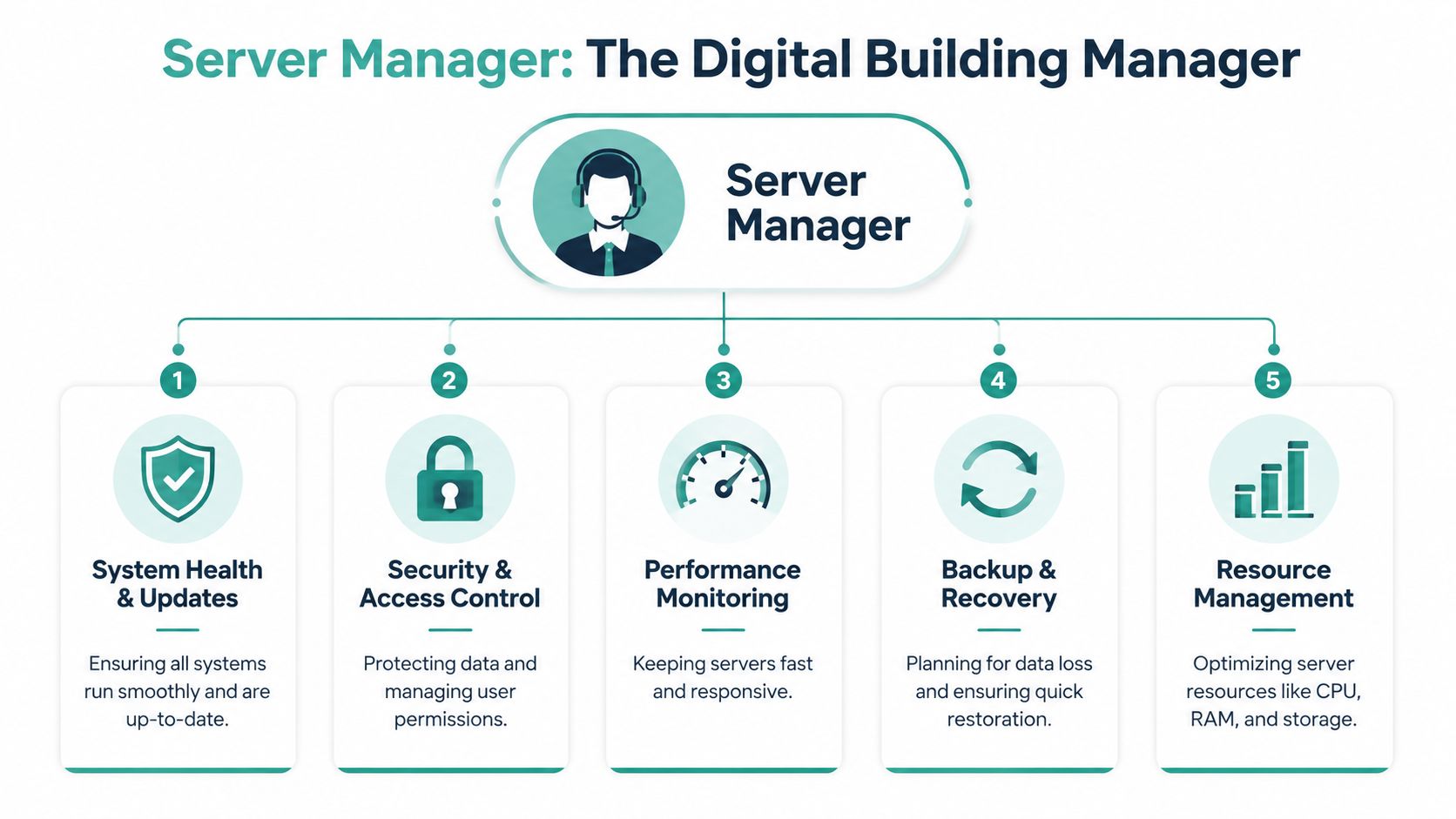
An effective way to explain Windows Server management is to compare it to managing a building. The server is the building. Your apps, databases, websites, files, and user accounts are the tenants. If the building manager does the basics well, everyone works normally. If the basics slip, small faults pile up until people can't do their jobs.
Thinking like a building manager
Most SMB owners focus on the visible part of the system. The website loads, the remote app opens, staff can access files. An admin has to focus on the hidden layers that make that possible.
Those layers usually fall into a few responsibilities:
- Access and identity means deciding who gets keys to which doors. That includes local administrators, service accounts, Remote Desktop access, and application permissions.
- Services and applications means checking that IIS, database services, scheduled tasks, mail services, and supporting components are running as expected.
- Storage and data covers volume usage, folder permissions, logs, database growth, and the quiet creep of temp files that fill a system drive.
- Networking is about controlled exposure. Firewalls, listening services, private connectivity, and remote access all belong here.
- Resilience means backups, restore testing, and a clear plan for when the server stops behaving.
The jobs that actually matter day to day
A good admin doesn't spend all day in Server Manager staring at dashboards. The essential work is routine and disciplined.
Here's what that looks like in practice:
| Responsibility | What it means on a real server |
|---|---|
| User control | Review who has admin rights, remove stale accounts, separate day-to-day logins from privileged access |
| Service health | Confirm critical services start automatically and recover properly after reboots |
| Storage hygiene | Keep the OS volume clear, watch logs, and avoid letting application data grow without limits |
| Security settings | Reduce exposed services, lock down RDP, and apply hardening policies that suit the workload |
| Change control | Record what changed, who changed it, and how to roll it back if needed |
Practical rule: if only one person knows how the server is configured, the business has a people risk as well as a technical one.
For SMBs, the biggest mistake isn't lack of sophistication. It's inconsistency. People patch one month, forget the next, grant broad admin rights to save time, and leave alerts unset because “we'll notice if something breaks”. That works until it doesn't.
Host your website with our 5-star rated, cPanel website hosting plans.
Super fast servers, with security included and hosted in your choice of Australian Data Center.
View cPanel Plans
Essential Security and Patch Management
Security failures on Windows Server are usually boring before they become expensive. A missing update sits untouched. An old authentication setting remains enabled because a legacy app once needed it. An administrator account keeps broad access because nobody wants to break anything. Then a routine issue becomes an incident.
The support deadline that should already be on your calendar
For Australian businesses using Windows Server 2022, Mainstream Support ends on 13 October 2026, and the ACSC advises that after that point organisations need strict hardening measures on unsupported instances to prevent credential capture by malicious actors, as outlined in this Windows Server 2022 AU guidance.
That matters because plenty of SMBs treat server versions the way they treat office furniture. If it still works, leave it alone. That approach becomes risky as support windows close. Once a server drifts into an unsupported state, every decision around admin access, internet exposure, and application compatibility becomes harsher.
If you know a workload can't be upgraded quickly, plan around that reality now. Isolation, restricted access, stricter firewalling, and reduced credential use need to be designed before the deadline, not after it.
A useful companion to that is proper perimeter and data protection planning, especially if your server is publicly reachable. The basics are covered well in cybersecurity and data protection for hosted systems.
What a sensible hardening baseline looks like
Hardening doesn't need to become a giant enterprise project. For most SMB environments, the basics carry most of the value.
Start with these actions:
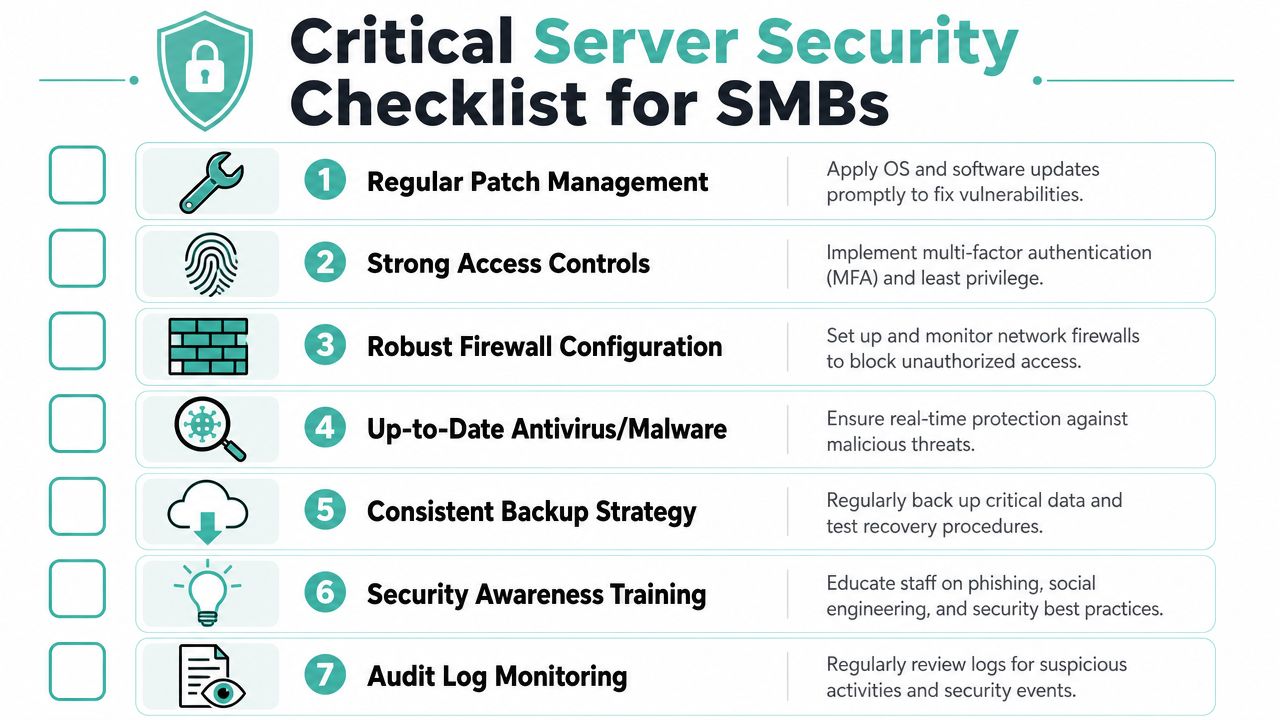
- Patch the operating system consistently. Don't patch only when there's a visible issue. Build a maintenance window and use it.
- Reduce privilege. Give users the least access they need. Separate ordinary user accounts from accounts used for administrative work.
- Review legacy authentication. The ACSC guidance for Microsoft server hardening includes disabling NTLM where possible and enforcing NTLMv2 with refusal of older versions in order to reduce credential relay risk, in its Microsoft server security best practices.
- Lock down remote administration. Restrict who can connect, from where, and how often those access paths are reviewed.
- Harden unsupported systems aggressively. If you must keep one alive for a legacy app, isolate it and treat it as a special-risk asset.
The other trap is patching Windows but ignoring the rest of the stack. IIS modules, frameworks, databases, backup agents, antivirus tools, and control panels all need attention. A fully patched operating system with stale application components is still a weak setup.
Treat patching as business continuity work, not a technical chore. The goal isn't just “updated”. It's “predictable under pressure”.
One more practical note. If you're preparing for version elevation on Windows Server 2022, there's a documented mechanic where you must install the March Cumulative Update or later before adding the required registry key for the 2025 server upgrade feature to appear, as noted in this AU-focused Windows Server 2022 guidance. That's the kind of detail that catches teams off guard when they leave upgrades too late.
Implementing Robust Backups and Disaster Recovery
Most small businesses say they have backups. Far fewer have tested whether those backups can restore the service that matters. That's the difference between backup and recovery.

Backups are data copies, not a recovery plan
The 3-2-1 rule is still a practical way to think. Keep multiple copies of your data, use different storage media or locations, and keep one copy off-site. You don't need to memorise the slogan for it to be useful. The point is simple. One backup in the same environment as the server isn't enough.
For Windows Server, I usually separate backups into three categories:
- Image-level backups capture the whole machine. They're useful when you need to rebuild a failed server quickly.
- File-level backups are for documents, shared folders, exports, and application data that changes often.
- Application-aware backups matter when databases or transactional systems are involved, because consistency is just as important as getting the files.
A business owner should also know where those backups live, how long they're retained, and who can restore them. If nobody can answer those questions without digging through old emails, the backup setup isn't mature enough.
For a broader planning framework, this expert guide to IT resilience is worth reading because it focuses on recovery thinking, not just storage.
A simple disaster recovery plan for an SMB
A disaster recovery plan doesn't need to be a giant document. A one-page version is often better because people will use it.
Include these items:
- Critical systems. List the server, the applications on it, and which one must return first.
- Recovery contacts. Note your internal decision-maker, hosting provider, developer, and any external admin.
- Restore method. Write down whether you'll restore from image backup, file backup, or rebuild and then import data.
- Access requirements. Record what credentials, licences, or keys are needed to bring the system back.
- Verification step. Decide how you'll confirm the application is working after restore.
A backup tells you the data exists. A recovery plan tells your team what to do at 2 am when the server doesn't boot.
If you want a plain-language overview for non-technical stakeholders, this explanation of disaster recovery in hosting is a useful handover document. It helps turn a technical task into an operational process.
Monitoring and Performance Tuning for Speed
A Windows server usually doesn't go from healthy to broken in one step. It starts with lag. A login takes longer. An ASP.NET page hesitates. A report export stalls. Staff blame the internet, then the software vendor, then the age of the machine. In many cases the server has been warning you for days.
The numbers worth watching
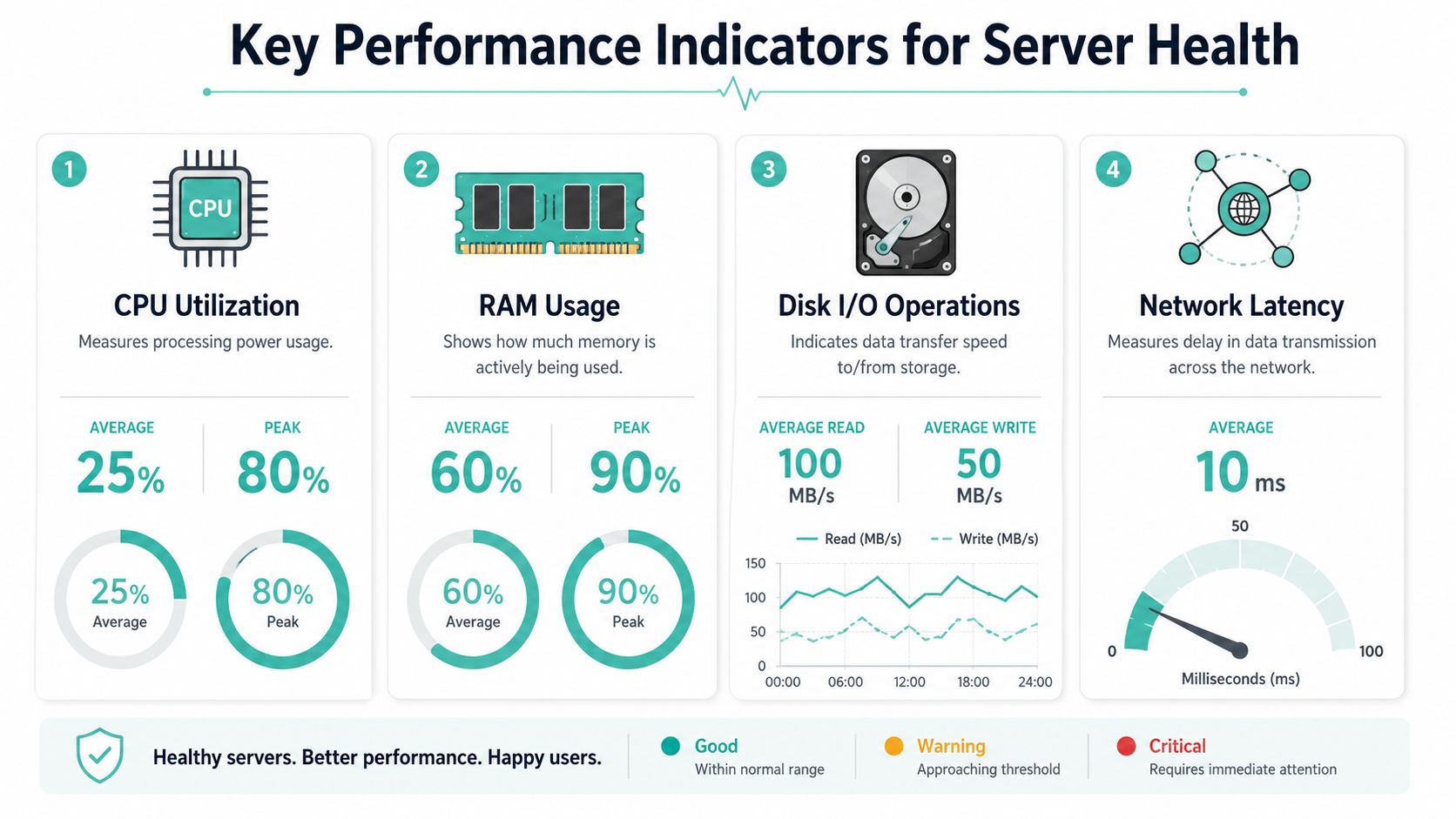
For Australian SMB server management, there are a few thresholds that deserve proper alerting. Sustained 85% CPU over 10 minutes and 90% memory commit are recommended thresholds to prevent performance degradation, and following these AU-specific thresholds correlates with a 78% reduction in application downtime compared with generic global benchmarks, according to Fusion Computing's server management best practices.
Those figures matter because they stop you reacting only after users complain. CPU spikes during a backup job might be normal. CPU pinned high for a sustained period during business hours usually points to a load or process issue. Memory commit near the ceiling is another classic sign that the server is under pressure, especially when paging starts affecting response times.
I'd also keep a close eye on:
- System volume free space. Windows behaves badly when the OS drive gets crowded.
- Disk latency and queueing. Slow storage can make a decent CPU look weak.
- Network saturation. A healthy app still feels broken when the network path is congested.
- Service restart patterns. If IIS app pools or supporting services keep recycling, the symptom is often visible before the root cause is obvious.
What to tune before users complain
Windows gives you useful tools already. Performance Monitor helps with sustained counters and trend tracking. Resource Monitor is good for a quick look when the box feels sluggish right now. Event Viewer still matters, especially when service failures and storage warnings line up with user complaints.
A practical review rhythm looks like this:
| Area | What to check | Common action |
|---|---|---|
| CPU | Sustained load, top processes, scheduled task overlap | Move heavy jobs out of business hours, review app inefficiencies |
| RAM | Commit level, paging activity, process memory growth | Increase memory, tune app pools, fix runaway services |
| Disk | Free space, latency, log growth | Expand storage, rotate logs, move data off the OS volume |
| Network | Throughput, intermittent drops, session issues | Review firewall paths, NIC settings, and workload placement |
If you're troubleshooting network sessions or odd connection behaviour, a good refresher is this guide to using the netstat command on hosted systems. It's one of the simplest ways to see what a server is doing on the wire.
The last point is often ignored. Performance tuning starts with the hosting baseline. If you put a business-critical Windows workload on an under-resourced environment, no amount of clever monitoring will make it feel consistent. Stable compute, enough RAM, and local infrastructure give you a cleaner starting point before you even touch tuning.
Register your new domain name at competitive market prices including free domain add-ons like privacy, DNS Hosting, Custom Nameservers and Forwarding.
Always the best price and no nasty renewal price hikes.
Register A Domain Name
Automating Repetitive Tasks with Scripting
Most Windows admins already repeat the same checks. Is the service running. Is disk space getting tight. Did a scheduled task fail. Are the event logs full of the same warning again. If you do those manually every week, PowerShell can save time without turning you into a programmer.
Start with checks you already do manually
The best automation jobs are small and boring. Don't begin with a giant deployment script. Start with the tasks you copy into a notepad file or check through Remote Desktop every Monday morning.
Good first candidates are:
- Service checks for IIS, SQL Server, print services, or line-of-business applications
- Disk space reports across local volumes
- Event log snapshots for recent errors
- User and group audits for privileged local accounts
PowerShell is useful because it's built into the Windows world. You don't need to bolt on another language just to answer ordinary admin questions.
A simple PowerShell example you can use
This script gives you a quick disk-space view for local drives:
Get-PSDrive -PSProvider FileSystem |
Select-Object Name,
@{Name="UsedGB";Expression={[math]::Round(($_.Used/1GB),2)}},
@{Name="FreeGB";Expression={[math]::Round(($_.Free/1GB),2)}}
If you want a basic service check for common web workloads, this one is a good starting point:
$services = "W3SVC","WAS"
Get-Service -Name $services |
Select-Object Name, Status, StartType
That's enough to move a manual check into something repeatable. Save the command, schedule it, or extend it later. The key benefit isn't fancy scripting. It's consistency. Scripts don't forget a step because someone was busy.
Small scripts are often the difference between “we think the server is fine” and “we checked the important bits this morning”.
The Smart Alternative A Local Managed Solution
At some point, most SMBs hit the same conclusion. They can run the application, but they don't want to become a full-time server operations team. That's where the decision changes from technical capability to operating model.

Azure Arc or local management
Microsoft promotes Azure Arc for managing servers outside Azure, and for some businesses that's a sensible fit. But Australian SMBs using local hosting often have different priorities. They want simple administration, they don't want extra licensing complexity, and they care about where management data is going.
That's the uncomfortable bit many articles skip. If your workloads are straightforward, your team is small, and your server sits with an Australian provider rather than inside Azure, a local management model can be easier to justify. Windows Admin Center and platform-native tools often cover what an SMB needs without pulling the environment deeper into a cloud control layer it didn't ask for.
There's also a sovereignty question. Many local businesses are comfortable keeping infrastructure and support close to home, especially when the workload includes client records, internal databases, or regulated information.
Where managed hosting fits
A managed Windows VPS becomes practical rather than flashy. You're not buying abstraction for its own sake. You're reducing the list of things your internal team has to get right every single week.
One local option in that category is managed VPS hosting in Australia. In UpTime Web Hosting's Windows environment, the Plesk control panel provides native IIS statistics tracking, Web Deploy and GIT tool integration, SSL certificate management, and .NET/PHP configuration controls that simplify routine administration, according to this independent platform review of its Windows hosting setup. That matters for teams running mixed workloads, especially where classic ASP, ASP.NET, PHP, MySQL, and MSSQL need to coexist on the same Windows platform.
For an Australian SMB, the true advantage of managed hosting isn't buzzwords. It's that someone is watching the infrastructure, handling common maintenance tasks, and giving you a cleaner path to support when something breaks. You keep the Microsoft stack you need without taking on every operational burden yourself.
If your business depends on a Windows-only app, a local setup with managed support is often the sensible middle ground between DIY admin overhead and hyperscale complexity.
If you'd rather spend your time on the application instead of patch schedules, restore testing, and IIS housekeeping, UpTime Web Hosting is a practical local option for Australian businesses running Windows workloads. It gives you an Australian hosting path for ASP.NET and MSSQL environments, plus managed infrastructure options when self-management stops being worth the effort.