You've just bought hosting for a new Australian business website. The welcome email mentions cPanel, but the word doesn't tell you whether it's your server, your website builder, or another subscription to manage. You click the login link and arrive at a dashboard filled with icons for email, files, domains, databases and security.
That first screen can look technical, but the basic cPanel meaning is straightforward. cPanel is the browser-based control panel you use to manage a hosting account. It gives small businesses, developers and agencies a visual way to complete everyday website tasks without working from the command line. The guide below separates cPanel from the server itself, explains the login paths commonly used in Australia, and connects the definition to real hosting work.
Table of Contents
- What cPanel Actually Means When You Sign Into Hosting
- The History and Architecture Behind the Control Panel
- Core Features That Make cPanel Useful Day to Day
- How to Access cPanel on Australian Hosting
- A Practical Walkthrough of Common cPanel Tasks
- Pros, Cons and Alternative Panels Worth Knowing
- Why Australian Businesses Choose Local cPanel Hosting
- Recap and Quick Checklist for Choosing cPanel Hosting

Performance you can feel, backed by clients who depend on it. Read how our support and uptime create long‑term customer success.Power Your Business with Better Hosting
What cPanel Actually Means When You Sign Into Hosting
A small Melbourne café owner might first meet cPanel after buying hosting for a new menu and online booking website. She clicks the link in her welcome email and sees a blue-and-grey dashboard with icons labelled File Manager, Email Accounts, Domains, MySQL Databases and Backup. Nothing on that screen is the website itself. It's the control surface for the hosting account.
In plain English, cPanel is software that sits on top of a Linux web server. It turns technical hosting functions into buttons, forms and menus, so a business owner can create an email address, upload a file or install a content management system without typing server commands. Australian hosting guides describe it as an account-management dashboard for files, domains, email, databases, backups and security settings, rather than the hosting server itself. Webcentral's explanation of cPanel provides that practical distinction.
The dashboard is not the infrastructure
The underlying server stores website files, runs databases, processes email and delivers pages to visitors. It keeps doing that whether you're logged into cPanel or not. cPanel provides a controlled interface for changing account-level settings, but it doesn't replace the physical or virtual hosting environment.
That separation matters. If you use cPanel to create info@yourbusiness.com.au, you're changing an email setting within your account. You aren't rebuilding the mail server. If you upload a WordPress image, you're placing a file in your account's storage area, not administering every website hosted on the machine.
Practical rule: Think of cPanel as the dashboard for your hosting account, not the engine that powers the server.
The same idea applies when you compare plans. A cPanel hosting plan is still a hosting service with allocated resources and server infrastructure. cPanel is the management software included with, or attached to, that service. You can explore how this works in practice through UpTime's cPanel hosting information, which connects the panel to normal website administration rather than treating it as a separate type of website.
The History and Architecture Behind the Control Panel
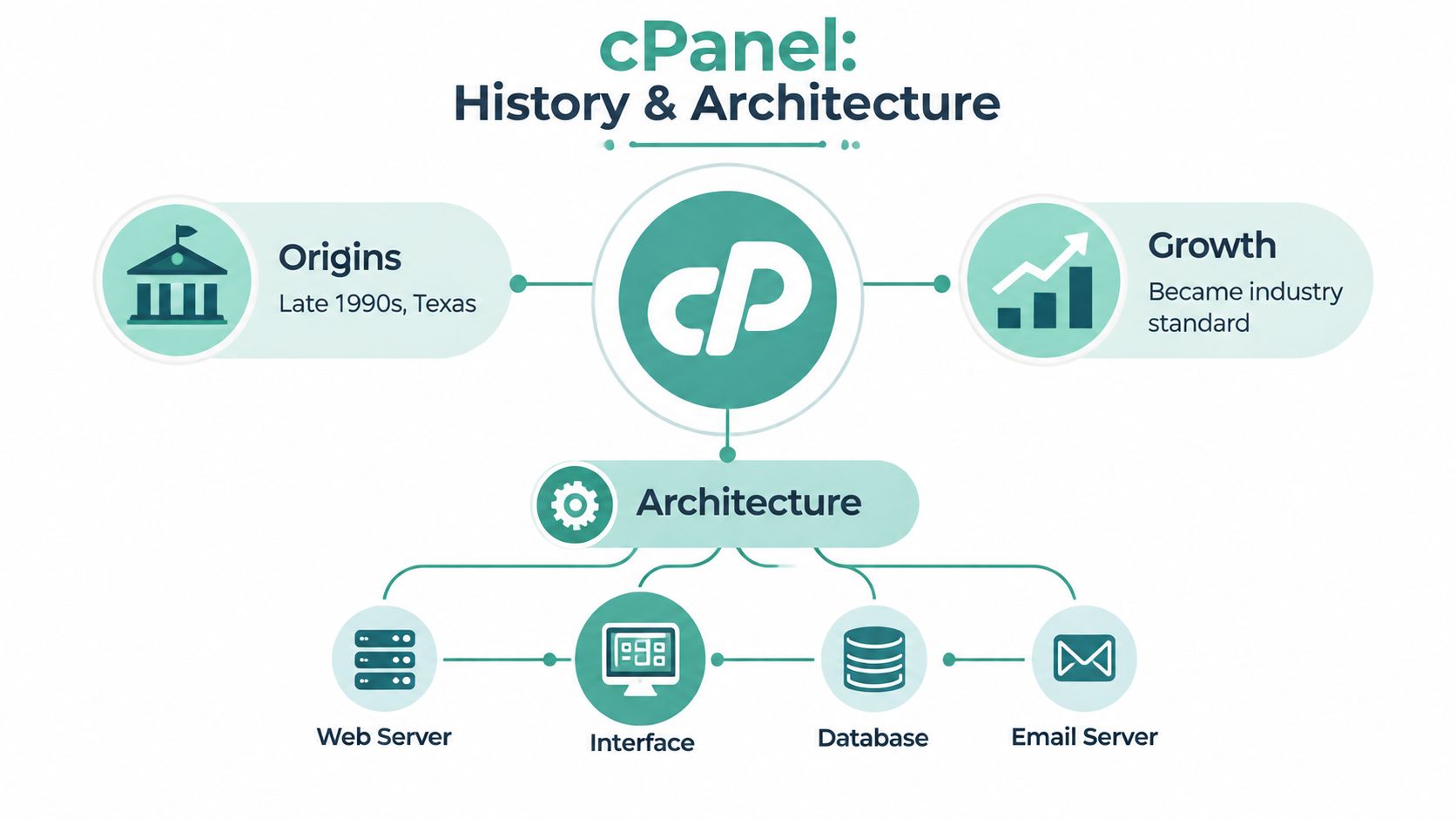
cPanel's history helps explain why the name appears so often in hosting instructions. Widely cited timelines place its first release on 21 March 1996, identifying it as a Linux hosting control panel created by J. Nick Koston. That operating history has made cPanel a familiar reference point in hosting education, including for Australian businesses comparing shared, reseller and VPS services. Taskade's cPanel history overview documents the product's origin and long development path.
The easiest way to understand the architecture is to picture a shop.
- The server is the warehouse and back office. It supplies storage, computing, databases, email services and the other infrastructure that keeps websites running.
- cPanel is the shopfront. A customer enters through a browser and manages one hosting account using a visual interface.
- WHM, or WebHost Manager, is the operations manager. A reseller or system administrator uses it to create and monitor cPanel accounts, manage services, configure networking and handle server-wide administration.
Why cPanel and WHM are separate
cPanel runs on the server, but it remains logically separate from the infrastructure it helps manage. That's why the system has distinct URLs, ports and user roles. A site owner generally works inside cPanel, while the hosting provider or reseller uses WHM for broader administration. The official cPanel documentation describes this division between account-level management and server administration.
For example, a client may manage domains, email, FTP and databases from cPanel. The provider can keep network settings, service configuration and account creation inside WHM. This arrangement reduces the chance that an end user will accidentally change a server-wide setting while still giving them control over the work they need to perform.
Most Australian shared hosting customers only see the cPanel side. Agencies and resellers may receive multiple client accounts and use WHM to administer them centrally. For readers comparing Linux hosting with alternative environments, this overview of CloudLinux in hosting adds useful context about the operating layer that may sit alongside cPanel.
Host your website with our 5-star rated, cPanel website hosting plans.
Super fast servers, with security included and hosted in your choice of Australian Data Center.
View cPanel Plans
Core Features That Make cPanel Useful Day to Day
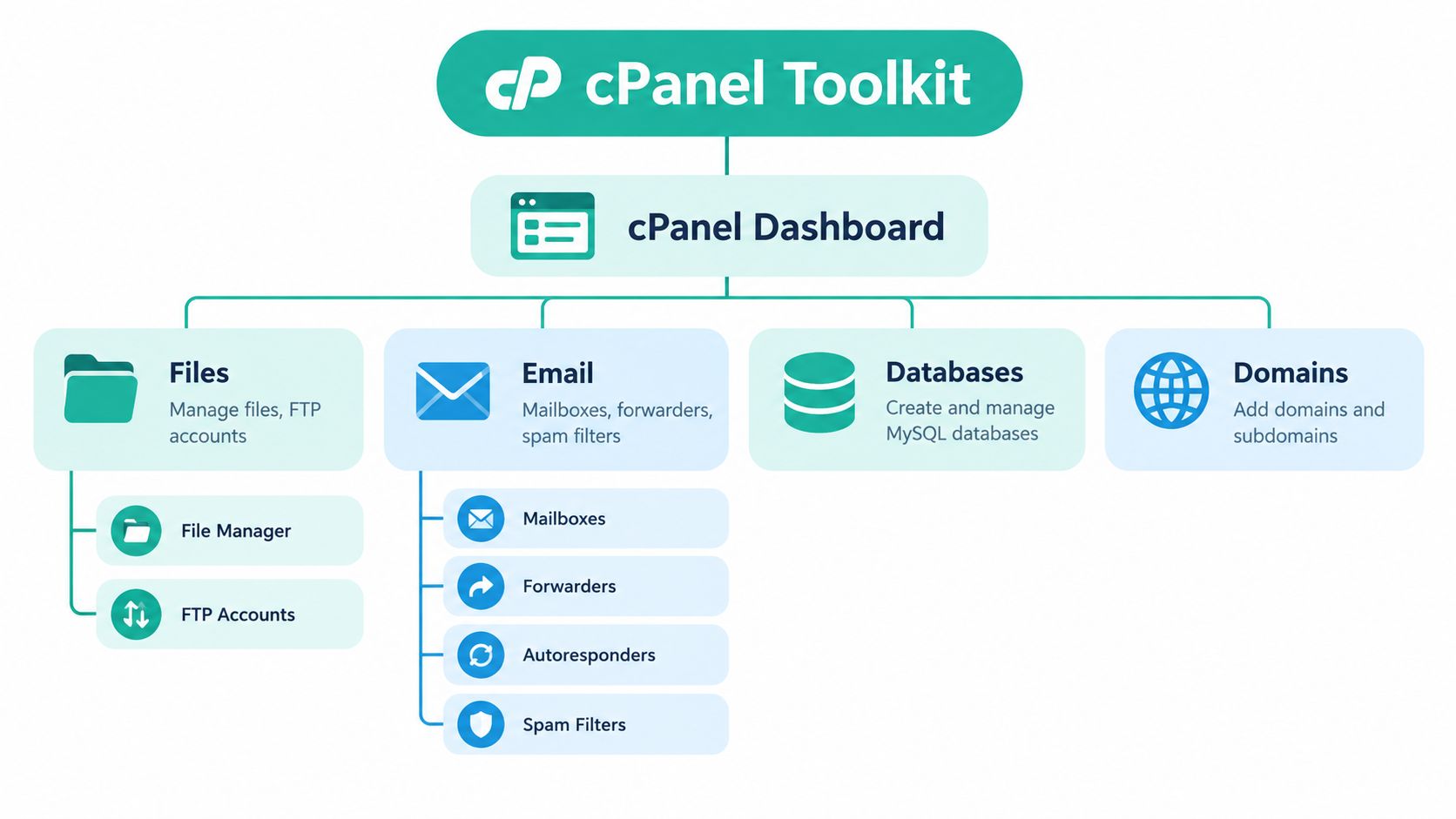
The dashboard makes sense when you treat it as a toolkit for specific jobs. You don't need to understand every icon. You need to know which group contains the task in front of you.
Files and website content
File Manager lets you browse folders, upload website assets, rename files and adjust basic file permissions through the browser. A Sydney restaurant could use it to upload a menu PDF, replace a logo or place a verification file in the correct website folder. FTP Accounts provides a separate way for a developer or agency to transfer files without sharing the main hosting password. The cPanel File Manager guide from UpTime focuses on this practical workflow.
Email for staff and customers
The Email tools handle mailboxes, forwarders, autoresponders and spam controls. A Brisbane electrical business might create info@ for general enquiries, set up an address for the office manager and forward selected messages to an existing inbox. An autoresponder can acknowledge a customer enquiry while the team is away, while spam filtering helps keep unwanted messages out of the main inbox.
For a useful example of a related task, see how to set up email forwarding. The important point is that cPanel gives you a place to manage business email connected with the hosting account.
Databases behind applications
WordPress, Joomla and many other applications rely on databases. In cPanel, the MySQL Databases area lets you create a database and database user, while phpMyAdmin provides a browser interface for inspecting and managing database content. A Perth blogger might need these tools when installing WordPress manually or repairing an application connection.
You may never open phpMyAdmin during normal operation. That's fine. Its presence matters when a developer needs to diagnose a failed plugin, move content or check a database-backed application.
Domains, security and recovery
The Domains tools cover tasks such as add-on domains, subdomains, redirects and DNS management. A regional business might use a subdomain for a booking area or redirect an old domain to a new one. Security tools commonly include SSL management, IP blocking, hotlink protection and two-factor authentication, although the exact options depend on the host and account configuration.
Backups provide a recovery route after a mistake. Before a WordPress plugin update, an owner can create or access a backup and restore the site if the update causes trouble. The available backup schedule and restoration scope depend on the hosting service, so treat the cPanel icon as an access point rather than a guarantee that every backup feature is included.
How to Access cPanel on Australian Hosting
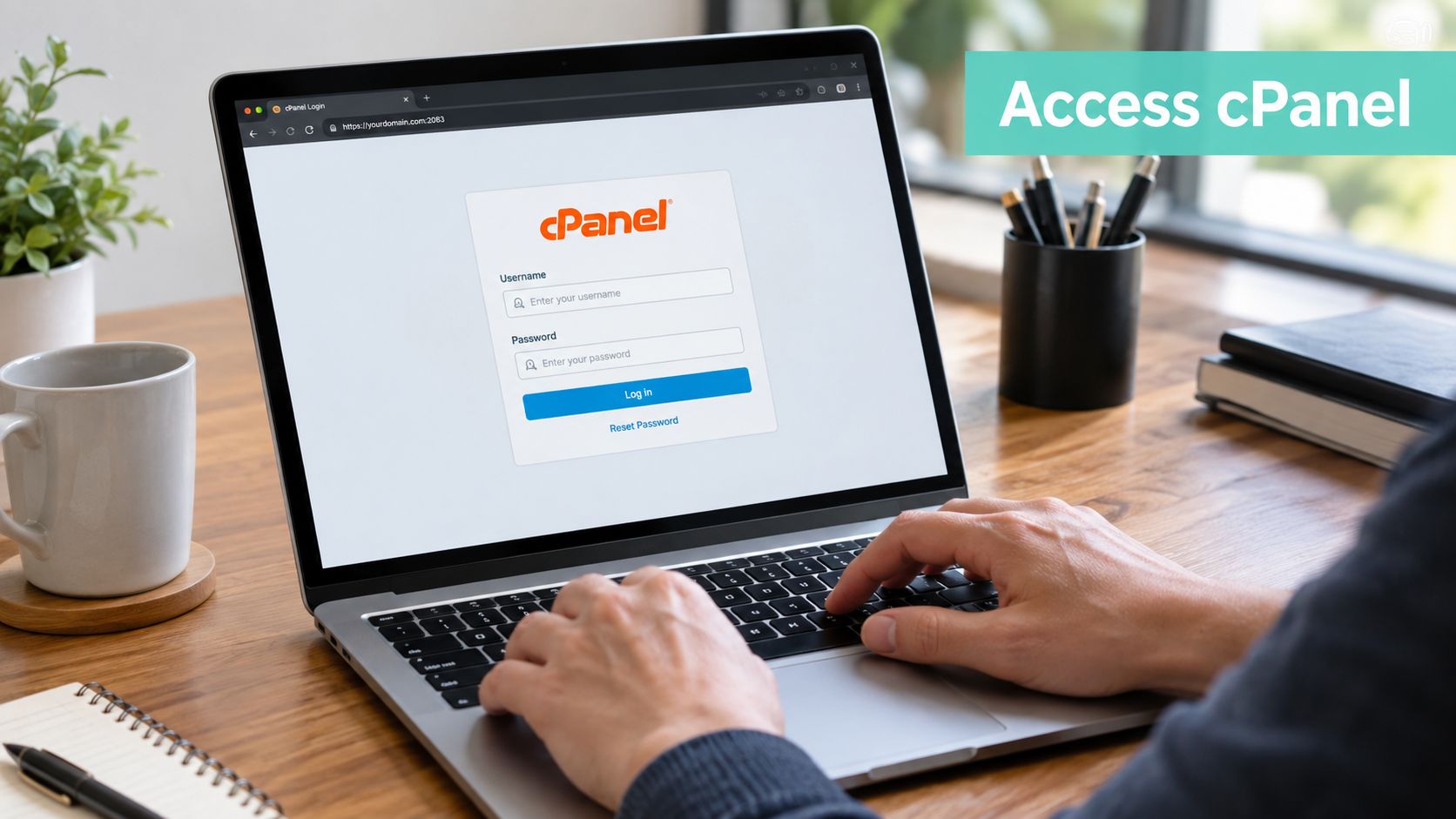
A Sydney agency may receive separate logins for its domain registrar, website, email and hosting. cPanel belongs to the hosting account, so start with the credentials supplied by the hosting provider rather than assuming every service uses the same password.
Open the provider's client area. Look for the hosting service, management screen or Log in to cPanel button. This route usually sends you to the correct account and secure address without requiring you to remember a server URL.
Try the secure cPanel port. The standard secure endpoint is port 2083, commonly shown in a format such as
https://yourdomain.com.au:2083. Crazy Domains' Australian cPanel guide also distinguishes the secure WHM port, 2087, which is intended for administrators rather than ordinary account users.Use the
/cpanelpath. You may be able to visit a path such ashttps://yourdomain.com.au/cpanel. Webcentral's Australian hosting instructions describes both provider-portal access and direct cPanel addresses.Use the older port only when your host supports it. Some Australian support documentation lists 2082 as a fallback. Hosting Australia's knowledgebase guidance gives
/cpanelas a direct path and notes port 2082 when that path does not work.
If the login page refuses to load, return to the client area and use its shortcut. Check the host-supplied address, try another browser or network, and do not bypass a genuine certificate warning. Ask the provider to confirm the secure URL before entering credentials.
For a provider-specific walkthrough, follow UpTime's cPanel login knowledgebase article.
A Practical Walkthrough of Common cPanel Tasks
Consider a Sydney tradie preparing a simple website for a growing electrical business. The site needs a home page, service information, a contact form, business email and a reliable way to recover from a failed update. cPanel becomes useful because each requirement maps to a clear action.
Start with the website files
The tradie's designer sends a logo, service images and a PDF brochure. The owner opens File Manager, finds the website's document folder and uploads the files. The page can now reference those assets without the owner needing an FTP application or command-line access.
If the designer needs regular access, the owner can create an FTP account with access limited to the relevant directory. That arrangement keeps the main account credentials private and gives the contractor a defined route for maintaining the site.
Create a professional mailbox
Next, the owner creates info@yourdomain.com.au in Email Accounts. The address gives customers a consistent contact point and can be connected to an email application or webmail interface. A forwarder can send enquiries to an existing staff inbox, while an autoresponder can confirm that the message arrived.
The business might later add separate addresses for accounts, bookings or the owner. cPanel keeps those mailboxes together with the hosting account, although the team still needs strong passwords and sensible spam settings.
Prepare WordPress and protect the changes
The tradie chooses WordPress for the service pages. If the provider offers an installer, the setup can create the application and its database through a guided process. For a manual installation, the owner or developer creates a MySQL database, database user and permissions in cPanel, then enters those details during the WordPress setup.
Before installing a new plugin, the owner checks the available backup tools and runs a full account backup if the plan supports it. That step creates a recovery point before a change that could affect the website. A backup is only useful if it can be restored, so the business should also understand where backups are stored, how long they're retained and whether restoration is included in the service.
Finally, the domain is connected to the hosting account, and the site owner checks SSL, redirects and email delivery. The dashboard doesn't make every technical decision for you, but it puts the main controls in one place, which is the practical value behind the cPanel meaning.
Register your new domain name at competitive market prices including free domain add-ons like privacy, DNS Hosting, Custom Nameservers and Forwarding.
Always the best price and no nasty renewal price hikes.
Register A Domain Name
Pros, Cons and Alternative Panels Worth Knowing
cPanel remains attractive because it's familiar. Hosting teams, freelance developers and website owners can find extensive documentation and follow established workflows for email, files, databases and domains. That shared vocabulary also makes handovers easier when an Australian business changes developers or asks an agency to manage a site.
The drawbacks are real. cPanel is commercial software, and its licensing model changed after 2019, as discussed in this Australian hosting context for cPanel plans. Providers may pass licence costs through a hosting plan, even though customers often see cPanel bundled rather than purchased as a separate product. Some users also find the interface crowded, particularly when a host enables many icons that the account doesn't need.
A customised server setup may be better served by direct administration tools or a more specialised panel. The right choice depends on who will maintain the hosting, how much control they need and whether the website uses a general-purpose Linux stack or a managed application environment.
| Panel | Best For | Key Strength | Main Trade-off |
|---|---|---|---|
| cPanel | Small businesses, developers and shared hosting users | Familiar account management and broad hosting support | Can feel busy and may add licensing cost |
| Plesk | Users managing varied web stacks and applications | Unified interface with strong application orientation | Workflows differ from cPanel, so switching may require adjustment |
| DirectAdmin | Users seeking a leaner control panel | A more streamlined management experience | The ecosystem and documentation may feel less familiar to cPanel users |
| Managed WordPress panels | Owners running WordPress without broader hosting tasks | WordPress-focused maintenance and deployment tools | Less control over general email, databases and server-level options |
Choose cPanel when you want a widely recognised control layer and expect to manage several kinds of hosting tasks. Consider an alternative when your work is tightly focused on WordPress, your server needs unusual customisation, or you prefer a simpler interface with fewer general-purpose tools.
Why Australian Businesses Choose Local cPanel Hosting
For an Australian business, the panel is only one part of the hosting decision. The physical location of the hosting environment, the support model and the included services affect how useful that dashboard becomes during a real business day.
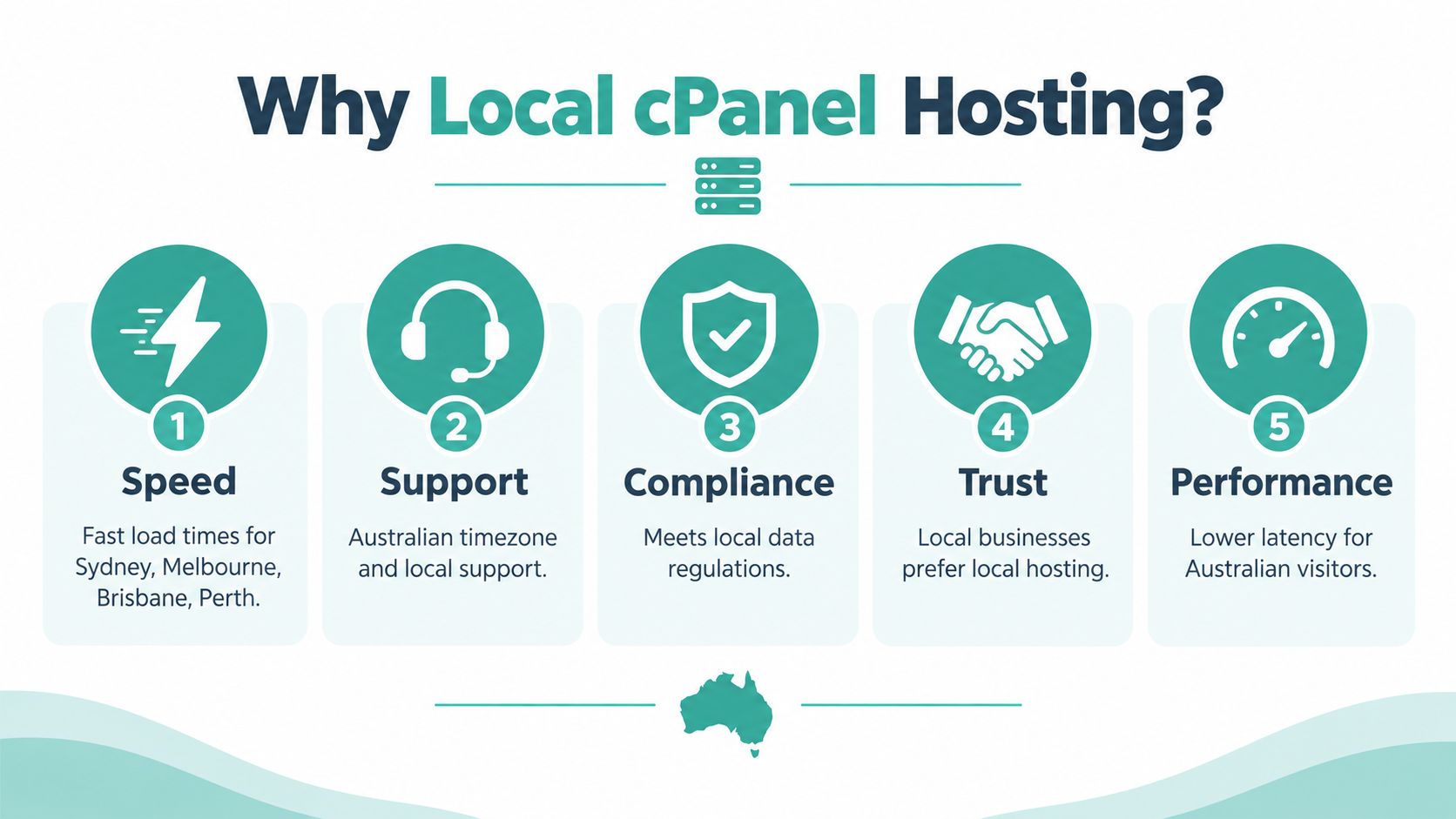
Servers hosted in Australia can provide a shorter network route for visitors in Sydney, Melbourne, Brisbane and Perth. That can support responsive browsing for local audiences, while local data handling may help a business assess its obligations under the Australian Privacy Principles. It doesn't remove the need for proper privacy, security or legal advice, but it gives the business a clearer infrastructure starting point.
Local service changes the support experience
A local provider can bill in Australian dollars, operate around AEST business hours and explain Australian requirements in familiar terms. That matters when a site breaks before a campaign launches at 9am, or when a staff member needs help with a .au domain, email authentication expectations or the Notifiable Data Breaches scheme.
The most useful plan extras are practical rather than decorative:
- Security basics: Free SSL, malware scanning, firewalls and proactive monitoring can reduce routine risks.
- Recovery options: Encrypted off-site backups, especially when held in Australian data centres, give the business a clearer restoration path.
- Application support: One-click WordPress installation and staging environments can make testing safer.
- Human assistance: A phone call, ticket or callback can resolve an access problem faster than searching through generic documentation.
Local hosting isn't automatically the right choice for every audience. A business serving customers in another region may prioritise a different data centre location, while an agency may need reseller tools and centralised account management. If you're comparing services across the Tasman, you can also browse NZ hosting plans to compare how another local market presents hosting options.
The useful conclusion for Australian SMBs is practical: cPanel supplies the account controls, while a local host can add local infrastructure, support and operational safeguards around them.
Experience Microsoft 365 Business Standard for free for 30 days.
Up to 25 users with full access to email, OneDrive and Teams. Includes full versions of desktop apps of Outlook, Word, Excel, PowerPoint and more.
Try Microsoft 365
Recap and Quick Checklist for Choosing cPanel Hosting
The cPanel meaning comes down to a graphical control panel for a hosting account. It lets you manage files, email, databases, domains, security and backups through a browser. It isn't the server, and it isn't a website builder. Think of it as the cockpit that helps you steer the hosting environment.
Before choosing an Australian cPanel plan, check the service rather than judging the dashboard alone.
- Confirm the licence: Ask whether the provider supplies a genuine cPanel licence rather than an unclear third-party resale.
- Check server location: Verify that the hosting servers are physically located in Australia if local infrastructure matters to your business.
- Ask about the installed version: Confirm that the provider maintains a supported, stable cPanel release.
- Review included protection: Look for free SSL, malware scanning, security monitoring and backups. Ask whether backups are daily, off-site and restorable.
- Check application tools: Confirm whether Softaculous or another installer supports the applications you plan to use.
- Test support access: Contact the support team during AEST business hours and assess how clearly they answer a basic cPanel question.
- Read resource limits: Review storage, bandwidth, CPU, memory, add-on domains and inodes before signing up.
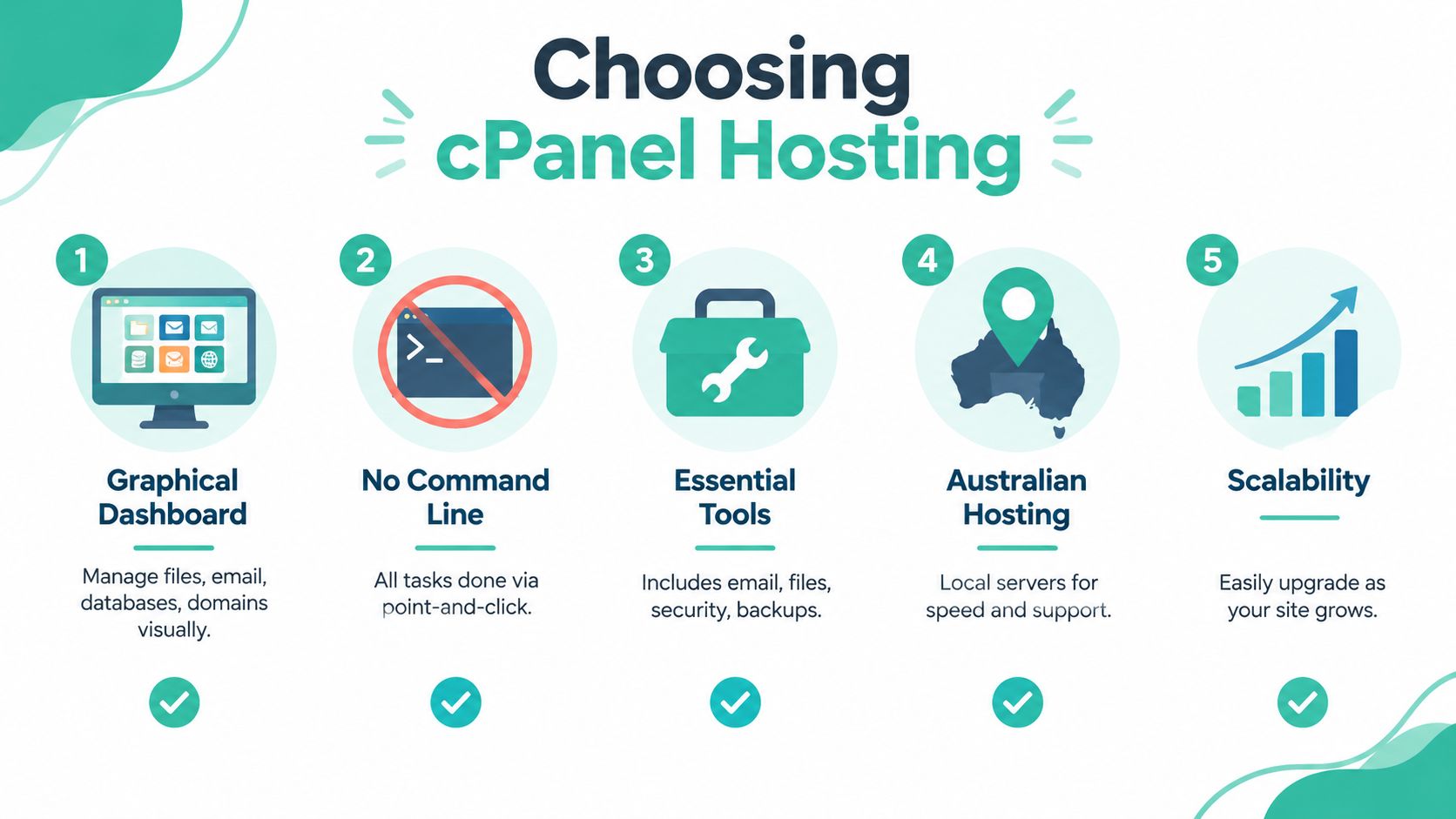
Match those checks to your actual website. A brochure site may need straightforward email and file management, while an agency may need WHM, multiple accounts and dependable restoration. Once you understand what cPanel controls, you can compare hosting plans on infrastructure, support and safeguards instead of treating the dashboard name as the whole product.
UpTime Web Hosting provides Australian cPanel hosting with client-area access, local infrastructure and practical services for websites, email and WordPress. Visit UpTime Web Hosting to review the available hosting options and choose a plan that gives you a clear, browser-based way to manage your business website.