
Your Outlook inbox is full, search is slowing down, and someone has started dragging old project emails into a PST file on a laptop. That may clear the screen, but it doesn't automatically create a reliable archive, preserve business records, or protect the organisation from data loss.
For Australian businesses, the right way to archive emails in Outlook depends on the outcome you need. The basic Archive button is useful for decluttering. An Exchange Online Archive mailbox is better suited to centrally managed storage and access across supported devices. A PST file can provide an offline copy, but it introduces file-handling and backup responsibilities that many teams underestimate.
Table of Contents
- Understanding Outlook Archiving Options
- Executing the Basic Archive Action Across Devices
- Configuring AutoArchive and Exporting PST Files
- Navigating Australian Business Retention Rules
- Comparing Archiving Methods for Business Needs
- Securing Your Email Data with Reliable Hosting

Performance you can feel, backed by clients who depend on it. Read how our support and uptime create long‑term customer success.Power Your Business with Better Hosting
Understanding Outlook Archiving Options
Outlook uses the word archive for more than one workflow. Selecting a message and choosing Archive normally moves it from the Inbox to a fixed Archive folder. It doesn't create a separate compliance repository, classify the message by business purpose, or distribute copies to other team members.
Microsoft documents that the Archive action is a single-target move. If you need date-based or label-based filing, use folder rules or manual drag-and-drop instead of expecting the Archive button to act as a filing engine. The Microsoft documentation on archive mailboxes describes this distinction clearly.
That difference matters in a business setting. Moving an old customer conversation out of the Inbox can improve day-to-day organisation, but the message remains part of the same mailbox environment. A true Online Archive mailbox is an additional archive location enabled by an administrator in Exchange. A PST export creates a local data file that must be named, stored, backed up, and made available when someone needs to search it.
Start by identifying the purpose:
- Decluttering: Use the standard Archive folder for completed conversations that remain useful to the mailbox owner.
- Mailbox capacity: Consider an Online Archive mailbox and retention policies managed through Microsoft 365.
- Offline access: Use a PST only where there's a defined reason for local access and a tested backup process.
- Recordkeeping: Classify and retain messages according to their business value, not only their age or location.
Before changing a mailbox, confirm the account type and whether the organisation uses Exchange Online, a hosted IMAP service, or local Outlook data files. The guide to adding a mailbox in Outlook can help with the account setup, but archiving decisions still need to match the business's retention and backup approach.
Practical rule: The Archive button removes messages from your working view. It doesn't, by itself, prove that your organisation has preserved an official business record.
Executing the Basic Archive Action Across Devices
The standard Archive action is intentionally simple. Microsoft says that in Outlook for Windows, you select one or more messages and choose Archive in the Delete group. For Microsoft 365 and Exchange accounts, the dedicated Archive folder already exists, even if nobody has used it before. The Microsoft guide to archiving in Outlook for Windows documents this click path.
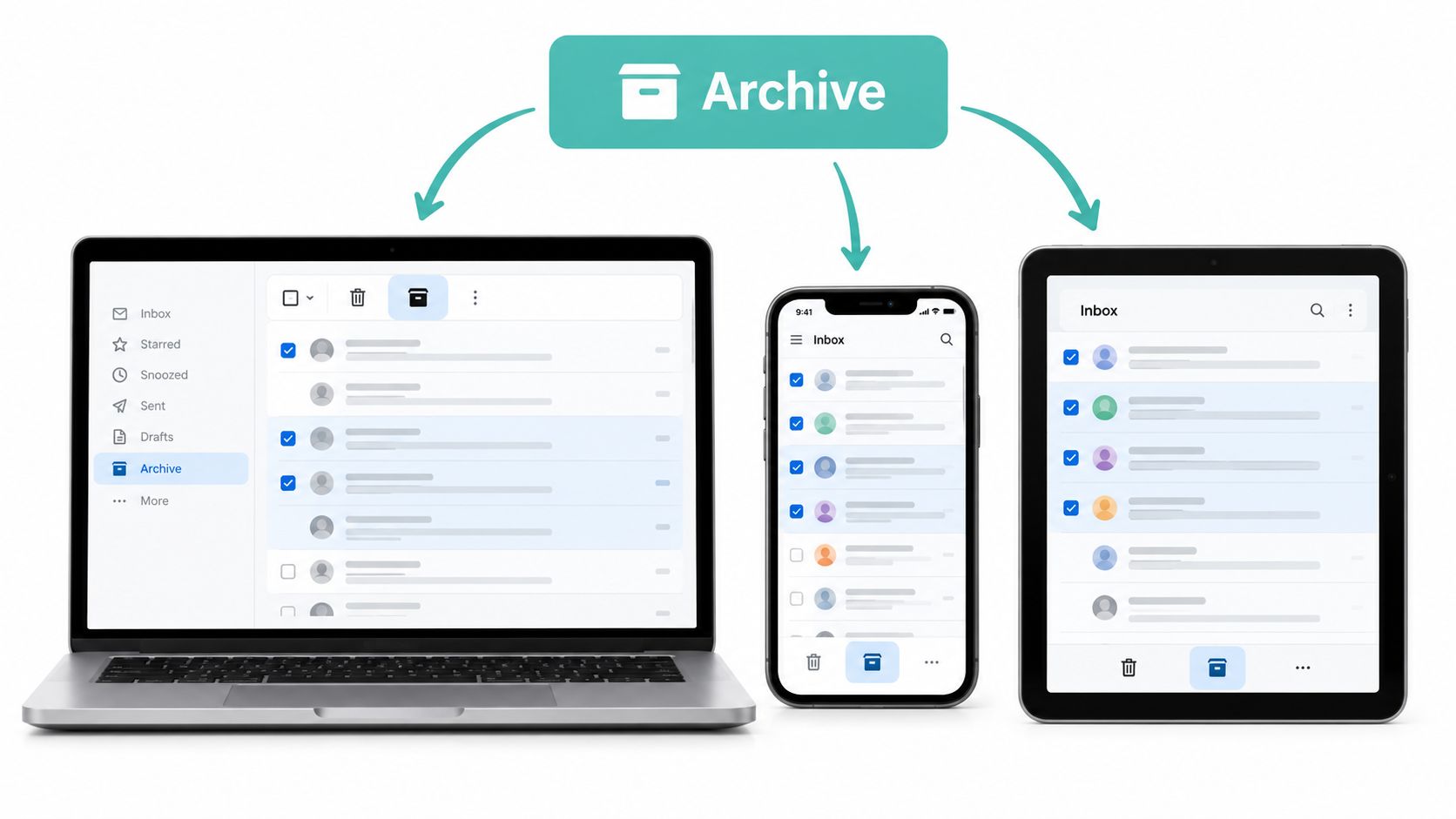
Windows and Mac Outlook
In Outlook for Windows:
- Open the Inbox or another mail folder.
- Select one or more messages.
- Choose Home, then Archive, or select Archive from the message toolbar.
- Open the Archive folder to confirm the messages arrived.
On Mac, select the message and use the Archive button in the toolbar. The exact position can vary with the Outlook interface, but the result is the same, the message moves to the account's Archive location rather than being deleted.
For example, a completed 2020 project conversation can leave the Inbox while remaining available through the Archive folder and Outlook search. This is a sensible approach for reducing visual clutter when the mailbox owner still needs occasional access.
Outlook on the web and mobile
In Outlook on the web, select the message, choose Archive, and then open the Archive folder from the folder list. On a phone or tablet, select the message, tap the toolbar's Archive icon, and check the Archive folder if you need to verify the move.
Archiving is reversible. In Outlook on the web, open Archive, select the message, choose Move to, and send it back to the Inbox or another folder. Microsoft explains this restoration process in its Outlook on the web organisation guide.
Archive is a move, not a deletion command. Still, check the destination folder after a large clean-up so users don't mistake a hidden or synchronising folder for lost mail.
Host your website with our 5-star rated, cPanel website hosting plans.
Super fast servers, with security included and hosted in your choice of Australian Data Center.
View cPanel Plans
Configuring AutoArchive and Exporting PST Files
Manual archiving works well for occasional clean-up. It becomes less practical when users need a repeatable process for older messages or a local copy of selected folders.
Setting up AutoArchive
In classic Outlook for Windows, open File, choose Options, select Advanced, and open AutoArchive Settings. Enable Run AutoArchive every n days, then define what Outlook should do with older items. Microsoft's automatic archiving instructions also show that AutoArchive can be configured to delete old items instead of moving them, so check the destination and deletion settings carefully.
For a one-off job, use File, Info, Tools, and Clean up old items. Choose a folder or all subfolders, set the cutoff under Archive items older than, and decide whether to include items marked Do not AutoArchive. That override applies to that archive run, which makes it useful when exporting an older shared project folder while retaining flagged exceptions. The manual Outlook archiving procedure provides the relevant settings.
AutoArchive isn't a substitute for a retention policy. It moves mail according to configuration, while retention rules determine what the organisation must preserve and for how long.
Exporting a PST safely
To create a PST, use Outlook's export workflow, select the required folder, include subfolders, and save the file to a controlled location. Selecting the mailbox root and including subfolders is important when the export needs to capture a complete folder tree rather than a partial selection.
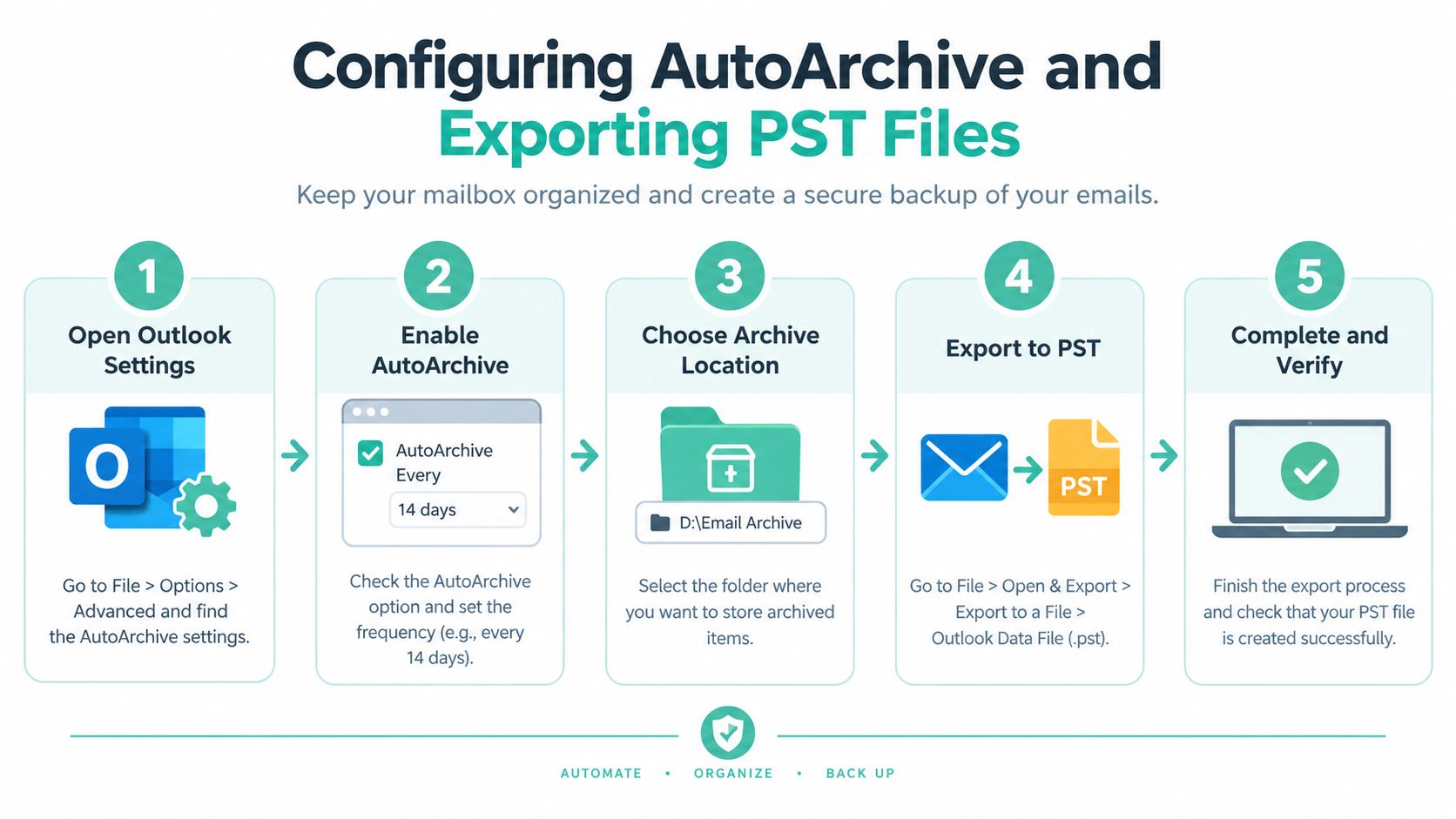
PST files are convenient, but they're a weak default for business archives. Australian institutional guidance warns that PST files used for export or as visible local archives aren't reliably backed up and may create a risk of data loss. The Microsoft Exchange Online Archiving information also highlights this operational concern.
Mac users may see archived mail in an On My Computer folder that is hidden by default. That creates a discoverability problem, particularly when a user believes an archive has disappeared. Before archiving in a cached Outlook profile, switch synchronisation to All and allow it to complete. Otherwise, older messages may not be present in the local set being archived.
Treat a PST as a managed business file:
- Name it clearly: Include the mailbox, project, and coverage period.
- Store it centrally: Don't leave the only copy on a departing employee's laptop.
- Back it up: Test that the backup can be opened and searched.
- Document access: Record who can attach and inspect the file.
- Review the workflow: Remove stale, duplicate exports rather than creating uncontrolled copies.
Navigating Australian Business Retention Rules
An email can be a business record even when it looks like ordinary correspondence. The National Archives of Australia states that emails created or received as part of business are official records and must be managed as Commonwealth records, not treated casually. Its guidance also makes clear that emails are records regardless of format, so the relevant question isn't whether a message sits in the Inbox, the Archive folder, or a PST.
The National Archives email recordkeeping guidance supports a practical conclusion for Australian organisations: location doesn't determine retention. The message's business purpose, content, and evidentiary value do.
Retention follows business value
There isn't one universal retention period for every email. Keep-times depend on what the email records and how it supports the organisation's functions. A project approval, contract negotiation, safety instruction, or formal customer decision may require a different treatment from a newsletter or routine scheduling exchange.
That means a rule such as “archive everything older than a chosen date” can help manage capacity, but it shouldn't be mistaken for a complete records policy. Age is a filing trigger. It isn't a legal classification.
Ask these questions before moving business mail:
- What decision does the email document?
- Does it prove an approval, commitment, instruction, or transaction?
- Who needs access if the mailbox owner leaves?
- Can authorised staff search and retrieve it later?
- Does the selected storage location sit within the organisation's control and backup process?
A PST may contain the message, but possessing a file does not establish controlled retention. An Australian business also needs a documented process for storage, access, backup, and eventual disposal. Organisations considering local infrastructure can review Australian data sovereignty hosting options as part of their wider information-management assessment.
A compliant archive is not defined by the word “Archive” in Outlook. It is defined by controlled retention, reliable access, and the ability to preserve evidence of business activity.
Comparing Archiving Methods for Business Needs
The right method depends on whether the priority is a cleaner Inbox, additional mailbox storage, offline access, or controlled recordkeeping. These options shouldn't be treated as interchangeable.
| Method | Best For | Multi-Device Sync | Backup Reliability |
|---|---|---|---|
| Outlook Archive folder | Everyday decluttering and quick retrieval by the mailbox owner | Generally available through the connected mailbox | Depends on the mailbox and organisation's backup controls |
| Exchange Online Archive mailbox | Centrally managed older mail and mailbox capacity management | Accessible in Outlook and Outlook on the web | Managed centrally, subject to the organisation's Microsoft 365 controls |
| Local PST export | Specific offline access, migration, or fallback copy | Limited unless the file is deliberately moved and attached elsewhere | Requires separate, verified backup |
Standard Archive folder
The basic Archive button is the fastest choice for an employee clearing completed conversations from the Inbox. It's searchable within the mailbox and reversible, but it doesn't file messages into separate destinations by sender, date, or category. Use rules or manual folder moves when the team needs a more structured filing pattern.
This option suits an individual mailbox owner who needs a simpler working view. It isn't enough where several authorised people need to search a shared history or where the organisation needs retention controls beyond ordinary mailbox folders.
Exchange Online Archive mailbox
An Online Archive mailbox is enabled by an administrator in the Exchange admin centre under Recipients, Mailboxes, then the selected user's archive status. Once enabled, it appears as a separate archive location and can be used with retention policies.
Archive mailboxes are accessible in Outlook and Outlook on the web, but supported clients access the online archive in online mode. Offline access is therefore more limited than with a PST, as described in Australian university guidance on Outlook archiving. For teams working across laptops, browsers, and managed business accounts, centralisation usually outweighs that limitation.
PST exports
PSTs remain useful for a defined offline requirement or controlled migration. They aren't a good general-purpose archive when the only copy sits on a workstation. A file can be misplaced, disconnected from Outlook, omitted from backup, or left inaccessible when its owner changes roles.
For most Australian SMBs, the sensible default is to use the standard Archive folder for personal organisation and an Online Archive mailbox where the administrator needs centralised storage. Reserve PST exports for documented exceptions.
Register your new domain name at competitive market prices including free domain add-ons like privacy, DNS Hosting, Custom Nameservers and Forwarding.
Always the best price and no nasty renewal price hikes.
Register A Domain Name
Securing Your Email Data with Reliable Hosting
Archiving doesn't remove the need for a business continuity plan. A mailbox can be tidy while its data remains exposed to accidental deletion, account problems, device failure, or an unmanaged local file. The archive location and the backup location should be treated as separate parts of the control environment.
For Australian businesses, review the infrastructure supporting websites, hosted mail, and local data processes. Useful controls include:
- Encrypted off-site nightly backups: Keep recoverable copies away from the primary system and confirm that restoration works.
- DDoS-protected firewalls: Reduce exposure for internet-facing hosting and email services.
- Australian infrastructure: Local server locations can support data residency requirements and predictable access for Australian teams.
- 24×7 monitoring: Alert administrators to availability and security issues before users discover them.
- Clear ownership: Assign responsibility for archive policies, PST handling, leavers, and restoration tests.
UpTime Web Hosting provides Australian hosting with servers in Sydney, Melbourne, Brisbane, and Perth, along with email services, managed VPS options, encrypted off-site nightly backups, DDoS-protected firewalls, malware scanning, and monitoring. Businesses assessing their broader mail environment can review secure business email hosting alongside their Microsoft 365 and Outlook configuration.
A practical operating model is straightforward. Use the Archive button for personal Inbox management, enable an Online Archive mailbox when centralised retention and capacity management are required, and create PSTs only under a documented backup and access process. Review permissions regularly, check hidden local folders, test searches, and confirm that important emails remain retrievable after staff changes.
UpTime Web Hosting offers Australian hosting, business email, managed VPS services, security controls, and encrypted off-site backups that can support a wider email continuity plan. Visit UpTime Web Hosting to review local hosting and email options, then discuss the setup that fits your Outlook archiving and data-protection requirements.