In short
A website outage should be checked in layers: confirm whether the problem affects other networks, record the exact browser or HTTP error, then test the domain registration, DNS, SSL certificate, hosting resources, server logs and recent site changes. Stop guessing when one layer fails, and fix or escalate that layer first.
Key takeaways
- If the site works on mobile data but not office Wi-Fi, investigate local DNS, caching, VPN or firewall conditions before changing the server.
- HTTP 4xx and 5xx responses are not interchangeable: 4xx identifies a request or access-side error class, while 5xx means the server failed to fulfil an apparently valid request. The status class does not prove which person configured the system incorrectly. The IETF's 2022 HTTP Semantics standard defines these response classes. (ietf.org)
- A current domain registration does not prove that its nameservers and DNS records point to the correct hosting service.
- HTTPS can fail while the web server is running if the certificate is expired, not yet valid, issued for another hostname or missing a trusted chain.
- Preserve the exact time, URL, error and recent change history before restarting services or rolling anything back.
Table of contents
- Is the website down for everyone or only for you?
- What does the exact error message tell you?
- Has the domain expired or lost its registration?
- Is DNS sending visitors to the wrong place?
- Is the SSL certificate blocking HTTPS?
- Are the server and hosting resources still healthy?
- Did WordPress, the database or a recent change break the site?
- Could a firewall, CDN or network rule be blocking access?
- What should you send to hosting support?
- How do you stop the same outage happening again?
- What else do website owners ask about downtime?
This guide is for an outage in progress. It focuses on finding the first failed layer without confusing active diagnosis with routine speed optimisation, monitoring or long-term reliability work.
Is the website down for everyone or only for you?
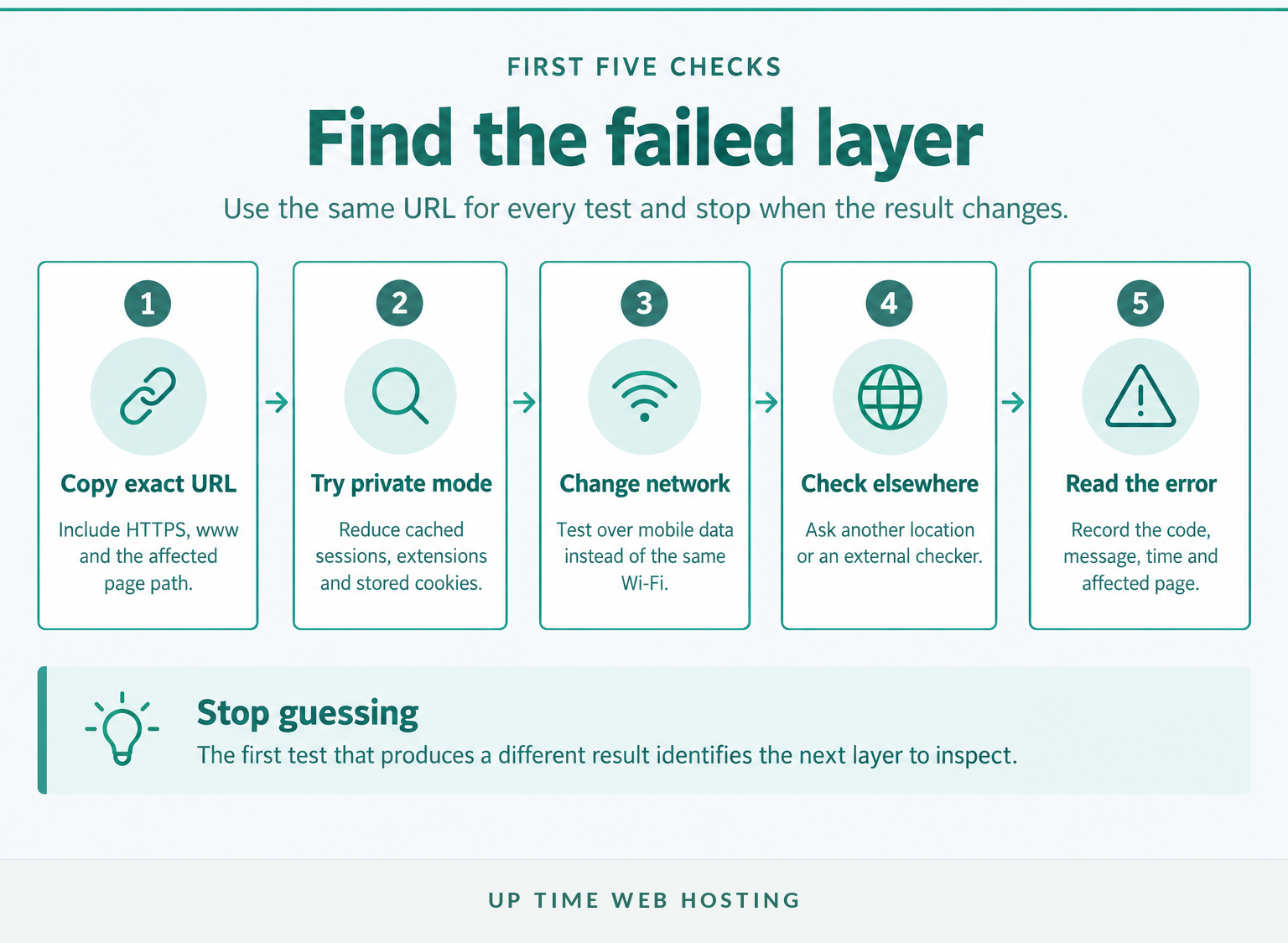
Start by checking the same URL from a second network, not simply a second browser on the same Wi-Fi. If the site works over mobile data or for someone elsewhere, the server may be healthy and the fault may sit in your device, router, DNS cache, VPN or office firewall.
Run these checks in order:
- Copy the exact URL, including
https://,wwwand the page path. - Open it in a private browser window to reduce the effect of extensions, cookies and cached sessions.
- Turn off Wi-Fi on a phone and test over mobile data.
- Ask someone on another connection to test the same URL, or use an independent website status checker.
- Check the hosting provider's status page for a reported incident or maintenance window.
Test more than the homepage. A homepage can return successfully while the login, checkout, booking form, database or a regional connection remains unavailable.
A command-line header check can reveal the HTTP status and redirect path:
“bash curl -I -L --max-time 15 https://example.com “
The -I option requests headers rather than the response body. Some servers reject the HEAD method even when an ordinary page request works, so treat a failed header check as evidence to investigate, not final proof of an outage. curl's official HTTP scripting guide documents this limitation. (curl.se)
Record the test time and time zone, the network used and the result. That simple incident log prevents the diagnosis from becoming a series of repeated refreshes with no usable evidence.
First establish the outage scope; a local failure and a public failure require different fixes.

Performance you can feel, backed by clients who depend on it. Read how our support and uptime create long‑term customer success.Power Your Business with Better Hosting
What does the exact error message tell you?
The exact browser message or HTTP status identifies the next layer to inspect. Capture it before refreshing, restarting or changing settings because a later response may hide the original failure.
| Symptom | Likely layer | What it usually means | Check next |
|---|---|---|---|
| DNS lookup failed or NXDOMAIN | Domain or DNS | The hostname did not resolve to an address | Registration, nameservers, A and CNAME records |
| Connection refused | Server or firewall | The destination rejected the connection | Web service, listening ports and firewall rules |
| Connection timed out | Network, firewall or overload | No response arrived before the client stopped waiting | Second network, provider status, resources and logs |
| Certificate or privacy warning | TLS | The certificate failed validity, identity or trust checks | Dates, hostname coverage and certificate chain |
| 403 Forbidden | Access control | The server understood the request but refused it | WAF events, permissions, authentication and IP blocks |
| 404 Not Found | Routing or content | The requested path was not found | Deployment, routes, permalinks and document root |
| 500 Internal Server Error | Application or server | The server encountered an unexpected condition | Error logs, application runtime and recent changes |
| 502 or 504 | Gateway or upstream service | A proxy could not obtain a valid or timely upstream response | Application process, database and upstream logs |
| 503 Service Unavailable | Capacity or maintenance | The service is temporarily unable to handle the request | Maintenance state, resource limits and service health |
The IETF's HTTP Semantics standard defines what these HTTP codes mean. A 4xx response does not always mean the visitor made a mistake, and a 5xx response does not identify the failed component by itself. (datatracker.ietf.org)
If the browser shows a branded error page, also inspect the browser's Network panel or run a request from the command line. A proxy, firewall or application can replace the origin server's message with its own page.
The exact error is the shortest path to the failed layer.
Has the domain expired or lost its registration?
Check the domain before editing the website or database. An expired, suspended or incorrectly delegated domain can make healthy hosting appear completely offline.
For a .au domain, check the registrar account and auDA's official .au WHOIS guidance. For many other domain extensions, the ICANN registration data lookup uses RDAP and, where required, a WHOIS fallback to display available registry or registrar data. (auda.org.au)
Confirm:
- the registration is active and renewal payment succeeded
- the registrar has not applied a hold or suspension
- the listed nameservers are the ones currently intended
- the registrant contact email remains accessible
- the domain was not recently transferred, renewed or edited by another administrator
Registration and DNS are separate. A domain can be active while its nameservers point to an old provider, an empty zone or a service that no longer hosts the website.
If registration is inactive or on hold, contact the registrar first. Changing WordPress, cPanel or server files cannot repair a registry-level problem.
If registration or delegation is broken, fix the domain before touching the website.
Host your website with our 5-star rated, cPanel website hosting plans.
Super fast servers, with security included and hosted in your choice of Australian Data Center.
View cPanel Plans
Is DNS sending visitors to the wrong place?
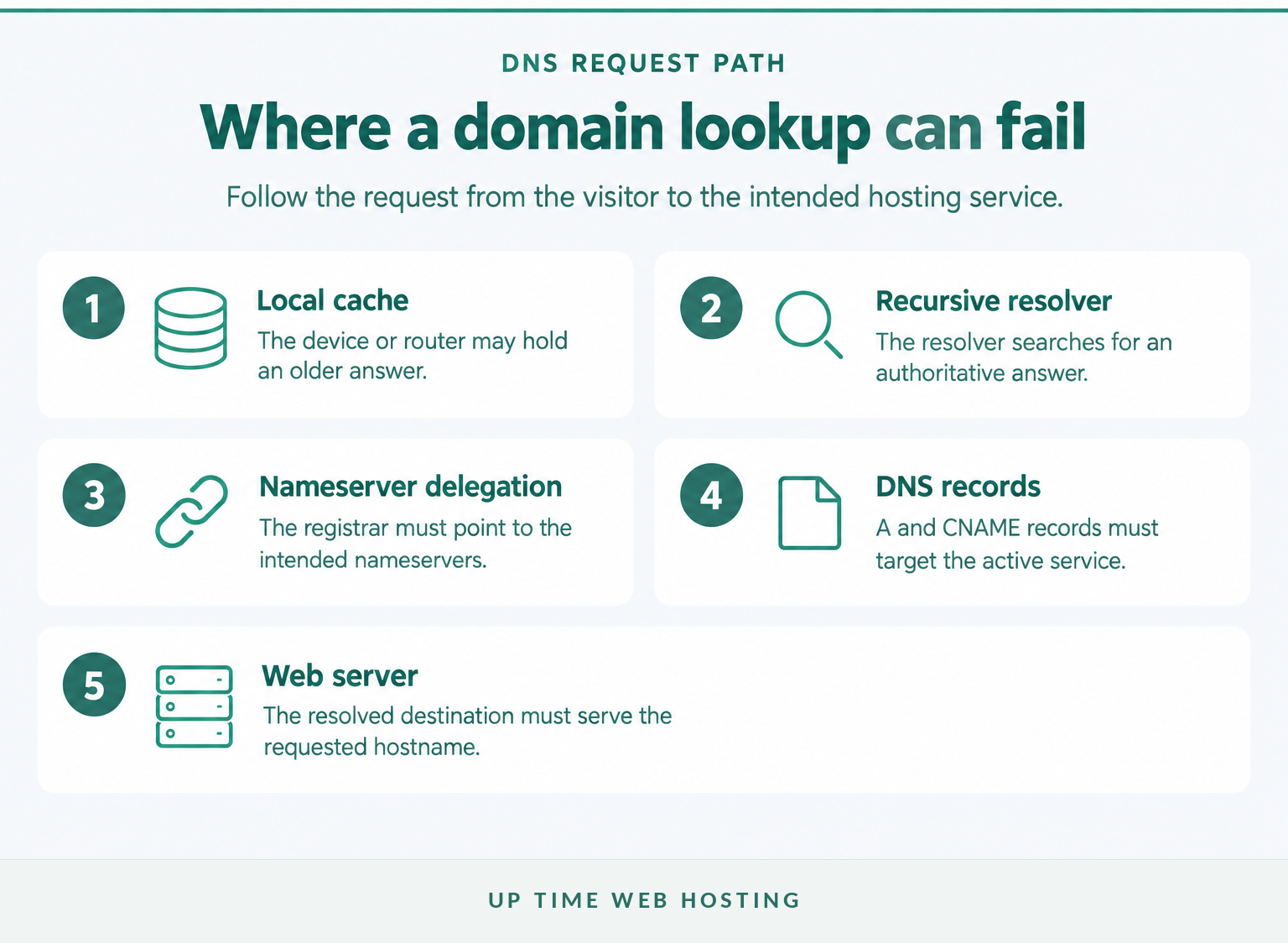
DNS must translate each website hostname into the intended destination before the browser can contact the web server. Check the authoritative nameservers, the root domain, www and any application subdomains separately.
The DNS process includes cached resolver answers, authoritative nameservers and records such as A, CNAME and NS. The original DNS concepts standard defines TTL as the period for which a resolver may cache a record before discarding it. (datatracker.ietf.org)
On Windows, run:
“bash nslookup -type=A example.com nslookup -type=NS example.com nslookup www.example.com “
The first command checks the IPv4 destination, the second checks the delegated nameservers, and the third checks whether www resolves independently or through an alias. The Windows nslookup documentation explains its responses, including timeouts, nonexistent domains, refused queries and server failures. (learn.microsoft.com)
Compare the returned address with the expected hosting address. Then check:
- whether the registrar nameservers match the active DNS provider
- whether the root domain and
wwwboth have valid records - whether a recent migration left an old A or CNAME record behind
- whether the record was edited in the authoritative zone rather than an unused control panel
- whether different resolvers are still returning cached answers during the TTL period
Do not keep changing records while waiting for caches to expire. Multiple edits create several possible answers and make it harder to establish which configuration actually works.
If the records are unclear, follow the detailed DNS troubleshooting guide or send the lookup output to the hosting provider.
DNS must point every relevant hostname to the intended service before application troubleshooting can help.
Is the SSL certificate blocking HTTPS?
A website can answer on the network and still be unusable because the browser refuses its TLS certificate. Check certificate validity, hostname coverage and the trust chain before assuming the application is down.
The X.509 certificate profile defines a certificate's validity period through its notBefore and notAfter fields. The 2023 TLS service identity standard covers matching the requested service identity with the certificate presented by the server. (datatracker.ietf.org)
Inspect the certificate in the browser and confirm:
- the current time falls inside its validity period
- the requested hostname is covered, including the required
wwwor non-wwwversion - the server supplies the required intermediate certificate chain
- the device clock is correct
- the certificate was not issued for an old staging or hosting hostname
On cPanel hosting, the SSL/TLS Status interface can show active, expired, expiring, unsecured and AutoSSL problem states. cPanel's documentation also notes that an AutoSSL problem can occur when a domain does not resolve correctly on the internet. Review the SSL/TLS Status documentation rather than bypassing the browser warning. (docs.cpanel.net)
If renewal failed after a DNS change, repair DNS first and then rerun the certificate process. Disabling HTTPS or asking customers to ignore the warning is not a repair.
A running server is still unavailable to users when TLS identity or validity checks fail.
Are the server and hosting resources still healthy?
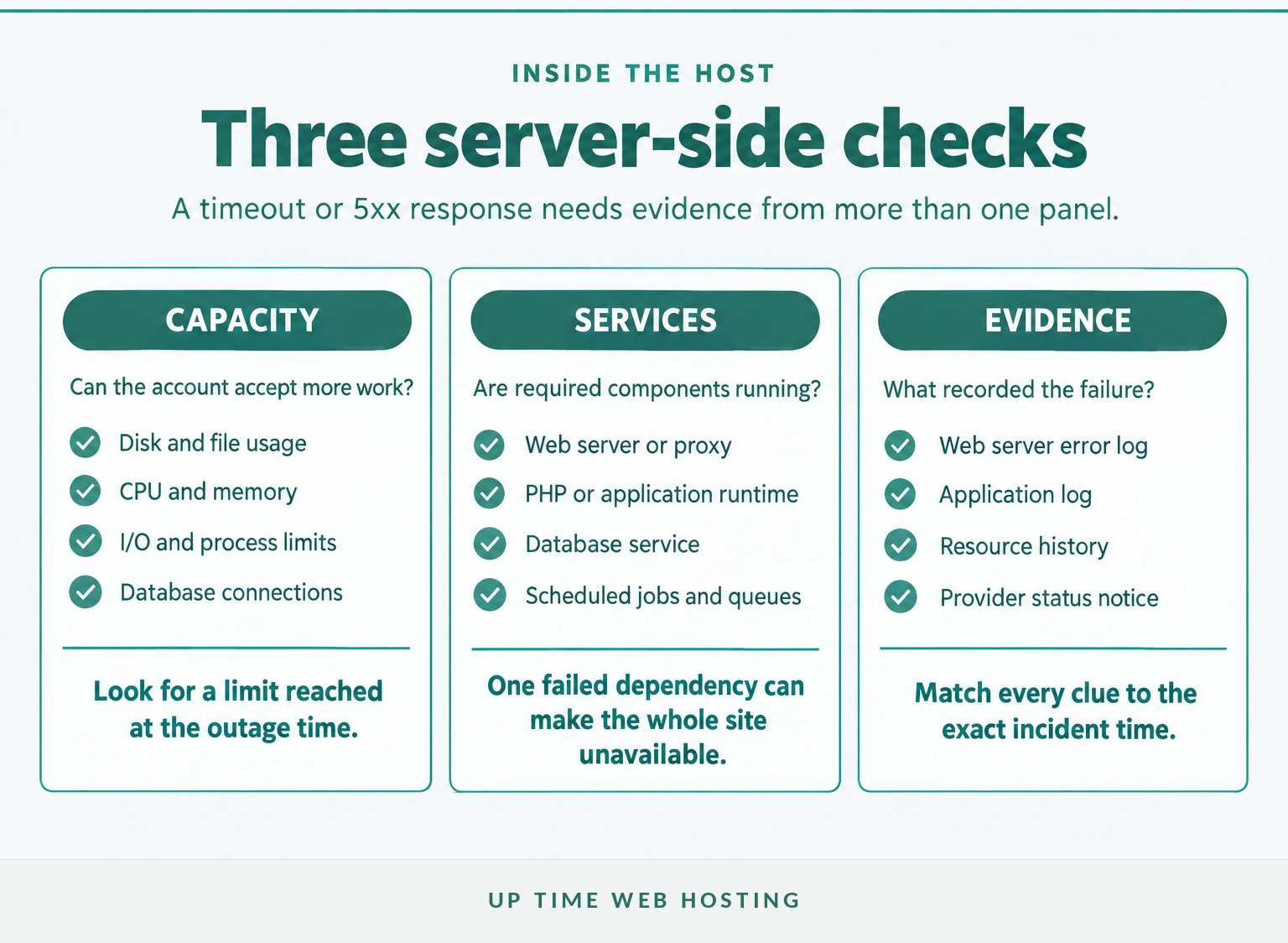
If registration, DNS and TLS pass but the site times out or returns a 5xx response, inspect the hosting account and server evidence. Check logs and resource history before restarting services because a restart can remove the symptom without explaining the cause.
Start with:
- the provider's status and maintenance notices
- account suspension, billing or quota messages
- disk space and file usage
- CPU, memory, I/O and entry-process history where available
- web server, PHP or application runtime health
- database availability and connection errors
- scheduled jobs, backups or log files that may have filled the account
For cPanel accounts, the Errors interface displays up to 300 recent web server log entries, while the main interface may expose CPU, memory, entry-process, disk and file usage depending on the server configuration. cPanel's Errors documentation and cPanel interface documentation describe these sources. (docs.cpanel.net)
A full disk can prevent the application from writing sessions, cache files, uploads, database data or logs. cPanel's Disk Usage documentation warns that an account at its quota cannot save files and may also experience backup failures. (docs.cpanel.net)
On CloudLinux-based hosting, limits can apply to CPU, physical memory, disk I/O, I/O operations and entry processes. The official CloudLinux limits documentation explains that some limits throttle work while others can reject new processing when reached. (docs.cloudlinux.com)
Match the log timestamp to the failed request. A single old warning is less useful than repeated fatal errors, resource faults or database failures recorded at the exact outage time.
For a broader review after recovery, use a structured website health check to identify capacity, security, backup and maintenance weaknesses that may contribute to repeated incidents. (uptimewebhosting.com.au)
When 5xx errors or timeouts appear after DNS and TLS pass, logs and resource history matter more than repeated refreshes.
Register your new domain name at competitive market prices including free domain add-ons like privacy, DNS Hosting, Custom Nameservers and Forwarding.
Always the best price and no nasty renewal price hikes.
Register A Domain Name
Did WordPress, the database or a recent change break the site?

If the server responds but the application fails, compare the outage time with the most recent deployment, update or configuration change. Preserve a backup or snapshot first, then reverse one suspected change at a time and retest the original failure.
Check what changed immediately before the incident:
- a WordPress core, plugin or theme update
- a PHP, .NET or database version change
- a deployment, file upload or edited configuration file
- new environment variables or database credentials
- a cache, redirect, permalink or routing change
- a security plugin, WAF rule or IP block
- a restore, migration or staging-to-production copy
- a scheduled task that ran at the outage time
For WordPress, use Recovery Mode if the administrator email provides a valid recovery link. If the dashboard is unavailable and a plugin is strongly suspected, the official WordPress troubleshooting documentation explains how renaming the plugins folder through the hosting file manager or FTP can deactivate plugins without deleting their settings. (wordpress.org)
Do not deactivate security controls permanently or edit the database blindly. Reactivate components one at a time, record each result and stop when the failure returns.
An “Error establishing a database connection” message needs database-specific checks: service availability, credentials, hostname, storage, connection limits and recent configuration changes. A generic server restart may temporarily hide the fault without correcting it.
For an ASP.NET application, compare the latest deployment with the last working version, then inspect application, web server and database logs around the same timestamp. Restore the smallest known-good component rather than replacing the whole environment without evidence.
The safest rollback changes one variable at a time and preserves a route back.
Could a firewall, CDN or network rule be blocking access?
Selective failures often point to a security or network rule rather than a dead server. If the site works from one connection but returns a 403, reset or timeout from another, compare the affected IP addresses, regions and request logs.
Check:
- whether the affected user is connected through a VPN or proxy
- whether a firewall or WAF blocked the public IP address
- whether rate limiting was triggered by repeated requests
- whether a country, network or bot rule is broader than intended
- whether proxy DNS points to the correct origin server
- whether the CDN or reverse proxy is serving a cached error
- whether the origin allows requests from the proxy service
Review the security event before whitelisting an address. Never disable the firewall or WAF globally just to make one test pass, especially if the log suggests malicious traffic.
The article on secure web hosting controls explains how certificates, firewalls, malware protection, backups and account controls fit together after the immediate outage is contained. (uptimewebhosting.com.au)
Selective failures usually need rule and log review, not a blanket shutdown of security controls.
Experience Microsoft 365 Business Standard for free for 30 days.
Up to 25 users with full access to email, OneDrive and Teams. Includes full versions of desktop apps of Outlook, Word, Excel, PowerPoint and more.
Try Microsoft 365
What should you send to hosting support?
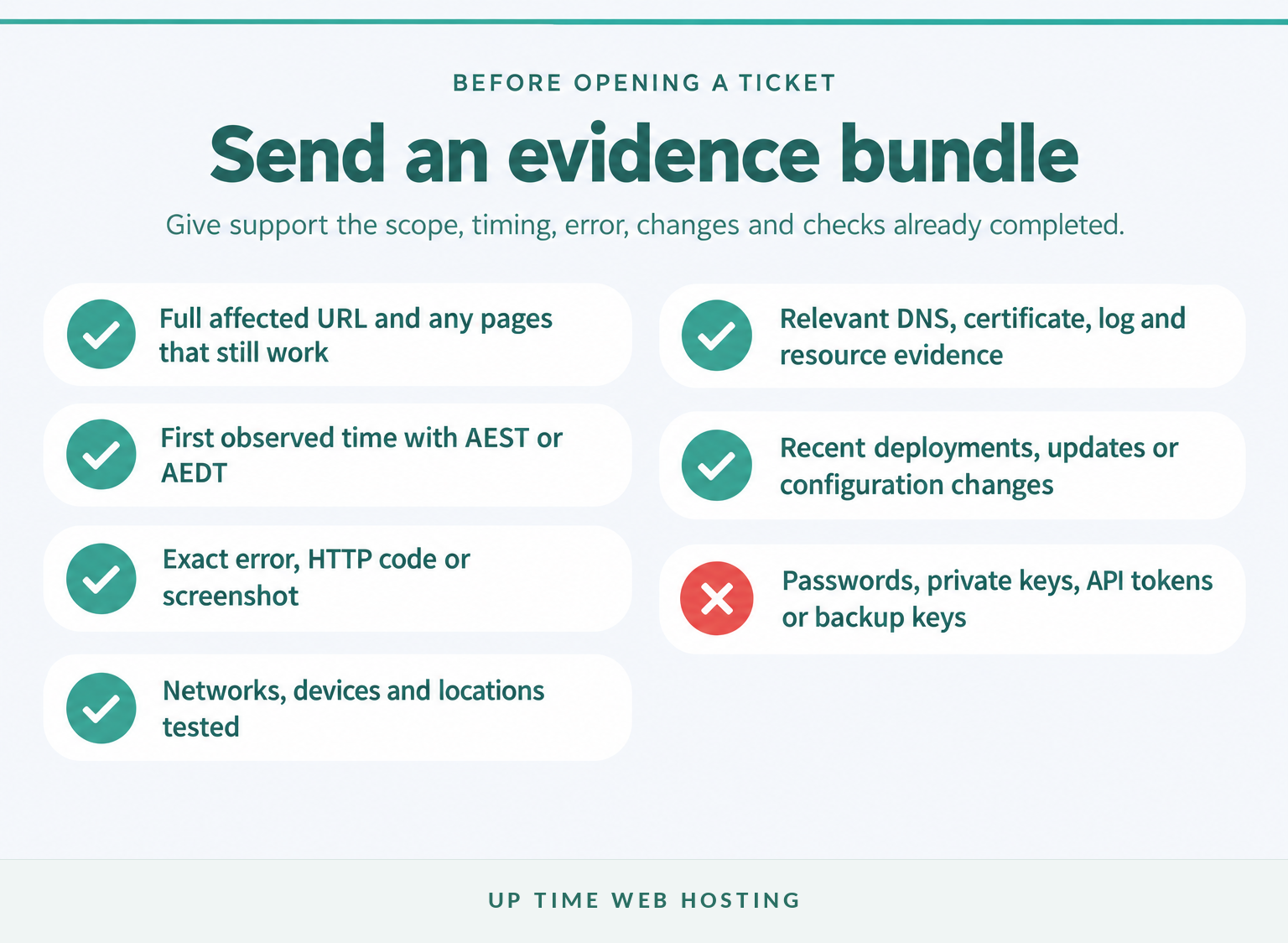
Send a compact evidence bundle that identifies the affected service, time, scope and failed layer. “The website is down” forces support to repeat checks that could already have been completed.
Include:
- the full affected URL and whether other pages work
- the first observed time with the time zone, such as AEST or AEDT
- the exact browser message, HTTP status or screenshot
- the devices, networks and locations tested
- domain, nameserver and DNS lookup results
- certificate details if HTTPS fails
- relevant log entries around the outage time
- resource-limit or disk-usage evidence
- recent changes, deployments or updates
- every test already completed and its result
- the business impact, such as failed orders or unavailable email
A useful ticket can follow this format:
“text Affected URL: First seen and time zone: Current error: Who is affected: Recent changes: Checks completed: Relevant log entries: Business impact: “
Do not send passwords, API tokens, private keys, backup encryption keys or full database exports in an ordinary ticket. Use the provider's approved secure access process when credentials are genuinely required.
A precise evidence bundle turns a vague outage report into a diagnosable incident.
How do you stop the same outage happening again?
Convert the incident evidence into monitoring, capacity alerts, tested recovery steps and safer change procedures. The goal is not only fewer failures, but a shorter and more predictable recovery when a failure does occur.
After recovery:
- monitor the homepage and at least one critical customer action from outside the server
- alert on domain, DNS and certificate changes or approaching renewal dates
- review resource headroom before campaigns, launches and major updates
- stage risky changes and document a rollback path
- keep off-site backups and perform restore tests
- assign an incident owner and backup contact
- retain logs long enough to compare recurring events
Basic uptime does not prove that a customer journey works. The guide to website performance monitoring explains how availability, page delivery and customer actions require different tests. (uptimewebhosting.com.au)
For the broader reliability plan, follow the controls in preventing website downtime, including capacity planning, controlled changes, external monitoring and tested backups. (uptimewebhosting.com.au)
Monitoring, capacity headroom, tested backups and controlled changes reduce both outage frequency and recovery time.
What else do website owners ask about downtime?
A status checker is a useful first test, but it cannot identify every cause or prove that the entire website works. These answers show where common availability questions fit into the diagnostic process.
How do I check why my website is down today?
To check why a website is down, test the exact URL from mobile data and another location, capture the exact error, then check domain status, DNS, certificate, provider status, hosting resources and logs. Review recent changes last. The first layer that fails determines whether to fix locally, restore the site or contact the host.
How can I check website status online for free?
A free status checker can confirm whether one URL responds from an external location, but it cannot prove the whole website works. Also test a critical page or form, compare a second network and read the HTTP status. A green homepage can coexist with a broken checkout, login, database or regional connection.
How can I check website downtime history?
Downtime history requires monitoring that was already running before the incident. Check monitoring records, hosting status notices, server logs, firewall events, analytics gaps and transaction logs. A checker run after recovery cannot reconstruct every earlier interruption, and a server log may miss failures that occurred before a request reached the server.
How do I check if a website is down from multiple locations?
Use an availability monitor or status checker with several probe locations, then compare results by region and network. If one location fails while others pass, investigate routing, DNS resolver differences, regional firewall rules or proxy problems. Confirm that every test uses the same URL and protocol so the results are comparable.
Can DNS changes make a website unavailable?
Yes. A nameserver change, wrong A or CNAME record, missing record or cached old answer can make a healthy server appear unavailable. Check authoritative DNS, the expected hosting address and the record TTL before editing the application. Avoid repeated DNS changes while caches expire because multiple moving targets make diagnosis harder.
A status checker starts the diagnosis, but the failed layer determines the fix.
What should you do next?
Work through the layers once, preserve the evidence and stop when the first failure is confirmed. If outages keep returning, contact Up Time Web Hosting about Managed WordPress Maintenance or cPanel Website Hosting and include the evidence bundle above so technical support can start at the failed layer.
Follow the evidence to the first failed layer, then fix or escalate that layer before changing anything else.