You've bought the domain, you've picked WordPress, and you're now staring at a cPanel login wondering what half the icons do. The install button is easy to find. The harder questions come a week later, when a plugin update breaks the layout, email from your contact form lands in spam, or you can't tell whether last night's backup worked.
That's the point most guides skip. WordPress hosting with cPanel isn't really about the one-click installer. It's an operations console where domains, databases, email, SSL certificates, backups and security settings all live. Learn where those controls are, and you'll manage the site calmly. Ignore them, and you'll be fixing avoidable problems under pressure.
Table of Contents
- Why WordPress on cPanel Suits Australian Sites
- What to Check Before You Buy a cPanel Plan
- How to Install WordPress Through cPanel
- How to Lock Down cPanel and WordPress
- Speed Tweaks That Hold Up Under Real Traffic
- Fixing the Problems You Are Most Likely to Hit
- Confirm Your Setup Before You Go Live

Performance you can feel, backed by clients who depend on it. Read how our support and uptime create long‑term customer success.Power Your Business with Better Hosting
Why WordPress on cPanel Suits Australian Sites
WordPress already covers most identifiable Australian business sites. The hosting choice is what happens after the theme is live: who points the domain, who restores the database, and who notices when mail from the contact form never arrives.
The Australian picture
An Australian business-site analysis citing W3Techs reported that WordPress accounted for 55.7% of .au websites where the platform could be identified, compared with 14.7% for Shopify and 7.6% for Squarespace.
Read that sample for what it is. It covers sites where a platform could be named, not every .au domain, and it does not say how many of those WordPress installs run on cPanel. Scale is still the useful part. Plugins, themes, developers and documentation are easy to find locally, so a site needs the same administration steps every time, not a one-off server design.
What you actually administer
Australian write-ups often stop once WordPress is installed. The controls that decide whether you can recover the site sit in cPanel.
A Brisbane café with one brochure site is the simple case. The domain, the SSL certificate (AutoSSL) and the mailbox for the contact form all live on that account. Nobody logs in for months. The failure mode is a plugin left unpatched, or an MX record that still sends while the mail lands nowhere.
A Perth electrician with a booking page keeps the site, mail and backups on one login, which holds the cost down. The trade-off is shared CPU and memory. A heavy booking plugin, or a noisy account on the same server, slows the diary even when the WordPress admin looks healthy. Per-account limits are what stop that spill. Restore from the cPanel backup and the database in phpMyAdmin. A WordPress export will not put a broken table back.
A freelance developer with ten client sites gets the same file manager, MySQL users and FTP layout on every job. That familiarity is the point. The risk is one password. Without a separate FTP user and database user per client, a single compromised login reaches all ten sites. I would not stack client work on one cPanel login unless those credentials are split and a restore has been tested on a copy.
cPanel suits an account when you want that control without running the Linux server yourself. It suits you less when nobody has time to apply updates and confirm last night's backup restores.
Count the sites, name who edits them each week, and price an hour of missed enquiries. One brochure site can sit on a basic account. A booking page that loses jobs, or ten client sites on one login, needs isolation and a restore path more than it needs the cheapest plan.
What to Check Before You Buy a cPanel Plan
Most plan pages lead with storage and price. Neither tells you how the site behaves when something breaks. Score a plan against the checks below instead, and treat any blank answer as a warning sign. The WordPress hosting requirements checklist covers the baseline specs, so use this table for the operational side.
Pre-purchase checks for cPanel WordPress hosting
| Check | Why it matters | What good looks like |
|---|---|---|
| Server location | Latency and where your data sits | Sydney, Melbourne, Brisbane or Perth data centre near your audience |
| PHP versions | Plugin and theme compatibility | Current PHP 8.x selectable per site in MultiPHP Manager |
| Web server and cache | Speed under traffic | LiteSpeed or equivalent server-side cache |
| Backups | Recovery after deletion or compromise | Off-site, encrypted, nightly copies restorable from cPanel |
| Resource isolation | Protection from noisy neighbours | CloudLinux or equivalent per-account limits |
| Installers | Speed of setup | Softaculous or WP Toolkit included |
| Support | Time to recover when something breaks | Phone, ticket or call-back with stated response times |
Server location comes first because it affects every page load and determines where customer data physically sits. Pick the Australian city closest to your main audience, then confirm where backups are stored, since a Sydney server with offshore backups is a different proposition.
PHP control is next. WordPress, themes and plugins drop support for old PHP versions regularly, and an outdated version is both a speed and security problem. You want to switch versions per site in MultiPHP Manager, not raise a ticket and wait.
Backups deserve the hardest questions. The Australian Cyber Security Centre small business handbook recommends checking whether backups are performed, how often they run, where they are stored, and whether the provider offers off-site storage, and it also advises checking the hosting provider's location and applicable security and privacy standards. I'd add one more question. Can you restore a copy yourself from cPanel, or must you wait for support?
Matching the plan to the site
Say a Melbourne bakery gets a few hundred visitors a month. It needs reliable nightly backups and working email far more than raw CPU, because its realistic disaster is an owner deleting a page, not a traffic spike. An agency running twelve client sites needs the opposite emphasis, per-account isolation and per-site PHP control, so one client's runaway plugin doesn't slow the other eleven.
Score each row for every host you're considering. If a provider can't answer the backup questions clearly, rule it out, whatever the discount.
Host your website with our 5-star rated, cPanel website hosting plans.
Super fast servers, with security included and hosted in your choice of Australian Data Center.
View cPanel Plans
How to Install WordPress Through cPanel
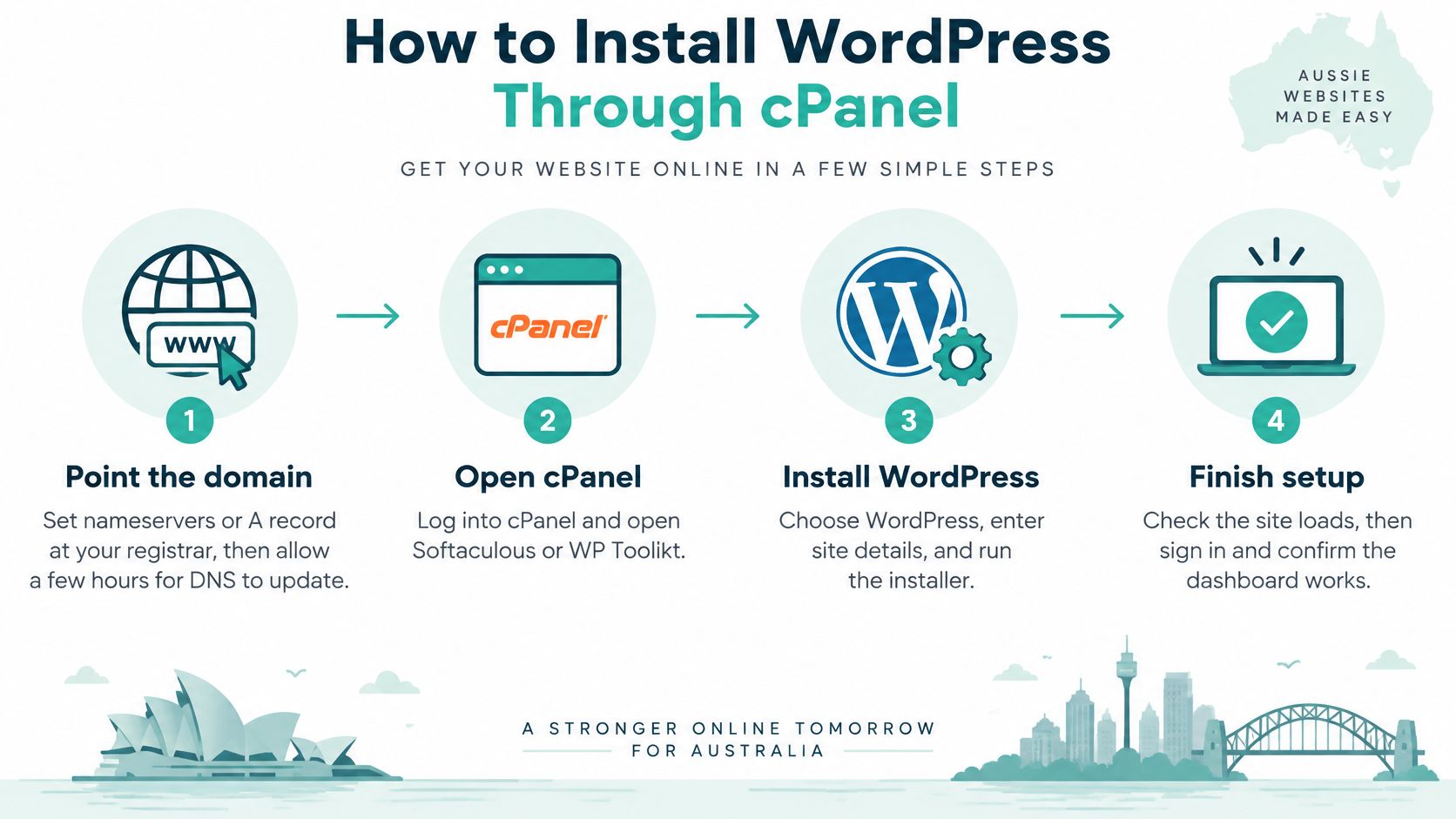
The install itself takes minutes. Most of the failures people hit come from skipping the steps before and after it, so work through this sequence in order. If your account offers both installers, the WP Toolkit versus Softaculous comparison explains which suits your workflow.
The installer route
- Point the domain first. At your registrar, set the nameservers or the main record to your hosting account, then allow a few hours for the change to spread. Installing before the domain resolves creates a site built on a temporary address, and you'll be fixing URLs later.
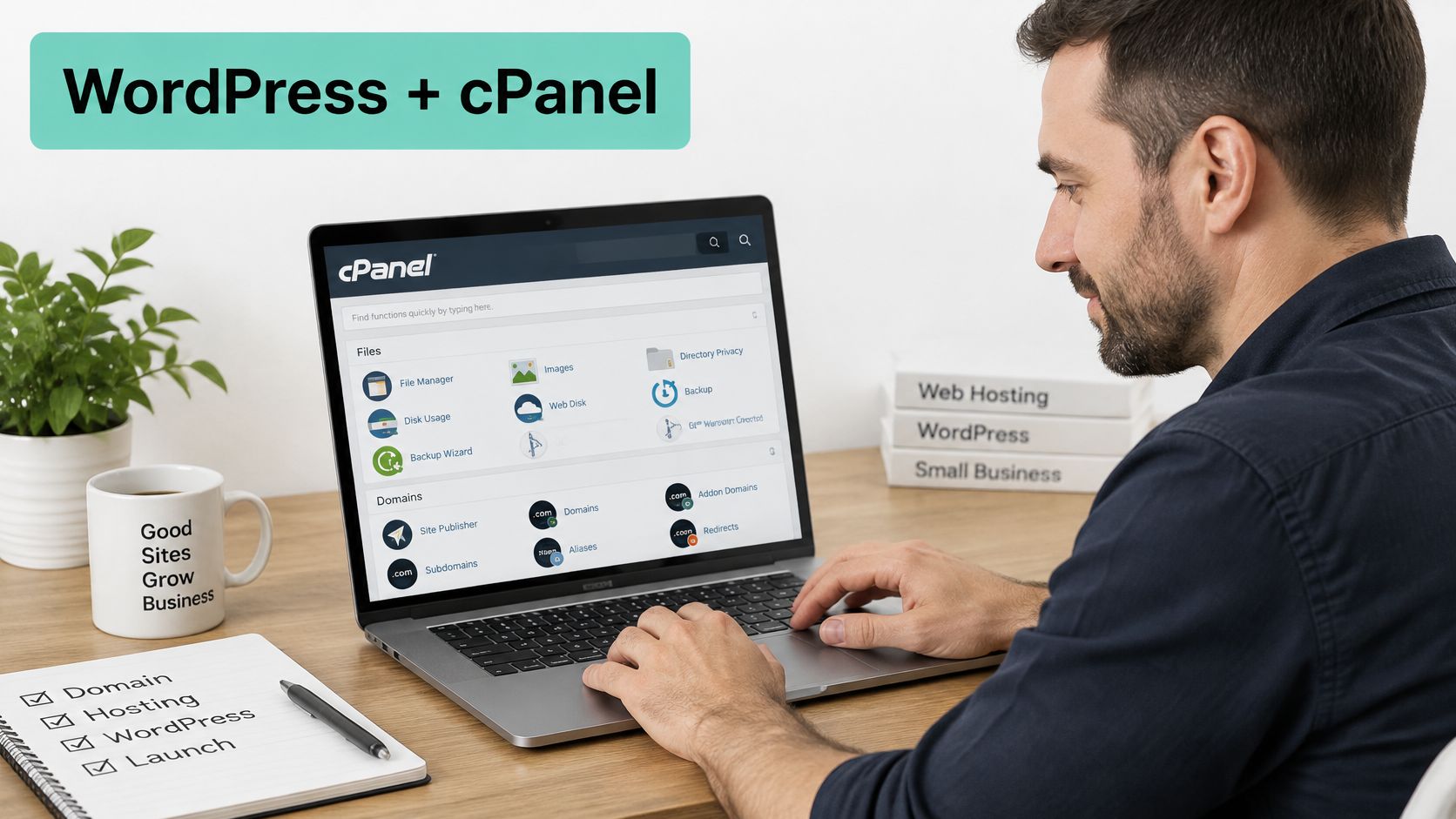
- Log into cPanel and open the installer. Find Softaculous or WP Toolkit and choose WordPress. Both create the database and configuration file for you, which removes the most common manual errors.
- Set the install details carefully. Leave the directory field blank so WordPress installs on the root domain rather than in a subfolder. Use an admin username that isn't "admin", generate a strong password, and set an admin email address someone monitors, because password resets and security alerts go there.
- Let the installer create the database. It'll make a MySQL database and user with the right privileges. If you'd rather do it yourself, open MySQL Databases, create a database and a user with unique names, then assign that user all privileges on that database only.
- Set the PHP version before you log in. Open MultiPHP Manager and put the site on a current PHP 8.x version. Doing this now means your theme and plugins install against the version they'll run on, not an account default that's two releases old.
The manual fallback
Sometimes you need to install by hand, for a migration or a custom build. Download WordPress from wordpress.org, upload the archive to public_html with File Manager and extract it there. Copy wp-config-sample.php to wp-config.php, enter your database name, user and password, then visit the domain in your browser to run the setup screens.
Don't edit wp-config.php in a desktop word processor. Use the File Manager editor or a plain-text editor, because hidden formatting characters will break the file silently.
Verifying the install
Consider a practical example. A Brisbane florist installs on a test subdomain first, loads her theme, submits the enquiry form and checks the order emails arrive. Only then does she point the main domain at the site. That order costs her an extra ten minutes and saves her launching a broken site to real customers.
Finish with these checks before you call it done:
- Admin login works: you can sign in at wp-admin with the new credentials.
- Front page loads cleanly: no error messages, no default installer screens.
- PHP version is confirmed: Site Health shows the version you selected.
- Site Health is clear: open Tools, then Site Health, and resolve anything marked critical before adding plugins.
If all four pass, you have a working base. Everything from here is configuration, not repair.
How to Lock Down cPanel and WordPress
A WordPress site can have SSL and malware scanning enabled yet still be exposed through a weak login, an abandoned plugin or a backup that cannot be restored. Treat cPanel as an operations console: set access rules, check updates and verify recovery from the controls available in your account. The WordPress security knowledge base guide covers the main protections.
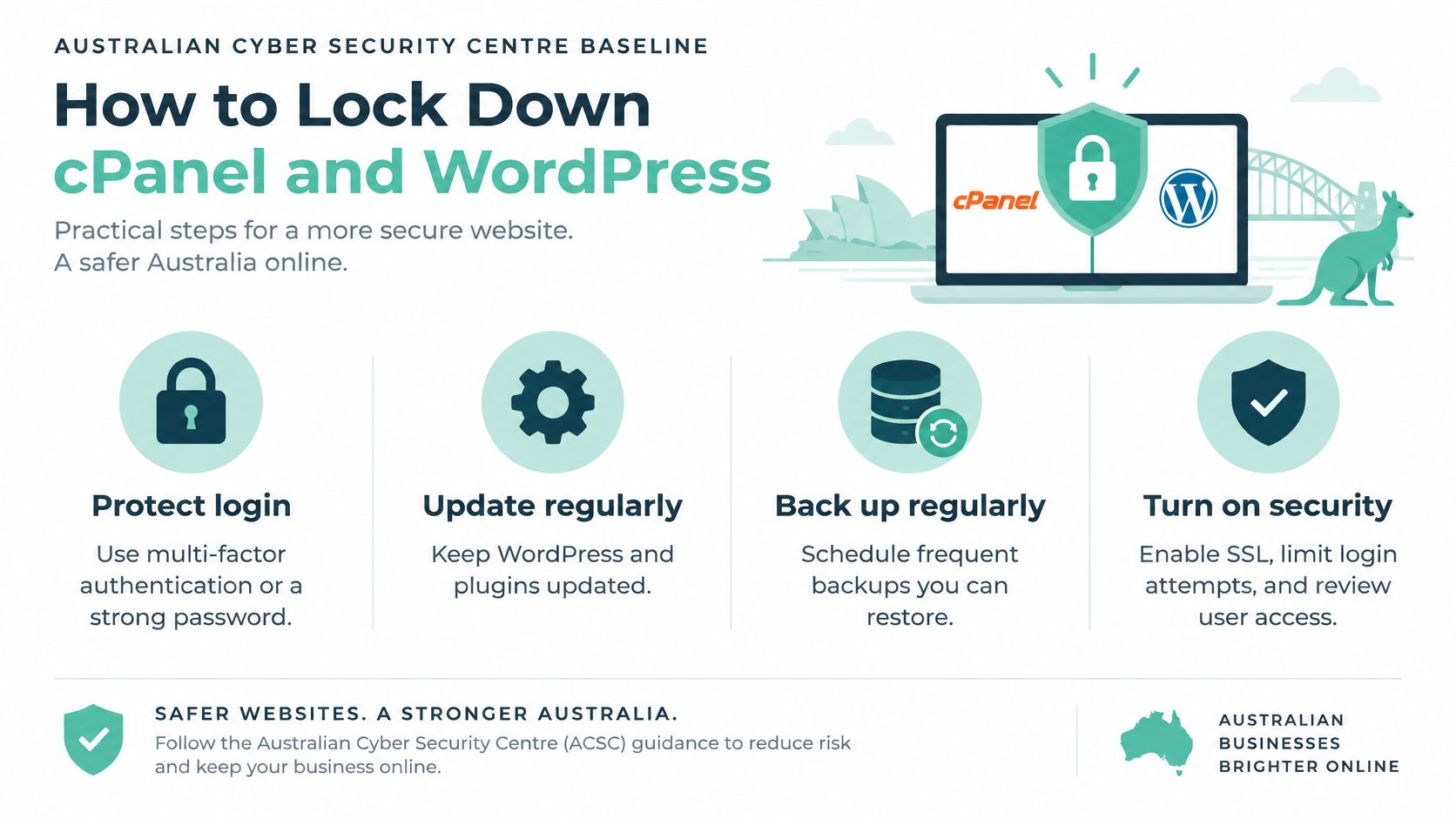
The Australian Cyber Security Centre guidance for small business recommends protecting website logins with multi-factor authentication or a strong password, keeping the content-management system and plugins updated, and backing up the website regularly. Apply those controls in both cPanel and WordPress, then confirm they work.
Logins and access
Enable account-level multi-factor authentication if your cPanel provides it, and use a unique password for cPanel, WordPress, FTP and email. Reusing a password means one exposed account can put the others at risk.
Give developers and business owners separate accounts. When a contractor's work ends, remove their access without changing the owner's login. In WordPress, give staff who publish posts the permissions they need, not administrator rights.
Updates and clean-up
Update WordPress core, themes and plugins on a staging copy first. Check key pages there, then apply the changes to the live site. Outdated plugins are a common security risk, so include them in routine maintenance rather than relying on occasional clean-ups.
Remove unused plugins and themes instead of leaving them deactivated. Close old FTP and email accounts, and remove outdated PHP versions where applicable. An abandoned staging folder can also remain exposed after a redesign, especially if it still contains an old WordPress installation. Check subdomains and staging directories as well as the live site.
SSL, email and backups
Install a certificate through AutoSSL or Let's Encrypt, then configure HTTPS redirects so pages do not load over plain HTTP. In cPanel's email authentication settings, configure SPF, DKIM and DMARC records. These records help protect your domain against spoofing and support delivery of invoices and form notifications.
For backups, check the schedule, confirm copies are stored off the server, and test a restore. Restore a copy to a subdomain regularly so you know the files and database can bring the site back. A backup you have not restored does not prove recovery will work.
Weekly ten-minute check: review login alerts, apply pending updates, confirm the latest backup succeeded, and send yourself a test email from the site.
A brief routine will not prevent every attack, but it can catch neglected accounts, updates and backup failures before they become harder to resolve.
Speed Tweaks That Hold Up Under Real Traffic
Distance is the first speed decision you'll make, and you make it when you choose the data centre. An Australian WordPress hosting performance guide measured a Sydney-to-Sydney connection at approximately 0.03 seconds, compared with 0.16 seconds to the US West Coast, 0.20 seconds to Singapore, and 0.32 seconds to London.
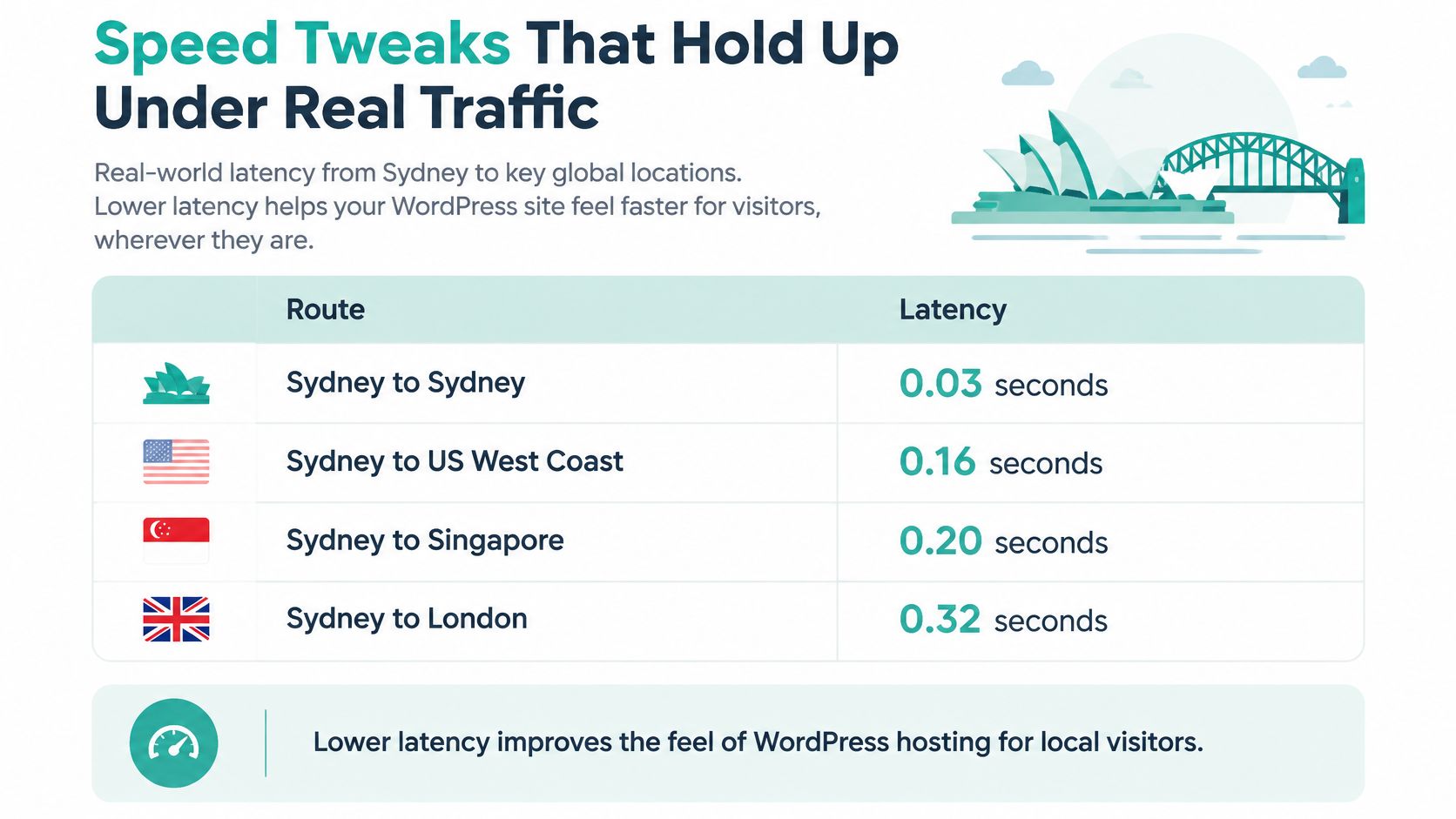
Connection time from Sydney test point
| Destination | Approximate connection time |
|---|---|
| Sydney to Sydney | 0.03 seconds |
| US West Coast | 0.16 seconds |
| Singapore | 0.20 seconds |
| London | 0.32 seconds |
Every uncached page, admin screen and checkout step pays that overhead. Local placement doesn't fix a heavy theme, but it removes a penalty that no plugin can undo.
The setup workflow
Start with the server settings in cPanel. Confirm OPcache is enabled for PHP, check you're on a current MySQL or MariaDB release, and make sure your account has sensible per-account resource limits so a traffic spike degrades gracefully instead of erroring. If your host runs LiteSpeed, work through the LiteSpeed Cache settings for cPanel rather than accepting plugin defaults.
Then pick one page cache and one object cache. Two caching plugins doing the same job fight each other, serve stale pages and make troubleshooting miserable. Compress and resize images before upload, because a gallery of full-size phone photos will defeat any cache. Clean the database of old post revisions and expired transients while you're there.
Testing like a visitor, not a brochure
Set your expectations against a realistic baseline. The same Australian guide reported real-user mobile data where only 53.9% of WordPress sites passed Core Web Vitals and only 25.7% achieved a good server-response-time classification. Treat that as context, not a promise about your site.
Test the pages that earn money, not just the homepage:
- Uncached pages: clear the cache and load key pages cold, the way a first-time visitor does.
- Logged-in requests: check the admin area and any member pages, which bypass page cache entirely.
- Checkout and forms: run a full test order or enquiry and time each step.
- Image-heavy templates: test your heaviest gallery or product page on a mobile connection.
Combine a Sydney-based synthetic test with real-user Core Web Vitals in Search Console. I would not sign off on a site based on a single fast homepage result from a desktop test overseas.
The pitfalls are predictable, default PHP settings left untouched, overlapping cache plugins, unoptimised images, and measuring only from the server's own region. Your acceptance target should be a stable origin response under load, no 5xx errors, and passing Core Web Vitals on representative Australian mobile traffic. Anything less is a screenshot, not evidence.
Register your new domain name at competitive market prices including free domain add-ons like privacy, DNS Hosting, Custom Nameservers and Forwarding.
Always the best price and no nasty renewal price hikes.
Register A Domain Name
Fixing the Problems You Are Most Likely to Hit
When a cPanel WordPress site breaks, the symptom usually points straight at the cause. Work this table from the top, change one thing at a time, and note what you changed so you can undo it.
Common cPanel WordPress symptoms, causes and fixes
| Symptom | Likely cause | Fix |
|---|---|---|
| White screen after install | PHP memory limit or wrong PHP version | Set current PHP 8.x in MultiPHP Manager and raise the memory limit in MultiPHP INI Editor |
| Error establishing a database connection | Wrong database name, user or password in wp-config.php | Check details in MySQL Databases and update wp-config.php |
| Mixed content warnings | HTTP links left after SSL was added | Set site address to https and run a search-and-replace |
| Admin login loop | Cookie or permalink problems | Clear cache, resave permalinks, then check cookies in the browser |
| Slow admin area | Too many plugins or overlapping caches | Disable plugins one at a time and keep one cache layer |
| Email not sending | Missing SPF or DKIM records | Add the records through cPanel email authentication settings |
The first two rows account for most failed installs and migrations, and both are cPanel fixes that take minutes. If the database error appears after a move, the database connection error walkthrough steps through the credential check in detail.
Take a practical example. A Perth café moves its domain to a new account and immediately sees the database connection error. The database was copied correctly, but the password in wp-config.php still held the old account's value. Updating that one line brought the site back. No reinstall needed.
Mixed content and login loops sit in the middle. They're annoying rather than dangerous, and they usually follow an SSL change or a caching change, so retrace your last edit first. A slow admin area is a diagnosis job. Disable plugins one at a time on a staging copy until the slowness disappears, then decide whether that plugin earns its keep.
If your fix requires changing more than two things at once, stop. You're no longer troubleshooting, you're guessing.
Know when to restore instead. If the site is losing sales, if a restore test fails, or if you've spent longer diagnosing than a restore would take, roll back to the last good backup and escalate to support with a clear list of what changed and when. Restoring a known-good copy isn't giving up. It's the fastest route back to trading.
Confirm Your Setup Before You Go Live
Run this checklist in one sitting, on the live domain, before you tell anyone the site is ready. It takes under an hour and catches the problems customers would otherwise find for you.
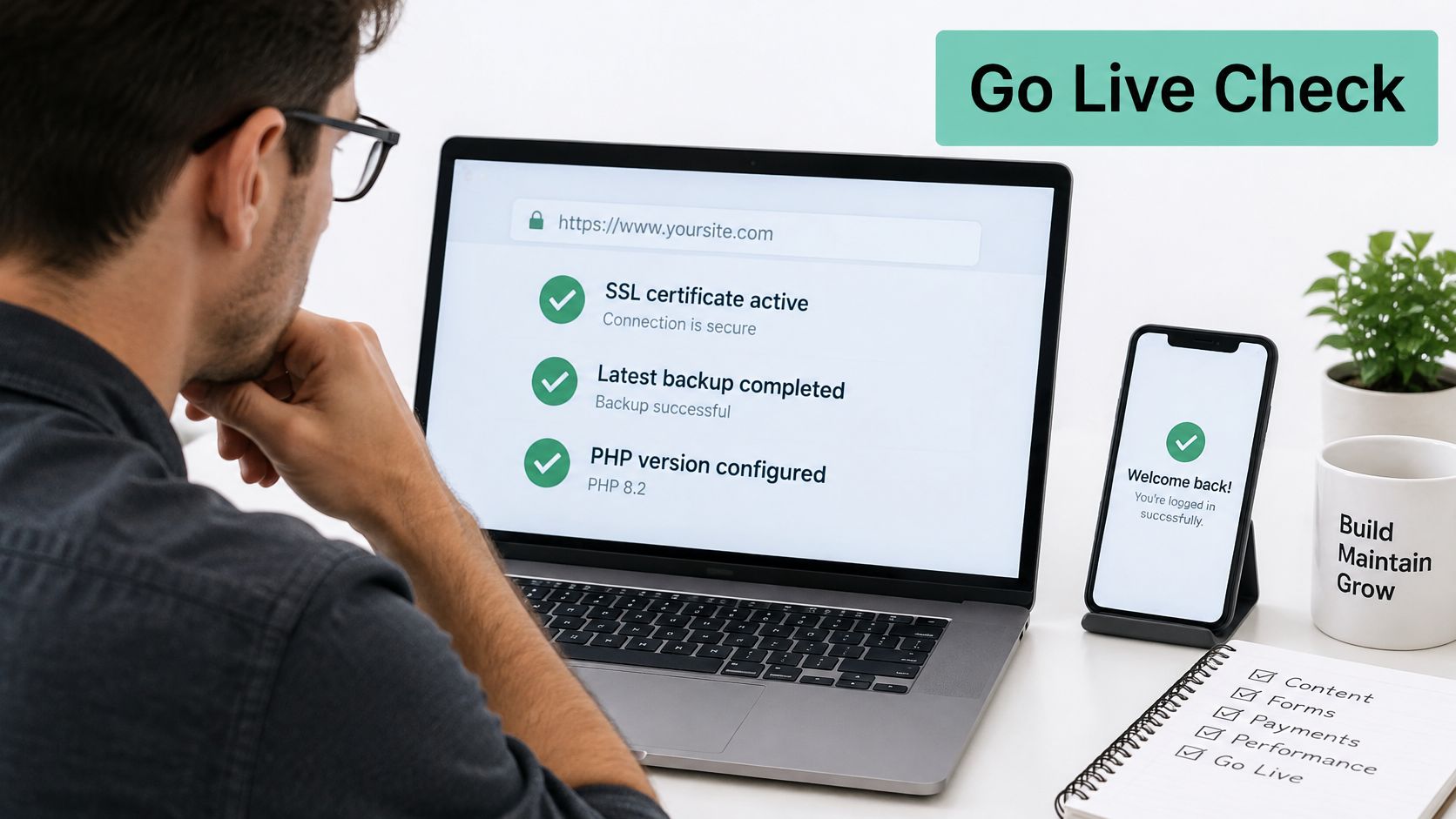
- Login with MFA works: sign into cPanel and WordPress from a fresh browser session.
- SSL is valid everywhere: every page shows the padlock with no mixed content warnings.
- PHP version is confirmed: Site Health matches what you set in MultiPHP Manager.
- Backups show a recent success: open the backup tool and check the last run completed.
- One restore test is done: a copy restored to a subdomain loads and logs in.
- Email sends and authenticates: a test message arrives and passes SPF and DKIM checks.
- DNS points to the right account: the live domain resolves to your hosting, not the old server.
The restore test is the item people skip, and it is the only one that proves your safety net exists. An advertised backup feature tells you copies are scheduled. A completed restore tells you the files and database come back.
If you're starting from nothing, this route is quick. With UpTime Web Hosting, signup and setup for cPanel hosting takes just a few minutes, the account includes the full version of Softaculous, and you get daily backups via cPanel from day one. Local phone support on a 1300 number is available for Australian customers if a restore or migration needs a person rather than a help article.
So pick the plan that fits your site count, install WordPress this week, and book the first restore test for the same month. That last step is what turns a finished install into a site you can rely on.
Ready to put this into practice with Australian servers and local support behind you? Visit UpTime Web Hosting to choose a cPanel WordPress plan, install through Softaculous in minutes, and run your first backup restore test this month.