
In short
If you can send email but not receive it, outgoing mail is working while the incoming path is failing. Check webmail first, then mailbox storage and receive restrictions, MX records and email routing, forwarding and filters, recent DNS changes, and finally the IMAP or POP settings on the affected device.
Key takeaways
- A message that appears in webmail but not in an email app points to a device or synchronisation problem, not an MX record problem.
- A full cPanel mailbox or an account suspended from receiving can reject incoming messages while outgoing mail continues to work.
- Incorrect MX records or email routing can direct incoming mail to the wrong server without stopping authenticated outgoing mail.
- Filters and forwarders can move, redirect or discard incoming messages before they reach the inbox.
- A domain's SPF record authorises sending hosts, so it is not the first setting to change when every incoming message is missing.
Table of contents
- What should I check first?
- Does the message appear in webmail?
- Is the mailbox full or blocked from receiving?
- Why do MX records and email routing stop incoming mail?
- Are forwarding rules or filters hiding messages?
- Why does only one device miss new mail?
- Why are only some messages missing?
- What should I collect before contacting support?
- What are the common questions about receiving email?
- How can the same failure be prevented?
Do not change every setting at once. Use one new test message with a unique subject, then follow the evidence from the sender to the mailbox and finally to the device.
What should I check first?
Start with a controlled test from an address outside the affected domain. Check the same mailbox in browser-based webmail before changing DNS records or deleting the account from a device.
What does the four-step receiving test look like?
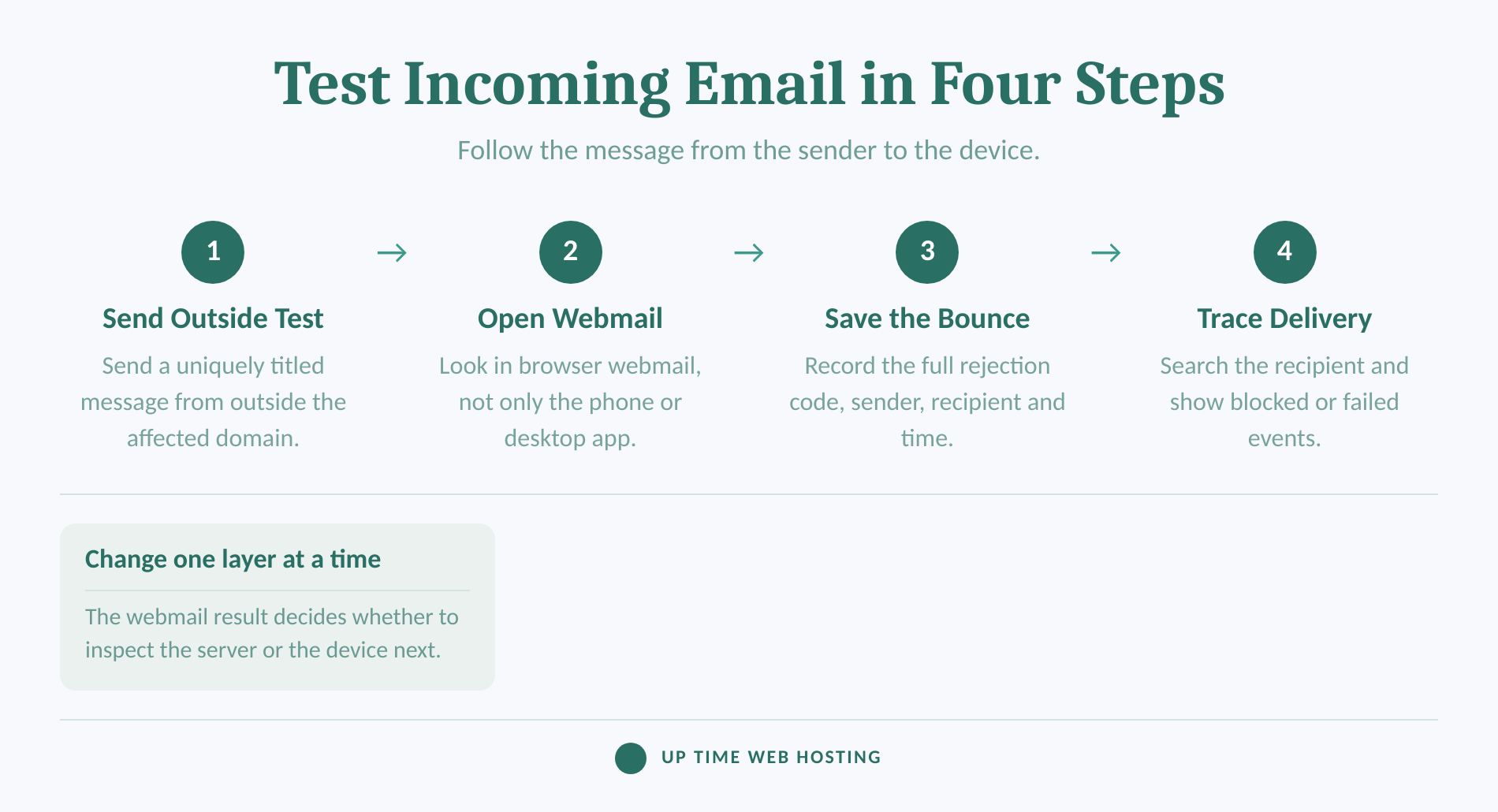
- Send an outside test. Copy the recipient address rather than typing it from memory, use a unique subject, and record the exact time and timezone.
- Open webmail. Look in the inbox, spam folder and any recently used folders through the hosting account's webmail interface.
- Read the sender's response. Save the full bounce or rejection message, including its code. A short paraphrase can hide the useful part.
- Trace the delivery. In cPanel, open Email > Track Delivery, search for the recipient, and select
Show Blocked & Failedif the first report is unclear.
The cPanel Track Delivery documentation, updated on 14 August 2026, says the report can trace an email's route and identify delivery problems. A missing record also matters because it suggests the message may not have reached that server. (docs.cpanel.net)
The webmail result and the sender's bounce divide the problem faster than changing settings at random.

Performance you can feel, backed by clients who depend on it. Read how our support and uptime create long‑term customer success.Power Your Business with Better Hosting
Does the message appear in webmail?
If the test message appears in webmail, the hosting server accepted and stored it, so the remaining fault is usually in the app, device or folder view. If the message is absent from webmail, continue with the mailbox, domain and server checks.
How do the results split the problem?
Use these four outcomes:
- The message appears in webmail and the app: receiving currently works, so repeat the test from a second sender if the problem is intermittent.
- The message appears only in webmail: check the device's incoming hostname, password, protocol, port and sync status.
- The message is absent and the sender gets a bounce: use the rejection code to check quota, restrictions, routing, filtering or a message-specific policy.
- The message is absent and there is no bounce: check Track Delivery, the domain's current MX answer and the hosting provider's service status.
Do not edit MX records because one phone is missing mail that already exists in webmail. DNS decides where the sending server delivers the message; the email app decides how that stored message is retrieved and displayed.
Webmail is the dividing line between an incoming delivery fault and a device retrieval fault.
Is the mailbox full or blocked from receiving?
Check storage and receiving permission before touching DNS. cPanel exposes separate controls for storage, incoming mail, outgoing mail and login access, which allows a one-way failure to occur.
The cPanel Manage Email Accounts documentation, updated on 17 August 2026, states that a mailbox with a full quota cannot receive mail. The same interface can suspend Receiving Incoming Mail while leaving outgoing mail allowed. (docs.cpanel.net)
In cPanel:
- Open Email Accounts and select Manage beside the affected address.
- Compare current storage use with allocated storage.
- Confirm Receiving Incoming Mail is set to Allow.
- Use Free up Email Storage to find old or large messages, or ask the hosting provider whether the mailbox allocation can be changed.
If every mailbox on the hosting account stopped receiving together, ask the provider to check account-level and server-level storage as well. Send a fresh test after correcting the quota or restriction because an earlier rejected message may not appear automatically.
A mailbox must have both free storage and permission to receive before any device setting can help.
Host your website with our 5-star rated, cPanel website hosting plans.
Super fast servers, with security included and hosted in your choice of Australian Data Center.
View cPanel Plans
Why do MX records and email routing stop incoming mail?
MX records tell sending systems which mail server handles a domain, while email routing tells the receiving server whether delivery is local or remote. Either setting can be wrong even when outgoing SMTP authentication still works.
The cPanel Email Routing documentation, updated on 8 July 2026, warns that incorrect routing can disrupt a domain's ability to receive mail. It also explains that the lowest-numbered MX priority is treated as the primary exchanger. (docs.cpanel.net)
For a plain-language explanation of the DNS record itself, see how MX records direct incoming email.
Where can incoming mail be diverted?
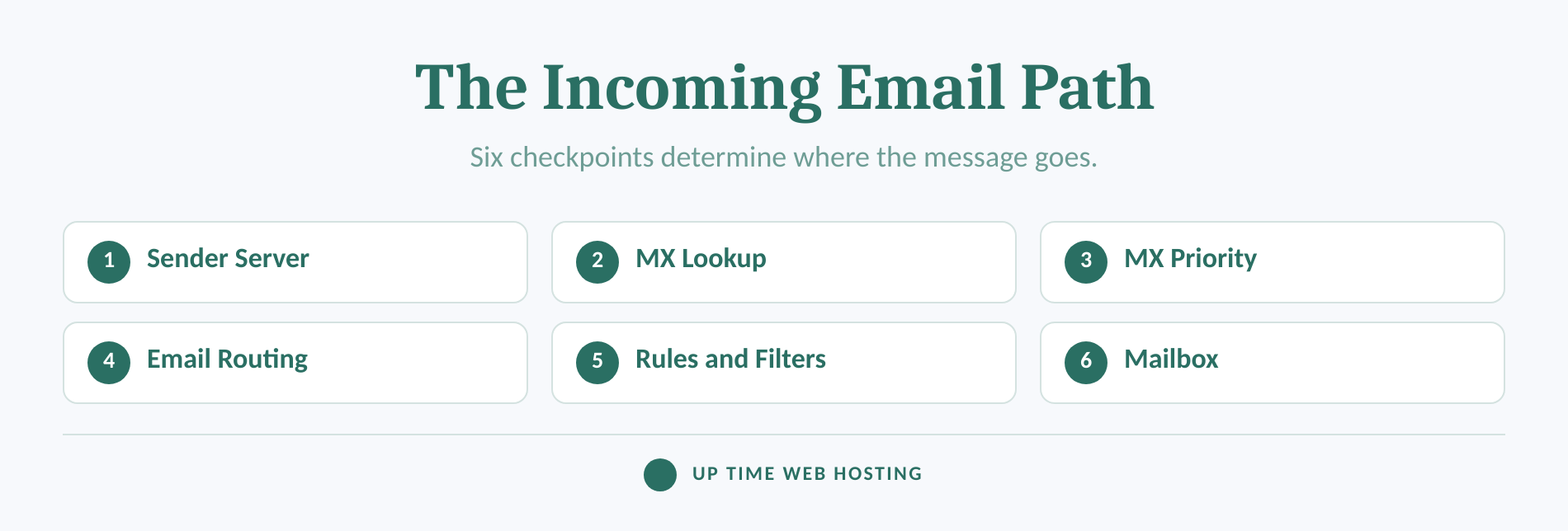
Check the receiving path in this order:
- Authoritative DNS: confirm the domain is using the nameservers where the intended MX records were added.
- MX destination: confirm each active MX record points to the current mail service, with no obsolete provider left at a preferred priority.
- Email routing: use automatic detection unless the hosting provider has given a specific local or remote setting.
- Mailbox destination: confirm the address exists on the server that the MX record selects.
Recent changes need special care. RFC 1035 defines a DNS record's TTL as the period, in seconds, for which a resolver may cache the answer. Different senders can therefore see old and new MX answers during a change, depending on when their resolvers cached the record. (rfc-editor.org)
Flushing DNS on one computer only clears or refreshes that computer's view. It does not update the cached MX answer used by a remote sender's mail system. During a migration, compare the authoritative MX records with the intended destination and keep the previous mail service available where possible until the change has settled.
Do not start with SPF when a whole domain receives nothing. The cPanel Email Deliverability documentation describes SPF and DKIM records as signals other servers use to trust the domain as a sender, while RFC 7208 defines SPF as authorisation for hosts using a domain in outgoing mail identities. SPF can affect how a recipient treats a particular sender, but it does not publish the destination for your incoming mail. (docs.cpanel.net)
MX and email routing must agree on the intended receiving server before mailbox or device checks can succeed.
Are forwarding rules or filters hiding messages?
A mailbox may be receiving messages correctly while rules move them somewhere the user is not checking. Review server-side forwarding, user filters, global filters, spam folders and quarantine before assuming the mail disappeared in transit.
The cPanel Email Filters documentation confirms that incoming-message rules can automatically perform actions such as deleting or redirecting a matched message. The detailed cPanel filter actions documentation also distinguishes between redirecting a message and delivering a copy to a folder. (docs.cpanel.net)
Check for:
- A rule created for an old project, employee or supplier that now matches too broadly.
- A redirect or discard action with no copy delivered to the inbox.
- A domain-level or account-level forwarder pointing to an obsolete address.
- A quarantine or spam rule affecting the missing sender, subject or attachment type.
The cPanel Forwarders documentation says forwarders can redirect incoming email to another address and can also discard or pipe mail in some configurations. Review the destination and purpose of every rule rather than deleting all forwarding at once. (docs.cpanel.net)
For the safe creation and review of these rules, follow the full email forwarding setup guide.
A message moved by a rule is a routing problem inside the mailbox, not proof that the sender failed to deliver it.
Why does only one device miss new mail?
When webmail receives the test but one device does not, leave the domain's MX and routing records alone. Repair the affected device's incoming account settings and synchronisation instead.
The cPanel Set Up Mail Client documentation recommends secure SSL/TLS settings and IMAP for incoming mail. Its current manual settings list secure IMAP port 993 and secure POP3 port 995, although the correct server hostname must come from the hosting account's Connect Devices screen. (docs.cpanel.net)
Check these items:
- The username is the full email address.
- The saved password still matches the mailbox password.
- The incoming hostname matches the value supplied by the host.
- The protocol and encryption match the selected port.
- The account is enabled for syncing and the app is not offline or paused.
IMAP normally suits a mailbox used across several devices because the messages remain synchronised on the server. POP can download messages into one client, so inspect its retention settings before changing or removing the account.
For a clear comparison of secure receiving protocols and outgoing SMTP, see pop3s ports explained before changing ports.
If only one device is affected, fix that device before making domain-wide changes.
Register your new domain name at competitive market prices including free domain add-ons like privacy, DNS Hosting, Custom Nameservers and Forwarding.
Always the best price and no nasty renewal price hikes.
Register A Domain Name
Why are only some messages missing?
If most email arrives, the domain's main MX path and mailbox are probably functioning. Look for a sender-specific, content-specific or attachment-specific rejection instead of rebuilding the whole account.
Use the pattern to narrow the cause:
- One sender is affected: obtain that sender's full bounce, then check blocks, filters, quarantine and the recipient spelling.
- Only messages with files are affected: send a small plain-text test from the same address and compare the result.
- Messages arrive in webmail but not the inbox view: search all folders and inspect rules that match the sender or subject.
- A sender reports a permanent rejection: record the exact SMTP code and text rather than repeatedly retrying the same message.
Email services can enforce different message and attachment limits. The guide to email attachment size limits explains why a large message can fail while normal mail continues to arrive.
A partial receiving problem should be investigated using the sender, message and rejection pattern, not treated as a whole-domain outage.
What should I collect before contacting support?
Provide enough evidence for the hosting team to search the correct logs and delivery event. A report that only says email is not working forces the investigation to start again from the beginning.
What belongs in a useful support ticket?
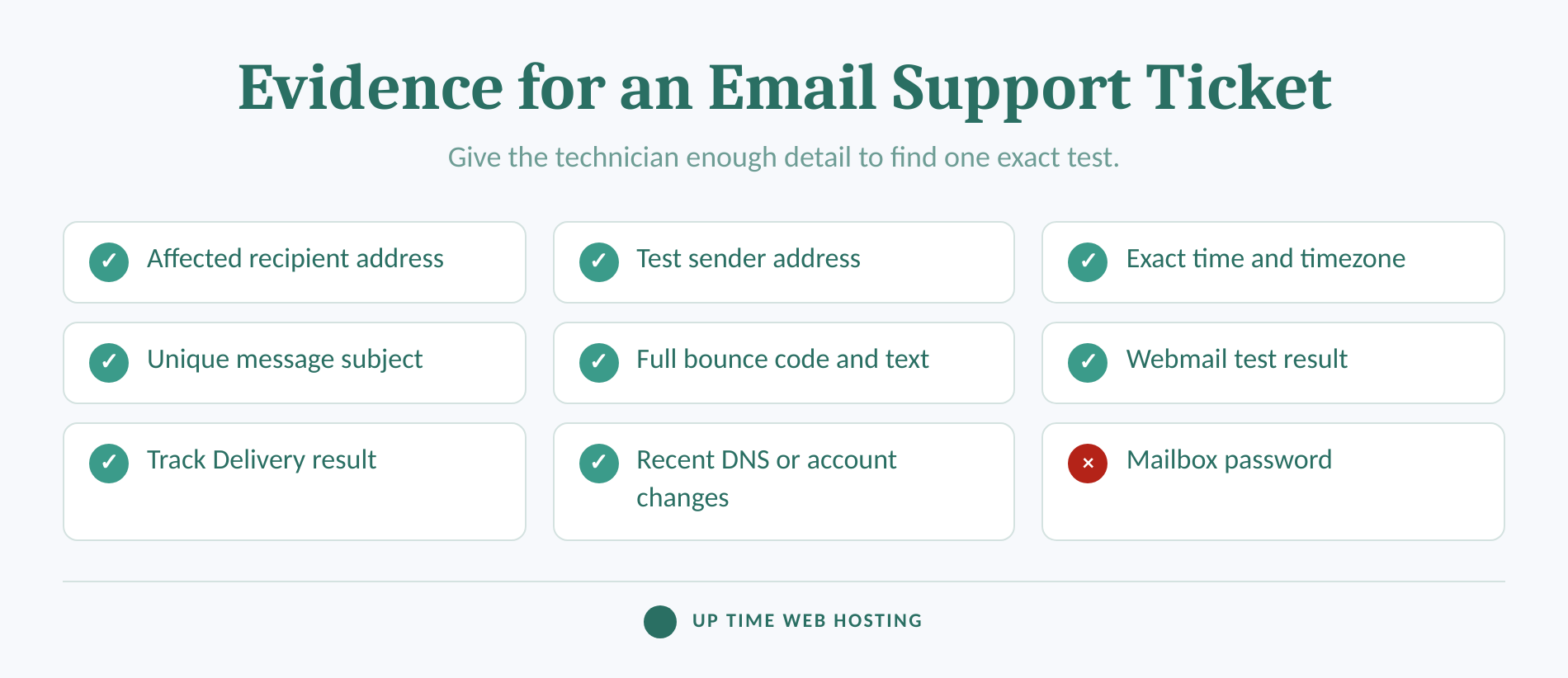
Include the affected address, the sender address, the exact test time and timezone, the subject, the full bounce text, the webmail result, the Track Delivery result and any recent DNS, password, hosting, filter or forwarding changes.
State whether the problem affects one sender, every sender, one mailbox, every mailbox, one device or every device. Never include the mailbox password in the ticket. Use the provider's approved secure process if temporary access is required.
If the tests point to an ageing, split or poorly documented hosting setup, Up Time Web Hosting's business email hosting options provide a clear next step for reviewing cPanel-hosted business email and local support.
A precise timestamp, full bounce and webmail result give support the shortest path to the failed layer.
Experience Microsoft 365 Business Standard for free for 30 days.
Up to 25 users with full access to email, OneDrive and Teams. Includes full versions of desktop apps of Outlook, Word, Excel, PowerPoint and more.
Try Microsoft 365
What are the common questions about receiving email?
The same diagnostic order applies across most hosted mailboxes: test externally, check webmail, inspect the server-side path, then repair the device. These short answers cover the questions most often associated with the problem.
How to fix email if not receiving emails?
Send a test from an address outside your domain, open webmail, and check whether the message appears there. If it does, repair the device's incoming settings or sync. If it does not, check mailbox quota, receive restrictions, MX records, routing, filters, forwarding, and the sender's bounce message.
What is blocking my emails from coming through?
Incoming mail can be blocked or diverted by a full mailbox, a suspended receive setting, incorrect MX or routing records, a server filter, quarantine, forwarding, or a sender-side rejection. The exact cause is usually visible in the bounce response or the hosting server's delivery trace.
How to start receiving emails again?
Start with a new external test and webmail. Free storage or restore receiving permission if the mailbox is blocked, correct MX and routing if the domain points to the wrong mail system, then repair filters or device settings. Send another fresh test after each change.
How to fix emails that won't send?
Emails that will not send use a different path from emails that will not arrive. Check the outbox, internet connection, SMTP hostname, port, encryption, username, password, and any sending restriction or rate limit. Do not change MX records unless incoming delivery is also failing.
The fastest receiving fix still starts with webmail, the sender's bounce and the server's delivery trace.
How can the same failure be prevented?
Keep mailbox quota alerts active, document where DNS is managed, and record the intended MX destinations and routing mode. Test receiving after every domain migration, nameserver edit, forwarding change or mailbox password reset.
Save the provider's current Connect Devices settings rather than relying on an old screenshot. Review filters and forwarders when staff or business processes change, and keep one outside address available for controlled tests.
Keep a known-good external test address ready and make the webmail test the first response to any empty inbox.