
Ordinary DNS record changes usually follow the existing TTL, often about 5 minutes to 4 hours; nameserver changes commonly need 24 to 48 hours and can take up to 72 hours. If your website or email still looks wrong after an edit, the useful first check is whether the authoritative nameserver is publishing the new value.
You may have changed a setting, seen a confirmation message, and then opened your website only to find the old page still there. That's unsettling when customers are trying to place orders or reach your business. But a DNS change doesn't travel around the internet as one update with one finish time: different caches have different clocks, and nameserver and .au delegation changes add clocks of their own.
Table of Contents
- Typical DNS Propagation Times by Change
- What DNS Propagation Actually Means
- Factors That Stretch the Wait and the Myths Around Them
- How to Check Whether a DNS Change Has Landed
- Australian Examples of Real Propagation Windows
- Time the Edit and End the Overlap

Performance you can feel, backed by clients who depend on it. Read how our support and uptime create long‑term customer success.Power Your Business with Better Hosting
Typical DNS Propagation Times by Change
For a normal address change, start with the record's existing TTL, or time to live. A TTL of 300 seconds means a resolver can keep an answer for up to five minutes. If you've changed a site's address, that's a much shorter wait than changing nameservers while resolvers still have the old servers cached.
| Change | Usual wait | Outer wait | What sets the clock |
|---|---|---|---|
| A or AAAA record, TTL 300 seconds | 5 to 30 minutes | About 1 hour | Resolver cache of the address |
| A, AAAA or CNAME, TTL 3600 seconds | Up to 1 hour | A few hours | Resolver cache of the record |
| Record with TTL 86400 seconds | Several hours | Up to 24 hours | The old long TTL already cached |
| MX record | 15 minutes to 4 hours | Up to 24 to 48 hours if the old TTL was long | DNS cache plus mail-server cache |
| TXT record for SPF or DKIM | Minutes to a few hours | Up to the old TTL | Resolver cache used by mail filters |
| Nameserver or delegation change | 24 to 48 hours | Up to 72 hours | Cached NS records and parent delegation |
| .au registry delegation update | Registry view can be quick | Resolvers still wait out the old NS TTL | Registry data and recursive caches are separate clocks |
| Brand-new hostname with no previous cache | Minutes | A few hours, longer if a negative answer was cached | First lookup plus any negative cache |
These are practical planning windows, not a promise that every Australian connection will show the same answer at the same moment. A resolver might have looked up a record just before you changed it, while another only fetched it afterwards. The first can still serve its cached answer after the second has the new one.
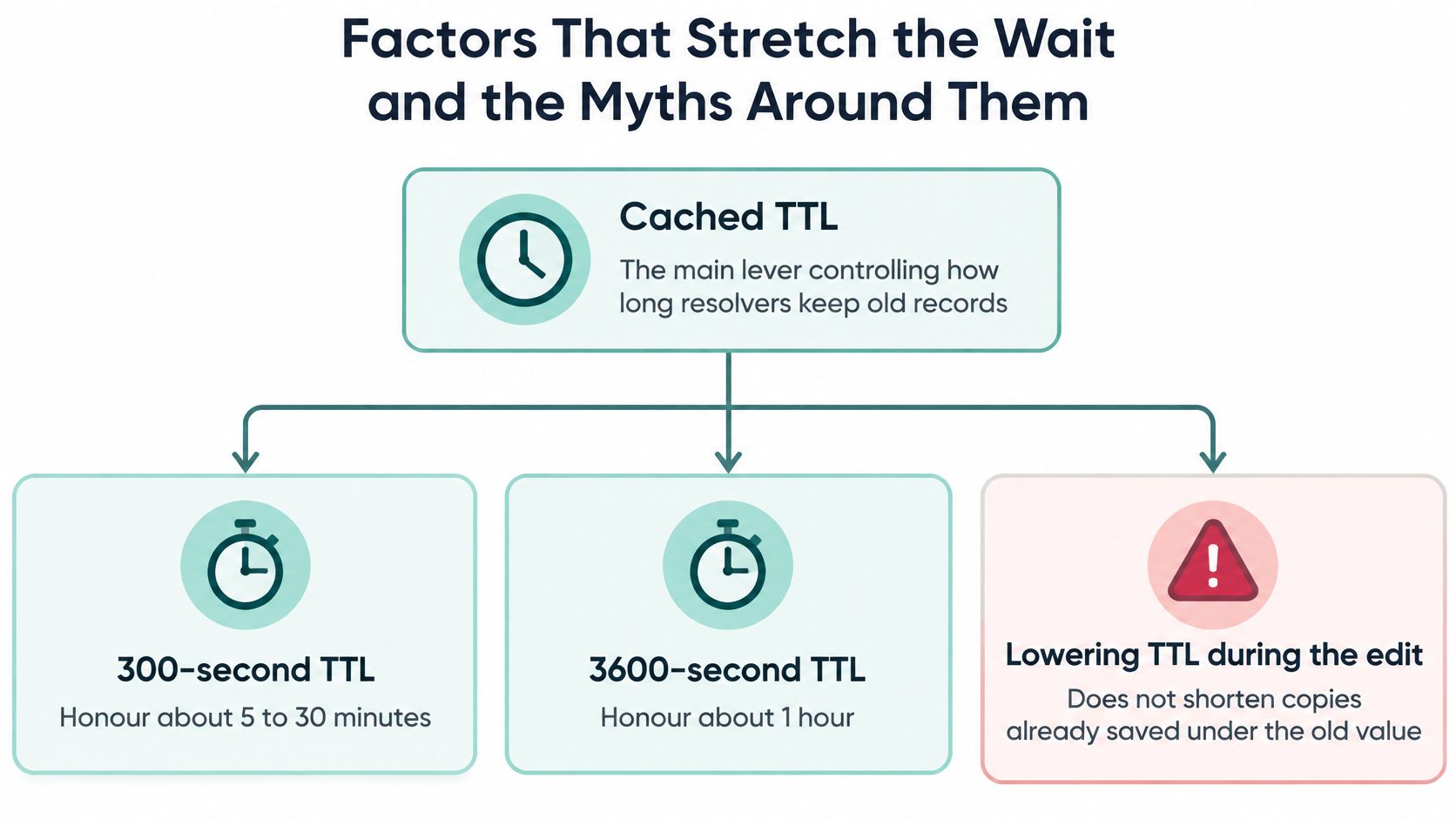
Before a risky change, check the live TTL for the exact record you plan to edit. If you want to shorten the wait, lower the TTL and leave it in place for at least one full old-TTL period before changing the record. Lowering it during the edit won't shorten a copy that was already saved with the old TTL.
Keep the old website or mail service running until the relevant slow window has passed and your checks show the new destination is working. If you're connecting a domain to a site, UpTime's guide to connecting a domain to a website can help you identify which settings to review.
What DNS Propagation Actually Means
Think of DNS like a phone book with photocopies. You correct the master book, but libraries around the country still have copies. They don't receive a new photocopy the instant you make the change. Each library replaces its copy when its copy's expiry time arrives.
A recursive resolver is like one of those libraries. It looks up a DNS answer, keeps it for the record's TTL, then asks for an updated answer when that time runs out. People call the staggered expiry of these cached answers “propagation”. It isn't a broadcast that pushes the new answer to every device.
A typical lookup travels through several places. The app or browser may have its own cached answer; then the computer checks its cache, followed by the office router and the internet provider's resolver. If those don't have a usable answer, the lookup reaches the authoritative server for the domain. That last server holds the zone's current records. It can have the new value while other parts of the lookup path still have an older one.
Propagation is cache expiry, not a broadcast.
There's another wrinkle when you create a hostname that didn't exist before. A resolver may recently have been told that the name doesn't exist and keep that negative answer for its negative TTL. So the authoritative server can publish the new name, but a resolver that cached “not found” may still return that result until its own negative cache expires.
Keep three clocks separate: saving the zone, updating the registry delegation, and each cache expiring. The first table describes those clocks, not a promise that the whole internet flips at one minute.
Host your website with our 5-star rated, cPanel website hosting plans.
Super fast servers, with security included and hosted in your choice of Australian Data Center.
View cPanel Plans
Factors That Stretch the Wait and the Myths Around Them
The cached TTL is the main clock for an ordinary record change. With a 300-second TTL, resolvers that honour the published value can keep an old answer for about five minutes. At 3600 seconds, the old answer may remain for about an hour. At 86400 seconds, that window can reach 24 hours.
A common misunderstanding is that changing the TTL during the record edit starts a shorter clock immediately. It doesn't. A resolver holding an answer under the previous TTL can keep that answer until its old expiry. For a planned cutover, publish a lower TTL and leave the record unchanged for at least one full old-TTL period before switching the destination.
The familiar “48 hours for everything” advice mixes up different changes. It can be a cautious allowance for nameserver changes, where cached NS records and parent delegation are involved. It isn't the normal wait for every short-TTL address record. For a .au domain, the registry can show a changed delegation while a workplace or mobile resolver is still using old nameserver information.
Different services can have different clocks
Mail changes deserve their own check. MX records direct incoming mail, while SPF and DKIM details live in TXT records that mail systems use to assess sending messages. A website can show the new address while a mail server or filter still has older information cached. Keep the old mail service available during a migration, and test mail directly rather than treating a working website as proof that email has moved.
Two Australian connections can show different answers without either one being broken. Your office network may use one resolver, while a mobile connection uses another. Their caches may have been filled at different times, so one can pick up the new value before the other.
Some symptoms aren't propagation
Refreshing a browser doesn't make an internet provider's resolver discard a cached answer. Clearing a browser or computer cache may help with a local stale result, but it won't speed up the provider's cache.
DNSSEC can cause a different problem: if a signature is invalid, validating resolvers may reject the answer, making the domain appear unavailable rather than slow to update. Similarly, a change made in a hosting panel isn't a DNS change if the domain points to a proxy or firewall and you haven't edited the DNS record that controls the route.
Anycast can help DNS services answer queries from nearby locations, but it can't override a live TTL. If results still disagree, measure the longest live TTL for the record that changed and keep the old site or mailbox working until that window has passed. If a hostname remains unavailable, UpTime's guide to the “finished NXDOMAIN” message can help you check whether a cached “name not found” answer is involved.
How to Check Whether a DNS Change Has Landed
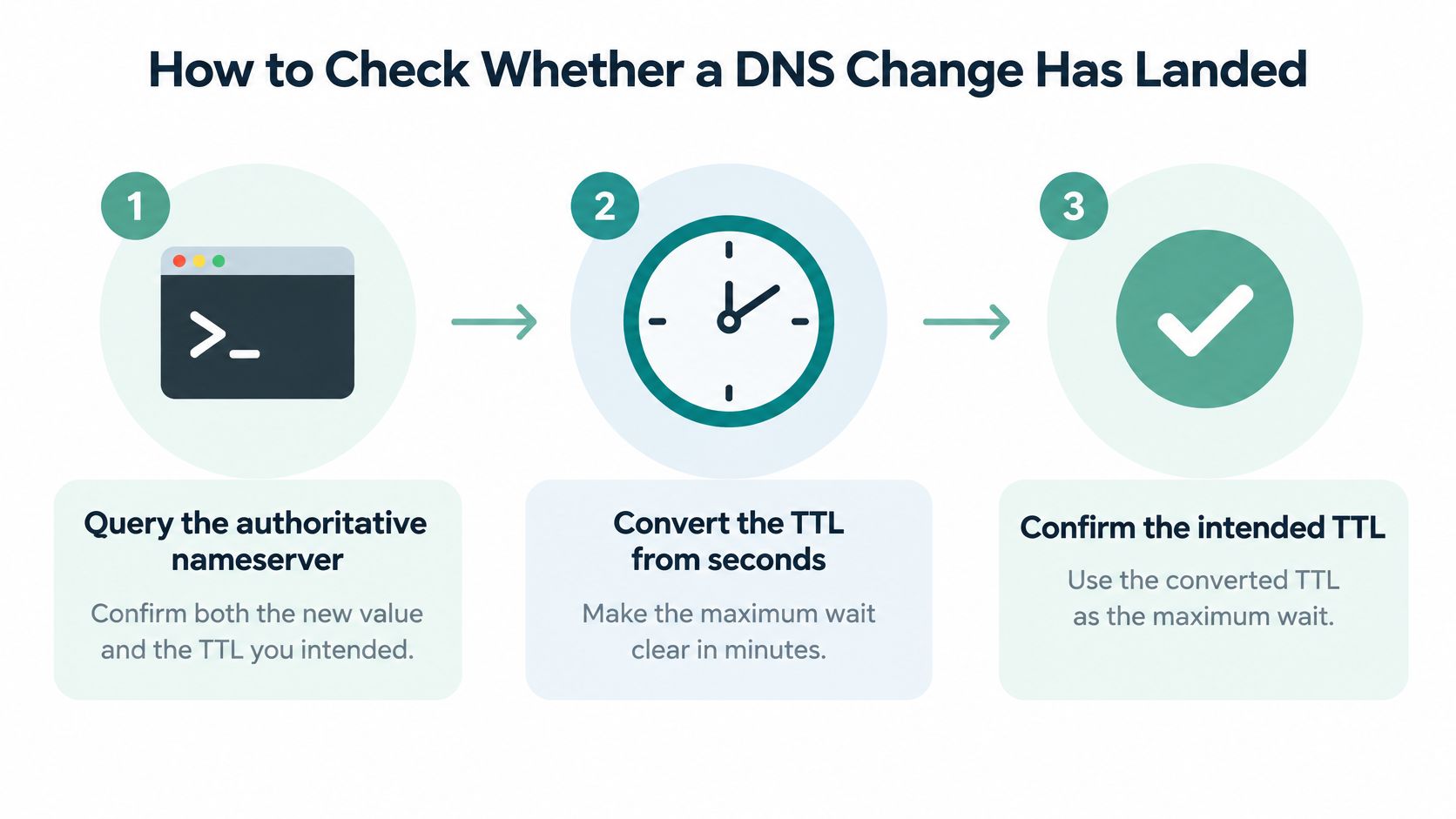
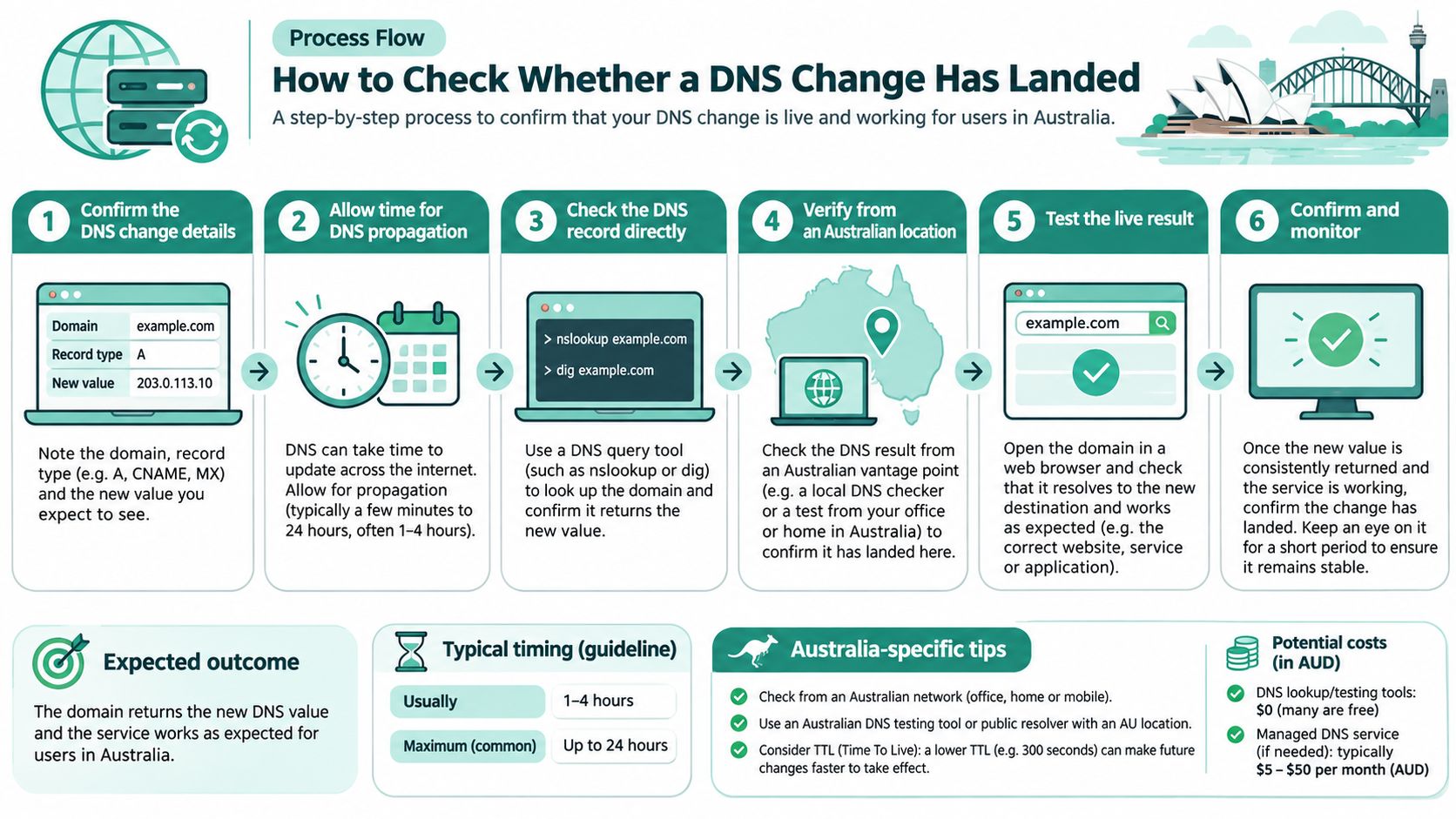
Check the source first, then compare it with the answers your business is receiving. Each check tells you something different, so don't treat one result as proof that every network has updated.
Ask the authoritative nameserver. Run
digornslookupagainst the authoritative server first. For example,dig @ns1.example.com.au example.com.au Aasks that server for the address record. Pass: it returns the new value and the TTL you intended. Fail: it still returns the old value, so check that you edited the active zone and saved the change rather than waiting for caches.Work out the TTL window. Convert the TTL shown in the authoritative answer from seconds into minutes or hours. That gives you a practical maximum to plan around for that record, not a guarantee that every resolver will behave identically.
Compare your own resolver. Repeat the query without the
@serverpart so it uses the resolver on your current network. Pass: it returns the new value. If it returns the old one while the authoritative answer is correct, that connection is still seeing a cached answer.Try a second Australian connection. Use a mobile hotspot or another local network, then compare the same name and record type. This tells you whether another Australian cache has refreshed. It doesn't give you a complete worldwide picture.
Check the record you changed. For a website address, inspect A or AAAA. For email routing, check MX. For SPF or DKIM, check the relevant TXT record. For a nameserver move, check NS. A successful check of one record type doesn't prove the others are correct.
Use the registry view for a nameserver move. For a .com.au or .net.au nameserver move, compare your resolver's answer with the registry view in
whois. A fast registry update confirms the delegation shown there; it doesn't prove that every recursive resolver has let its old NS cache expire.Flush local caches only after the source is right. If the authoritative answer is correct, clearing the browser or computer cache may resolve a stale result on that device. It won't speed up your internet provider's cache. Follow UpTime's DNS cache flushing guide if you need the operating-system steps.
Test mail separately. After an MX change, send a message from an outside mailbox and inspect its headers to see how it was handled. Pass: the sending server reaches the intended mail service. This doesn't prove the website or other record types have updated.
Stop waiting if the source is wrong. If the authoritative nameserver still returns the old value, check the zone editor and the active nameserver set. Waiting won't fix an unsaved change or a record edited in the wrong zone.
| Check | What a match proves | What it does not prove |
|---|---|---|
| Query the authoritative nameserver | The zone is serving the new value and TTL | That public caches have dropped the old answer |
| Query your own network resolver | What this office or home connection sees now | What other providers or states see |
| Second Australian network, such as mobile | Whether another local cache has expired | A complete worldwide picture |
| Public resolver outside your provider | A widely used cache beyond your own ISP | Every smaller resolver |
| External mail test after an MX change | That sending server has a working route | That the website or other record types have updated |
For DNS settings in your hosting account, use the host's zone editor and its own domain and DNS guidance rather than relying on another company's propagation map. The change is done for your business when the authoritative answer is correct and the resolvers that matter to your customers match it.
Australian Examples of Real Propagation Windows
A Melbourne retailer points a WordPress site at a new server. The address record's TTL is 3600 seconds, and the authoritative zone shows the new value within minutes. The shop's office still opens the old site for about an hour, while a staff member at home on another provider sees the new site sooner. The owner leaves the old server running until the office's cache catches up instead of repeating the edit.
A Brisbane consultancy moves a .com.au domain's nameservers to the host that will run its website. The registry view shows the new delegation on the day of the change, but some resolvers continue using the old servers until the next afternoon. The consultancy keeps mail on the old host until checks show that both nameserver answers agree.
A Perth clinic changes its MX records on a Monday after leaving the old TTL at 86400 seconds. Its website hasn't changed and looks normal, but mail is still reaching both the old and new hosts for much of the day. Repeating the DNS edit doesn't help. The useful decision is to keep the old mailbox accepting mail until the old TTL has had time to expire. If you're planning the mail move as well as the DNS change, UpTime's email account migration guide can help you prepare.
The pattern is straightforward: match the wait to the record that changed, and overlap the old and new service for that wait. That protects customers who still reach the old destination while caches are catching up.

Register your new domain name at competitive market prices including free domain add-ons like privacy, DNS Hosting, Custom Nameservers and Forwarding.
Always the best price and no nasty renewal price hikes.
Register A Domain Name
Time the Edit and End the Overlap
Before changing a live Australian domain, write down which record you're changing and the TTL it currently serves. If a risky move has a long TTL, lower it ahead of the cutover and wait one full old-TTL period before changing the value. Otherwise, caches that already hold the old setting can keep it until their original expiry.
Make one deliberate edit, then confirm the authoritative nameserver is serving the new value and intended TTL. Keep the old website or mailbox available while relevant caches may still use it. Test from a second Australian connection before telling the team it's safe to end the overlap.
Make sure you control the domain account before moving nameservers. If the domain isn't in your account, sort out access first so the business doesn't lose control during the move. If you also need to test a site before changing DNS, UpTime's hosts-file testing guide describes a way to preview it locally. A fast account setup can't expire someone else's DNS cache.
UpTime Web Hosting offers Australian hosting and domain services for businesses managing a website and its DNS in one place. Customers can register a domain instantly and self-configure and manage their hosting and domains. Visit UpTime Web Hosting to explore your options.