
In short
For most businesses, IMAP is the better email setup because IMAP keeps the mailbox on the server and synchronises messages, folders, read status and deletions across computers and phones. POP3 is mainly useful when one computer must download mail for local storage, especially where server space is limited or internet access is unreliable.
Key takeaways
- IMAP keeps the main mailbox on the server and synchronises changes across authorised devices.
- POP3 downloads messages to a mail app and does not provide normal two-way folder or read-status synchronisation.
- Neither IMAP nor POP3 is a complete backup strategy; recovery requires a separate, tested plan.
- The standard secure incoming ports are 993 for IMAP over TLS and 995 for POP3 over TLS.
- Before replacing POP3, protect any messages that exist only on the old computer.
Table of contents
- Which should a business choose: IMAP or POP3?
- What is the difference between IMAP and POP3?
- How do IMAP and POP3 affect storage, backups and offline access?
- When does POP3 still make sense?
- How should a business choose the right setup?
- Can you switch from POP3 to IMAP without losing email?
- How do you configure IMAP or POP3 securely?
- What else do people ask about IMAP vs POP3?
- What should you do next?
IMAP and POP3 control how a mail app accesses incoming messages. They do not send outgoing email: the IETF's 2021 IMAP4rev2 standard states that message submission is handled by a separate protocol, usually SMTP. Changing the incoming protocol will not, by itself, fix an outbound sending, spam-filtering or forwarding problem. (rfc-editor.org)
Which should a business choose: IMAP or POP3?
For most business mailboxes, IMAP is the sensible default. POP3 should be a deliberate exception used for a controlled, single-device workflow.
Choose IMAP when:
- The mailbox is checked from a computer and a phone, or from any other combination of devices.
- Webmail and installed mail apps should show the same folders and message status.
- Replacing a device should not mean reconstructing the mailbox from one local computer.
- Users need sent mail, filed messages and read status to remain consistent.
Consider POP3 only when one controlled computer is intended to hold the working copy of downloaded mail, the local archive is backed up, and the lack of normal folder synchronisation is acceptable. A small server quota can be a reason to investigate POP3, but it is not a reason to adopt it without considering device failure and recovery.
If there is no clear reason to use POP3, use IMAP.

Performance you can feel, backed by clients who depend on it. Read how our support and uptime create long‑term customer success.Power Your Business with Better Hosting
What is the difference between IMAP and POP3?
IMAP treats the server mailbox as the main source and synchronises supported changes between the server and mail apps. POP3 retrieves messages from a server maildrop and does not provide the same remote folder and message-state model.
The IETF's IMAP4rev2 standard defines operations for server mailboxes, message flags, searching, moving and resynchronising after offline use. The 1996 POP3 standard defines a simpler process for listing, retrieving and optionally deleting messages from a maildrop. (rfc-editor.org)
| Question | IMAP | POP3 |
|---|---|---|
| Where is the main mailbox? | On the mail server | In the downloading mail app; a server copy may remain if configured |
| Do folders synchronise? | Yes, where the server and app support them | No normal two-way folder synchronisation |
| Do read and flag changes synchronise? | Usually | Usually remain local to the mail app |
| Is it suitable for several devices? | Yes | Usually not |
| Does it use server storage? | Yes, until mail is removed or archived elsewhere | Only while server copies remain |
| Can it work offline? | Cached or downloaded content can be used; changes synchronise later | Downloaded messages remain available locally |
| What is the main risk? | A deletion can synchronise across devices, and the mailbox can reach its quota | Local-only messages can be lost with the computer or mail profile |
With IMAP, moving a message into a folder or marking it as read normally changes the server mailbox, so another connected device sees the change. With POP3, two computers can build different local collections because each client retrieves mail independently and does not synchronise its folders back to the server.
Leaving POP3 messages on the server can reduce the chance that another device misses new mail, but it does not turn POP3 into IMAP. Folder structure, local deletions and read status can still differ.
IMAP is built around a server mailbox; POP3 is built around downloading messages to a client.
How do IMAP and POP3 affect storage, backups and offline access?
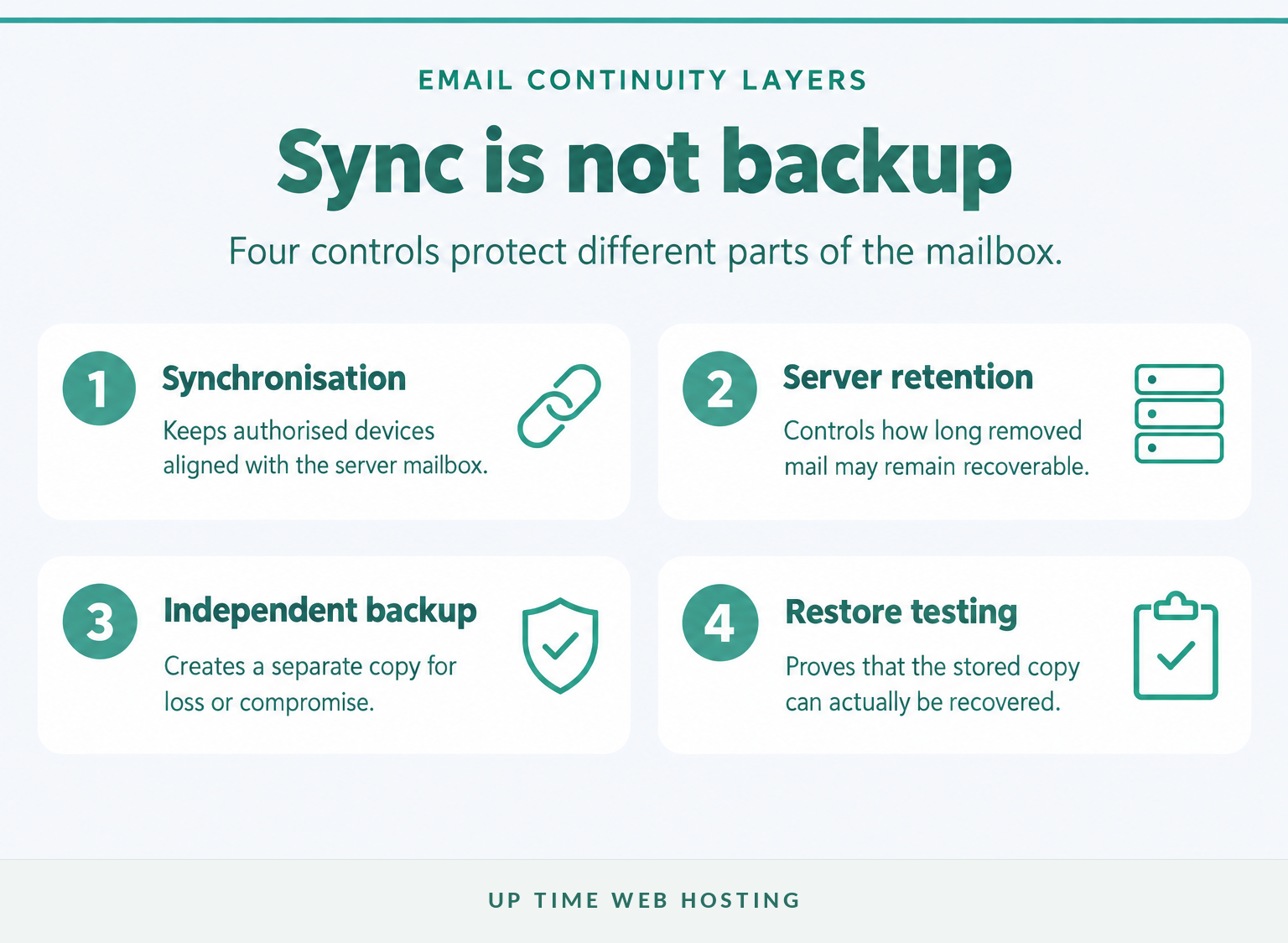
IMAP normally uses more server storage because messages remain in the hosted mailbox, while POP3 can reduce server use if the client removes downloaded copies. Both protocols can provide offline reading, but only content already cached or downloaded will be available without a connection.
An IMAP client may store local copies for speed and offline use. When the connection returns, the client resynchronises supported changes with the server. The amount kept offline depends on the app's settings, so a heading or message preview on screen does not always mean every attachment has been downloaded.
POP3 downloads message content to the client. This makes downloaded mail accessible without the server, but the local mail store becomes important business data. If the computer, user profile or storage drive fails, local-only messages may disappear with it.
Synchronisation is not the same as backup. IMAP can synchronise an accidental deletion, while a POP3 archive can be damaged by device failure or malicious software. The Australian Cyber Security Centre's 2023 small business cyber security guide says backup plans should consider information held in email and cloud accounts, define retention and include restore testing. (cyber.gov.au)
Before choosing either protocol, ask:
- How much storage is available per mailbox or across the account?
- How long are deleted messages retained?
- Are server backups available, and can individual mailboxes or messages be restored?
- Is important mail exported or backed up independently?
- Has the restore process actually been tested?
Choose the protocol for synchronisation, then design storage and backup separately.
Host your website with our 5-star rated, cPanel website hosting plans.
Super fast servers, with security included and hosted in your choice of Australian Data Center.
View cPanel Plans
When does POP3 still make sense?
POP3 can still suit a mailbox that is intentionally managed from one controlled computer and backed up as part of that device's data. It may also support a legacy application that cannot use IMAP correctly.
A reasonable POP3 case usually has all three of these conditions:
- One primary client: The mailbox is not expected to look identical on several phones and computers.
- Deliberate local storage: Downloading mail to that computer is part of the intended records or archive process.
- Tested recovery: The local mail data is included in regular backups and can be restored to another device.
POP3 is a poor fit when staff move between devices, webmail is used regularly, sent mail must be visible everywhere or a replacement computer needs immediate access to the existing folder structure. Leaving copies on the server may help with new messages, but it does not solve those workflow limits.
POP3 is a specialist choice for one controlled device, not the general business default.
How should a business choose the right setup?
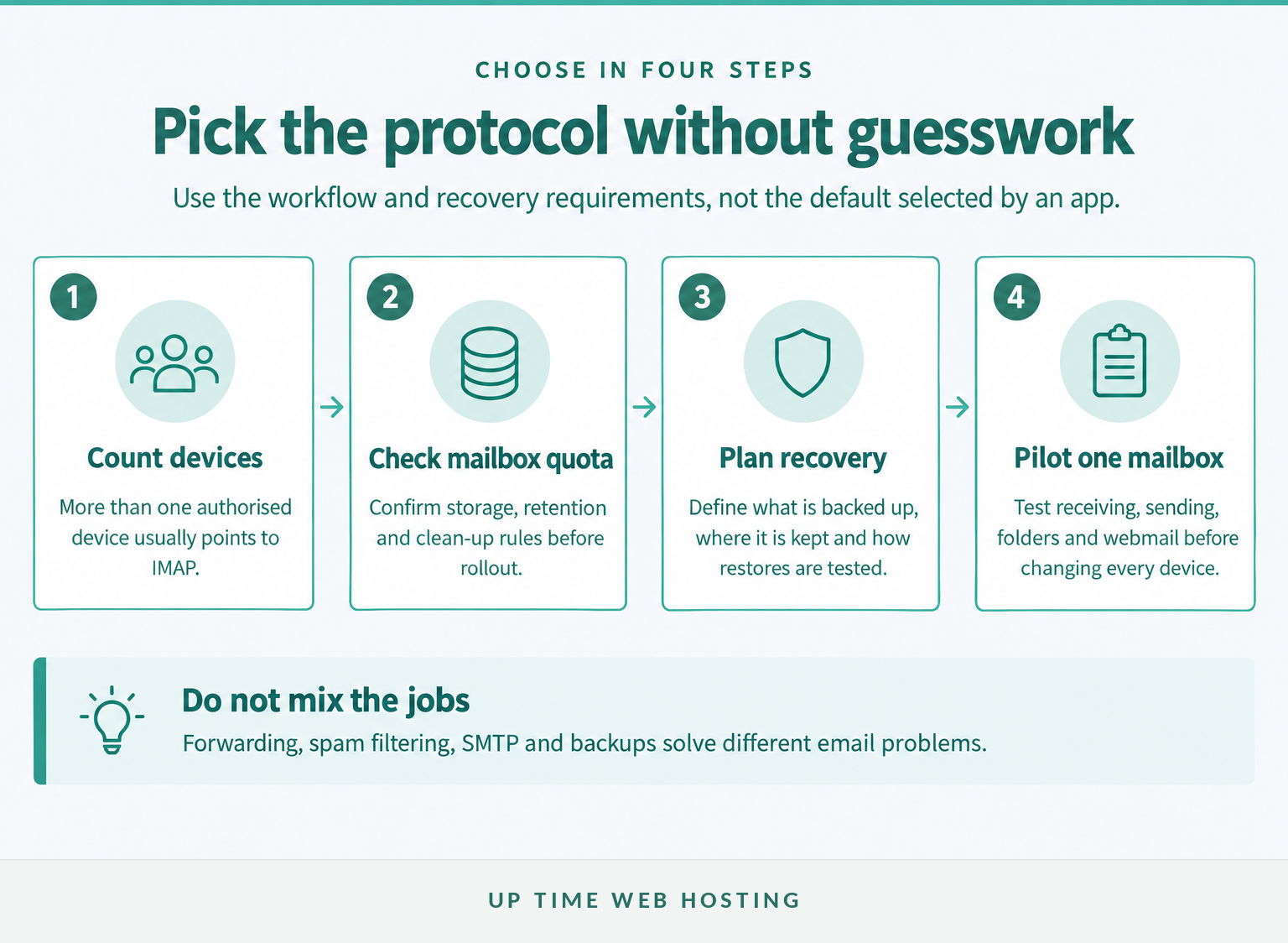
Start by counting the authorised devices that need the mailbox and deciding where the main copy of the mail should live. Then check mailbox quota, retention and recovery before changing the settings.
- Count the devices. If the same mailbox is used on a computer, phone, tablet or webmail, choose IMAP unless the provider gives a specific reason not to.
- Check the quota. Confirm the mailbox limit and decide who will clean up large attachments, deleted items and old folders.
- Plan recovery. Identify which email data is backed up, how long copies are retained and how a restore would be requested or completed.
- Pilot one mailbox. Add one account, send a test message, create a folder, move the message, mark it as read and check the results in webmail and on a second device.
Do not use email forwarding as a substitute for IMAP. Forwarding sends incoming messages to another address; it does not keep the original mailbox's folders, sent items and read status synchronised.
A sound choice comes from devices, quota, recovery and a one-mailbox test.
Can you switch from POP3 to IMAP without losing email?
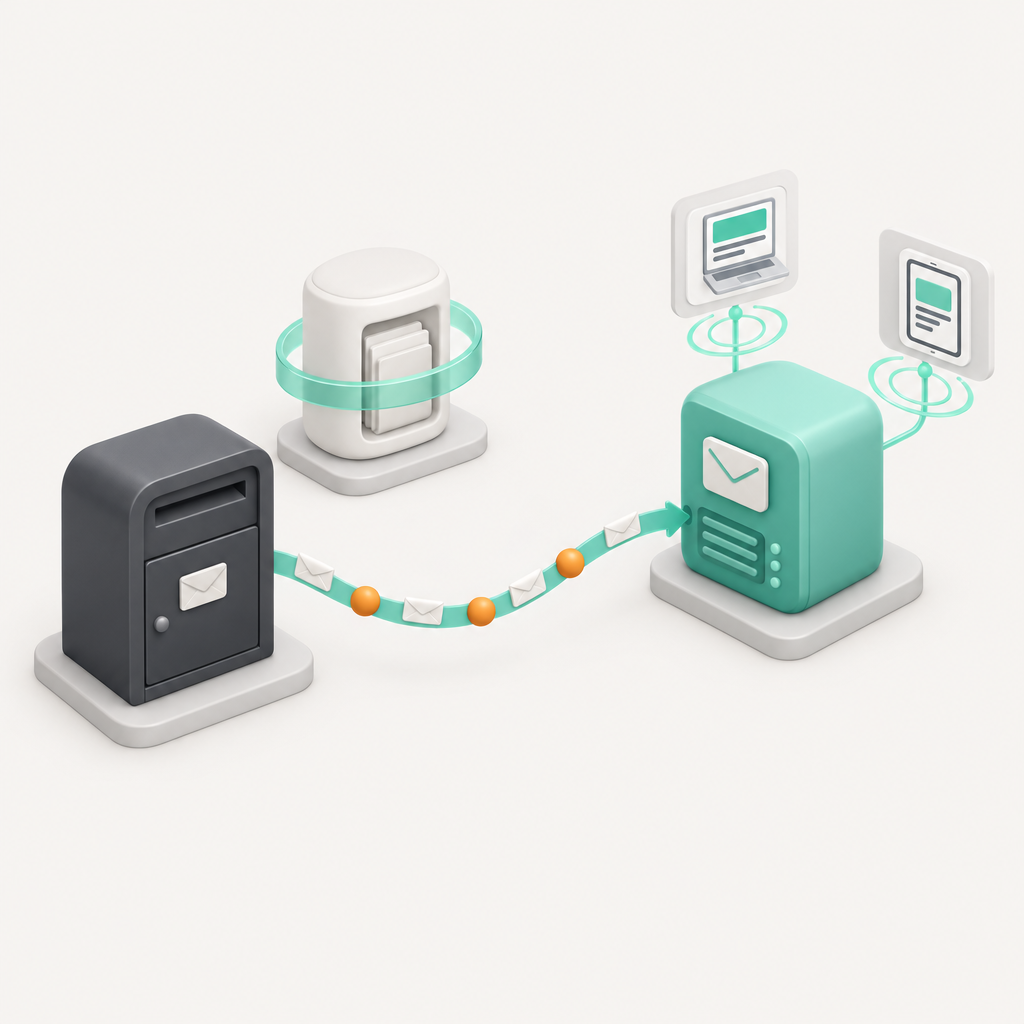
Yes, but protect any local-only messages before deleting or changing the old POP3 account. Create and test the IMAP account first, then copy required mail only after confirming that the backup can be opened.
Use this sequence:
- Keep the existing POP3 account. Do not remove it from the mail app at the start.
- Check webmail. Compare the server mailbox with the folders and messages visible in the POP3 client.
- Identify local-only mail. Include inbox messages, sent mail, custom folders and archives that do not appear in webmail.
- Create a backup or export. Use the mail app's supported archive or export function and confirm that the resulting file can be opened.
- Add the mailbox as IMAP. Use a separate profile or account entry if the app permits it, rather than overwriting the working POP3 configuration.
- Copy mail in controlled batches. If the app supports copying local folders into the IMAP account, allow each batch to upload and check the mailbox quota.
- Verify from webmail and another device. Confirm that important folders, dates, attachments and sent messages are visible before removing the old setup.
Large local archives can consume the server quota or create duplicate messages if the same mail already exists online. Keep the export and the old configuration until the new mailbox has been used successfully and the recovery copy is stored safely.
Do not remove the old POP3 setup until the new IMAP mailbox and the backup have both been verified.
Register your new domain name at competitive market prices including free domain add-ons like privacy, DNS Hosting, Custom Nameservers and Forwarding.
Always the best price and no nasty renewal price hikes.
Register A Domain Name
How do you configure IMAP or POP3 securely?
Use the exact hostname, port, encryption method, username and authentication instructions supplied by the mailbox provider. Prefer an encrypted TLS connection and investigate certificate warnings instead of bypassing them.
The incoming hostname cannot always be guessed from the email address. Use the provider's control panel or setup guide to find the IMAP server settings, and copy the displayed hostname and full username exactly. UpTime's current guide identifies port 993 with SSL/TLS as the standard secure IMAP choice while noting that account-specific provider instructions take precedence. (uptimewebhosting.com.au)
As of 13 October 2026, the IANA service-name registry lists TCP port 993 for IMAP over TLS and TCP port 995 for POP3 over TLS. The IETF's 2018 RFC 8314 recommends implicit TLS for mail access, meaning encryption begins when the connection starts. (iana.org)
For a manual setup, verify:
- The selected account type is IMAP or POP3 as intended.
- The incoming hostname exactly matches the provider's instructions.
- The secure port and encryption option are paired correctly.
- The username uses the full email address when required.
- The mailbox password or provider-directed app credential is current.
- The separate SMTP settings have also been entered for outgoing mail.
The guide to POP3S ports and related secure mail settings explains the incoming and outgoing port distinction. The overview of SSL in email provides more background on why the encrypted connection and certificate name matter.
Secure settings come from the mailbox provider, with TLS enabled and certificate warnings investigated.
What else do people ask about IMAP vs POP3?
These short answers cover the most common protocol questions. The mailbox provider's current account settings still take precedence over a general guide.
Should you use POP3 or IMAP?
Most businesses should use IMAP because it keeps the mailbox on the server and synchronises changes across authorised devices. Use POP3 only when one controlled computer is intended to download the mail, local storage is deliberate, and that computer is protected by tested backups.
How do I know if my email is POP3 or IMAP?
Open the account settings in the mail app and look for the incoming account type. It should say IMAP or POP/POP3. You can also check the incoming port: 993 commonly indicates IMAP over TLS, while 995 commonly indicates POP3 over TLS, but the provider's settings are the final authority. (iana.org)
Which is better, IMAP or POP3?
IMAP is better for most business email because it supports consistent access from multiple devices and keeps server folders and message status aligned. POP3 is better only for a narrow single-device workflow where downloading mail locally is intentional and the device has a reliable, separate backup.
For most business setups, use IMAP, verify the provider's settings and treat backup as a separate control.
Experience Microsoft 365 Business Standard for free for 30 days.
Up to 25 users with full access to email, OneDrive and Teams. Includes full versions of desktop apps of Outlook, Word, Excel, PowerPoint and more.
Try Microsoft 365
What should you do next?
If more than one device accesses the mailbox, start with IMAP and confirm storage, retention and recovery before changing every device. Test one account first so a configuration mistake does not disrupt every mailbox at once.
UpTime's cPanel Website Hosting with business email supports access through mail apps and webmail. Confirm the required mailbox capacity and migration approach before moving local-only messages or changing the remaining devices. (uptimewebhosting.com.au)
Set up one mailbox with IMAP, test sending, receiving, folder synchronisation and recovery, then roll it out.