In short
The best .htaccess setup for WordPress is a small, server-specific ruleset: preserve WordPress rewrites, cache only static assets, enable one compression method only when the host is not already doing it, and avoid long browser caching for HTML. Back up first, change one block at a time, test headers, and keep a rollback copy.
Key takeaways
- Use
.htaccessonly after confirming that the hosting environment supports Apache-compatible directives and permits directory overrides. - A cautious starting point is one month of browser caching for CSS and JavaScript, and one year for images and fonts that change through versioned URLs.
- Do not give WordPress HTML a long browser-cache lifetime, particularly when a page-cache plugin controls purging.
- Do not add GZIP or Brotli when the server, cache plugin or proxy already returns a
Content-Encodingheader. - Keep custom rules outside generated
# BEGIN WordPressand plugin marker blocks so updates do not overwrite them.
What is in this guide?
This guide starts with the safest rules, then shows how to choose caching and compression settings for the active server. It also covers LiteSpeed conflicts, optional security headers, testing, rollback and copied rules that should be removed.
- Which .htaccess rules are safe for WordPress speed?
- What should you check before editing .htaccess?
- Which browser-caching rules should you use?
- Should you add GZIP or Brotli compression in .htaccess?
- What changes on LiteSpeed or managed WordPress hosting?
- Which security headers belong in the same file?
- How do you install and test the rules without breaking WordPress?
- What should you remove from a perfect .htaccess file?
- What else do people ask about WordPress .htaccess?
- What should you do next?
The best .htaccess for WordPress speed does not try to solve every performance problem. Apache reads permitted .htaccess rules during requests, and Apache recommends placing configuration in the main server files instead when an administrator has that access. Apache's official .htaccess tutorial explains both the purpose and the performance trade-off. (httpd.apache.org)

Performance you can feel, backed by clients who depend on it. Read how our support and uptime create long‑term customer success.Power Your Business with Better Hosting
Which .htaccess rules are safe for WordPress speed?

The safest performance rules set explicit browser caching for static files and enable one compression filter only when compression is missing. Preserve WordPress rewrite rules, avoid universal page-cache directives, and treat all security additions as separate changes.
WordPress uses .htaccess mainly for Apache rewrite rules that support permalinks. The official WordPress Apache rules provide a recovery reference if that generated block becomes damaged. (developer.wordpress.org)
A useful file can improve repeat visits and reduce the bytes sent for text resources. It cannot repair slow PHP execution, inefficient database queries, oversized images, excessive JavaScript or an overloaded hosting account. Those issues need broader WordPress performance optimisation rather than more rewrite directives.
Avoid pasting a large collection of redirects, hotlink blocks, bot filters, MIME overrides and cache directives in one change. When the site fails, a small ruleset makes the cause much easier to isolate.
The best .htaccess file is the smallest file that fixes a verified delivery problem.
What should you check before editing .htaccess?
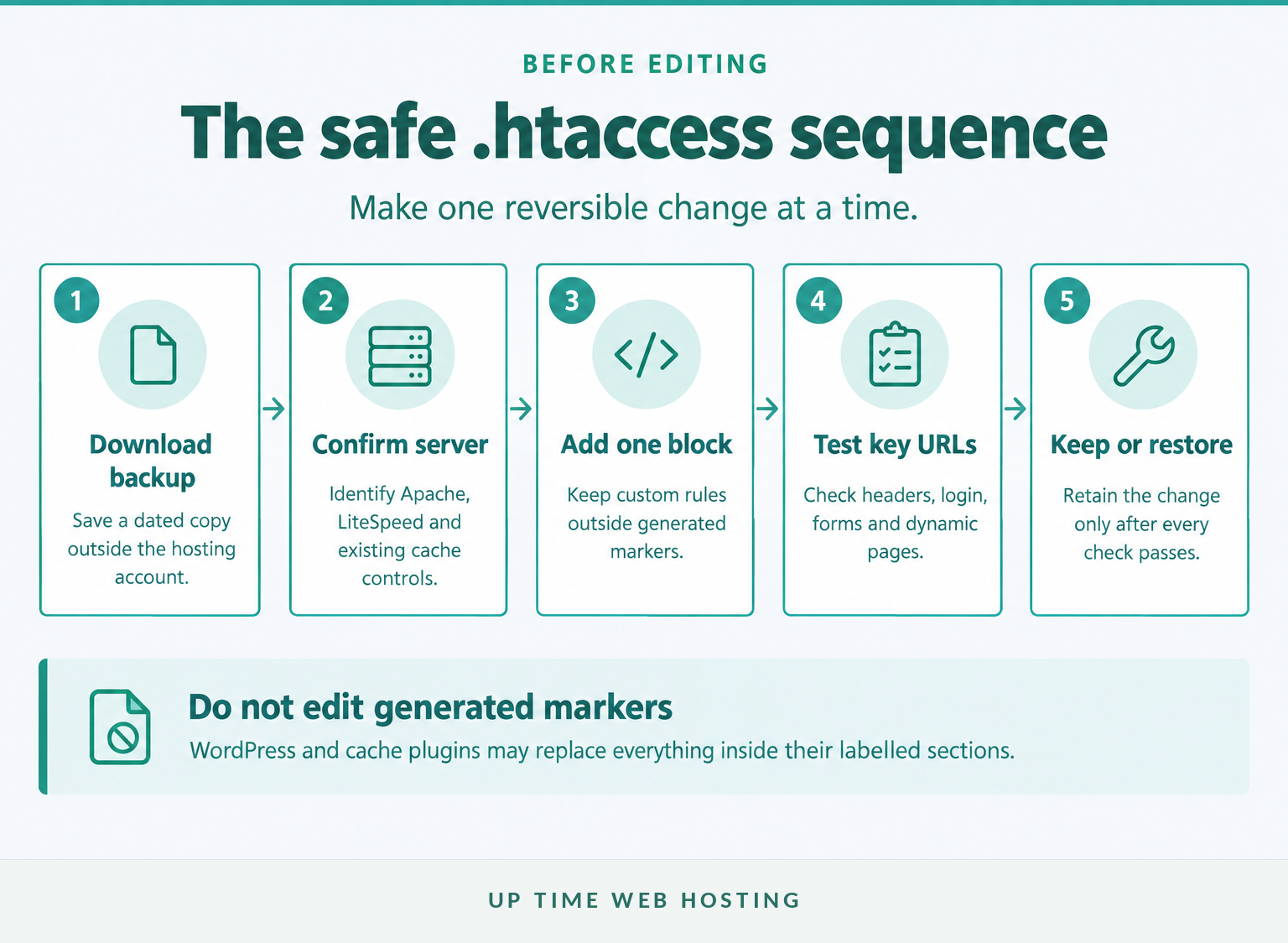
Confirm the document root, server type, existing cache layer and current response headers before making a change. Download the original file and keep a second way to reach the hosting account in case WordPress returns a 500 error.
- Find the correct document root. A primary cPanel domain often uses
public_html, but an addon domain may use another directory. The cPanel File Manager documentation explains how to enable Show Hidden Files (dotfiles) when.htaccessis not visible. (docs.cpanel.net) - Download the current file. Store a dated copy locally rather than relying only on an editor's undo function.
- Identify generated sections. WordPress replaces content inside its own markers when rewrite rules are regenerated. The official WordPress marker-writing function states that marked directives can be overwritten, while surrounding content is retained. (developer.wordpress.org)
- Preserve existing access controls. If the file already contains
Require, IP restrictions or other authorisation rules, treat them as one policy. The Apache 2.4 .htaccess access-control guide explains the current syntax and rollback precautions. - Record the baseline. Save the current
Cache-Control,Expires,Content-Encoding,Varyand server-cache headers before adding anything.
Put custom performance blocks above or below generated sections, not inside them. Use clear comments around each block so it can be removed without disturbing WordPress rewrites.
A backup is useful only when the rollback path can be used after WordPress stops loading.
Host your website with our 5-star rated, cPanel website hosting plans.
Super fast servers, with security included and hosted in your choice of Australian Data Center.
View cPanel Plans
Which browser-caching rules should you use?
Cache static assets long enough to reduce repeat downloads, but do not apply one long expiry time to every response. The following block uses cautious defaults for CSS, JavaScript, images and fonts while leaving HTML and other dynamic responses alone.
“`apache
BEGIN custom static-asset caching
ExpiresActive On
ExpiresByType text/css "access plus 1 month" ExpiresByType text/javascript "access plus 1 month" ExpiresByType application/javascript "access plus 1 month"
ExpiresByType image/avif "access plus 1 year" ExpiresByType image/webp "access plus 1 year" ExpiresByType image/jpeg "access plus 1 year" ExpiresByType image/png "access plus 1 year" ExpiresByType image/gif "access plus 1 year" ExpiresByType image/svg+xml "access plus 1 year" ExpiresByType image/x-icon "access plus 1 year"
ExpiresByType font/woff "access plus 1 year" ExpiresByType font/woff2 "access plus 1 year" ExpiresByType application/vnd.ms-fontobject "access plus 1 year"
END custom static-asset caching
“`
Apache's mod_expires documentation confirms that ExpiresByType can generate both an Expires header and a Cache-Control max-age value for matching MIME types. The HTTP caching standard defines max-age as the period before a stored response becomes stale. (httpd.apache.org)
The one-month and one-year periods are starting policies, not universal requirements. A site that changes unversioned CSS or JavaScript files in place may need shorter lifetimes. A build process that changes the asset URL whenever the content changes can safely use longer caching.
Do not add ExpiresDefault "access plus 1 year". That fallback can catch HTML, feeds, API output or other resources that need to change quickly. Explicit types are easier to audit.
Cache static assets for repeat visits, but keep WordPress HTML free to change.
Should you add GZIP or Brotli compression in .htaccess?
Add compression only when a real text response is currently uncompressed and the hosting provider allows the required module. Choose one example below, not both, and stop if the server already returns Content-Encoding: br or Content-Encoding: gzip.
Test the homepage first:
“bash curl -sS -D - -o /dev/null -H "Accept-Encoding: br,gzip" https://example.com/ “
If compression is missing and Apache has mod_brotli, this is the smaller option:
“`apache
BEGIN optional Brotli compression
AddOutputFilterByType BROTLI_COMPRESS text/html text/plain text/css
AddOutputFilterByType BROTLI_COMPRESS text/javascript application/javascript
AddOutputFilterByType BROTLI_COMPRESS application/json application/xml image/svg+xml
END optional Brotli compression
“`
If Brotli is unavailable but mod_deflate is loaded, use GZIP-compatible deflate instead:
“`apache
BEGIN optional GZIP compression
AddOutputFilterByType DEFLATE text/html text/plain text/css
AddOutputFilterByType DEFLATE text/javascript application/javascript
AddOutputFilterByType DEFLATE application/json application/xml image/svg+xml
END optional GZIP compression
“`
Apache documents the BROTLI_COMPRESS filter in its mod_brotli documentation and the DEFLATE filter in its mod_deflate documentation. Both are intended for compressible response types, not files such as JPEG, WebP, AVIF or WOFF2 that already use compression. (httpd.apache.org)
After the change, confirm that there is one Content-Encoding value and a suitable Vary: Accept-Encoding header. Duplicate or inconsistent values indicate that more than one layer may be altering the response.
Compression belongs in one verified layer, not in every layer that can add it.
What changes on LiteSpeed or managed WordPress hosting?
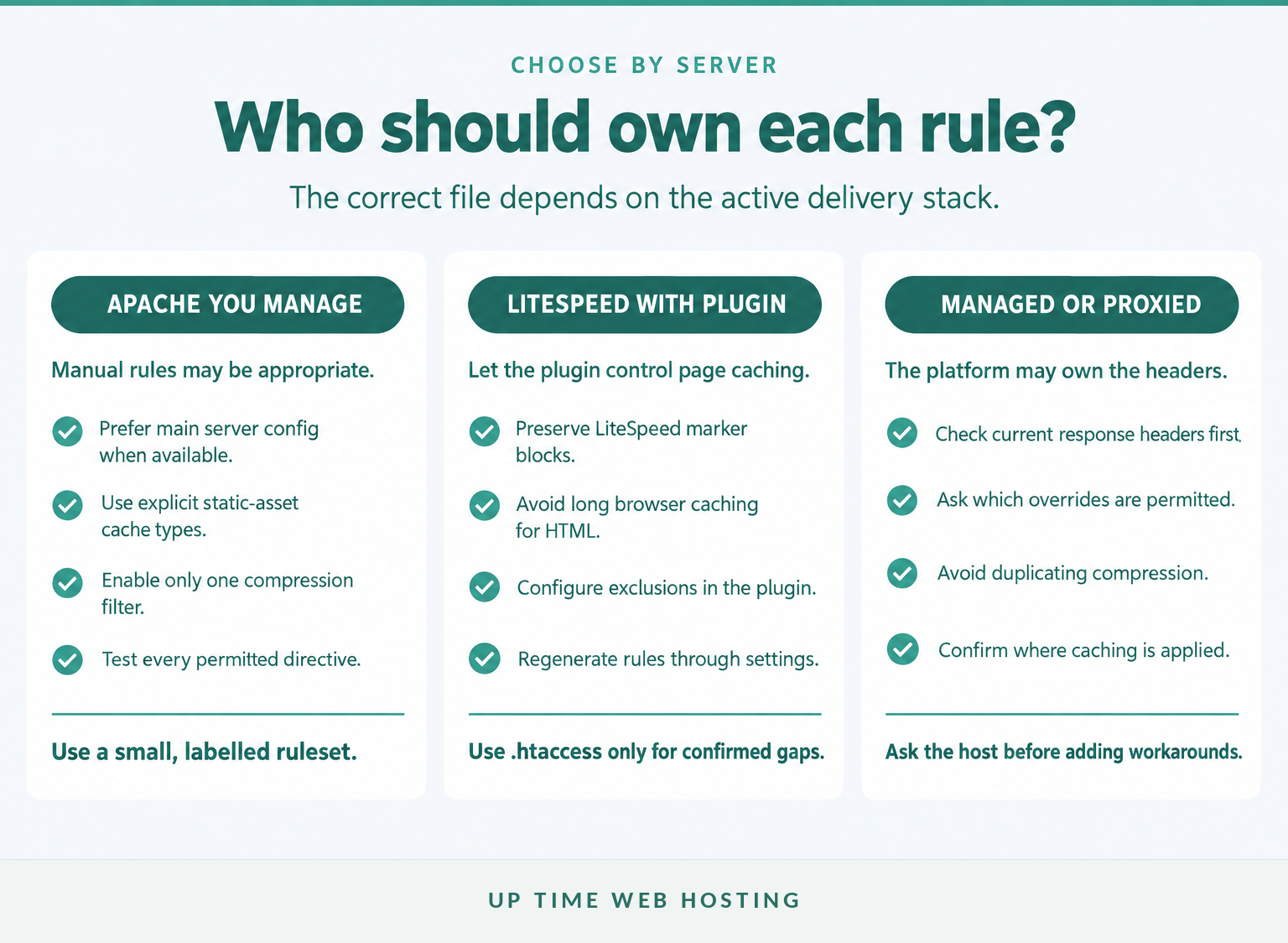
On LiteSpeed, let the cache plugin or hosting platform control page caching before adding manual rules. On managed hosting, a proxy, control panel or server configuration may already set compression and cache headers or may ignore unsupported .htaccess directives.
LiteSpeed's Cache toolbox documentation states that the WordPress plugin modifies .htaccess when certain settings change and can regenerate its entries when settings are saved again. Do not rewrite plugin-managed sections by hand unless support documentation specifically requires it. (docs.litespeedtech.com)
Long browser caching for HTML is particularly risky with LiteSpeed Cache. The official LiteSpeed troubleshooting guide warns that an ExpiresDefault rule or a non-zero ExpiresByType text/html rule can serve stale browser copies before a request reaches LiteSpeed's page cache and purge logic. (docs.litespeedtech.com)
Use the site's LiteSpeed Cache settings for cPanel for plugin-level caching, exclusions and purging. The guide to how LiteSpeed Web Server works explains where the web server fits into the wider WordPress delivery stack.
If a managed host already returns the desired headers, leave them alone. If a new directive has no effect, the provider may restrict it through AllowOverride, set the value in the virtual host, or replace it at another delivery layer. Ask the host before adding a second workaround.
On LiteSpeed or managed hosting, let the platform own page caching and use .htaccess only for confirmed gaps.
Register your new domain name at competitive market prices including free domain add-ons like privacy, DNS Hosting, Custom Nameservers and Forwarding.
Always the best price and no nasty renewal price hikes.
Register A Domain Name
Which security headers belong in the same file?
Security headers can share .htaccess, but they do not make WordPress load faster. Add each header for a defined security or privacy purpose, check whether another layer already sends it, and test scripts, forms and third-party integrations afterwards.
A modest starting block is:
“`apache
BEGIN basic response headers
Header always set X-Content-Type-Options “nosniff”
Header always set Referrer-Policy “strict-origin-when-cross-origin”
Add only after every required hostname works over HTTPS.
Header always set Strict-Transport-Security "max-age=31536000"
END basic response headers
“`
Apache's mod_headers documentation explains how Header always set works, including the risk of duplicate headers across different response tables. The Fetch Standard defines nosniff, while the Referrer Policy specification defines strict-origin-when-cross-origin. (httpd.apache.org)
Do not enable HSTS casually. The HSTS standard explains that browsers remember the policy for its max-age, and includeSubDomains also covers subdomains. Confirm certificates, redirects and all required hostnames before uncommenting it. (rfc-editor.org)
Do not copy a generic Content Security Policy into this file. A useful policy must reflect the site's actual scripts, styles, frames, forms and external services, and an unsuitable policy can block working page components.
Security headers can share the file, but they should never be presented as a speed fix.
How do you install and test the rules without breaking WordPress?
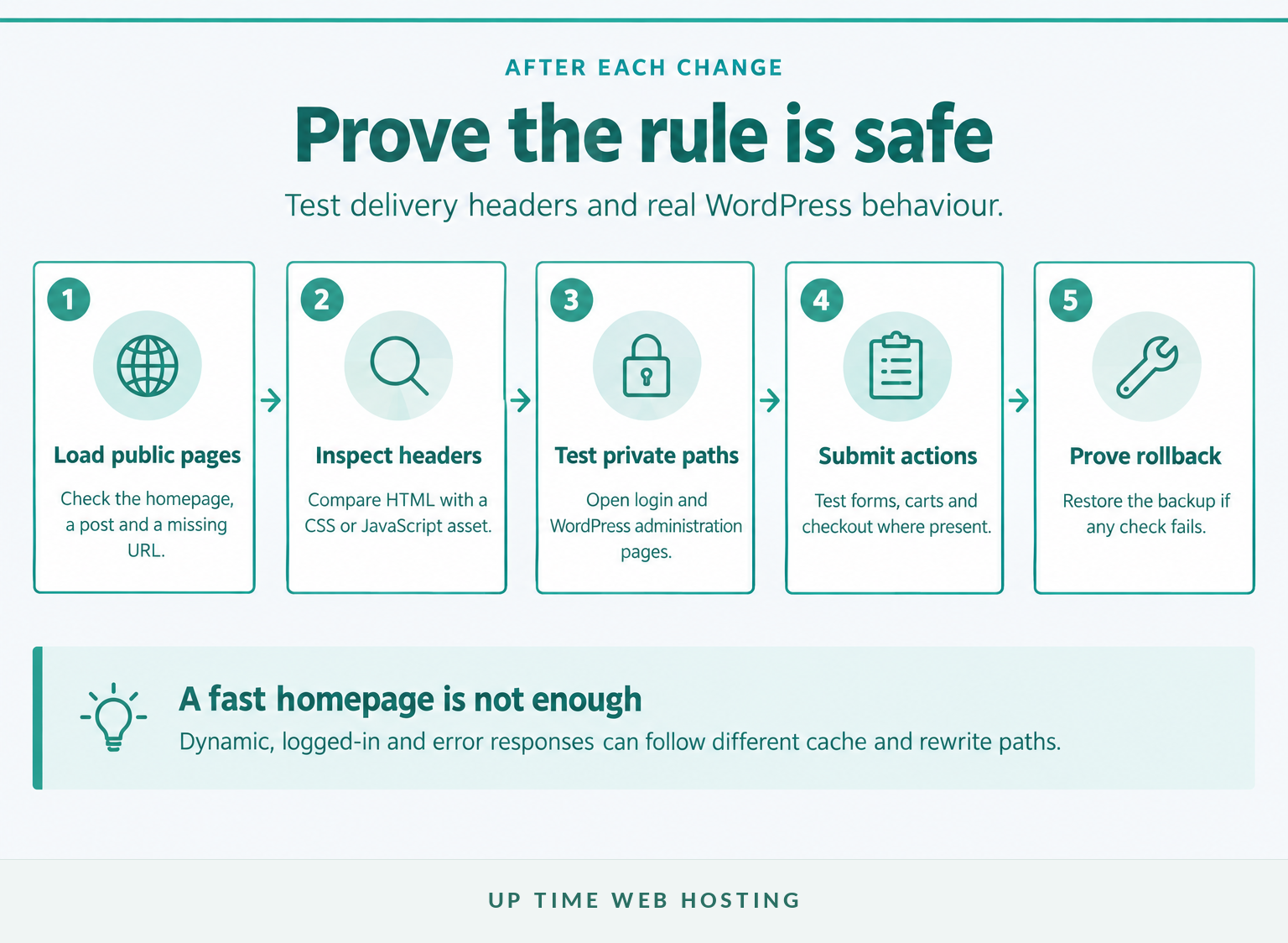
Install one labelled block at a time, clear the relevant caches, and test both headers and site behaviour before continuing. A successful homepage test is not enough because administration, login, forms, ecommerce and error pages can follow different paths.
- Upload or edit the file in the correct document root.
- Add only the caching block, compression block or header block being tested.
- Save the file and immediately load the homepage, a post and a known 404 URL.
- Clear the applicable WordPress, server and proxy caches.
- Inspect the headers for HTML and at least one CSS or JavaScript file.
- Test login, WordPress administration, contact forms and any cart or checkout flow.
Use a static asset URL in the second command:
“bash curl -sS -D - -o /dev/null -H "Accept-Encoding: br,gzip" https://example.com/ curl -sS -D - -o /dev/null https://example.com/wp-content/themes/your-theme/style.css “
The checks should show:
- HTML does not receive an unintended long
max-age. - A matching static asset receives the intended
Cache-ControlorExpiresvalue. - Compressible text receives no more than one
Content-Encodingvalue. - Logged-in, form and ecommerce behaviour remains current.
- Redirects, permalinks, sitemaps and API requests still work.
If the site returns a 500 error, restore the downloaded file through File Manager or FTP before trying to diagnose the rejected directive. If only permalinks fail, compare the WordPress block with the official rules and visit the Permalinks screen. The WordPress Permalinks documentation explains when WordPress can update .htaccess automatically and when the rules must be copied manually. (wordpress.org)
Record the final rule, test date and rollback file as part of ongoing WordPress maintenance. The next plugin, theme, server or cache change can alter the result even when the .htaccess file itself remains unchanged.
A change is safe only after the headers, key pages and rollback path have all been tested.
Experience Microsoft 365 Business Standard for free for 30 days.
Up to 25 users with full access to email, OneDrive and Teams. Includes full versions of desktop apps of Outlook, Word, Excel, PowerPoint and more.
Try Microsoft 365
What should you remove from a perfect .htaccess file?
Remove directives that the server cannot accept, duplicate controls owned by another layer, and broad policies whose effect has not been tested. A long file is not a faster file, and a copied rule can produce errors, stale content or unnecessary request processing.
Watch for these common problems:
KeepAlive Oninside.htaccess: Apache permitsKeepAliveonly in server or virtual-host configuration, not in.htaccess. See the Apache KeepAlive documentation. (httpd.apache.org)- A long
ExpiresDefault: it can cache response types that were never meant to receive the same policy. CacheEnable public /copied onto LiteSpeed: LiteSpeed's cache configuration documentation warns that enabling public cache for the whole root can include URLs that need exclusions; the WordPress plugin should normally manage this logic. (docs.litespeedtech.com)- Removing ETags without evidence: Apache states that ETags are used in cache management to save bandwidth. Review the Apache FileETag documentation before disabling them. (httpd.apache.org)
- Wildcard CORS rules: CORS is an access policy, not a speed setting, and broad origins can expose resources in ways the application did not intend.
- Large security rule collections: bot blocks, hotlink rules and application firewalls may be useful, but they need their own compatibility testing and should not be sold as caching improvements.
A copied rule that the server does not support is a risk, not an optimisation.
What else do people ask about WordPress .htaccess?
These questions cover the practical issues that arise most often after someone finds a reusable .htaccess file online. Each answer assumes that the live hosting stack still needs to be checked before any rule is applied.
Does .htaccess make WordPress faster?
Yes, .htaccess can reduce transferred bytes and repeat downloads by enabling compression and browser caching on compatible servers. It does not fix slow PHP, database queries, large images, excessive JavaScript or poor hosting. Treat it as one server-delivery layer, then measure the whole page before and after the change.
Where is the WordPress .htaccess file?
On a typical cPanel WordPress installation, .htaccess is in the site's document root, often public_html for the primary domain. The file is hidden because its name begins with a full stop. In cPanel File Manager, enable Show Hidden Files, then confirm the folder also contains the relevant WordPress index.php file.
Can I use these rules on LiteSpeed?
LiteSpeed understands many Apache-style .htaccess directives, but LiteSpeed Cache for WordPress also writes and manages its own rules. Do not overwrite its marked sections or add long browser caching for HTML. Configure page caching through the plugin or host, then use .htaccess only for verified gaps such as static-asset headers.
Why did editing .htaccess cause a 500 error?
A 500 error after editing .htaccess usually means the server rejected a directive, module, context or piece of syntax. Restore the backup immediately, then add blocks one at a time. Wrapping optional module rules in matching <IfModule> containers can prevent some failures, but it does not make an unsuitable rule safe.
Should I cache HTML pages in .htaccess?
Do not give WordPress HTML a long browser-cache lifetime unless a tested system controls invalidation. Dynamic pages can change after edits, logins, stock updates or form activity. LiteSpeed's documentation specifically warns that long HTML expiry rules can serve stale pages before the request reaches its page cache and purge logic.
The safest answer to common .htaccess questions is to change only what the active server stack needs.
What should you do next?
Start with a staging copy, record the current headers, add the smallest relevant block and complete the page tests before considering a live change. If a business site needs backups, performance tracking and update testing handled on an ongoing basis, ask Up Time Web Hosting about Managed WordPress Maintenance.
The next safe action is to test the smallest useful block on staging before touching the live site.